 The Manual
Read, annotate and download the current edition.
Training
Reference
Open the designer
The Manual
Read, annotate and download the current edition.
Training
Reference
Open the designer
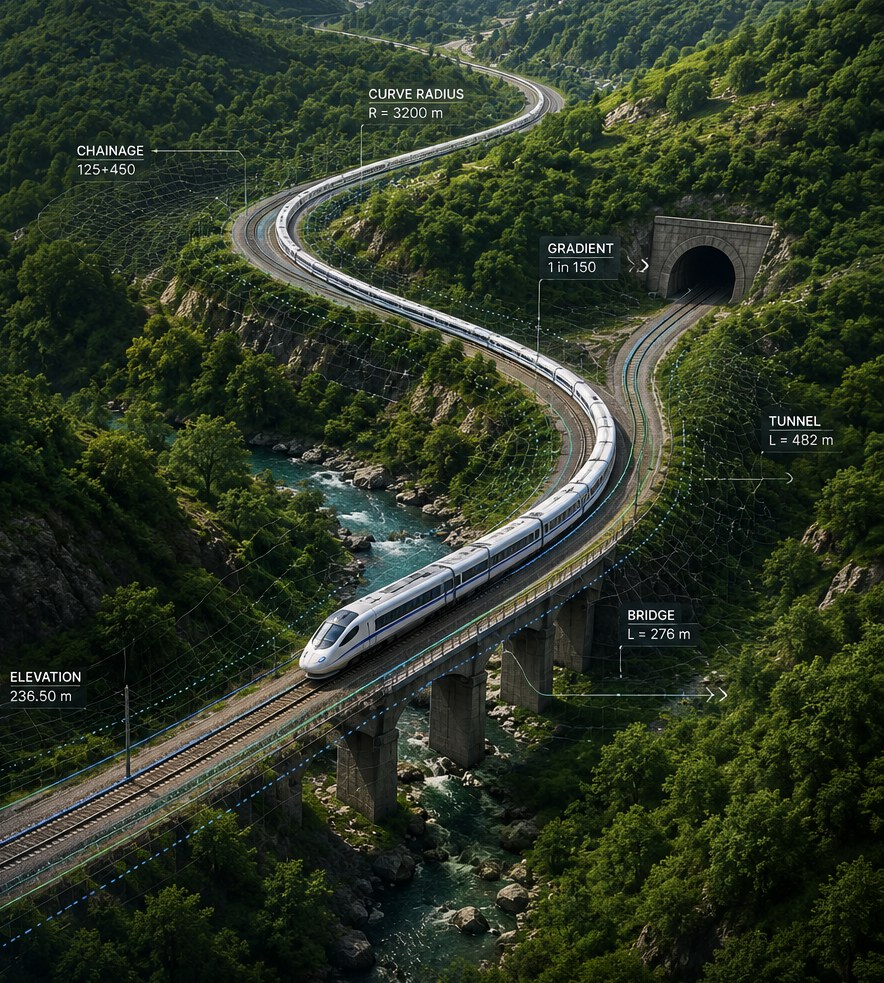

Laying out a railway in plan and profile, routing a corridor over real terrain, checking it against the governing standard, pricing it on the plan heads, and getting drawings and schedules out of it — the complete process, the reference behind it, and the limits of what it may be asked to do.
This is the working document for an engineer who has to produce an alignment and then defend it. It follows the same order the software does: what it is, how to run it, how a design is made, what is checked, what comes out, and what none of it is entitled to claim.
Permanent-way and civil engineers doing reconnaissance, feasibility and preliminary location work; the people who review that work; and anybody deploying or maintaining the software. No programming is needed for Parts I and II. Part III assumes you are comfortable with a terminal for the deployment and database chapters, and nothing more.
| Design a route | Bold names a control on the screen — a button, a tab, a field. |
| Ctrl+K | A key or chord. On macOS read Ctrl as ⌘. |
js/core/cant.js | A file, a value, a code, or something typed literally. |
| R_MIN | A compliance code, as it appears in the report and the exported CSV. |
| 12+530 | A chainage: 12 km and 530 m from the adopted chainage datum; the project can start at a nonzero chainage. |
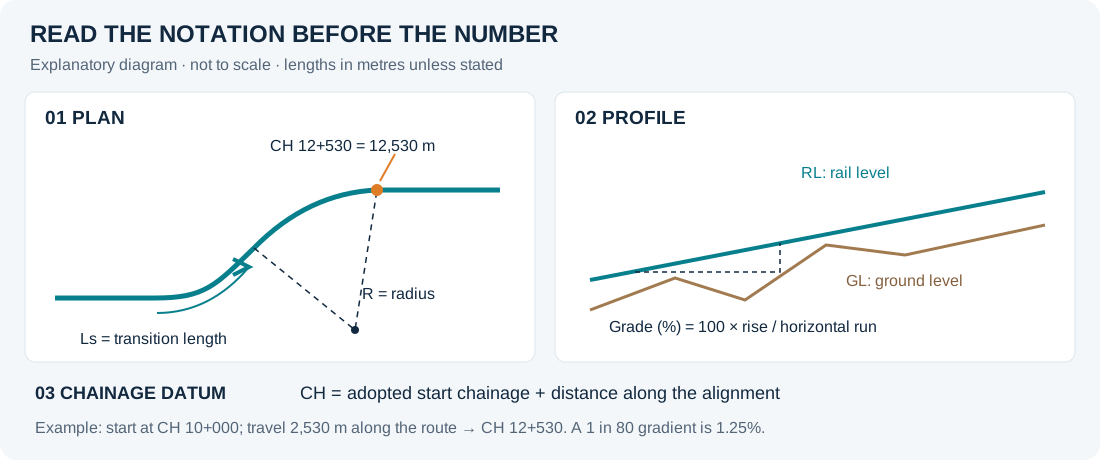
Blue is information worth keeping in mind. Amber marks a place where the tool will let you do something that needs judgement. Red marks a claim that must not be made from this software's output alone. Green marks a check that has actually passed.
The setting is yours; the note tells you what it costs.
Field verification, survey, or a governing code of practice is required here.
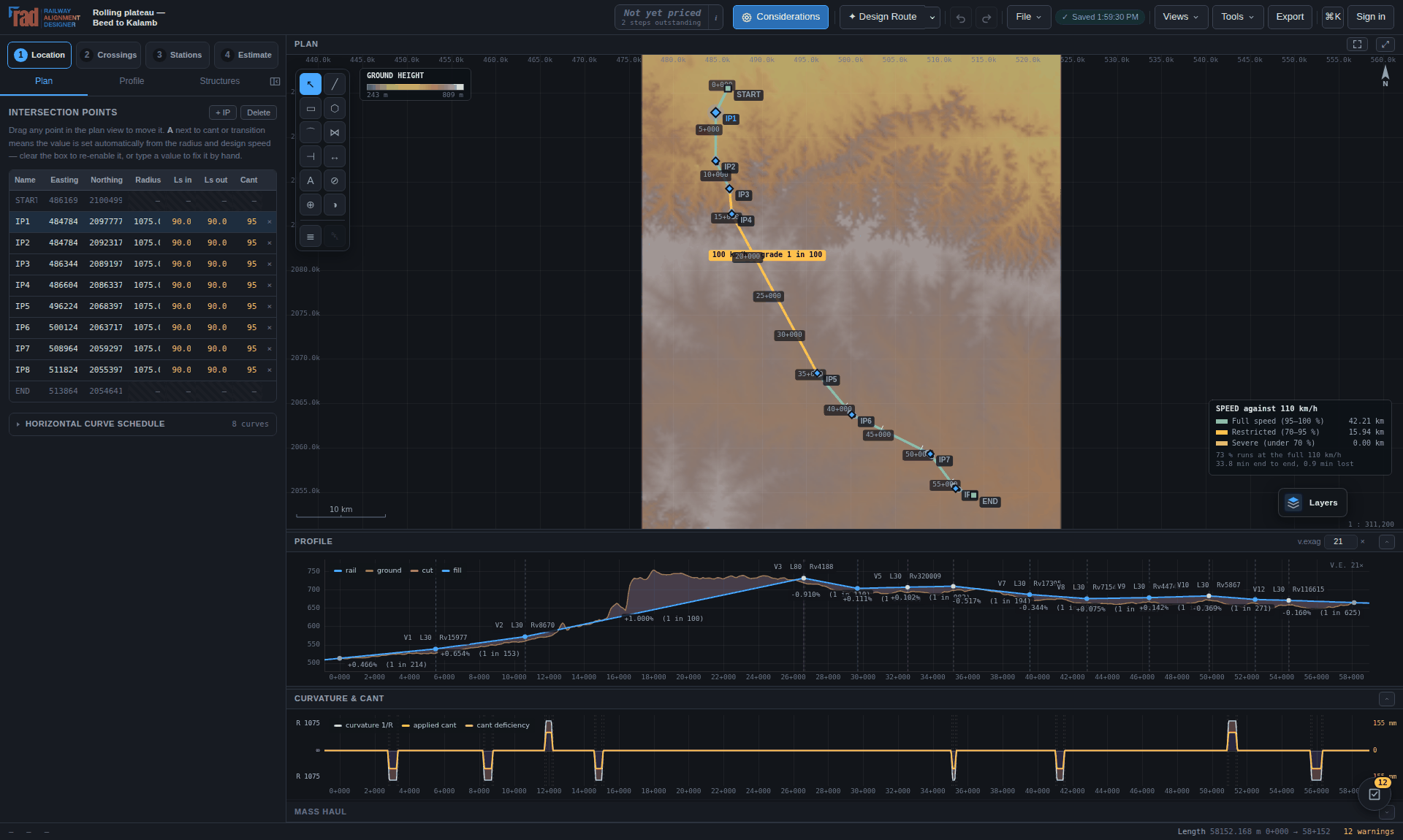
Screenshots are captured from the running application. The alignment figures use the worked example in Appendix C, a corridor across the Maharashtra plateau. The current workspace, detailed-estimate and bridge figures use demonstration projects to show their controls; their quantities and dimensions are examples, not approved designs. Older engineering-view figures are retained where they explain the same operation, although their surrounding toolbar can differ. Where map or corridor services were unavailable, the caption says so.
Choose Preview PDF here or on the Reference page to prepare this edition locally with searchable text, tables, figures and notation pins on A4 pages. The preview lets you annotate or download the PDF; Edit PDF opens the dedicated PDF Studio. For a physical copy, the browser’s Print command remains available with A4 and background graphics enabled. This HTML page is the maintained source; no separate, older PDF is downloaded. On the configured website, reading the manual and downloading its PDF require sign-in. An already downloaded PDF can be read without a connection.
The software prices work in Indian Railways plan heads and defaults to Indian Railways broad gauge, and this manual follows it there. The geometry, compliance, terrain and export engines are gauge- and standard-neutral; five other standard presets ship with it.
1.1 The front door · 2.1 The Reference page · 2.2 The opening question · 2.3 Choose a save destination · 3.1 The grouped workspace · 3.2 Nothing loaded · 4.1 The stage model · 4.2 The gate · 5.1 The process, end to end · 6.1 Design a route · 6.2 The Structures tab · 6.3 Inside the corridor search · 6.4 The router at work · 6.5 The run report · 6.6 Compare · 7.1 Multiple tracking · 8.1 The curve schedule · 8.2 The profile · 8.3 Structures · 8.4 The Inclusion tab · 9.1 Anatomy of a curve · 9.2 Cant, deficiency and excess · 9.3 Anatomy of a vertical curve · 9.4 Colour by permitted speed · 10.1 A design that does not comply · 10.2 A finding, explained · 10.3 The repair loop · 10.4 The same panel on a design that passes · 11.1 The crossing schedule · 11.2 The corridor features panel · 11.3 The over-or-under decision · 11.4 Sizing a waterway · 11.5 Editing a bridge · 11.6 A1 GAD preview · 12.1 The station stage · 12.2 A station, in detail · 12.3 The throat is a ladder · 13.1 The abstract of cost, withholding a total · 13.2 The general abstract · 13.3 Detailed estimate summary · 13.4 Measurement book · 14.1 The workbench · 14.2 Cross-sections · 14.3 Haul and borrow · 15.1 Cab · 15.2 Chase · 15.3 Orbit · 15.4 Project sheets · 16.1 Export deliverables · 16.2 Project presentation in progress · 16.3 Document layouts · 16.4 Tender export preparation · 16.5 CAD drafting · 16.6 Drawing import report · 16.7 Railway component library · 16.8 The draft report · 17.1 The profile page · 18.1 The command palette · 20.1 The Design Limits tab · 20.2 The considerations console · 22.1 The module map · 22.2 How a route becomes a drawing
Four short chapters that put the tool in front of you: what it claims, how to start it, what every part of the screen is for, and the one structural idea — stages — that the rest of the manual is organised around.
A track alignment design workspace that runs in a browser, with no installation — and a deliberate account of what it will not claim.
Railway Alignment Designer lays out a railway in plan and profile, works the cant and transition lengths out from the design speed, checks the result against the governing standard, and produces setting-out tables, drawings and schedules. Given two points on a map it will fetch the terrain, search a corridor, fit geometry to it, fit a grade line to the ground, propose the structures the profile implies, price the lot on the Indian Railways plan heads, and tell you every place the design departs from the standard and what to do about each one.
On a 50 km corridor that whole pass takes about ten seconds in the browser. The worked example this manual is illustrated from — 58 km across the Maharashtra plateau — designs, repairs and checks itself in under a minute on an ordinary laptop.
A traceable first pass and preliminary design, checked against the configured limits: corridor feasibility, comparative alignments, quantities and a preliminary abstract of cost, with production-format drawings and schedules to hand on. It is an engineering accelerator.
It is not a replacement for field verification. The terrain is satellite radar data at roughly 30 m horizontal and ±16 m vertical; the corridor features are contributed map data; generated allowances and sourced or analysed rates must be checked for the project. Nothing it produces is a construction level, a schedule of acquisition, or a certified compliance opinion.
| Principle | What it means in practice |
|---|---|
| Calculations stay in the application | The geometry, quantity engines and
.xlsx writer are part of the project. React supplies panels and Three.js supplies
Cab ride 2 and bridge visualisation; Vite builds the interface for deployment. Using the
hosted app requires no desktop installation. |
| The engine is testable | Everything under js/core/ is free of the DOM and
loads under Node, so geometry and calculation regressions can be checked without a browser. |
| It suggests, it does not choose | Where a setting is a judgement — terrain detail, which side of an existing formation, a cost surface — the tool ranks the options, marks the one it would pick, and then does exactly what you asked. |
| Nothing is silently coarsened | The grid you press is the grid the design is built on. The severity you set is the severity applied. A rule you turned off is listed above the report and in the footer of the exported CSV. |
| Uncertainty is a quantity | Not a disclaimer. Provenance is reported as a vertical σ per reach; cost risk as P50/P80/P95 with a tornado of drivers; terrain grid choice widens the quantity uncertainty that follows from it. |
IP polyline with a radius and two — optionally asymmetric — transition lengths per intersection point, solved into a continuous chain of straights, clothoids and arcs. VIPs joined by constant grades with equal-tangent parabolic vertical curves. Cant, deficiency and excess for the fast and slow traffic you nominate.
Public SRTM-derived terrain anywhere in the world at 200/120/60/30 m, cross-sections cut on the normal with benching and berms, geology as reaches, provenance by source, mass haul, and the land boundary offset from the toe of the earthwork.
Roads, railways, watercourses, power lines and pipelines from OpenStreetMap; the crossing schedule and its over/under decision; catchment by D8 flow accumulation, Dickens discharge, Lacey waterway and the Bridge Manual class.
Running-time simulation with a Davis resistance, traction energy and carbon, the abstract of cost on IR plan heads, whole-life cost with sensitivity, cost risk with a tornado, and the speed–cost frontier.
5 km plan-and-profile sheet packages, station yard conceptual plans, LandXML 1.2, a multi-sheet workbook, Google Earth models and every schedule as CSV.
A project hub with revision history, sharing by email address, comments anchored to a place in the design, a three-altitude diff, and variants inside one project.
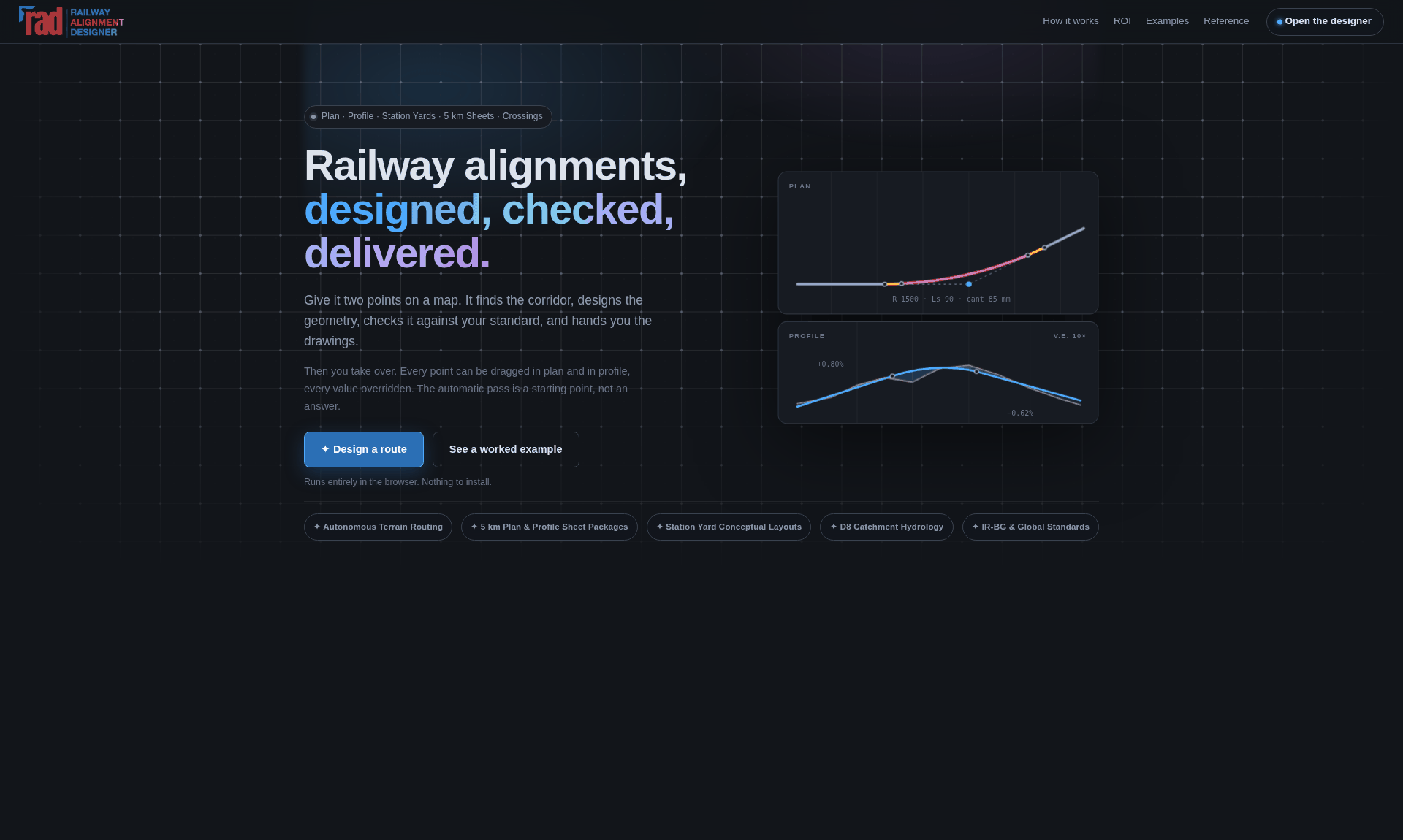
index.html is the public page; the
workspace itself is app.html, and help.html carries a short reference
that this manual is the long form of.The dividing line runs through the whole application and it is worth stating once. The tool decides arithmetic: what the cant should be for that radius and speed, whether 6.25 m of clearance exists, how much earth is in that cutting, what a 1 in 8.5 turnout does to the fouling mark. The engineer decides engineering: where the line should go, what speed the line is for, which side of the existing formation to build on, whether a warning is acceptable on this project, and whether any of it is true on the ground.
A program that quietly coarsened a setting on the engineer's behalf would be lying about what it had designed.
Open www.radrailway.com in a browser, or use the Pro desktop edition for Windows and macOS with native project files.
The workspace is a web application. Open www.radrailway.com in a browser and it is running: no download, no installer, no licence file, no plug-in, and nothing to keep updated — new releases are delivered by the site. Close older application tabs to let a waiting update activate.
Go to www.radrailway.com, sign in, and press Design a route. Everything in Part II of this manual happens in that one browser tab.
Open the website's Free & Pro section and sign in with an active Pro account to request a Windows or macOS installer. Installer delivery checks the account's Pro entitlement; a visible download button by itself does not grant access. Choose the Mac build matching your processor when architecture choices are offered.
Install and open RAD, then use Open and Save for native .rads projects.
The Windows installer and Mac application associate the project extension with the RAD logo; the
portable Windows package does not install file associations. File icons are an operating-system
association: a copied project cannot force its icon on a computer without RAD installed, and
another application selected as the default can override that association.
Use Ctrl on Windows and ⌘ on macOS for the native file shortcuts. Internet services such as account verification, maps and live terrain still require connectivity. The desktop window does not turn absent online survey data into an offline dataset.
The application keeps a complete version of its interface for offline use; a new version waits for the previous version's tabs to close before taking over. Terrain tiles are cached separately in the browser. A web app manifest is included, so the workspace can be installed to a desktop or a phone home screen and opened without browser furniture.
Before leaving the network, sign in, open the project and let the required resources load.
Save a local .rads with terrain and OSM for the work you need. Test reopening it
offline in that browser. New place searches, uncached terrain or basemap tiles, fresh corridor
queries and cloud saving need a connection. The rate catalogue is an offline application asset
once the app's resources have loaded; selected rates also travel inside the project.
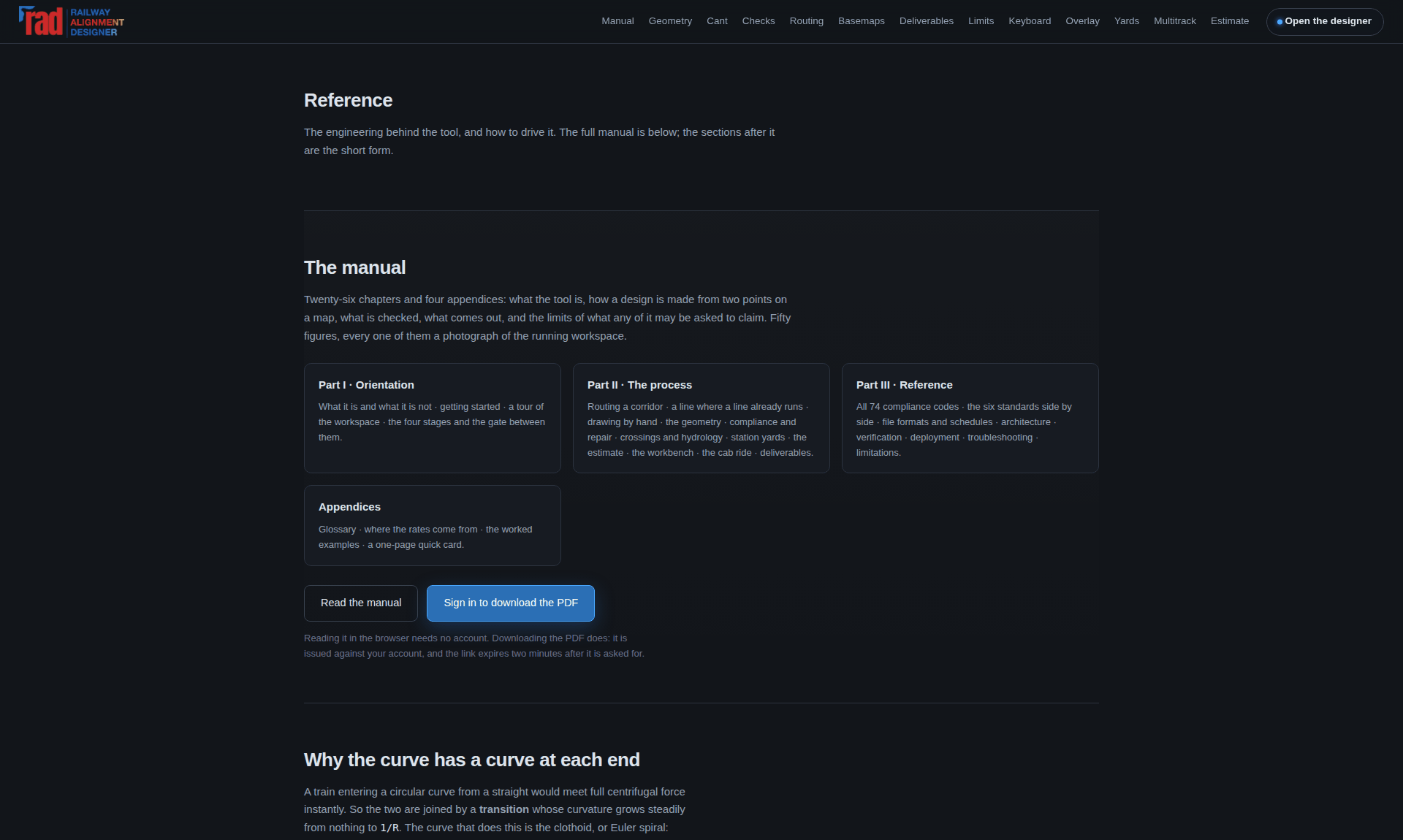
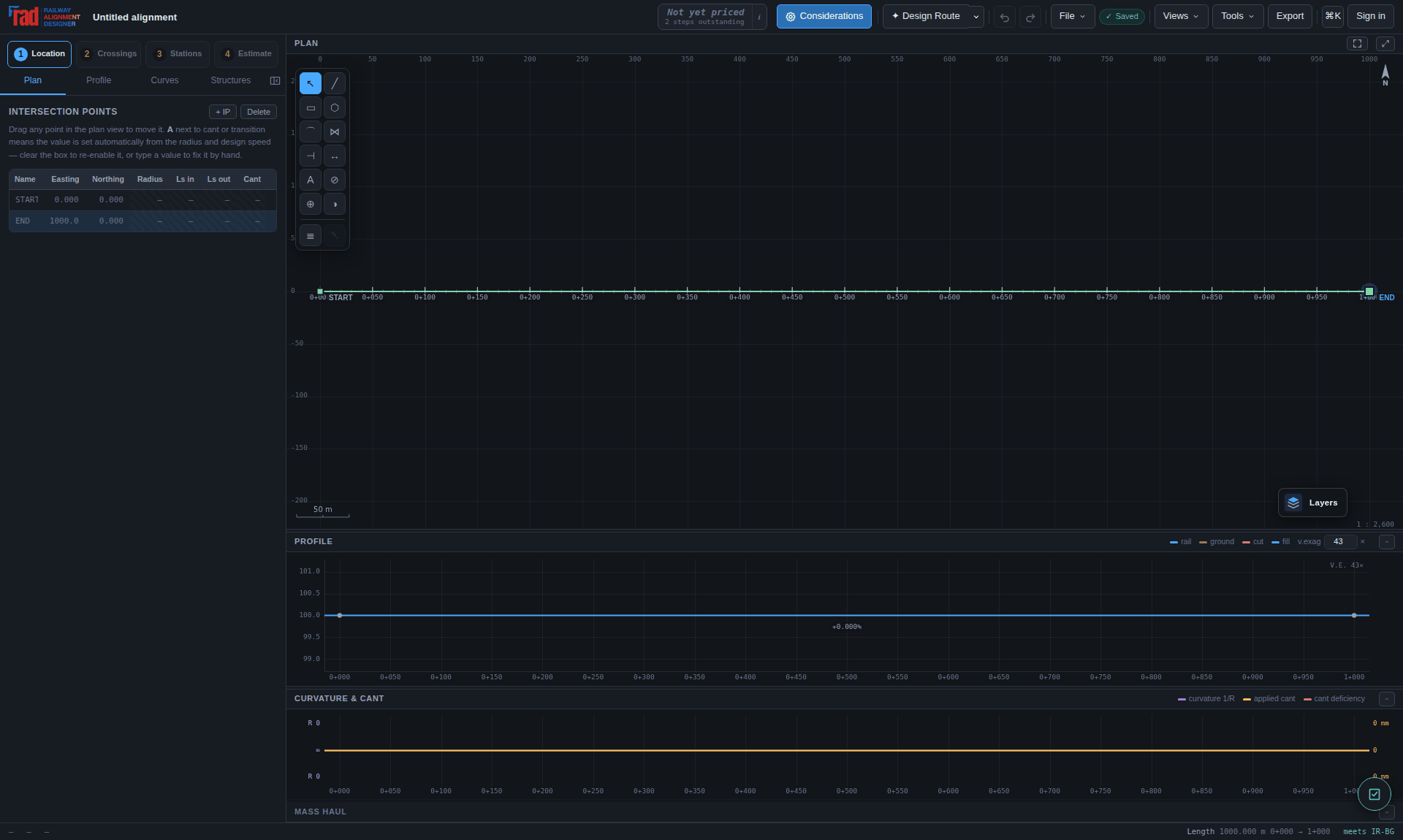
The workspace opens empty — a single straight kilometre, because the geometry solver needs two points to have a line at all. Then two gates, in order.
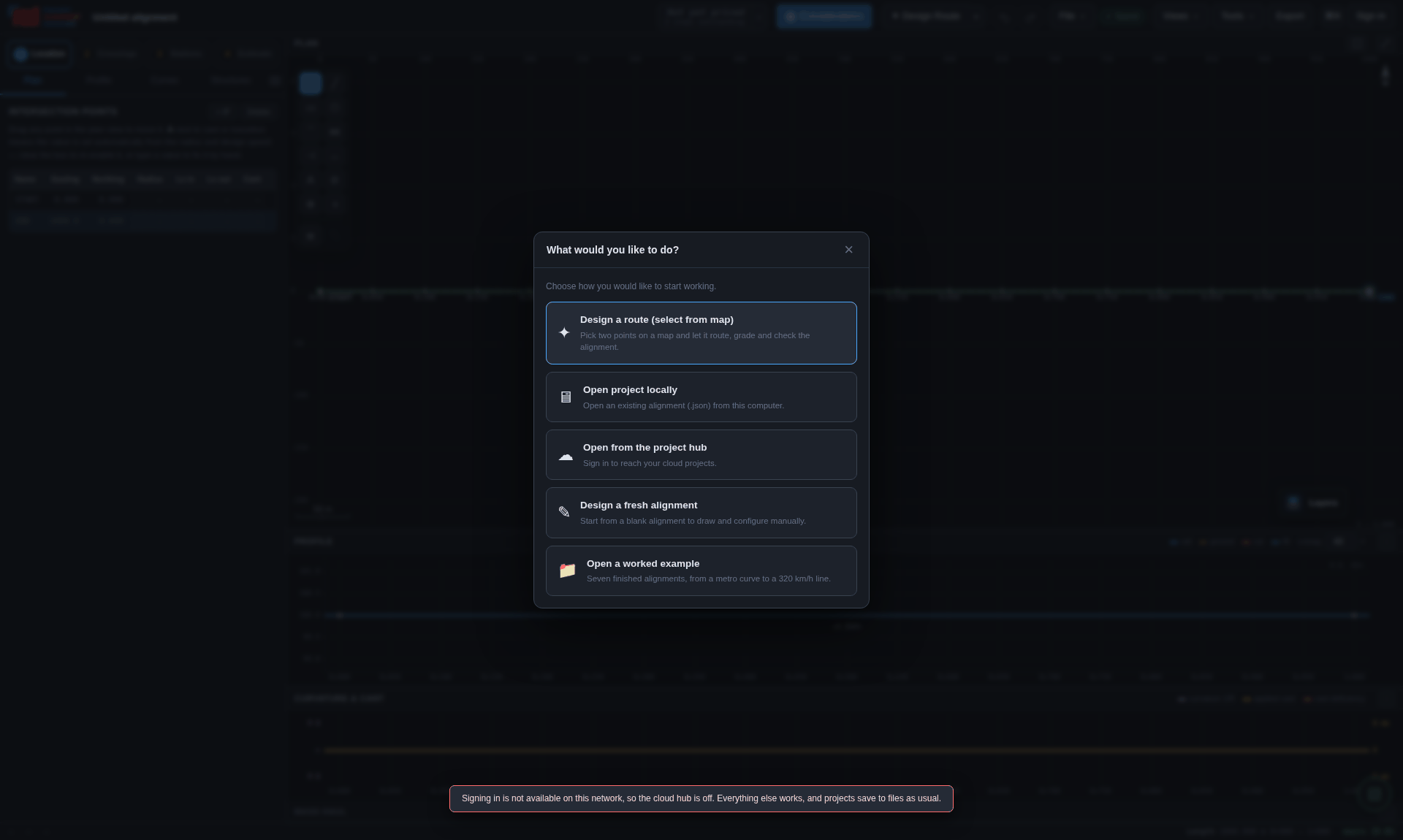
A project lives in one of two places — a file on this computer, or the project hub behind the sign-in — and which one is asked once, the first time it is saved. After that Save puts it back where it came from.
| Target | Behaviour |
|---|---|
| A file on disk | One Name.rads contains the design, available terrain,
compact OSM survey, imported surveys, saved bridge designs and estimate inputs. In browsers
with file-handle support, choose its location once and Save writes back to it. |
| A download | Browsers without file-handle support download one .rads
per explicit save. Keep the newest copy; a download does not overwrite the original. |
| The project hub | The cloud keeps the design and its compact OSM survey, so reopening a saved corridor restores its features without another Overpass lookup. The DEM grid is omitted and its terrain tiles are fetched again. Imported survey surfaces and the saved ground profile are retained. The hub also keeps revision history and sharing. See Chapter 17. |
| Nowhere yet | Autosave keeps a draft in the browser and offers it back on the next visit. Signing out clears it, because a draft left behind would be offered by name to whoever opened the application next. |
Older .json projects and .rads/.radsupport pairs still
open. Select or drop both legacy files together if you have them. Saving next time embeds the
available data in one .rads. An old cloud save that omitted OSM needs one lookup;
let it finish and explicitly save the project so later openings retain that extract. An old
survey already removed from cloud storage cannot be recovered merely by opening the new app.

.rads. This is the chooser before a
write; the main save indicator confirms completion.Autosave protects every committed edit in separate browser recovery storage and never changes the original file or cloud project. Normal refresh restores that working copy, still marked unsaved until you explicitly save. In Chrome, hard refresh opens an empty workspace; Recover unsaved draft restores the separate checkpoint if wanted. Refresh does not recalculate original ground. IP geometry edits update only the affected sections and retain unchanged ground at its adjusted chainages. Ctrl+S saves, Ctrl+O opens. Recovery protects the working copy; it does not replace an explicit file or cloud save. Unapplied bridge or estimate drafts must first be applied to join that project recovery copy.
Cloud projects have addresses: app.html?project=<id>. A link is an explicit
request for a particular project and beats both the recovered draft and the opening question —
but never the sign-in gate, because the link says what to open, not who is allowed to open it. A
project shared with you rather than owned by you opens read-only, and saving makes a project of
your own.
One window, six task groups, four engineering stages and linked plan/profile views. Choose the task first, then the command; the design remains in view.
The small activity strip at the bottom left reports the operation currently in progress. A percentage is shown when the operation reports measurable progress; an animated bar means work is continuing without a known total. Figure 16.2 shows the strip during a project export. When more than one operation is active, the indicator keeps the running work visible. Read the named task before repeating a long-running command.
Completion or an error updates the activity state. If the task reports a service failure, follow the displayed recovery action and retain the saved project. A progress indication is not proof that remote map or terrain data has already arrived.
The header separates task groups from the four engineering stages. Select Data, Alignment, Structures, Stations, Review or Output to reveal that group's commands. Selecting a group changes the toolbar only; it does not alter the design or pass a stage gate. A command that needs a later stage opens its prerequisite checklist before proceeding.
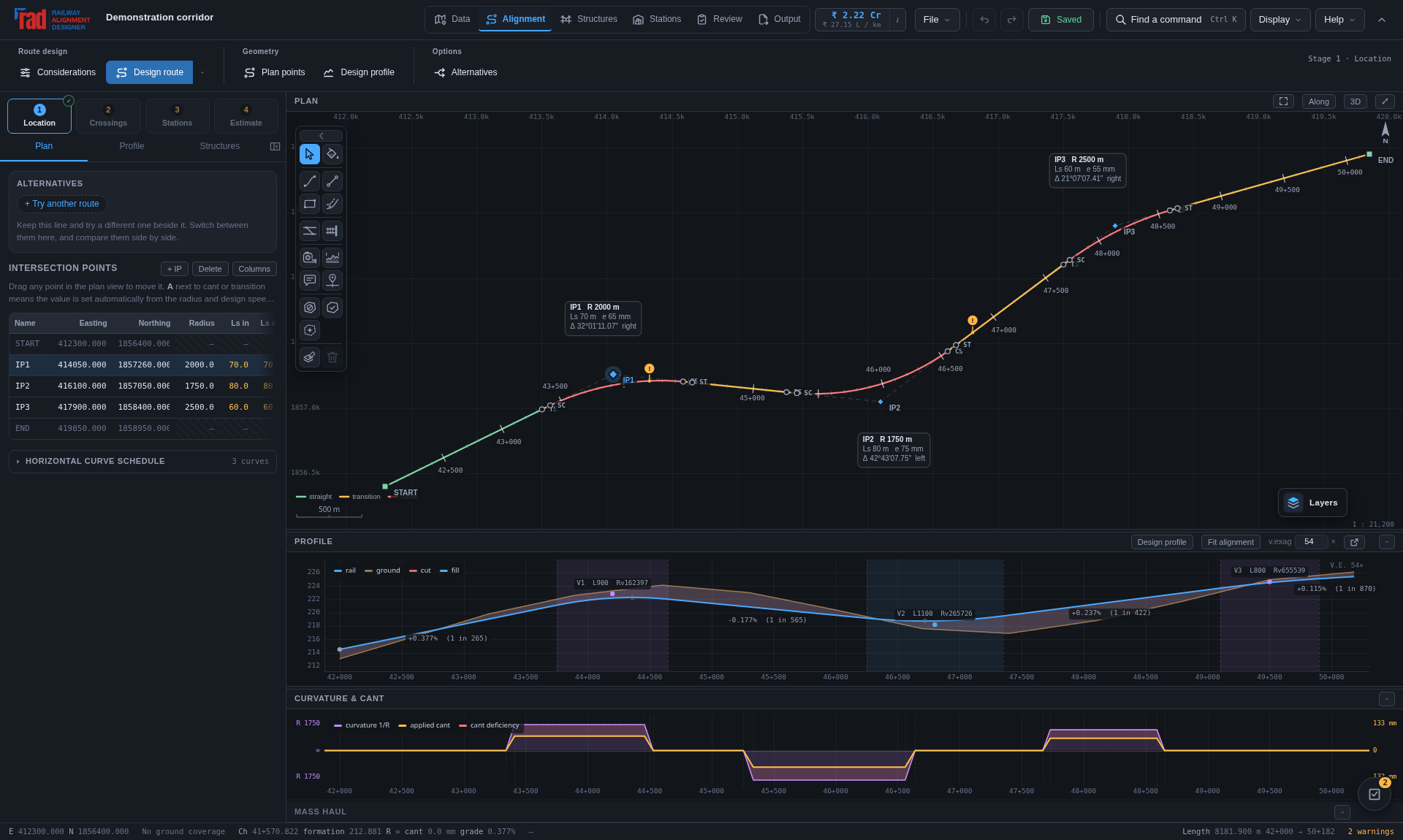
| Task group | Use it for |
|---|---|
| Data | Start from a survey, import survey or KML/KMZ, inspect corridor features, and look up missing map layers. |
| Alignment | Considerations, route design and redesign, plan points, profile design and alternatives. |
| Structures | Crossings, waterway sizing, hydrology reports, the bridge selector and Workspace, New bridge, and structure settings. |
| Stations | Station schedule, add or suggest stations, justification, the selected station's yard workspace and station settings. |
| Review | Compliance, cross-sections, comparisons, 3D & cab rides, Workbench, Project centre and Ask. |
| Output | Project sheets, deliverable exports, estimate schedule, Detailed estimate, unit rates and estimate CSV. |
The arrow beside the groups folds the command row; selecting a group opens it again. On compact screens the tabs can show icons: hover or focus them for their names. Arrow keys, Home and End move between the group tabs. File, undo/redo, Find a command, Display, Help, the save/status button and account remain in the header. Use Display for theme and the second-screen profile; use Help for onboarding and the guide. Ctrl+K finds a command without hunting through the groups.
The plan, the profile and the curvature-and-cant diagram are three projections of one object and they stay registered with each other. Zooming the chainage in the profile zooms the curvature diagram with it; the plan keeps its own transform because it is the only one of the three in two spatial dimensions.
| View | Shows | Interaction |
|---|---|---|
| Plan | Centre line coloured by element type, radius, cant, cant deficiency or permitted speed. IP legs, tangent points, chainage ticks, curve annotations, land boundary, structures, existing yards, and a basemap or terrain tint underneath. | Drag a point to reshape. Wheel to zoom, drag the background to pan. Double-click empty space to insert an IP. Right-click for the point menu; right-drag or Ctrl-click to select a group. Shift+F for full screen. |
| Profile | Rail level, existing ground, cut and fill shading, grades with their 1-in-N equivalents, vertical curves with BVC/EVC and turning points. | Drag VIPs to reshape, holding Shift to change the level without the chainage. Double-click empty space to insert a grade break there, a VIP to type its level, or a gradient's label to type the gradient as 1 in n. Right-click, right-drag and Ctrl-click as in the plan, and Regrade to the ground on the menu of a VIP or a selection. Wheel zooms the chainage; Shift+wheel changes the vertical exaggeration. |
| Curvature & cant |
Curvature 1/R and applied cant on a shared chainage axis, with cant deficiency shaded against the equilibrium cant. | Wheel to zoom. Stays registered with the profile. |
Curvature and cant should be the same shape: both ramp up through the entry transition, hold through the arc, and ramp down through the exit. Where the shaded band is widest, the cant is furthest from what the speed wants — which is where the passenger feels it and where the CD_MAX check will fire first.
[, or the button at the end of the tab strip, folds the side panel down to its icons and gives the width to the views; any icon opens it again on that table. Shift+F gives the plan the whole window, using the browser's full-screen mode where it is allowed and filling the window where it is not, so it works inside an embedded frame too. Esc returns.
One project, one model, one undo stack — and four workspaces over it, because the four questions want different tools and must not be answered in the wrong order.
Inside stage 2 the plan and profile carry a LOCKED badge and the handles stop dragging. That is not decoration: it is what stops a crossing schedule being invalidated by somebody nudging an intersection point. Every over-or-under decision in the schedule is a comparison of rail level against ground level at a particular place, and moving the line moves all of them. Going back to Location is therefore a deliberate act, and the schedule is recomputed when you return.
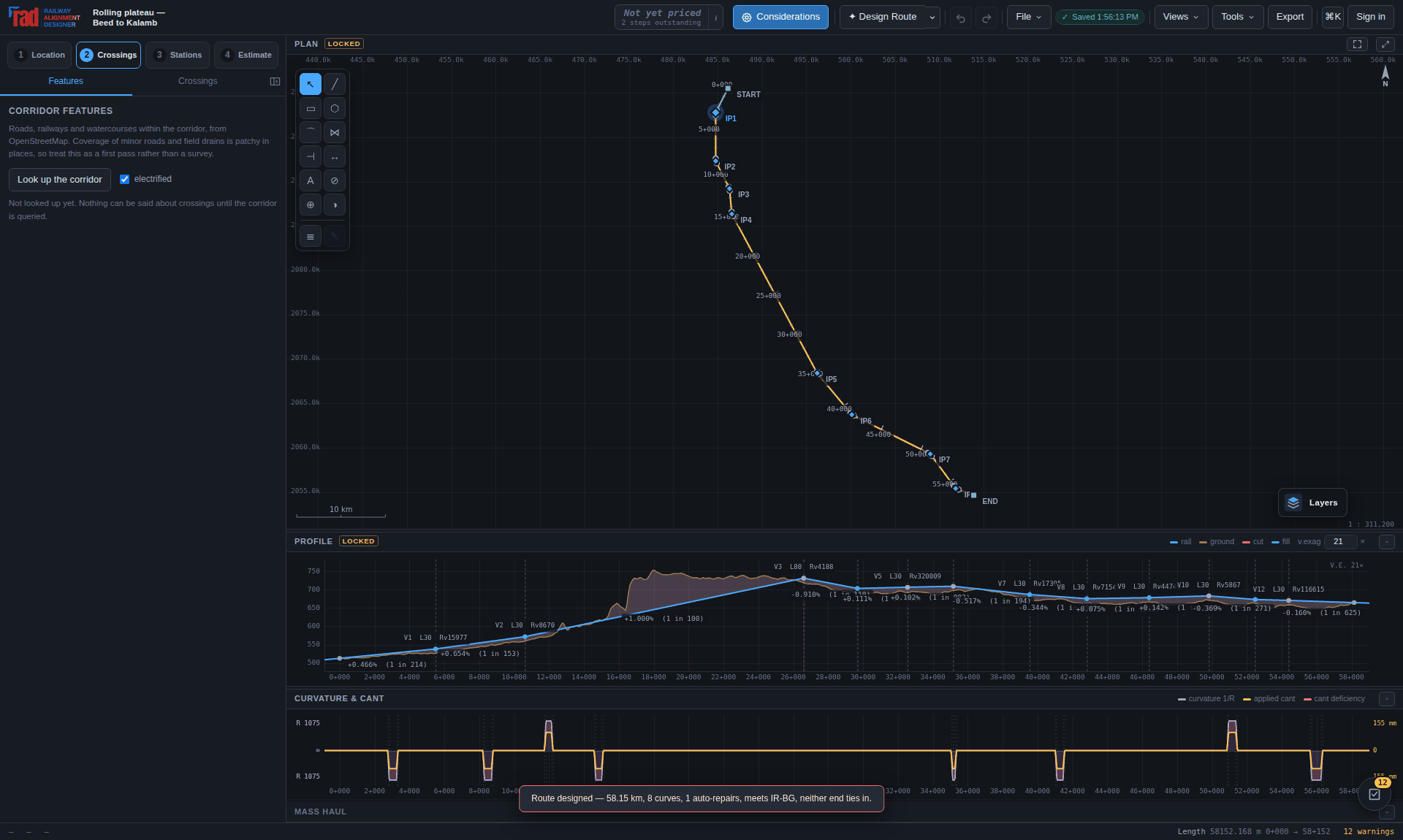
The gate is about prerequisites, not perfection. Four of the five conditions are hard: without an alignment, a grade line, a ground profile and a position on Earth, the second stage has nothing to compute from. The fifth — compliance — is deliberately soft, because preliminary work proceeds with warnings and often with known errors, and a tool that refuses to continue until every check is green is a tool that gets abandoned. Warnings never block.
Continuing with errors does not clear them. The orb still carries the count, the compliance report still lists them, and the exported CSV still contains them with the strictness mode in its footer.
Thirteen chapters in the order the work happens. Each one says what the step is for, what the software does inside it, what it asks you to decide, and what it refuses to decide for you.
What actually happens between two points on a map and a set of drawings — and which chapter answers each step.
Steps 6 to 8 depend on step 4 having produced a grade line and a ground profile, and the gate in Chapter 4 enforces exactly that. Going back is always allowed, but it invalidates what came after — which is why the geometry locks rather than silently letting a schedule rot.
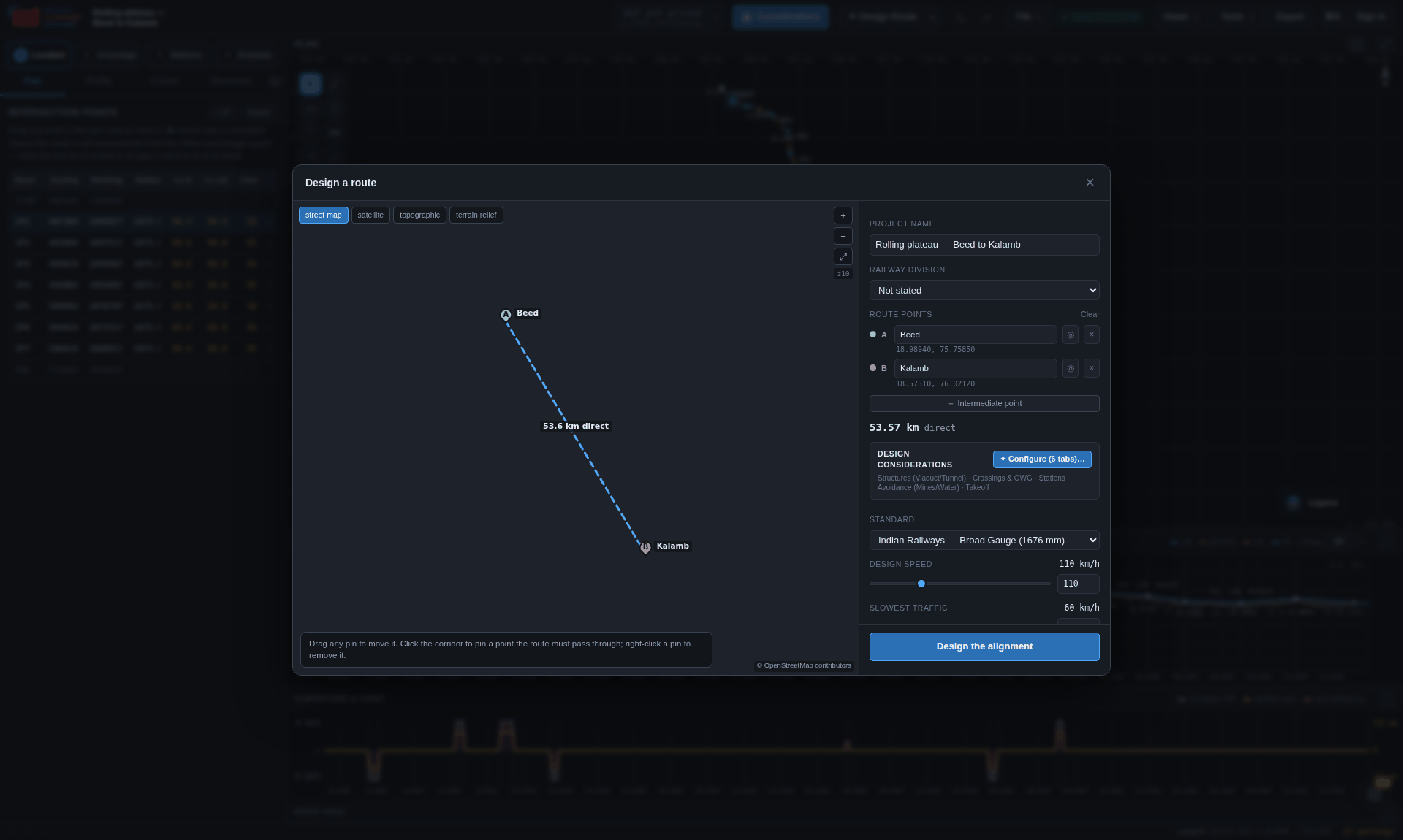
Two points on a map, the standard and the speed, and the detail you want the ground known to. Everything else is arithmetic — and every piece of that arithmetic reports what it did.
Alignment → Design route, Design a route from the opening question, or Ctrl+K and type route.
 1
2
3
4
5
6
7
8
9
10
11
12
13
14
1
2
3
4
5
6
7
8
9
10
11
12
13
14
A and B are the two ends. C, D, E … are intermediate points the line is obliged to pass through — the junction it has to meet, the gap it has to use, the town it has to serve. The router is free between them and pinned at every one; each leg is searched separately.
Every point can be given three ways:
| Way in | Example | Notes |
|---|---|---|
| Click the map | — | Drag a pin to move it; right-click to remove it. |
| Type a coordinate | 27.175, 78.04227 10 30 N, 78 02 31 E |
Decimal degrees or degrees-minutes-seconds, either order of hemisphere marker. |
| Search a name or code | Agra Cantt · AGC · NDLS |
Names are geocoded through Nominatim; station codes are looked up as OpenStreetMap tags directly, because no geocoder indexes them and every railway person has them to hand. |
A pin dragged away from the station it was found under loses that name, because it is no longer that station.
Terrain detail names the spacing of the elevation grid the route is designed against: 200 m (Draft), 120 m (Coarse), 60 m (Normal) or 30 m (Fine). Whichever you press is the grid you get. Nothing coarsens it behind you.
It matters because a coarse lattice does not merely smooth a feature — it aliases it. What you get back depends on where the feature happens to fall between nodes. An incised watercourse 15 m deep, swept across one grid cell, reads as:
| Opening | 200 m grid | 120 m grid | 60 m grid | 30 m grid |
|---|---|---|---|---|
| 600 m | 13.2–15.0 m | 14.1–15.0 m | 14.8–15.0 m | 15.0 m |
| 400 m | 11.3–14.9 m | 13.0–14.9 m | 14.6–15.0 m | 14.9–15.0 m |
| 150 m | 2.1–14.6 m | 5.5–14.9 m | 12.5–14.9 m | 14.3–14.9 m |
| 80 m | 0.0–13.7 m | 0.4–14.9 m | 7.8–14.7 m | 12.6–14.7 m |
The structures engine reads exactly this surface to decide that a bridge is needed and how big, so on a 200 m grid a small bridge opening is a lottery. Wide valleys were never the problem; the nalas are.
Under the buttons is what the setting will actually cost for the corridor as laid out — the ground grid, the number of tiles, the peak memory and a rough time — recomputed as the points move. The setting that gives the best detail this corridor carries comfortably is ringed, and the note names it.
| Corridor | 200 m | 120 m | 60 m | 30 m |
|---|---|---|---|---|
| 60 km | 8 tiles, <1 s | 8, 1 s | 12, 1 s | 30, 4 s |
| 113 km | 12, 1 s | 12, 1 s | 30, 3 s | 90, 12 s |
| 400 km | 28, 2 s | 28, 3 s | 104, 12 s | 350, 45 s |
| 800 km | 48, 3 s | 48, 6 s | 192, 23 s | 658, 86 s |
The ring is a suggestion; the button you pressed stays pressed. Choose finer than suggested and the note tells you what it will cost and says it will still run — because it will. Somebody checking a nala crossing over 400 km of corridor, willing to wait a minute and spend 96 MB, is making a legitimate engineering choice. Choose coarser and the note says what a grid that size loses, and then does exactly that.
30 m is the floor worth offering: the source data is SRTM/ASTER-derived at roughly that spacing, and a finer grid would interpolate rather than reveal.
Ground slope is measured over a fixed 100 m of ground — about the length of formation whose cross slope decides whether a cutting or a side-hill bench is being built — rather than across one grid cell. Otherwise choosing a finer DEM would silently re-tune the router's cost surface and give a different route for a reason nobody could see. A 1-in-15 hillside carrying a 3 m ripple every 120 m reads as 1 in 15 at every setting, to within 0.3%.
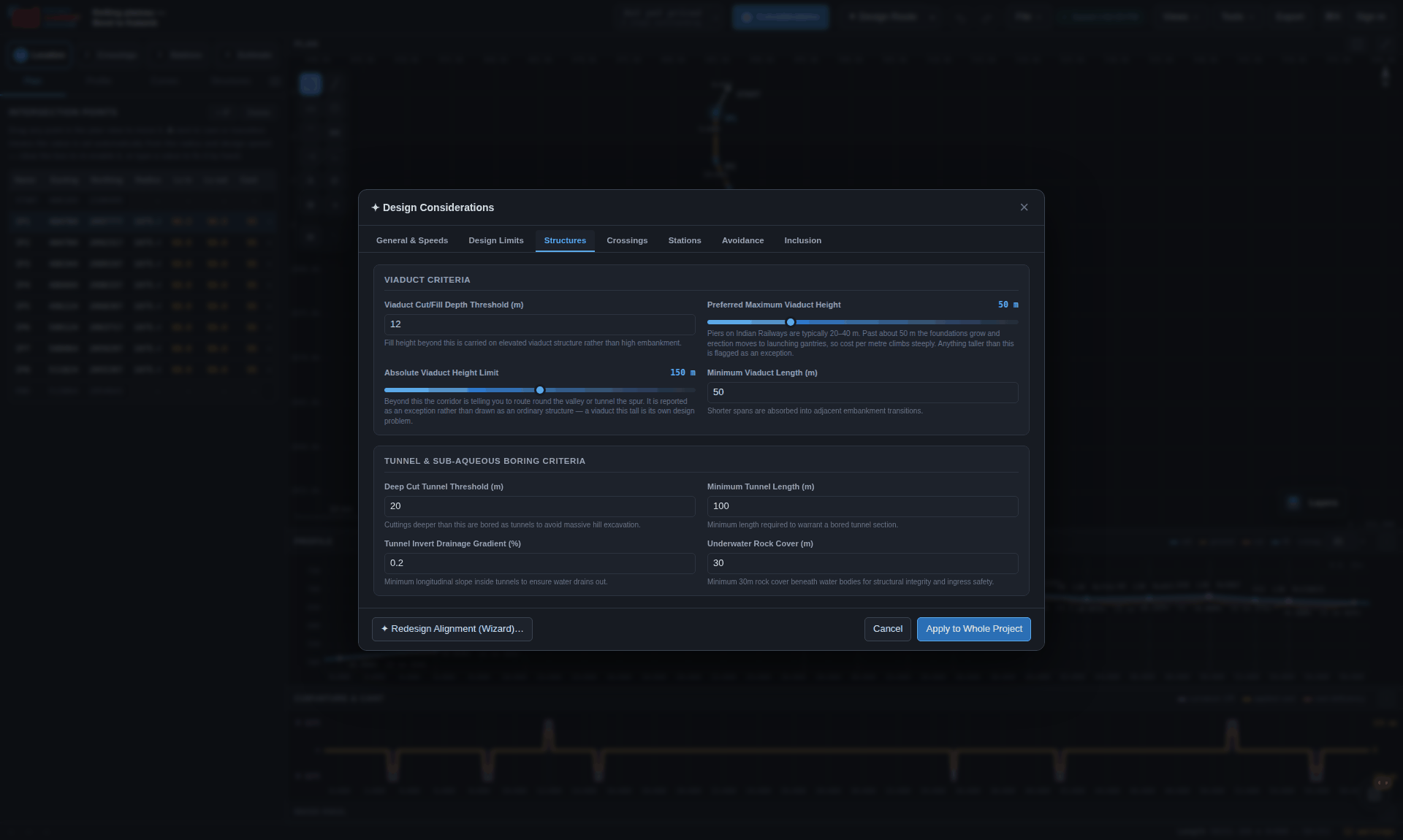
Seven tabs, reachable from the wizard and from Alignment → Considerations at any time. Changing a limit re-runs every check immediately.
| Tab | What it sets |
|---|---|
| General & Speeds | Project name, division, design speed, slowest traffic, starting chainage. |
| Design Limits | Every number in the standard preset — minimum radius, cant and deficiency ceilings, gradient limits, vertical radii, transition criteria. Editable per project; Reset to standard restores the preset. |
| Structures | The thresholds that turn cut and fill into a tunnel, a viaduct, a bank or a cutting, and the formation width. |
| Crossings | Headroom and clearance figures, deck thicknesses, electrification, and the Dickens coefficient for the hydrology. |
| Stations | What a station is expected to have: loops, standing length, platform arrangement, and where they go. |
| Avoidance | What the router pays to keep away from — standing water, built-up land, mines and quarries, forest and protected ground, and the settlement size worth going round. |
| Inclusion | Ground the route should be drawn towards, multiple-tracking choices including which side of an existing formation, and the takeoff at each end. |
/api/dem because the tiles carry no CORS
headers, and cached in IndexedDB so a second run on the same corridor fetches nothing.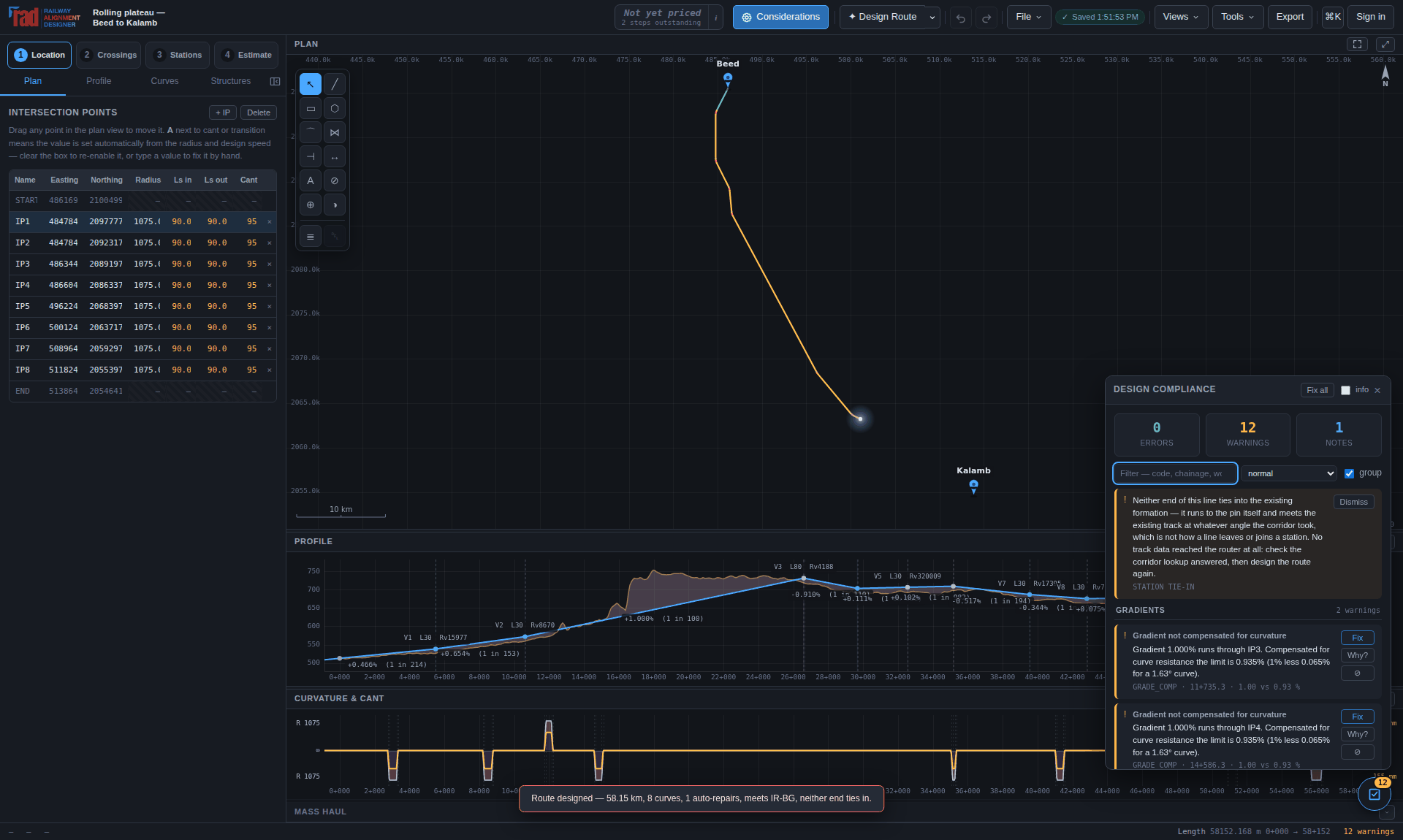
 1
2
3
4
5
6
7
1
2
3
4
5
6
7
The router reports up front when a corridor cannot be built rather than emitting a profile that floats hundreds of metres off the ground. If the height to be climbed is more than the ruling gradient can deliver over the distance available, it says so and says how much development would be needed.
Where a railway would need spirals, switchbacks or long tunnels to gain height, the tool says so and stops. It does not design those for you.
The grid path is thinned into an IP polyline, and thinning is exactly the step that could slide the route past a point you pinned. It does not: where an optional vertex crowds an obligatory one, the optional one goes, and the report names the IPs that were held.
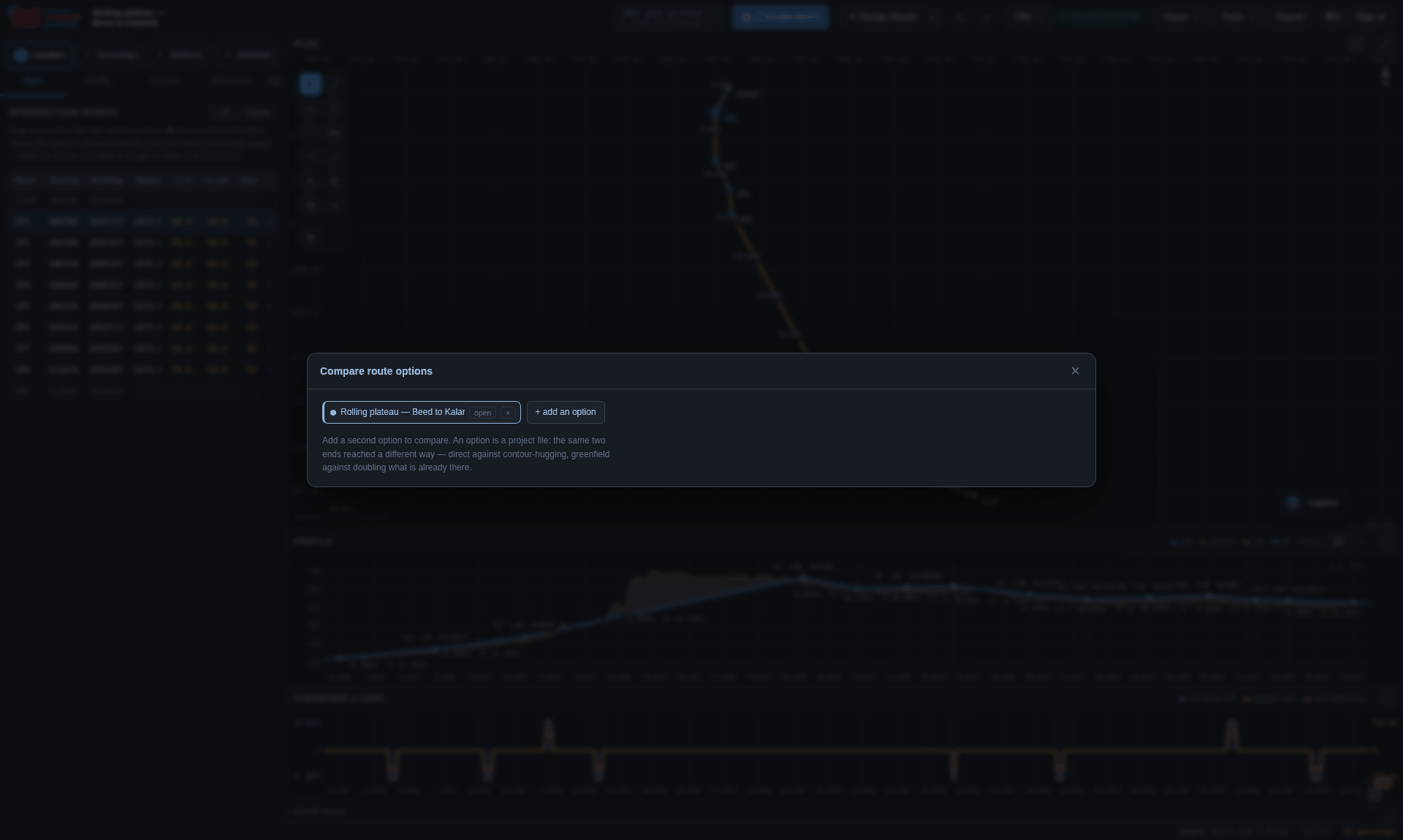
The wizard remembers the corridor, so re-running at another design speed or another terrain detail is a matter of changing one control and pressing Design the alignment again — and the terrain cache means the second run fetches nothing. Four runs at four speeds is the input to the speed–cost frontier in Chapter 13. Review → Compare → Compare options puts two of them side by side.
Most alignment work is not a new corridor. It is a second line beside a single one, a third beside a double, or a faster pair beside a formation laid out for 75 km/h that cannot be persuaded into 160.
Where a railway already exists between the two points, it is the single most important fact about the corridor: the land beside it is already railway land, the crossings are already built, the gradients are already proven. A router that strikes out across country from A to B has thrown all of that away. So before any geometry is designed, the corridor is checked for a line that is already in it, and the run stops on a step called Checking for a line that is already there:
An existing connection exists: a single line (Nashik Road–Manmad) already runs between these two stations, 32.4 km of it. Doubling — a 2nd line is what a new line beside it would be.
The default centre-to-centre spacing of the new running line is 5.30 m. The Indian Railways Schedule of Dimensions puts the obligatory minimum between the centres of adjacent straight running lines at 4.265 m, and new construction is not laid to the obligatory minimum; where traction masts stand between the tracks it goes to 6.0 m, and on curves it is widened again. The governing figure on any particular project is in that project's approved SOD and not in this program — which is why it is a field and not a constant. The takeoff at each end is laid at the same spacing, so the two agree where one hands over to the other.
Whether a corridor needs a third line is a traffic question — trains per day, sectional running time, maintenance blocks, GMT — and none of that is in a map. What this can say is what is there now and what geometry a line beside it would have. It says so out loud in the panel rather than letting the recommendation be read as more than it is.
It also reads OpenStreetMap, which is contributed data: tracks is often absent,
sidings are often untagged, and a traced curve carries a few metres of noise. The curvature
figures are a screening pass, not a survey.
And it does not choose the side for the right reasons. Both sides are scored against the standing water, built-up land and quarries the router already avoids, because at this stage that is the only thing distinguishing them. What decides it on a real doubling is which side the station buildings are on, which side the land is already acquired, and where the level crossings and traction masts are — none of which is visible here. So the side is a default, offered with both scores, and overridable in Design considerations → Inclusion → Multiple Tracking.
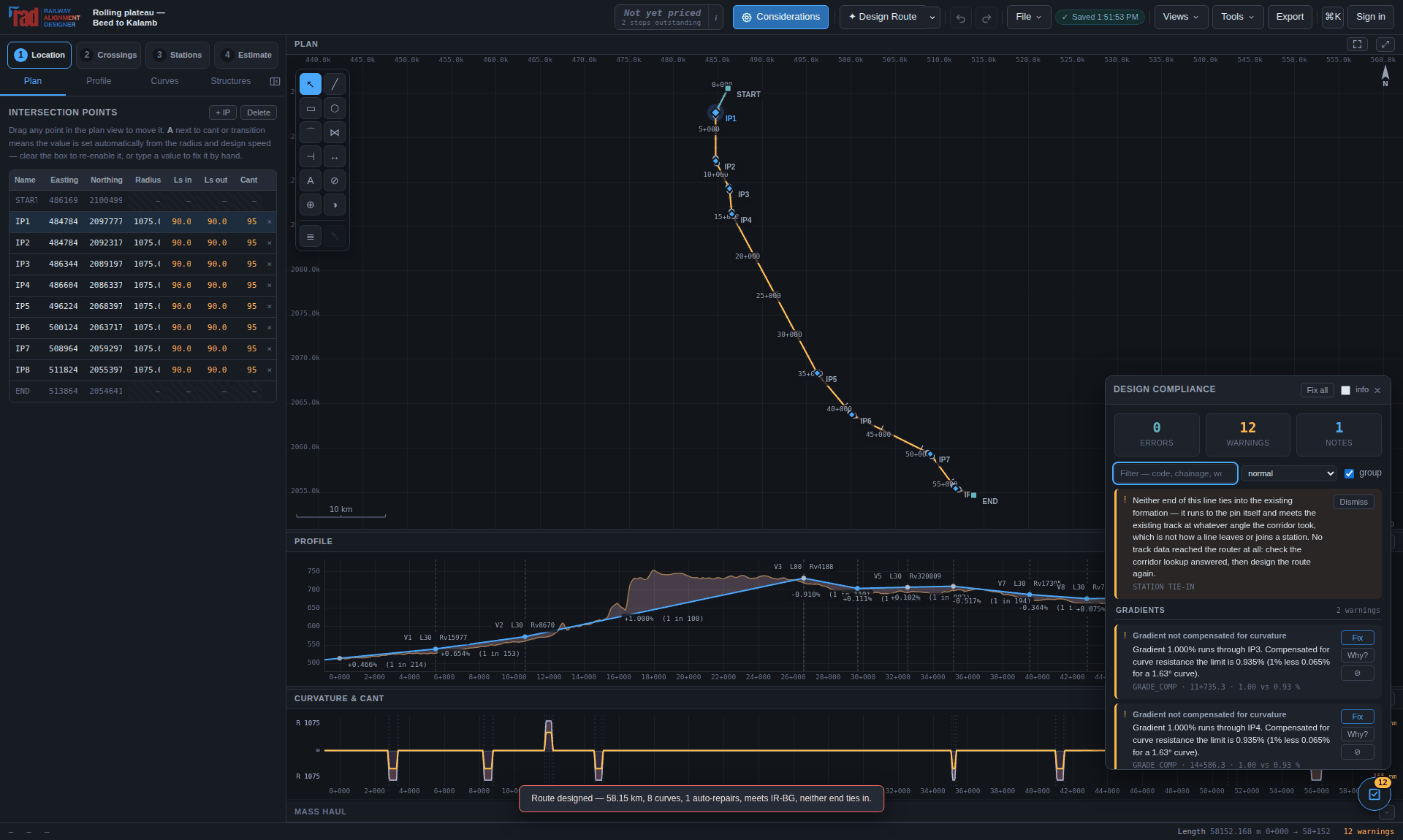
The takeoff is the only thing tying a new line to what is already built, and it needs the
existing track from /api/features. When that lookup does not answer there is no
takeoff, and what comes back is a straight line from pin to pin that leaves one station across
its yard and meets the next at whatever angle the corridor took. That is wrong in a way the plan
does not show, so it is never silent: the router reports both ends as untied, the corridor lookup
is asked a second time before it is believed, and the alignment carries a
STATION TIE-IN warning in the checks pane that outlives the wizard
it was designed in. It is the warning visible in Figure 6.5, and it is there because the machine
that took the screenshot had no route to the map servers.
An empty answer and an unanswered lookup are told apart, because they are different claims. No railway mapped near either end is a fact about the ground. A lookup that never answered has not made a claim at all, and the route should be designed again once it does.
Whether the alignment is a doubling, a third line or a new corridor; which side of the existing formation it runs on and at what spacing; how much of it is parallel and how much is new geometry; the tightest existing curve and what speed it holds; and every stretch, with the reason it left the formation. It is written into the saved file because it is evidence rather than derivation — the OpenStreetMap extract it was read from is not saved and will have moved on by the time the project is reopened, and a line that cannot say why it is where it is would be indistinguishable from a greenfield alignment that happens to run parallel.
Every number the router produced is yours to change, and an alignment can be built from nothing the same way. The model is the same either way.
An alignment in plan is an IP polyline: a start, a chain of intersection points, and an end. Each intersection point carries a radius and two transition lengths, and the solver turns that into a continuous chain of straights, clothoid transitions and circular arcs. Drag any point in the plan and the whole chain re-solves as you move.
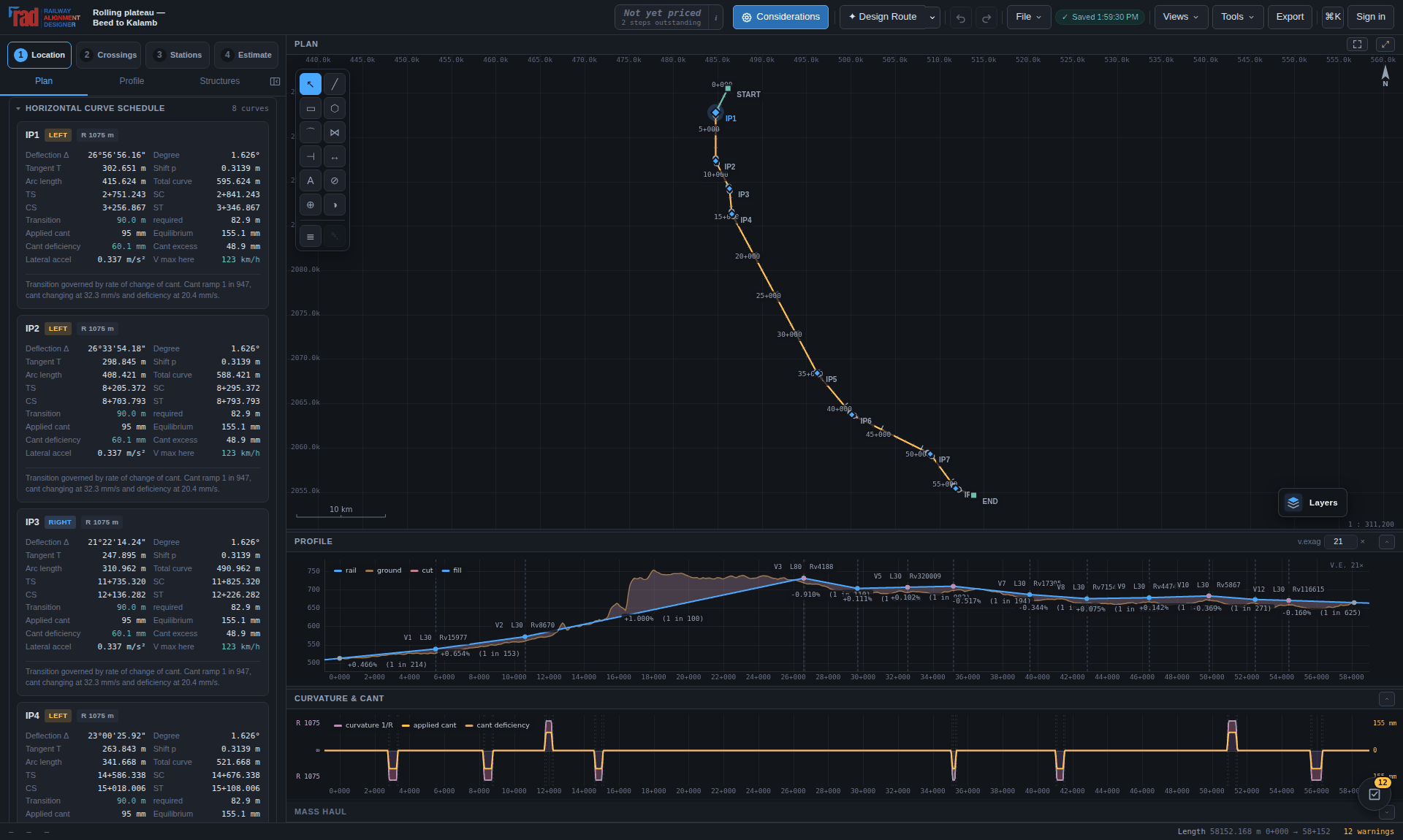
| Field | Meaning and behaviour |
|---|---|
| Easting, Northing | The intersection point in the project grid, in metres. Editable, or drag the point in the plan. |
| Radius | The circular arc's radius. Left automatic, the design pass gives each IP the largest radius its neighbours leave room for. |
| Ls in, Ls out | Entry and exit transition lengths. They may differ — asymmetric transitions fall out of the same closed form, so there is no special case. |
| Cant | Applied cant in millimetres. Automatic cant balances the imbalance between fast and slow traffic, then pulls the result inside every ceiling in turn and reports which one governed. |
+ IP inserts after the selected row; Delete removes the selected point; double-clicking empty space in the plan inserts an intersection point there. Tab and Shift+Tab walk the points, and ↑/↓ in a numeric cell steps the value — ten steps with Shift.
Right-click the plan or the profile for a menu of what can be done where you clicked: add a point there, or select, move or delete the one under the pointer. To work on several at once, Ctrl-click (⌘ on a Mac) puts a point into the selection or takes it out, and a right-drag draws a box that selects every point inside it — with Ctrl held, adding to what is already selected. A group then behaves as one: drag any point of it and the rest follow, keeping their shape; Move on the menu picks the points up so they follow the pointer until a click puts them down, and Esc puts them back; Delete removes the lot in one step that one Ctrl+Z undoes, keeping the two end points, which are where the line starts and stops. In the profile a group stops a metre short of the first VIP outside it, and Shift holds every chainage in it. While the geometry is locked the menu still opens, and says why nothing in it can move a point.
The profile's menu adds two things of its own. Edit level on a VIP — or a double-click on it — opens a small form at the pointer with the VIP's level and the gradients in and out, each typed as 1 in n, as a percentage with %, or as level; whichever is typed, only that VIP moves. Edit grade on empty profile — or a double-click on a gradient's label — opens that gradient and the level at either end, and Keep says which end stays where it is when the gradient is typed. The profile follows as you type; Enter keeps the change as one edit and Esc puts it back, and a gradient steeper than its leg may carry is named in the form before it is kept. The Grade out column of the VIP table takes a gradient typed the same way and moves the next VIP to it.
Regrade to the ground, on the menu of a VIP or of a selection, chooses those VIPs' levels as close to the ground as the ruling gradient lets them be, keeping every chainage. Every gradient it changes is held to its leg's own limit: the ruling gradient of its gradient section, less the compensation of any curve on it, and 1 in 1200 through a station yard. The VIPs either side stay where they are unless a gradient to them would otherwise break that limit; then they move by no more than they have to, and the change stops where it runs out. The ends of the profile, a VIP in a station yard and a VIP whose level is locked are never moved unless they were selected too. A curve the steeper change of grade has outgrown is lengthened with it, and the whole regrade is one edit that one Ctrl+Z undoes.
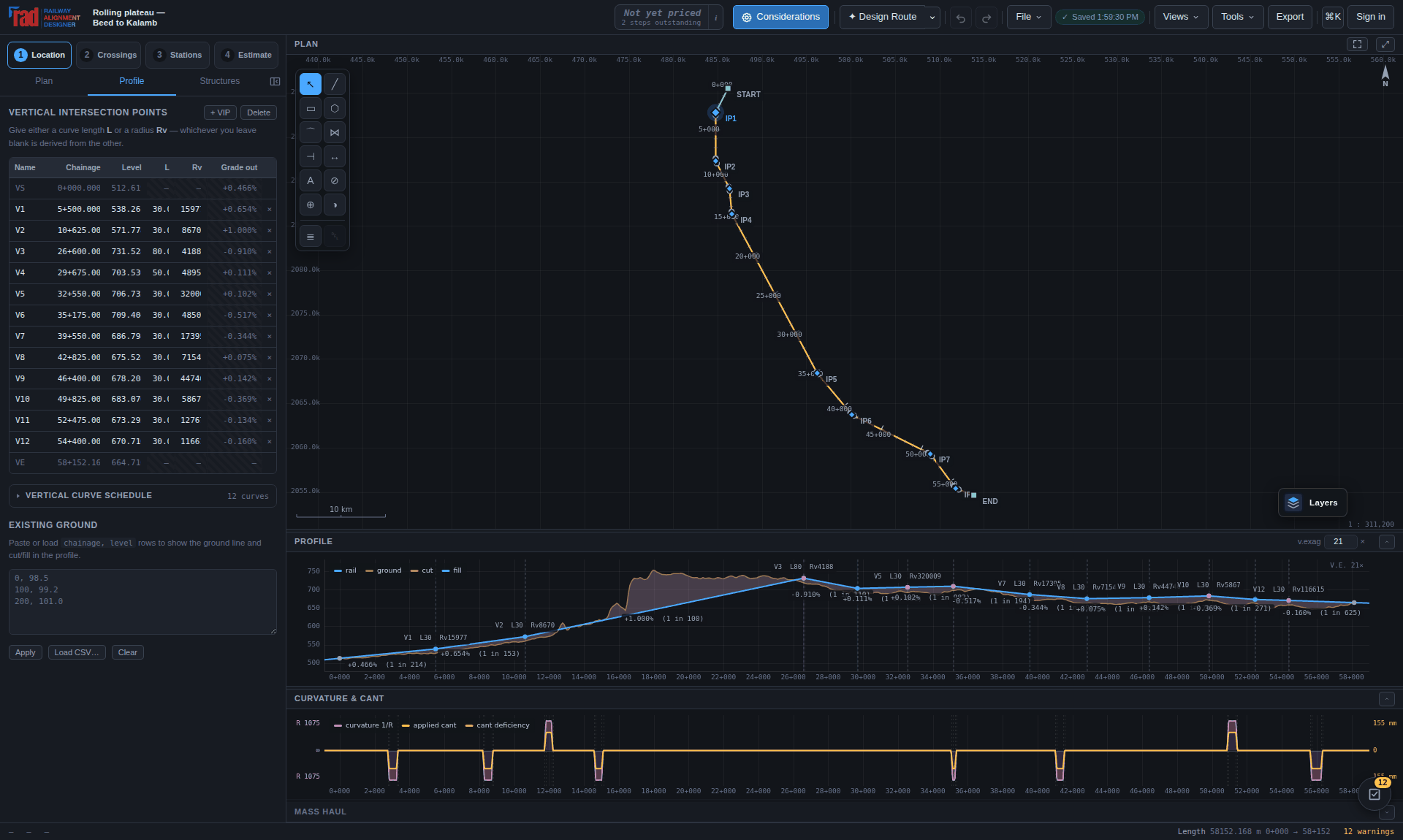
Drag a VIP in the profile to reshape the grade line, holding Shift to change the level without the chainage. Shift+wheel changes the vertical exaggeration, which is stated on the drawing so that a 25× picture is never mistaken for the shape of the railway.
Double-click empty space in the profile to add a grade break, the way double-clicking empty plan space adds an intersection point. It goes in at the chainage and level you clicked, in the leg it landed in; click within a few pixels of the grade line and it takes the rail's own level, so the break is a place to bend the profile from rather than a step in it. The vertical curve it arrives with is sized to the room between its neighbours — a break dropped into a short leg carries a short curve instead of a 400 m one that would overlap the curves either side of it before you had touched anything. + VIP does the same in the middle of the selected leg, and Delete removes the selected break. This is how a line is developed in hill country: the grade line is bent to reach down to the ground where the ground can be met, rather than held straight over it and carried on structure.
Max length of one gradient, on Considerations → Design Limits, caps how far the profile may go without a break in it. It ships at 5 000 m on every standard. Its opposite number, the minimum length, is there to stop a train surging between grade changes that come too fast; this one is there for the other failure, and it is the one that costs money in hill country.
A grade line is simplified by deviation, and deviation alone does not care how far it travels: on ground that stays near enough to straight it will return one gradient seventeen kilometres long. Two things are wrong with that. A locomotive on an unbroken pull is working at its continuous rating for the whole of it. And nearly straight is not straight — the metres the simplification called negligible are metres the finished line stands off the ground, and past the crossover depths what holds it off the ground is viaduct and tunnel. Breaking the gradient lets the profile come back down to ground it can actually reach.
Designing a route applies the limit: the router divides an over-long gradient into as few pieces as the cap needs, evenly spaced, and snaps each break to where the chosen grade line bends hardest within its division — so the break develops the line rather than just subdividing it. On the plateau sample this takes the longest sustained pull from 19.3 km to 6.3 km for three extra vertical points. On an alignment you are editing by hand, add the break yourself by double-clicking the profile where you want it.
Only a gradient pulling a real share of the ruling gradient — a quarter of it, which is 0.25% on IR broad gauge. Ten kilometres at 0.03% across a plain is flat country, not a long climb: no locomotive is working on it and the grade line is already on the ground. Reporting those would be noise, and noise in a compliance list is how the findings that matter get scrolled past. The threshold follows the standard, so it needs no separate setting.
A gradient over the limit is reported as GRADE_LONG and is never repaired automatically. Breaking it without moving the line is a labelled point in the middle of the same gradient and repairs nothing; breaking it usefully means putting the break where the ground asks for one, which moves levels you set. That is a decision, so the finding sets out the choice instead of taking it.
A route designed from the map arrives with its ground profile already sampled from the terrain
grid. An alignment drawn by hand needs one: paste or load chainage, level rows in
the Profile tab. That gives cut and fill shading, a cut/fill column in the setting-out
table, and the terrain rules in the compliance engine something to measure against. Without it
the terrain rules stay quiet rather than guessing.
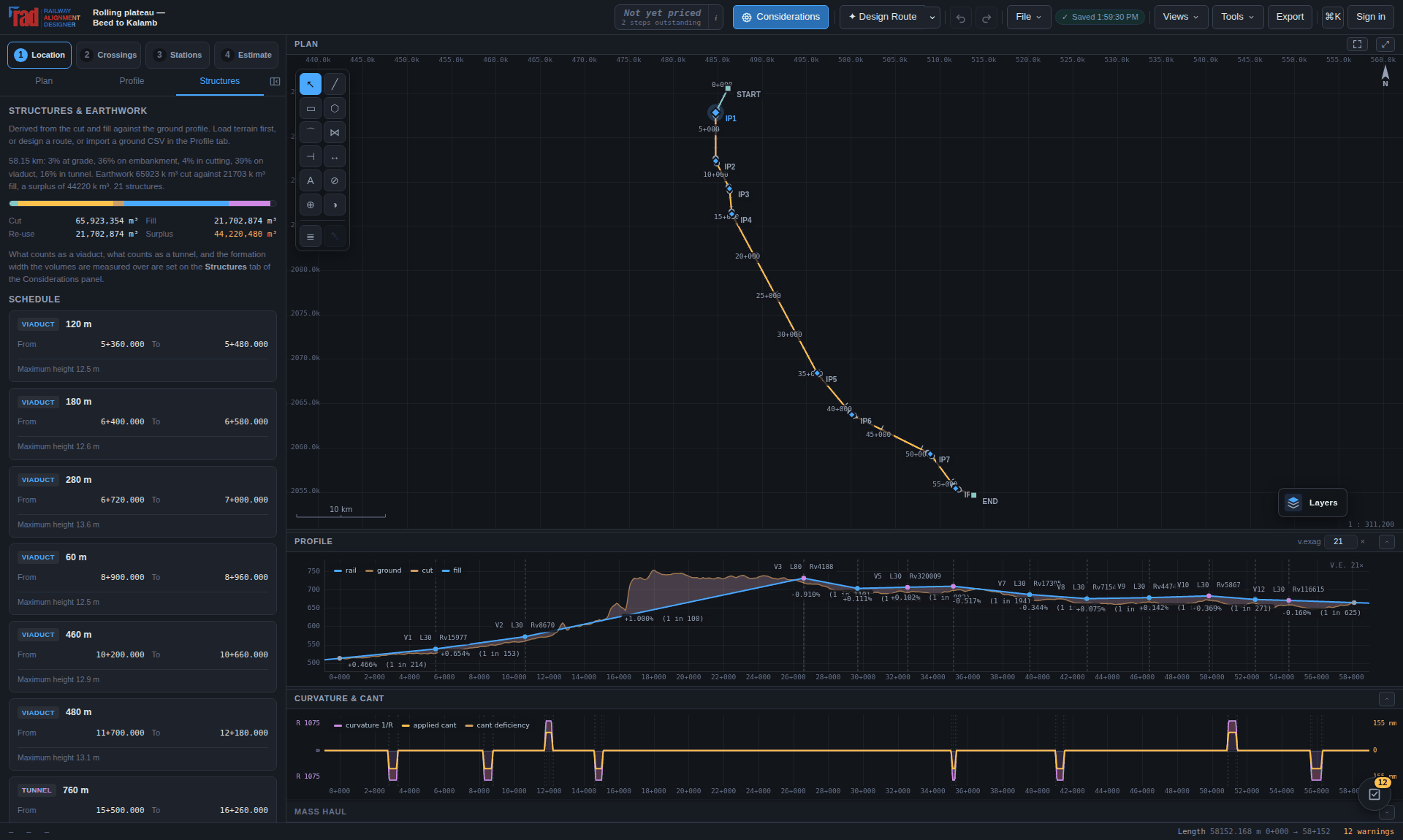
Basemap tiles, corridor lookups and every export that carries a coordinate need the project to
say where on the earth its plane sits. A route from Design a route already knows. For an
alignment drawn by hand, pick a point in the Plan tab — the grid origin, or any
intersection point — and give its latitude and longitude, in decimal degrees or as
27 10 30 N, 78 02 31 E. The georeference is saved with the project.
The plane is then treated as a project grid: a transverse Mercator on that longitude, north up, unit scale. The panel reports how far grid distance drifts from ground distance at the point you tied down, in parts per million, so the assumption is on the screen rather than buried. It holds under 50 ppm over 66 km, checked against Vincenty rather than haversine.
Beyond the computed alignment, the plan takes manual drafting for constraints and context. Shapes live on layers with specific meaning rather than being lines on a screen, and they are drawn in map space, so they move with the terrain and not with the viewport.
| Layer | What it is for |
|---|---|
| notes, sketch, measure | Visual markup: annotation, freehand thinking, and dimensions. |
| trace | Reference lines you want the alignment to follow. |
| trackwork, existing | Permanent way already on the ground — visual constraints when weaving a new alignment through it. |
| avoid | Ground the router must pay to cross. Weighted by default — a cost per metre a pinched corridor may still choose to pay, and which is reported when it does. Marked regulated it is priced the same way but recorded as needing a named authority's consent. Marked prohibited it is not priced at all: those cells are removed from the search, so no weight anywhere buys a way through. |
| include | A discount: it makes the ground cheaper so the route is drawn towards it. It cannot on its own oblige the line to go there — tick the line must pass through this and it becomes an obligatory point instead, with the corridor searched in legs through it. Either way, an inclusion area the alignment misses is reported rather than passed over in silence. |
Each avoidance area can carry a setback in metres and an outer regulated belt, because the statute that constrains an alignment is written that way: the AMASR Act bars construction within 100 m of a protected monument and regulates the next 200 m. Presets for the usual instruments — AMASR, wildlife, forest, CRZ, defence — fill in the distance, the authority and the class.
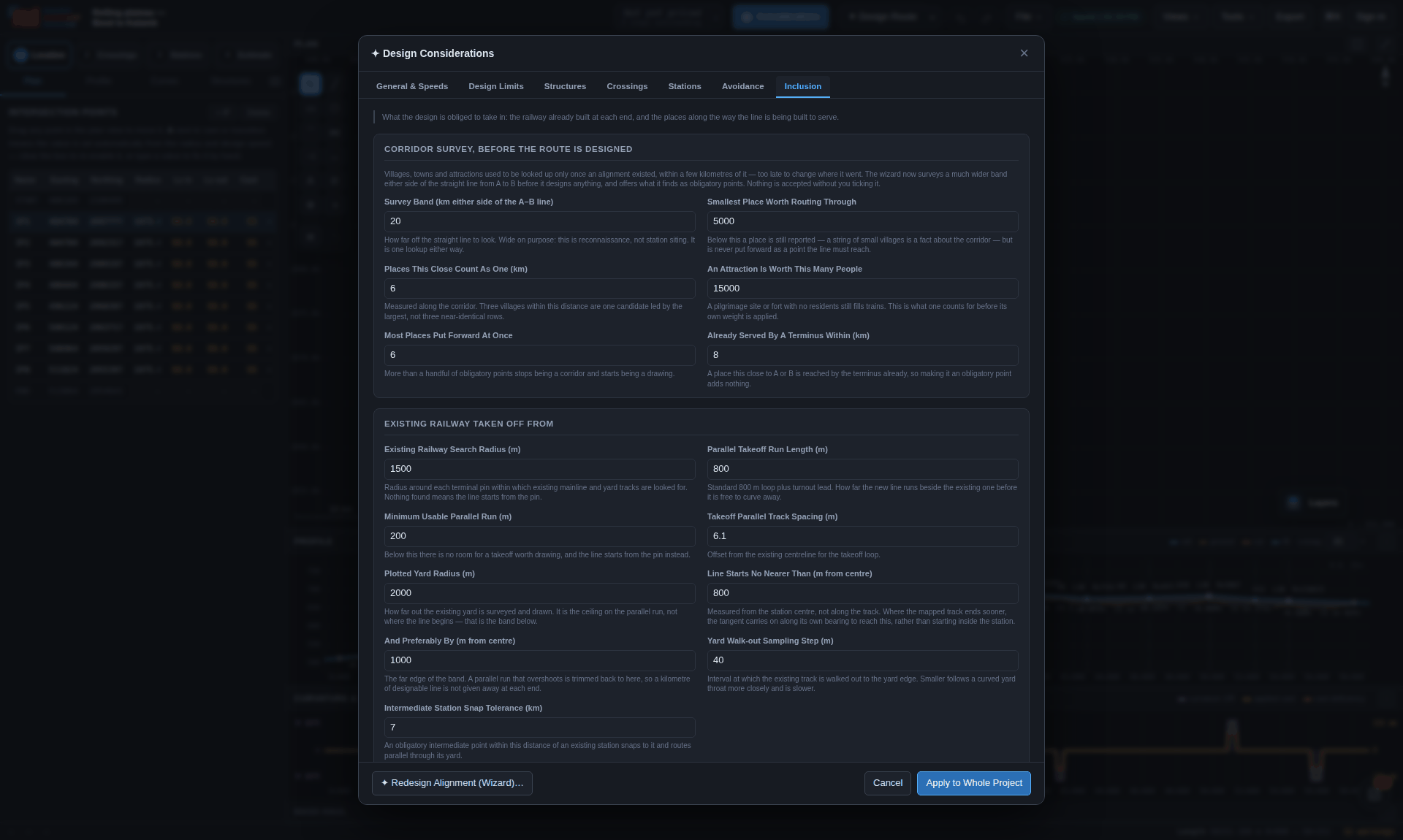
Every other layer the router prices from is a yes-or-no fact off a map. Real ground is not: a swamp is not forbidden, it is annoying, and how annoying is a judgement only the person who walked it can make. Strokes with a radius, a strength and a sign are rasterised into the search field beside every other layer, with a smooth falloff — a hard edge produces the artefact the polygon layer already has, a route that runs one cell outside the boundary paying nothing.
Redesign runs the whole automatic pass again over the current considerations — radii, cant, transitions, grade line, the outstanding checks, and the station yards that sit on the geometry — as a single undo step, and then says what it did rather than reporting a number. If nothing would change it says so instead of pretending to work.
The checks at the end of it are the same pass Fix all runs, with the same corridor behind them where one has been looked up. The pass can adjust the actual railway alignment towards a more perpendicular crossing and seek the rail level that clears the road. New bridge proposals have square supports; the measured obstacle angle remains separate. A crossing whose full opening or approach arrangement has not been established stays unresolved.
It respects the areas you have drawn. Easing a radius moves the arc away from its intersection point, so a curve widened for a higher speed cuts the corner more deeply than the one it replaces and can land on ground the old one cleared. Where that ground is marked prohibited, the widening stops at the last radius that stays clear: the router bars its search from those cells rather than pricing them, and a rebuild that walked in afterwards would be reversing that decision on the drawing. The same bound applies to every repair in the pass behind it, including the one that would read the held curve as sub-minimum and ease it straight back in.
A held curve is a real conflict, not a solved problem, and it is reported as one: the redesign names the curve, the radius it stands at and the area that held it, and the compliance list goes on reporting the radius as below the minimum for the speed. Something has to give — the route, the design speed, or the outline — and which of the three is not the tool's decision.
A weighted or regulated area is a price or a consent rather than a barrier, so a curve may be eased across one exactly as the router may route across one. What you get there is the sentence, not the refusal: the redesign says how many metres of line it has put inside which area, at the top of the report, rather than leaving a fresh finding on the Checks tab for you to discover later and attribute to nothing. The same note appears where the redesign has taken the line back out of an include area it was drawn to pick up.
An include area you have ticked as one the line must pass through is treated like a prohibited one, the other way round: a curve is not widened so far that the line leaves it, and no repair after the rebuild may take the line out of it. The report names the curve and the area, and the curve is reported as below the minimum radius until the route, the speed or the outline changes.
The arithmetic the tool is doing on your behalf, stated plainly enough to check by hand — because a number you cannot check is a number you cannot sign.
Curvature and cant have to rise together, or the resultant force swings out of the plane of the track while the train is still on the transition. The clothoid — the Euler spiral — is the curve whose curvature increases linearly with distance travelled:
1/r(l) = l / A²,        A² = R · Ls
θ(l)   = l² / (2A²)
x(l)   = ∫ cos θ ds,    y(l) = ∫ sin θ ds
so a linear cant ramp along a clothoid keeps the two in step throughout. The integrals are evaluated by series expansion in θ, which for railway spirals (θ well under 0.25 rad) is exact to about one part in 10¹², with Simpson quadrature as a fallback for pathological cases — and as the independent reference the test suite checks the series against.
Cant follows the standard relation, parameterised by the dynamic gauge G so that one equation covers every track gauge:
C = G · V² / (127 · R)      [mm]     V km/h, R m, G mm

G = 1750 mm  →  the Indian Railways form   C = 13.76 V² / R
G = 1500 mm → the standard-gauge form C = 11.81 V² / RTransition length follows from the cant by the three usual criteria, and the longest wins:
| Criterion | What it limits | Code when it fails |
|---|---|---|
| Rate of change of cant | How fast the vehicle is twisted, in mm/s at the design speed. | DCANT_DT |
| Rate of change of cant deficiency | How fast the unbalanced lateral acceleration builds, in mm/s. | DCD_DT |
| Cant ramp gradient | The slope of the ramp itself, as 1 in N — a twist limit on the track structure. | CANT_GRAD |
A curve entered with no transition steps the curvature. The vehicle bridges that step over its bogie centres, so the deficiency builds over the virtual transition rather than over a designed length. The VIRT_TRANS check measures it, and it runs even when the curve carries no cant at all.
A standard whose minimum vertical radius was written for a slower line will pass RV_MIN and still shake the train. AV_MAX states the quantity the radius limit was derived from — the vertical acceleration V²/Rv at the design speed — directly.
Every curve, transition, straight, gradient and vertical curve is tested against the active standard — and where a ground profile exists, so are the works the profile implies. Each finding says what was measured, what the limit was, why the limit exists, the clause it answers to, and the ways out.
 1
2
3
4
5
6
7
8
1
2
3
4
5
6
7
8
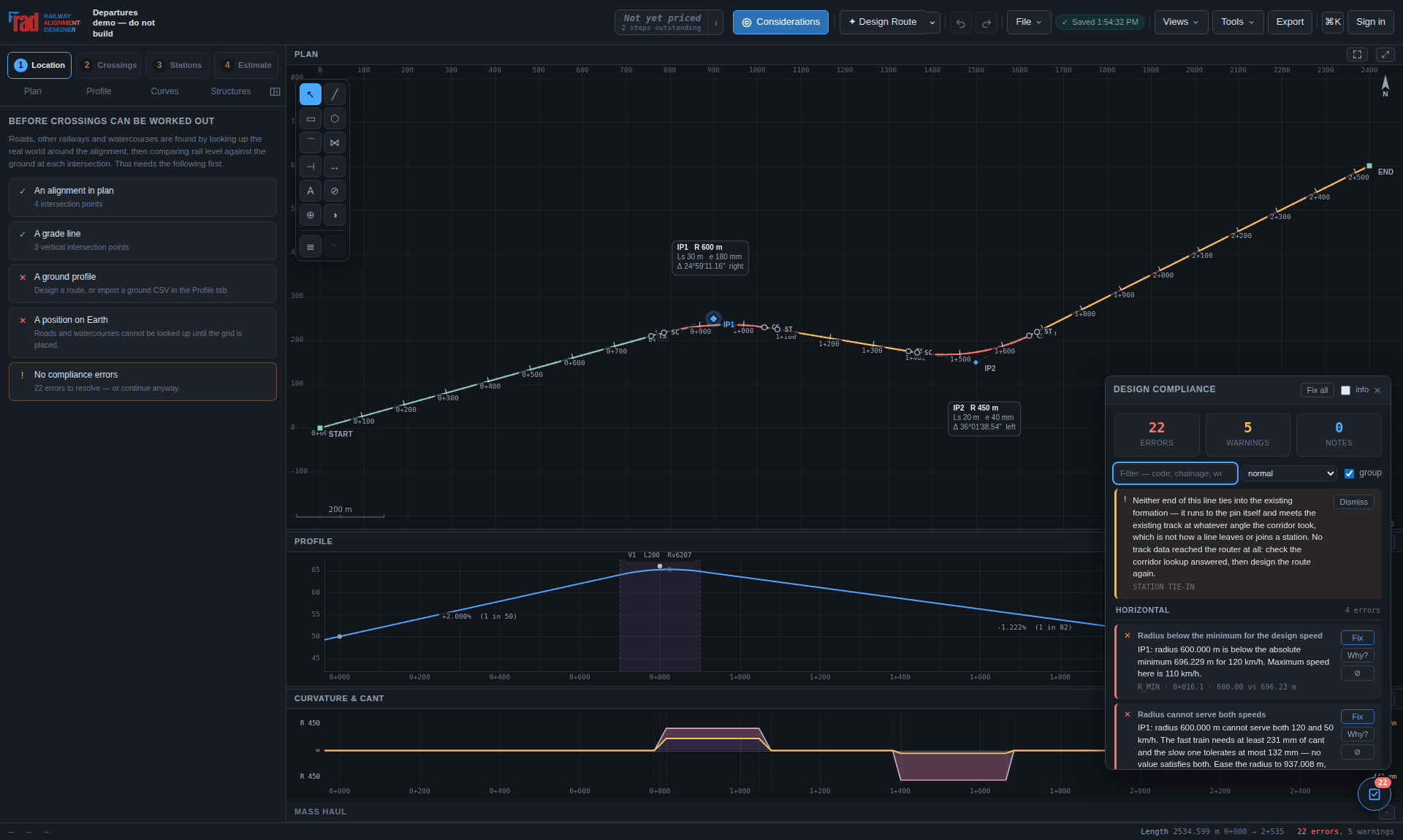
non-compliant-demo.json exists to be looked at: 22 errors and 5 warnings on 2.5 km
of line. Do not build it.Fix all revisits a blocked repair when another change makes it possible, then tries coordinated curve, profile and station adjustments. It preserves the project's design requirements, fixed points and movement bounds, and keeps the best checked result. Remaining findings stay visible.
For an unresolved crossing, use Make it fit in the crossings panel. It searches local adjustments and coordinated profiles, including approach ramps and station yards. A result is applied only when the selected crossing fits without worsening a hard compliance failure or breaking a crossing that already fits. The chosen structure is preserved. Progress and Stop appear during the search; stopping or failing to find a verified fit leaves the design unchanged. A successful fit is one undo.
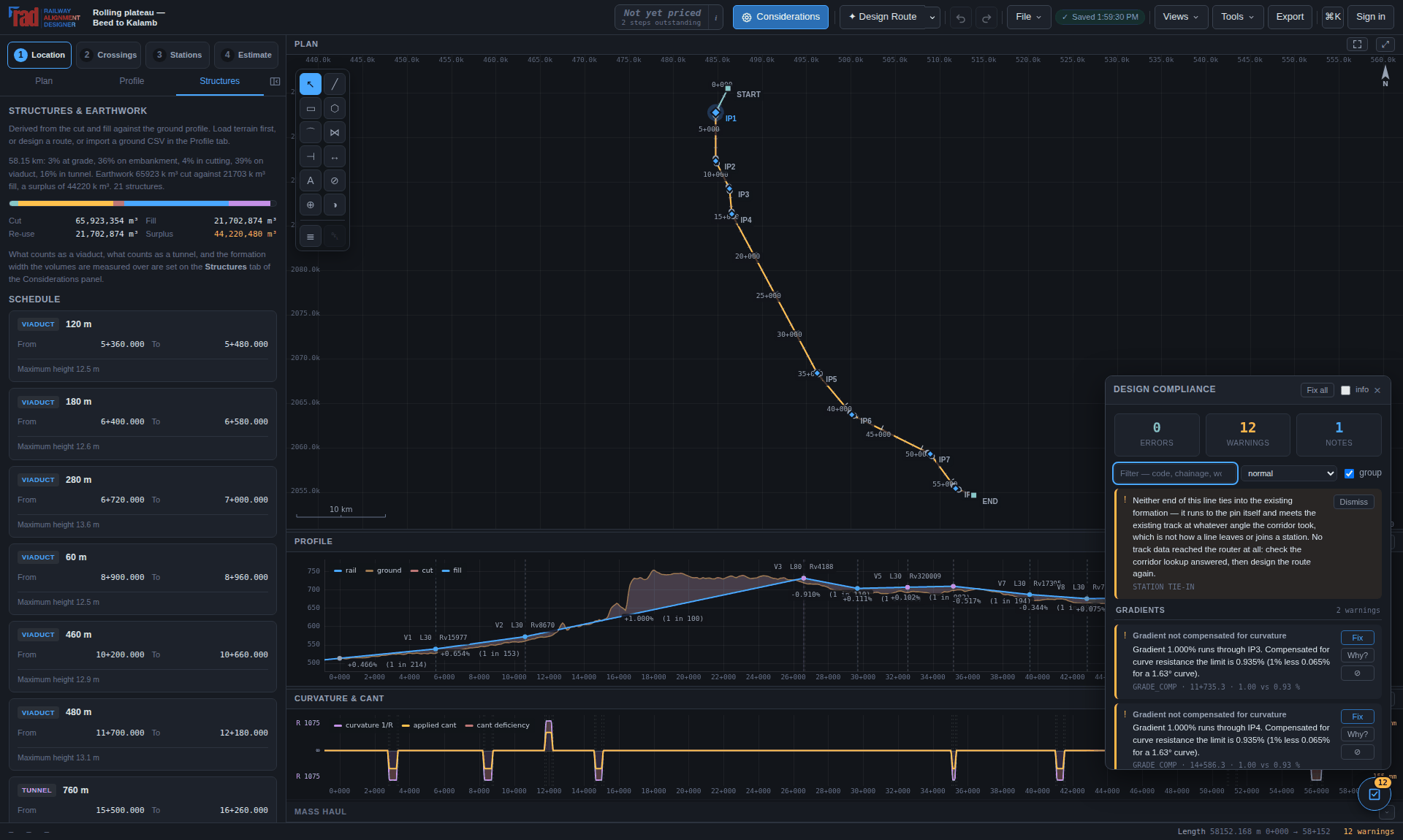
Take the first horizontal error in Figure 10.1, as it reads on screen:
Radius below the minimum for the design speed. IP1: radius 600.000 m is below the absolute minimum 696.229 m for 120 km/h. Maximum speed here is 110 km/h.
R_MIN · 0+816.1 · 600.00 vs 696.23 m
and the one below it, which is the more instructive of the two:
Radius cannot serve both speeds. IP1: radius 600.000 m cannot serve both 120 and 50 km/h. The fast train needs at least 231 mm of cant and the slow one tolerates at most 132 mm — no value at the 5 mm setting-out step satisfies both. Ease the radius to 964.567 m …
| Part | What it is for |
|---|---|
| Title | The rule, in the words an engineer would use. |
| The measurement | What was found, where, and what the limit was — with the units. |
| The consequence | What follows if it stands: a permanent speed restriction, a rough ride, a structure built to a twisting surface. |
| The code | Stable across a re-solve, and the same string that appears in the exported CSV. See Chapter 19. |
| Why? | The clause it answers to, the reason the limit exists, and every way out — on every finding, not only the ones something can repair. |
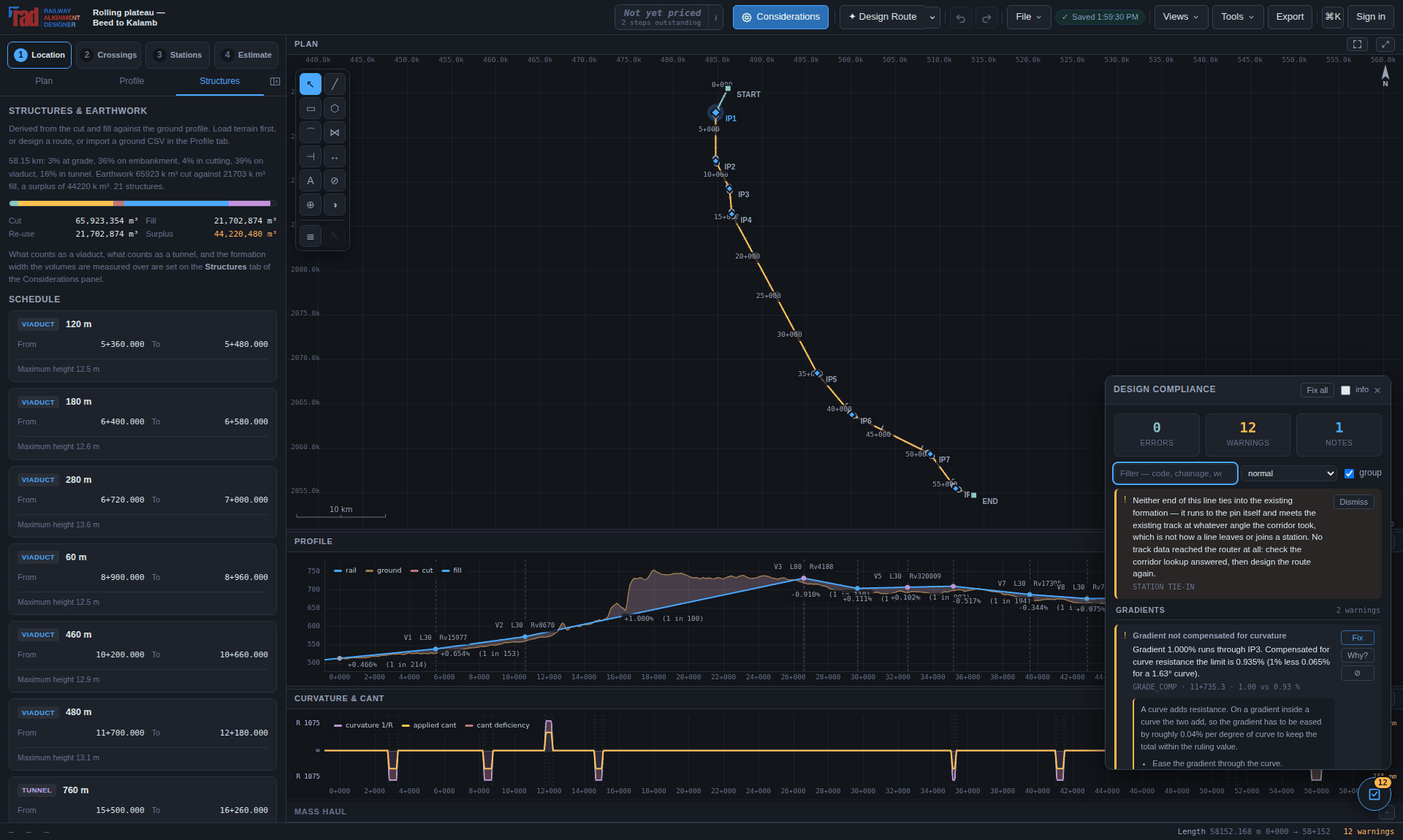
Each repair explains itself in the language of the decision it took:
Eased IP1 from 600 m to 975 m — below that no single cant can serve both 120 and 50 km/h.
Where only a change of route or design speed would resolve something, the engine declines and explains the trade-off instead. Those are design decisions, not the tool's to make:
IP1 and IP2 are 608 m apart, but at 120 km/h the minimum radius is 965 m and two such curves need about 960 m between them. Your options: move the two points at least 352 m further apart; drop the design speed to about 95 km/h; remove one of the two intersection points.
A repair engine that guessed here would produce a compliant drawing of a railway nobody intended. Advisory findings are marked as such and carry the arithmetic you need to choose between the options.
| Control | Effect |
|---|---|
| normal / strict | Strict reports every warning as an error. Use it before a submission; use normal while the line is still moving. |
| Per-rule override | Any individual rule can be turned off, or re-graded to a note, a warning or an error, for this project — cant excess on a passenger-only line, say. |
| Mute (⊘) | The same thing from the finding itself. |
Overrides are stored in the project file and listed above the report, because a check that has quietly stopped running is worse than one that fails. The exported CSV carries them in its footer for the same reason.
Each group of checks runs inside its own guard. A rule that throws on a degenerate geometry reports itself as RULE_ERROR, naming the group that failed, and the rest of the report stands. The test suite verifies this by making a rule throw on purpose.
Twelve categories, with reference codes in Chapter 19. The terrain rules only run when a ground profile has been loaded or generated; without one there is nothing to measure against and the engine stays quiet rather than guessing. The crossing and station rules likewise wait for stage 2 and stage 3 to have produced something to check.
Stage 2. Every place the alignment meets a road, a railway, a watercourse or a power line — with the chainage, the angle, the height difference, and what it takes to get past.
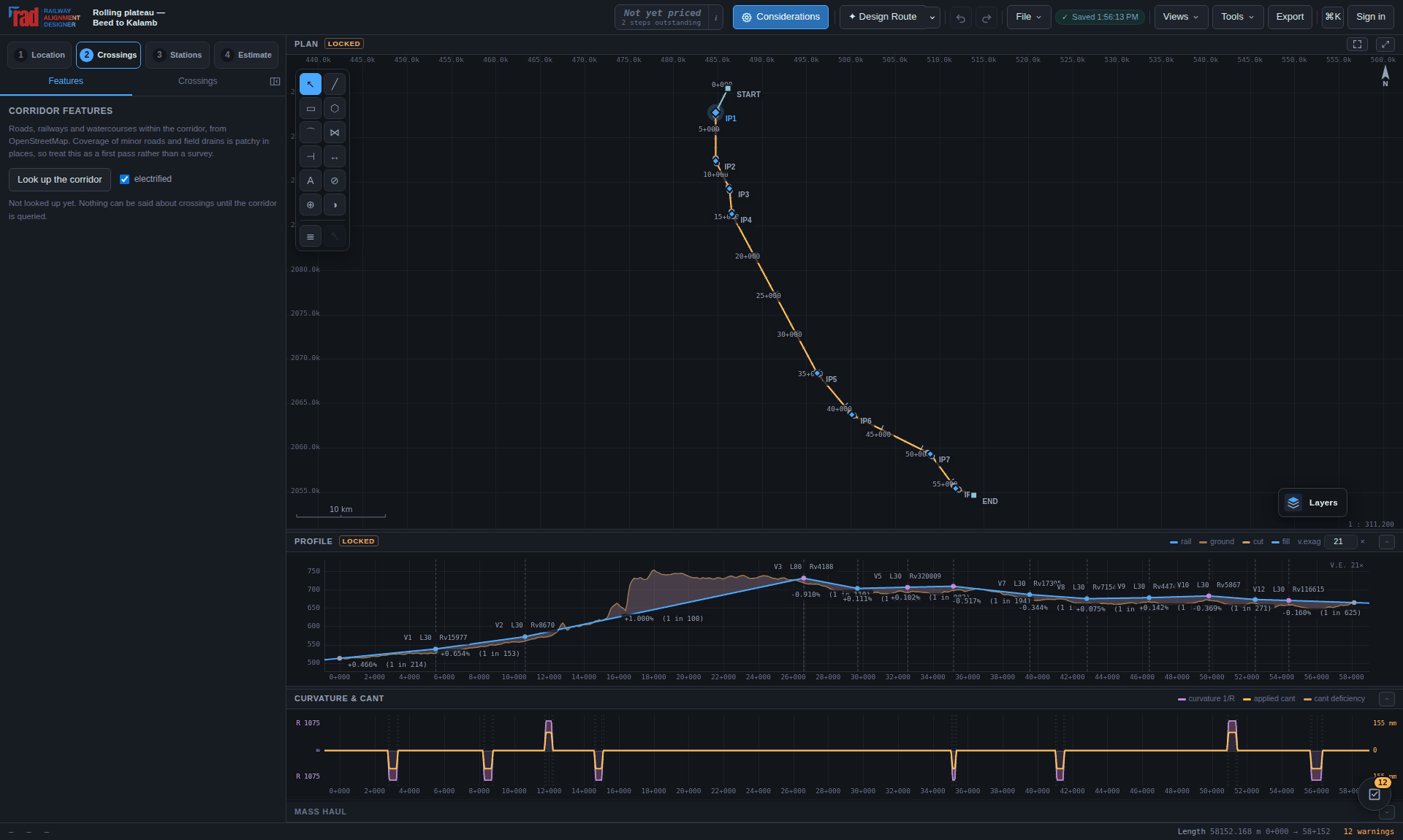
Roads, railways, watercourses, land use, power lines and pipelines come from OpenStreetMap by way
of Overpass, through /api/features. It is a server route rather than a fetch from
the page for two reasons: Overpass is slow, rate-limited and periodically down, so extracts are
cached in Postgres keyed by a normalised bounding box; and the cache is written with a key that
must never reach a browser.
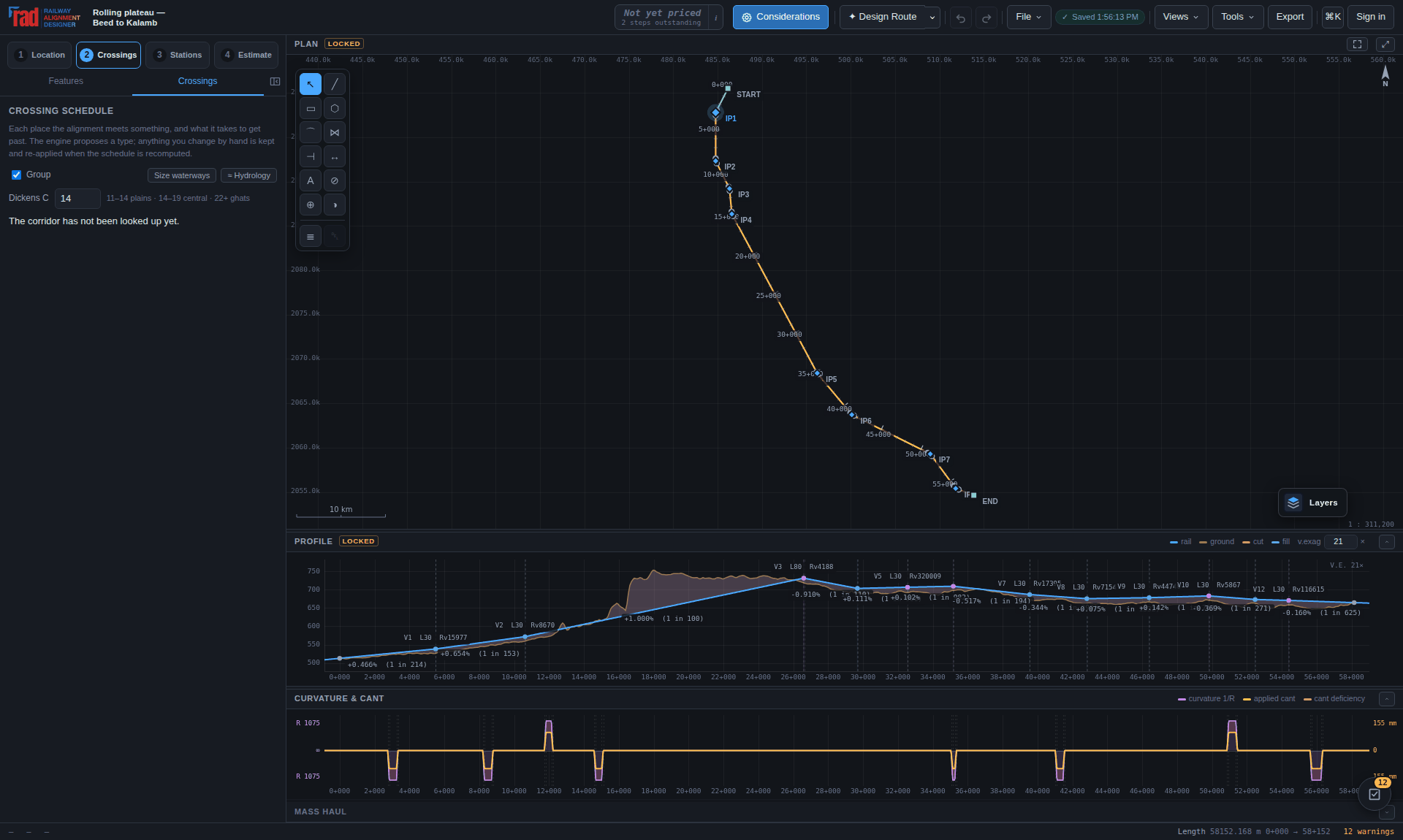
The decision is one comparison. With d as rail level minus ground level at the
intersection, a road passes under when d ≥ headroom + deck, and over
when −d ≥ clearance + deck. Between those, both ways out are quoted rather than the
tool refusing to answer.
| Type | What it is |
|---|---|
| RUB / LHS | Road under bridge, or a limited-height subway. |
| ROB | Road over bridge. |
| ROR / RUR | Rail over or under an existing railway. |
| BRIDGE / AQUEDUCT | Over the water, or the canal carried over the line. |
| CONFLICT | Neither fits — and a level crossing is not permitted on a new line. |
| PARALLEL | Met at under 20°, so not a crossing but a conflict of alignment. |
Any of them can be set by hand. The override is respected and the engine keeps its own opinion beside it — but whether the chosen type actually fits is still measured, and a forced type that does not fit is a compliance error. A vertical shortfall may be addressed by changing the grade line; a missing square opening, approach or hydraulic arrangement needs its own resolution.
The schedule holds roads, railways, watercourses and power lines — what the line has to be carried over, under or across. Farmland, forest and a town boundary are not crossings: they are ground the corridor is taken from, priced by the acquisition schedule and by the router, with no near and far side to bridge between. Any layer left out this way is named in the result rather than dropped quietly.
Take a large river's catchment from a published figure. Nothing computed from a corridor strip will be right: a strip of terrain cannot hold the basin of a large river.
Open Structures, choose a saved bridge or an eligible crossing in the bridge selector, then choose Workspace. Structures → New bridge starts a manual bridge. A crossing card's Design bridge… and a proposed viaduct's Design viaduct… open the same editor. The main bridge command uses the Crossings stage prerequisites; satisfy the alignment, grade, ground and georeference requirements first.
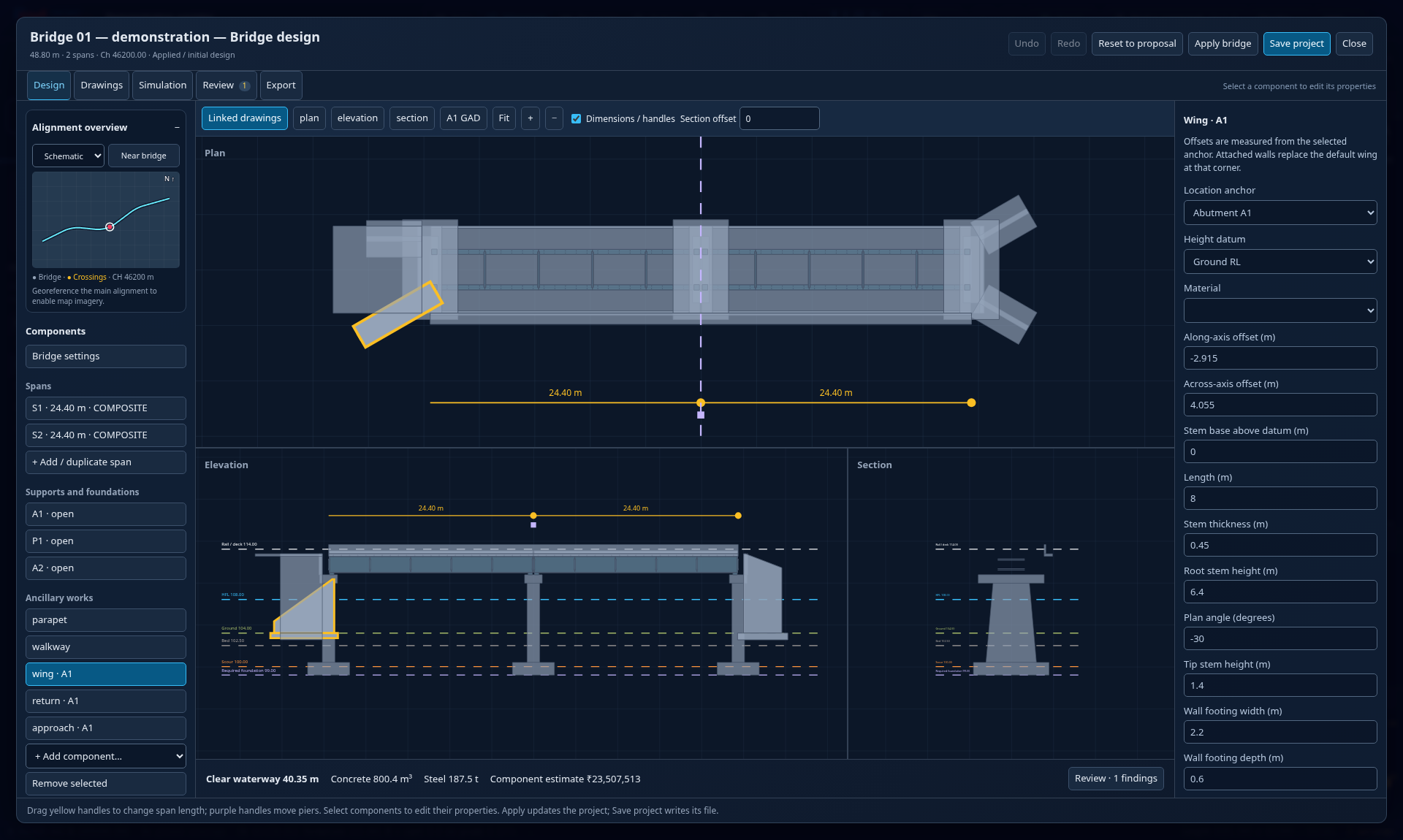
The five tool groups are Design, Drawings, Simulation, Review and Export. Switching groups keeps the draft. The alignment overview locates the structure on the corridor; schematic mode works without imagery, while street or satellite backgrounds need a project georeference and reachable tile service. Undo and redo inside the editor affect its draft. Applying the bridge creates one undo step in the main project. Closing a changed draft offers apply, discard or continued editing.
Select a span and set Superstructure. The steel families have different members and load paths; changing the family installs its preliminary dimensions and resets that span's individual member overrides. Review the resulting dimensions and quantities.
| Family | What the model shows |
|---|---|
| Composite plate girder | Steel I-shaped girders below an RCC deck, with flanges, webs, stiffeners, cross framing and indicative shear connectors. The steel and concrete must be designed to act together. |
| Open-web through girder | Two side trusses with chords, end posts, verticals, diagonals, floor beams and stringers, plus portal, sway and lateral bracing. The railway runs between the trusses. |
| Through plate girder | Two solid-web girders beside the track, connected by a floor system. No side truss or overhead truss portal is added. |
For a through family, Track floor arrangement offers Open deck · sleepers on stringers or Ballasted RCC deck · requires adopted floor design. An open deck has no generated concrete deck slab or ballast bed. A ballasted floor adds geometry and quantities; it does not check the extra dead load or make the main trusses composite. Composite plate girders retain their RCC deck.
Set Outer girder centre spacing from the adopted arrangement. For a railway carried between side girders, also set Required track clearance width and Required track / OHE clearance above rail. The section and A1 GAD show the rectangular envelope, and Review reports obstructing members. The initial 4.8 m × 7.0 m envelope is an editable planning assumption. Verify it against the project's Schedule of Dimensions, OHE, cant, vehicle movement and curve requirements; it is not an approved swept vehicle envelope.
The family defaults and depicted connector pattern are conceptual. They do not reproduce an authenticated RDSO standard drawing or a complete fabrication schedule. In particular, composite construction stages, shear connectors, member capacity, fatigue and rail–structure interaction still require the applicable design calculations. A road bowstring arrangement has no dedicated component family and remains unresolved in this editor; a through-plate placeholder does not establish that bowstring's geometry.
New automatic arrangements use square support lines. In Bridge settings, Structural support skew (degrees) is separate from Crossing obliquity from square (degrees). The latter describes the actual river, road or railway. Keep this evidence: making supports square does not straighten the obstacle or remove its extra opening length.
A square span must cover the obstacle at both deck edges. For a straight corridor of
normal width W, carried width D and acute intersection angle
a, its longitudinal envelope is W/sin(a) + D·|cot(a)|, before
support setbacks and other allowances. A mapped width already measured along the railway is
not divided by sin(a) again. For example, a 30 m corridor crossed at 60° occupies
about 34.64 m at the centreline and 39.17 m across a 7.85 m-wide deck.
Proposals extend a square span where an available arrangement can cover that envelope. The crossing stays unresolved when the span is insufficient, the crossing is nearly parallel, or the surveyed layout is missing. Oblique culverts need inlet/outlet and barrel arrangements; oblique multi-pier waterways need flow-aligned piers and independent obstruction, afflux and scour checks. Overline water structures and rail-under-rail arrangements need their own surveyed square layout and approaches. Change the actual alignment or crossing location, or develop the missing arrangement; a change to an angle field is not a site solution.
Older saved bridges retain their structural skew. Use square support lines changes those supports while retaining crossing obliquity. Inspect support positions, the complete opening, foundations and hydraulic evidence before applying. Square bearing lines alone do not establish a suitable river-pier orientation.
Foundation choices include open footings, pile groups and caps, and wells. For piles, the pile-cap base RL and pile length define the toe. For wells, the foundation base RL is the top of the sinking section and its depth defines the bottom. An individual member's Z override is an absolute centre RL; it is different from an ancillary wall's datum-relative base. Reset this detail restores the generated member. Check connections after overriding a member's length or position.
For a box, Barrel length (m) is the transverse passage or flow length. It is separate from the cell wall centre spacing, clear height and wall thickness. Bridge settings can set it across all cells; a selected cell can differ. Clear openings exclude the cell walls, so increasing wall thickness changes the effective waterway. Check the actual bank section against the illustrative earth cover shown over a buried box.
Add a wing or return wall from the ancillary components. Choose its abutment or box-mouth anchor, end and side, then its ground/bed/carried-level datum, offsets, plan angle and material. A wing wall splays away from the opening; a return wall follows the retained approach. Anchored walls follow span and barrel resizing. An explicit abutment wall replaces the generated wing at that corner rather than adding a second wall over it.
The editor also includes approach slabs, walkways, parapets, drains, pitching, aprons and filters. Their dimensions describe preliminary geometry; a drain envelope does not establish hydraulic capacity, and a wall with a footing has not passed sliding, overturning, bearing or reinforcement checks.
A saved bridge remains when the route or hydrology is recalculated. Changed source chainage, ground/rail levels, crossing angle or hydraulic evidence produce a review notice. Refresh location and crossing evidence adopts the current crossing location, obliquity and requirements while keeping component dimensions and structural support skew; review the carried RL and foundations afterwards. A bridge whose original crossing disappeared remains saved with a finding. It is not silently deleted or redesigned.
Older bridge documents show a separate notice for the corrected member model. Their explicit dimensions remain; through-family spans without a saved floor choice retain the previous ballasted-floor intention. Review the members, obsolete member overrides, floor choice, clearances and changed quantities. Apply bridge accepts the current geometry model for that design. Existing detailed-estimate items remain separate snapshots: review and update or re-import their quantities deliberately, checking for duplicate items.
The review checks geometry, support arrangement, opening, track clearance, recorded flood clearance and foundation depth. In RDSO drawing and design review, record the engineer's adopted drawing number, revision and source URL after checking the original document. Complete Adopted railway loading, Adopted track arrangement and Construction / erection method from that design basis. Legacy recommendation labels are unverified review aids. Entering an adopted reference does not certify RDSO compliance.
In Simulation, use cutaway/transparency to inspect buried members, component opacity and exploded separation to inspect overlaps, and the recorded HFL water plane to inspect levels. Assembly progression reveals geometry in generation order; it is not a construction programme. The moving train is a visualisation, not a moving-load or capacity calculation.
Open the workspace's A1 GAD preview or Export group. Check the plan, longitudinal elevation, typical span section, support/foundation section, span dimensions, chainages, RL references, schedules, notes and title block before downloading. Wing and return walls have W1–Wn schedule identifiers and dedicated root/profile details where required. Sections cut the actual resolved members; concealed edges are dashed and centrelines use long-short lines.
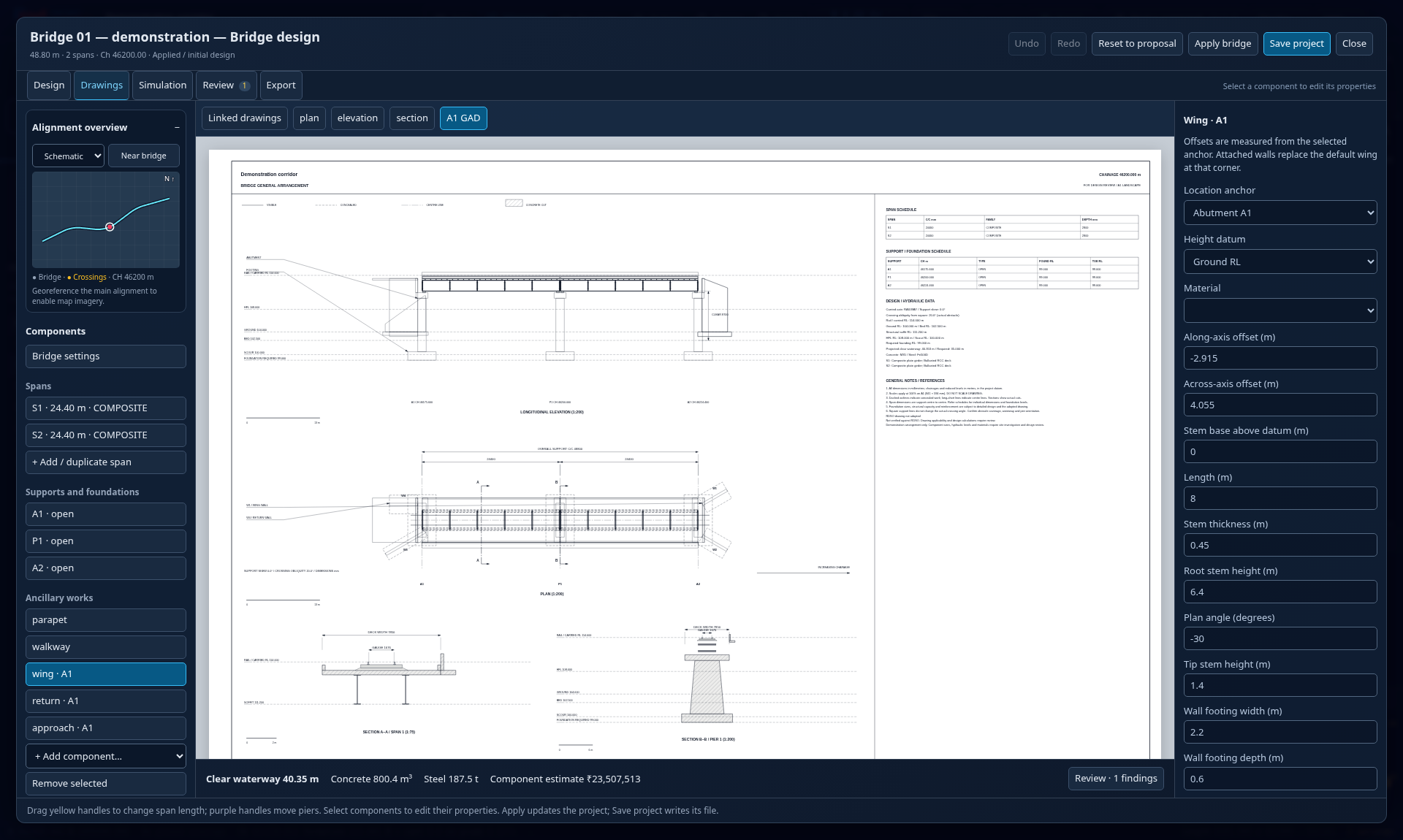
Choose A1 GAD PDF or A1 general arrangement DXF in the workspace. Output → Export deliverables → Bridge GAD sheets packages saved bridges and current proposals and can produce a PDF of all bridges. Individual drawing SVGs, component/quantity CSV and bridge JSON backup/import are also available. Engineering downloads use the deliverables access policy; previews and working-file backups remain available with the design tools.
A1 landscape is 841 × 594 mm; print the exported PDF at 100% / actual size. Plan and elevation share a stated scale; details can use different stated scales. Sheet geometry and written dimensions are in millimetres, with chainages and RLs in metres as labelled. Do not infer a ground distance from the screen preview's size.
The drawings and quantities describe the entered arrangement. Member capacity, geotechnical bearing and pile capacity, seismic/fatigue/prestress design, reinforcement and fabrication connections still require detailed engineering. Drawing conventions and family names do not establish an approved standard design. Concrete/stone volumes and steel geometry are resolved from the components; reinforcement density and foundation excavation remain stated assumptions.
Applied bridge components feed the generated bridge quantities and replace that bridge's default cost. A detailed estimate is a separate fixed bill: apply a bridge before importing a design snapshot, and revise the bill deliberately after later bridge changes.
The corridor query asks for transmission lines and pipelines too, and the clearance is measured over an overhead contact wire that is already 5.5 m up — so a line that comfortably cleared the road it was strung over may be nowhere near clearing an electrified railway. It is re-checked every time the grade line moves.
The clearance table for power lines is indicative. Check it against the current schedule of dimensions and the electrical inspectorate's requirements before anybody signs a drawing.
Nothing in an Overpass response separates no watercourses in this corridor from a mirror that is misconfigured or half way through a reload: both are a 200 with an empty element list, and an empty corridor is legitimate. A second mirror can tell them apart, so an empty answer is put to the next mirror before it is believed, and a mirror that finds the river overrules the one that did not.
| Situation | What the tool does |
|---|---|
| An extract with content | Cached for 90 days. |
| An empty extract, confirmed by a second mirror | Cached for one day, and served as a real answer. |
| An empty extract nothing could confirm | Not returned as an answer at all. The layer is reported as unknown and the panel shows it as did not load rather than as a plausible zero. |
| One layer fails, four succeed | The schedule is built from what did arrive, with the missing layer named. The waterway sizing knows the difference: a layer that did not load is not a corridor without rivers. |
| The lookup takes too long | /api/features works to a 45-second wall-clock budget inside the 60 the platform allows, and answers 504 with a sentence rather than letting the platform reply for it in plain text. |
Look up again sends fresh=1, which goes straight past the cache — kept for a
season, one wrong no rivers here would take the bridges out of every schedule through that
cell.
Stage 3. Yards laid out as conceptual plans directly on the alignment, carrying standard clearance and operating geometry without a separate CAD session.
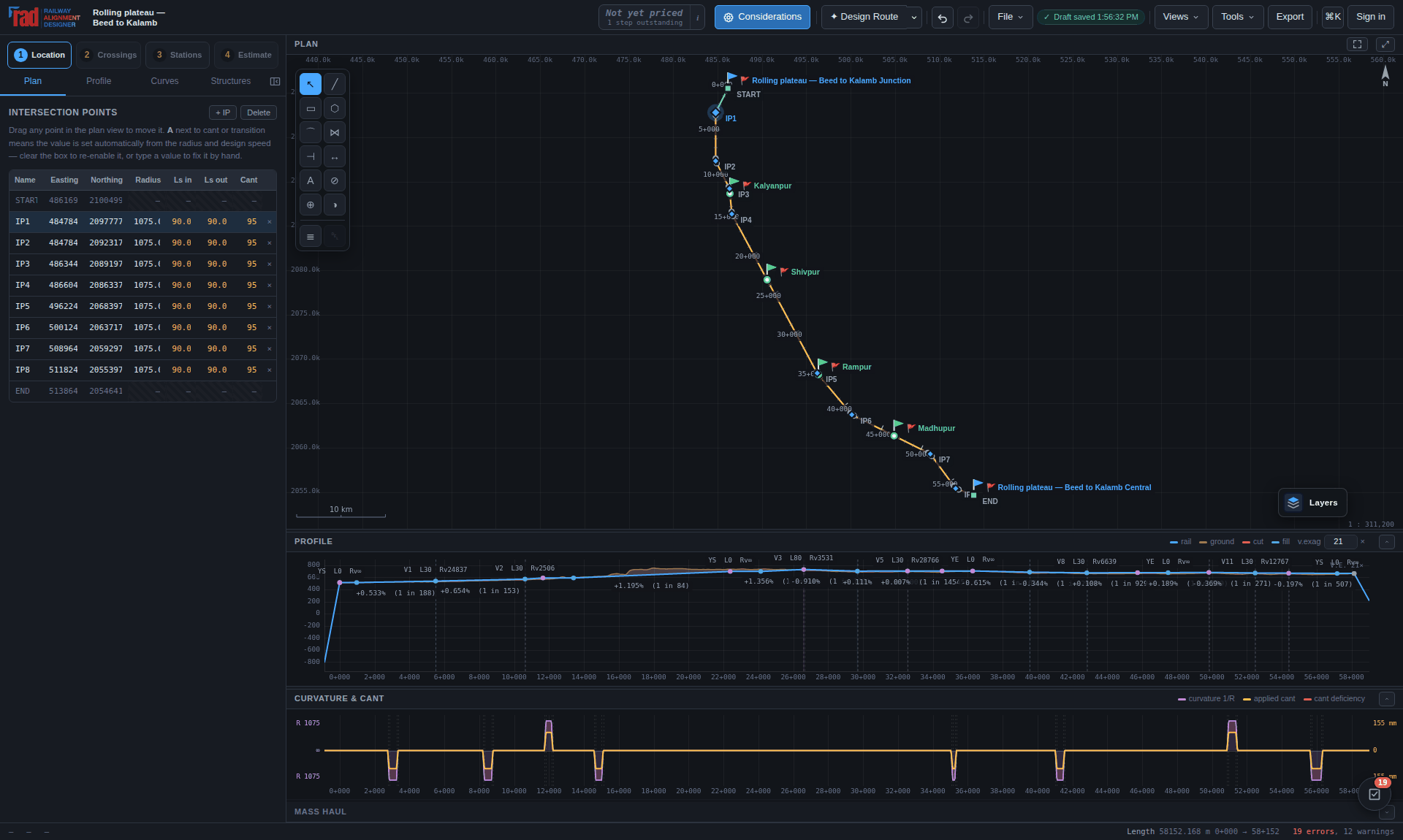
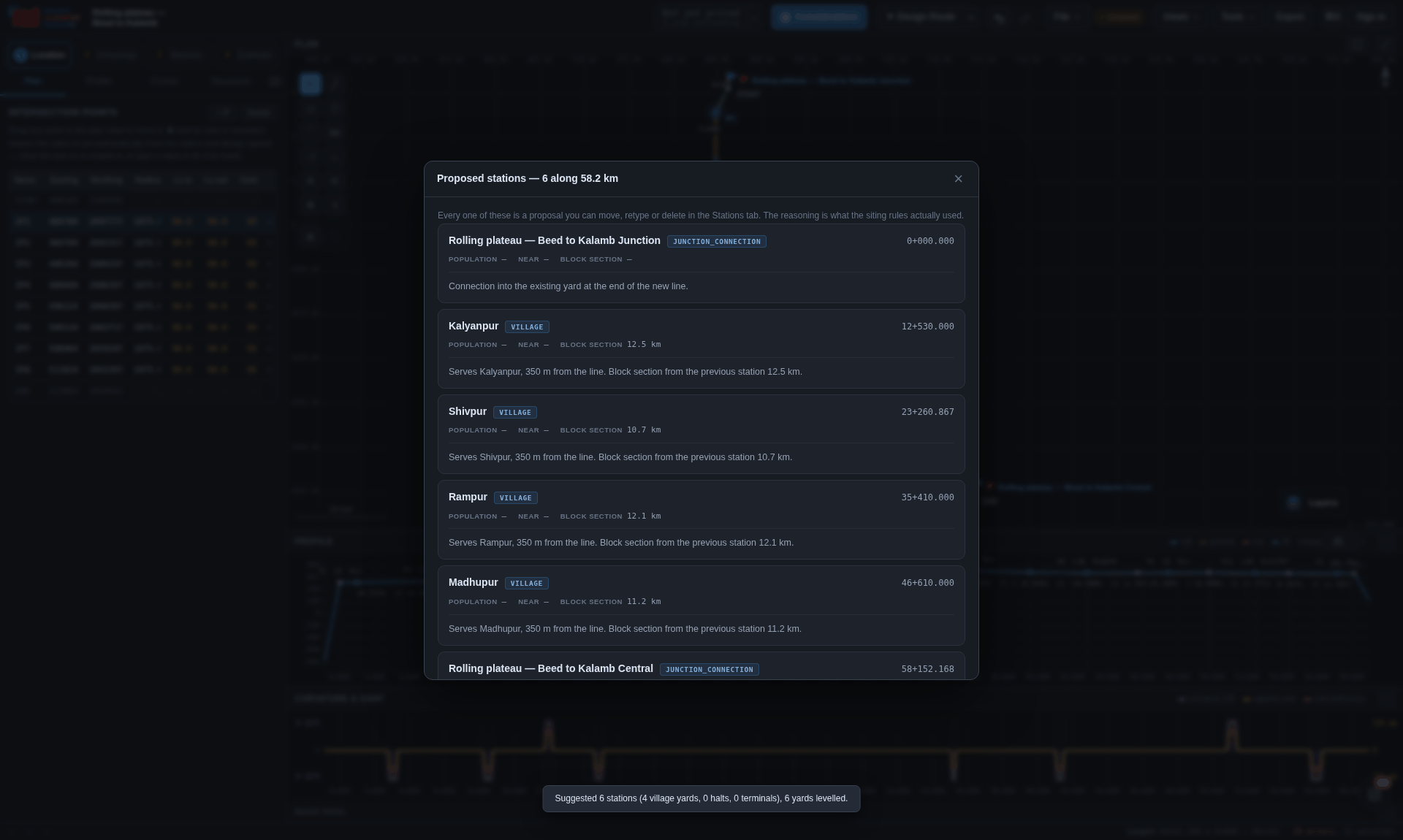
Pick a station and the editor sets out the running lines and everything that goes with them:
| Element | What is laid out, and to what |
|---|---|
| Running lines and loops | Main running lines, passenger loops, goods sidings and shunting necks, at 6.10 m track centres for broad-gauge running-loop clearance, with 800 m clear standing length. |
| Platforms | Island or side, each called by the kind it is, with standard clearance envelopes. |
| Turnouts | 1 in 8.5, 1 in 12, 1 in 16 and 1 in 20, numbered T-1 onwards along the yard, with fouling markers computed and placed where converging tracks drop below safe clearance — so the declared standing length is genuinely available for rolling stock. |
| The station side | The circulating area, the building, the cabin, the parking, the wall around it and the road in — drawn as it was laid out. |
| Depot lines | Stabling, pit, washing and inspection lines and shunting necks: dead-end roads that trail off the road inboard of them, each with its buffer stop and drawn with what it carries — the pit, the washing plant, the shed. |
| Signals | Home, starters and advanced starter, drawn and chainaged with everything else. |
The editor is laid out like a drawing tool made for this one trade. The objects are down the left, grouped as track and junctions, station and depot, buildings, and site; drag one onto the drawing, or click it and then click where it goes, and it lands in the nearest place the section can hold it. Beside them a Layers tab turns each layer off, solos one so it can be read on its own with the rest ghosted behind it, or locks it so it stays drawn but cannot be picked. The properties of whatever is selected are down the right, grouped as general, geometry and design.
Add parallel track — from the library, from a right-click on a road, or with P — lays a road immediately outside another at a track centre you state. A road given its own track centre is held to it and to the 5.30 m SOD minimum rather than to the yard's plain centre, so a yard road at 5.30 m is a design, and one at 4.20 m is a conflict drawn on the drawing where it is. Every turnout is numbered along the yard, T-1 onwards, and clicking one shows its hand, its toe and fouling-mark chainages, its lead and lead radius, the crossing angle, and the speed its route may be taken at.
Under the drawing, the Checks tab lists every conflict and takes you to the thing at fault when you click it; the Longitudinal Profile draws the rail level and the ground over the whole yard, with the yard limits the 1 in 400 rule is measured over; and the Cross Section cuts square across the yard wherever the chainage probe was last used, with offsets to scale and the track centres dimensioned. A summary beside them gives the yard in figures. Generate yard takes a brief — loops, platforms, the longest train, depot lines — and lays out candidate yards side by side, each solved and checked, to start from.
A yard cannot sit on a steep gradient. The vertical alignment is checked and flattened into a yard plateau at a maximum of 1 in 400 (0.25%), inserting vertical curves to tie it back to the ruling grade — which is what the Indian Railways Schedule of Dimensions requires. This is why entering stage 3 changes the profile: the plateau is real geometry, in the same VIP list as everything else, and it will show up in the setting-out table and in the earthwork.
The signalling follows from the throat once it is laid: the home an adequate distance outside the first points, a starter on each running line at its fouling mark, and the advanced starter beyond the last points, where the block section begins. The distance between them is what each running line can berth — and a loop too short to hold the train the line is planned for is reported with both figures, and lengthened for you.
The finalised layout drops straight into the DXF export, so the 5 km sheet packages carry fully modelled station limits on standard CAD layers rather than a centre line. The signalling and interlocking schedule comes out beside it as a CSV and as a sheet of the workbook: every point with its number and how it is worked, every signal with what it reads over, the berthing lengths, and the equipment the standard of interlocking asks for.
SOD plateaus, 800 m standing lengths, standard turnouts and complete sheet packages are generated — but signalling interlocking proper and OHE catenary layouts are finalised in a detailed project report, not here.
Use the generated design estimate while developing the alignment, or prepare an editable detailed estimate of component bills, measurements and adopted rates. Both report their basis and outstanding work.
Start a detailed estimate · Enter measurements · Select rates · Apply, save and export
The estimate schedule in Stage 4 prices quantities from the current geometry, structures, crossings and stations. Its missing-work checklist applies while the generated estimate is the active cost source. A detailed bill has its own item and rate review instead.
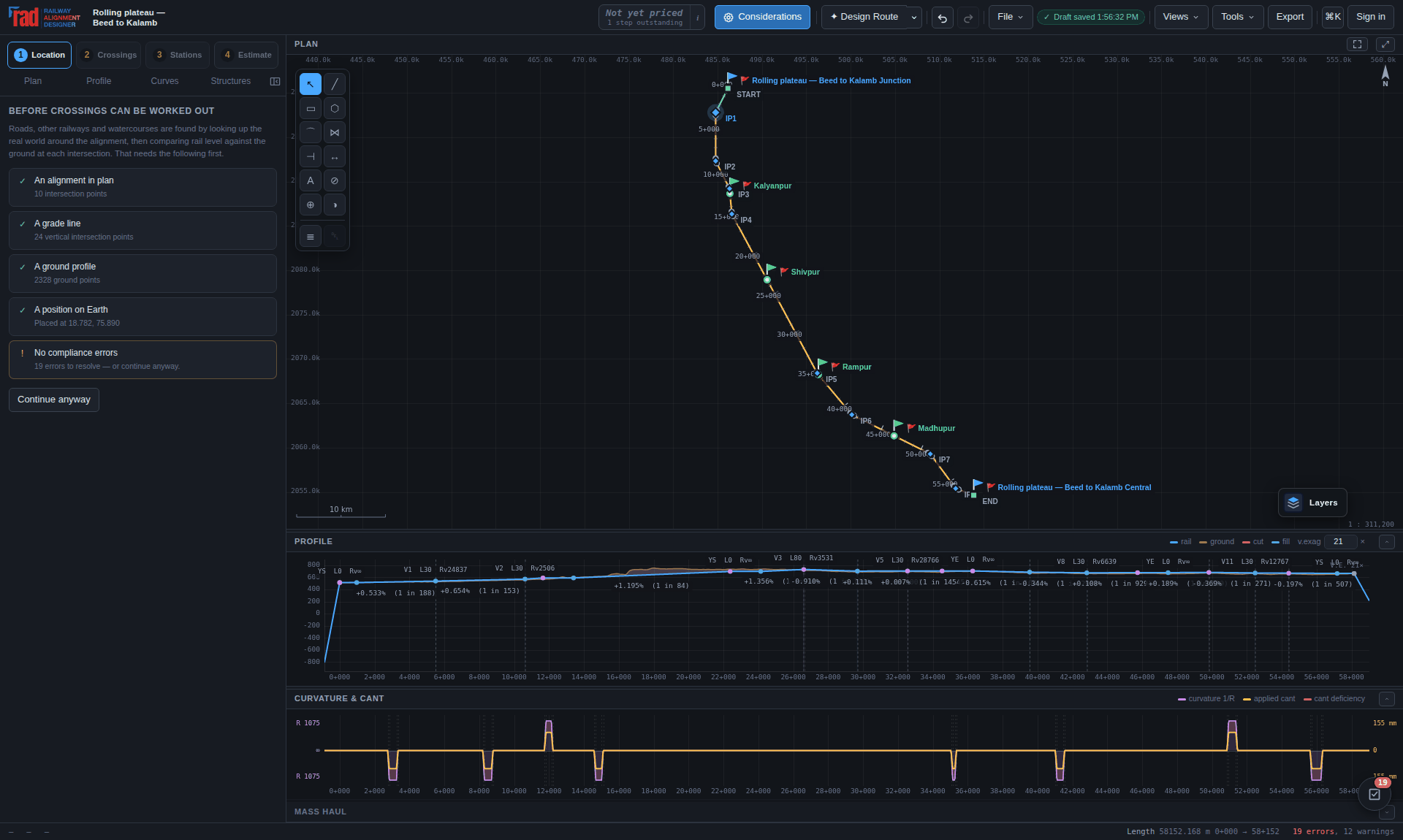
A cheap total missing all its bridges is worse than no total, because it reads as the cost of this line. So the total is withheld until the works it is made of have been worked out, and the cost readout says what remains outstanding. In a detailed bill, missing quantities, missing rates and unresolved rate-basis findings similarly prevent a ready total.
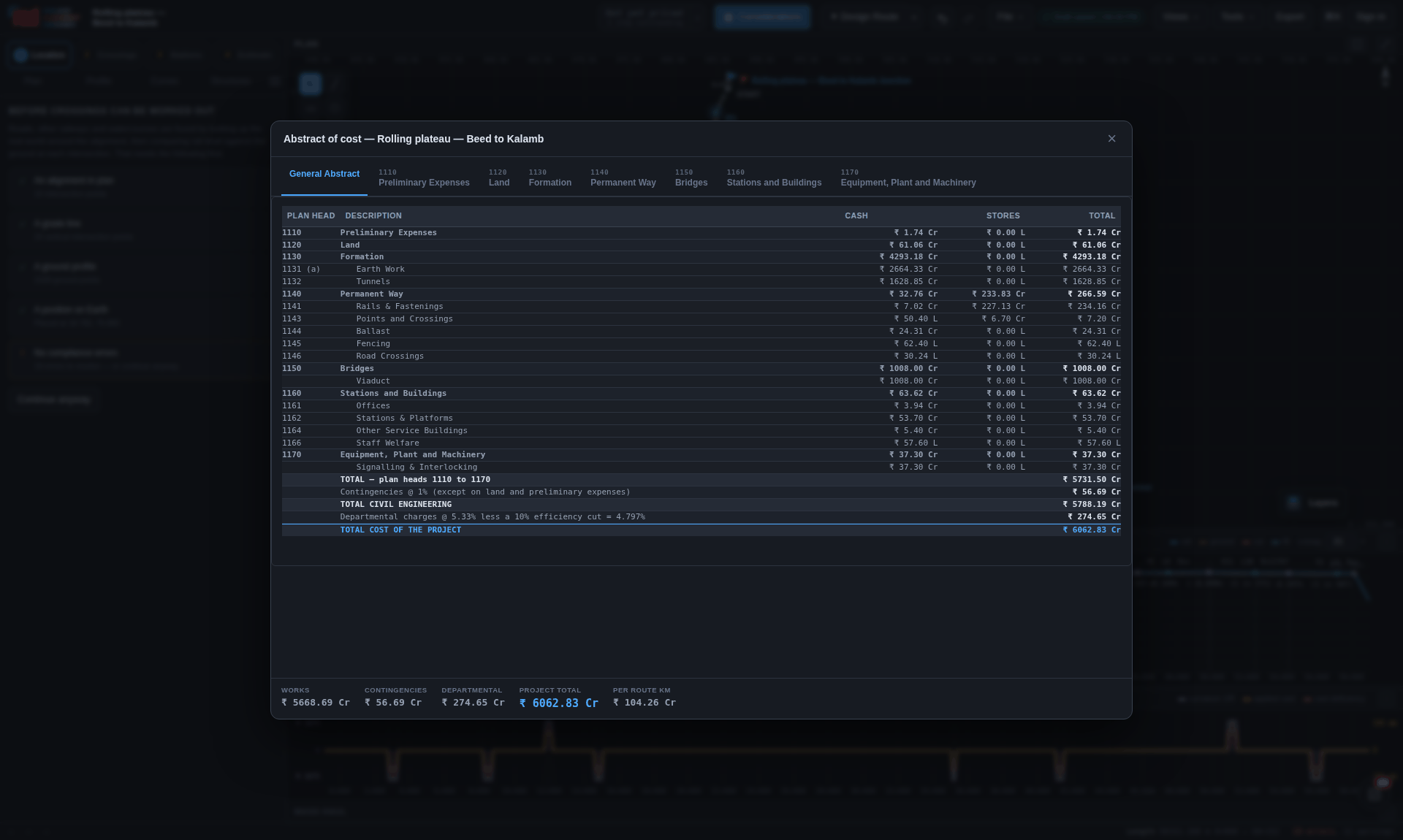
| Plan head | What it collects | Where the quantity comes from |
|---|---|---|
| 1110 | Preliminary expenses | Route length × the adopted survey/preliminary rate per km |
| 1120 | Land | The land boundary schedule — banded offsets, area actually acquired |
| 1130 | Formation — earthwork and tunnels | The structures pass: cut and fill volumes, tunnel bores |
| 1140 | Permanent way — rails, fastenings, points and crossings, ballast, fencing, road crossings | Route length, the station schedule's turnouts, the crossing schedule |
| 1150 | Bridges — viaducts, major and minor bridges, culverts | The crossing schedule and the hydrology sizing |
| 1160 | Stations and buildings — offices, stations and platforms, service buildings, staff welfare | The station schedule |
| 1170 | Equipment, plant and machinery — signalling and interlocking | The signalling schedule |
Twenty-six plan heads are offered on the selector — new lines, gauge conversion, doubling, traffic facilities, road safety works, track renewals, electrification and the rest — so the abstract can be classified under the head the work is actually being sanctioned against.
Open Output › Detailed estimate, or press Detailed estimate… in the estimate panel. This workspace can be opened without completing the alignment stage gates; a stand-alone bridge, building or other component bill does not need a routed corridor.
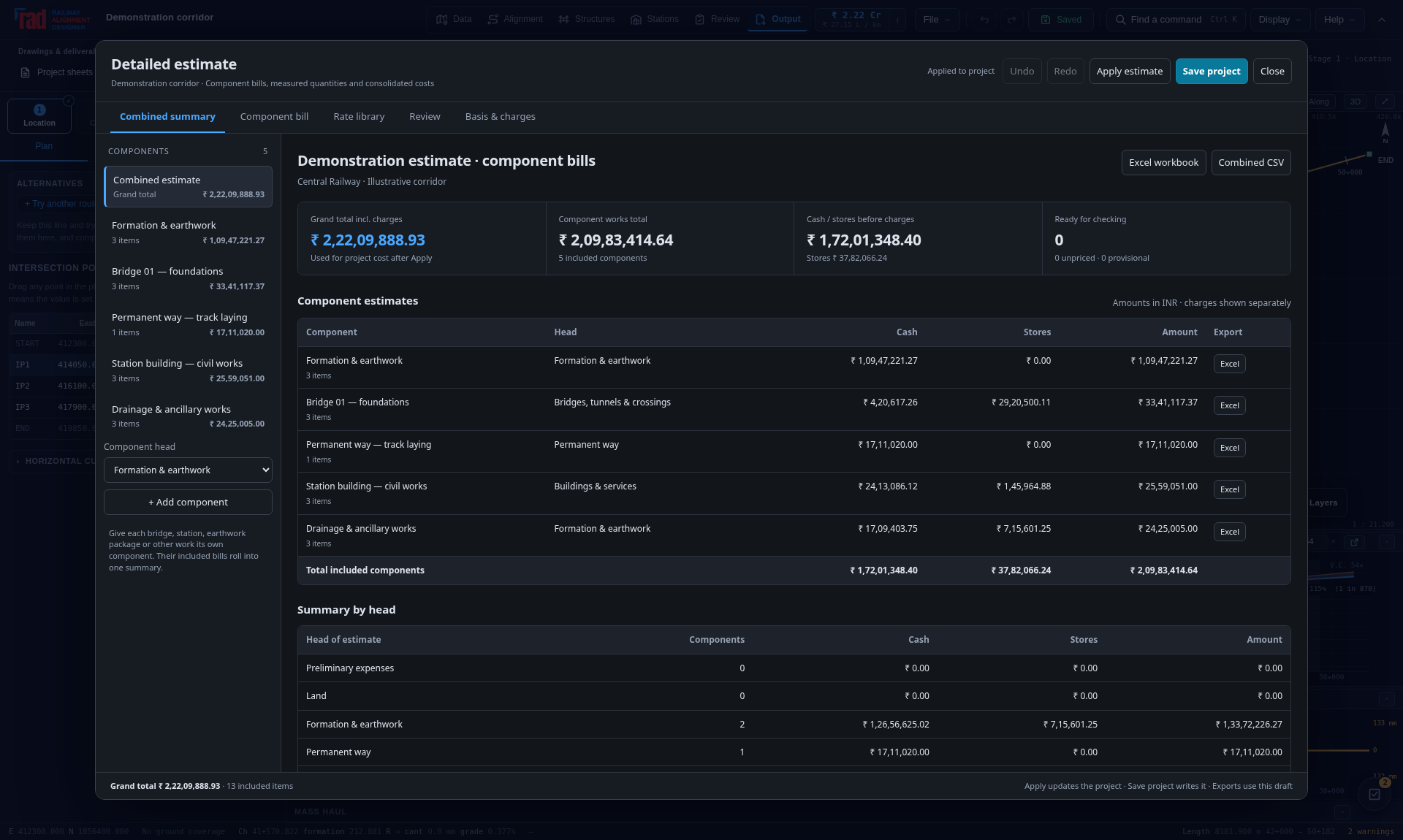
Import current design replaces the current detailed bills after confirmation. It captures the quantities and rates at that moment; moving the alignment or resizing a bridge afterwards does not update them automatically. Review the affected bill, or reimport knowing that your existing detailed edits will be replaced. Imported assemblies and allowances remain provisional until their quantity and rate basis have been checked.
Use separate components for packages you need to issue independently. Assign the correct railway head, especially Land and Preliminary expenses, because charge exclusions follow that classification. Include component and each item's include control let you retain an option without adding it to the total. Excluding a record preserves its data; deleting it removes it from this draft.
Select an item in the bill to open its details. With no measurement rows, Quantity is the quantity in the displayed billing unit. Once measurement rows exist, those rows determine the quantity and direct entry is disabled. Remove the measurement rows to return to direct entry; check the resulting quantity before proceeding.
number × length × breadth × depth. Enter 1 for a dimension
that does not apply.net measured quantity ÷ divisor.| Measurement | Calculation | Billing quantity |
|---|---|---|
| Two concrete blocks, less two openings |
2 × 12.5 × 4 × 1.2 − 2 × 1 × 0.5 × 1.2 | 118.8 m³ with divisor 1 |
| 250 m² of work priced per 100 m² | 250 ÷ 100 | 2.5 billing units, multiplied by the published rate per 100 m² |
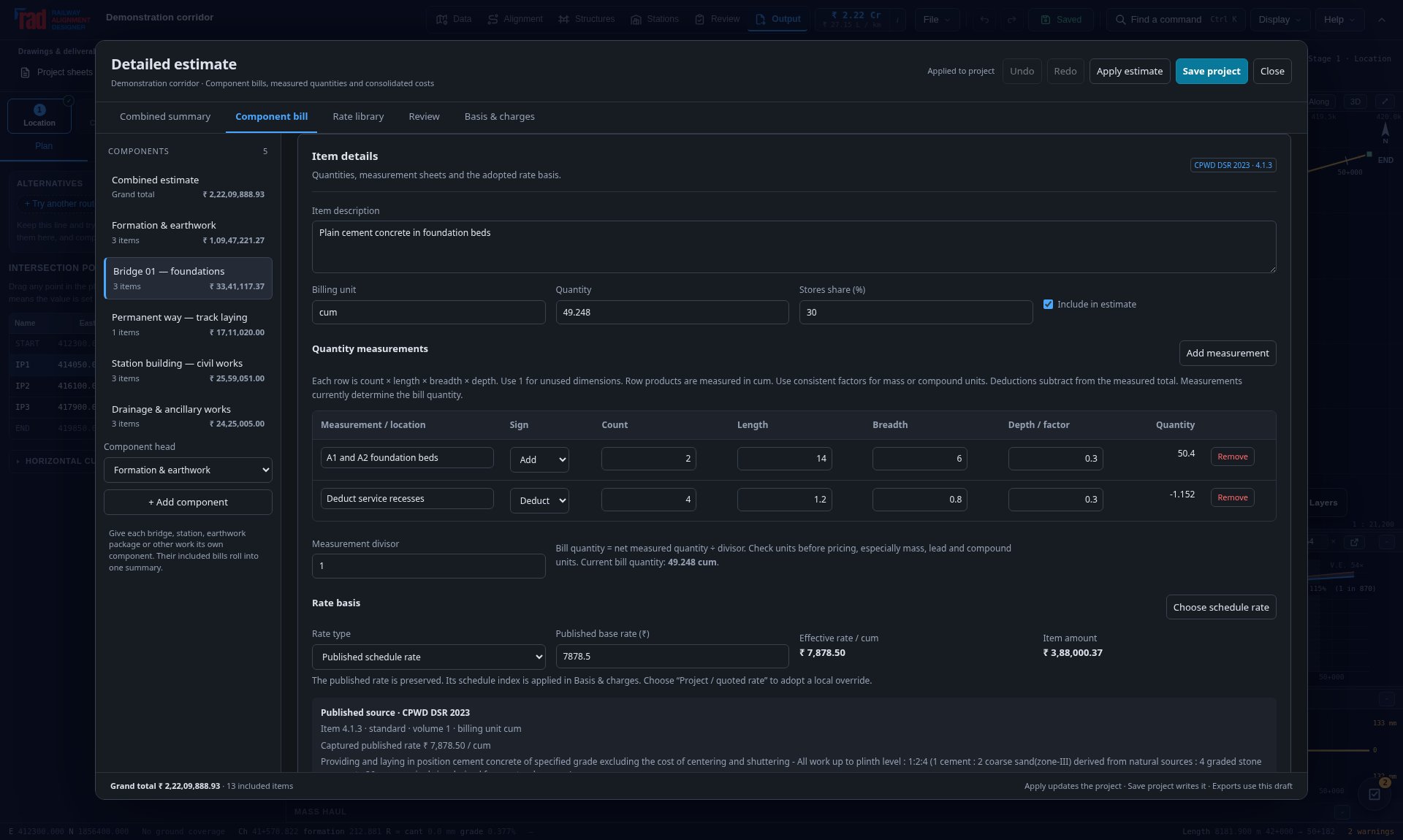
Changing the unit label alone does not convert a quantity or rate. Check conversions between kg and tonnes, per-unit and per-hundred rates, and compound units such as tonne-kilometres. Record measurement units and assumptions in the item notes. Replacing an item with a catalogue rate in a different unit asks to clear its existing quantities and measurements; re-enter them on the new basis.
A blank quantity or rate means Unpriced, not zero-cost work. A genuine zero is retained as zero. Negative published rates can represent credits; check the combined signs of any credit rate and deduction quantity. Invalid number text stays visible and prevents Apply or export until corrected, including invalid entries in another component.
The Rate library holds 4,249 extracted item variants: 1,065 from Central Railway USSOR 2021 and 3,184 from CPWD DSR 2023. Search by item code or description; filter by schedule and chapter. Check the selected row's scope, unit, rate and variant before adding it. Carriage lead bands are separate variants, not interchangeable prices for the same movement.
Selected rows keep the published item code, unit and rate, source document, and available page or volume references in the project. Reopening the file uses that saved rate snapshot; it does not silently substitute a newly fetched price. Follow the source link to verify inclusions, exclusions, lead conditions and applicable correction slips.
| Basis & charges field | What to enter |
|---|---|
| Project railway zone and location | The railway and actual project locality. Review any values initialized from the project. A location does not calculate a cost index. |
| Adopted rate authority | The schedule or authority on which your adopted prices rely. |
| Local adjustment basis / authority | The applicable circular, approved index, quotation or other source, with enough detail for another engineer to check it. |
| USSOR index and DSR index | Separate indices, each with base 100:
100 uses the saved source rate; 110 increases it by 10%.
They affect matching schedule items only. |
IRUSSOR provides common item numbering; the included monetary rates are Central Railway's. DSR 2023 is a Delhi civil schedule. Verify rates for the project's zone, locality and price level. An index does not update an item's scope or implement a correction slip. The extracted catalogue is not a certification that every item, amendment and source value has been checked.
Ambiguous units or incomplete source descriptions remain review findings. For example, a row with an unnamed thousand-unit basis must be checked against the original schedule before its quantity is entered. Most DSR entries record a volume rather than a page. Carriage coverage is partial. Use a sourced custom item for a missing entry and for specialist electrical or signalling work outside these civil schedules. See Appendix B for source links and extraction limits.
To adopt a different project price, select Project / quoted rate, enter the adopted value and record its authority in the notes. Keep the original schedule reference as evidence where useful. A schedule item's published-rate field is not a place to disguise an unrecorded override.
For example, a constituent subtotal of ₹1,000 with 5% overhead and 10% profit gives
1,000 × 1.05 × 1.10 = ₹1,155 per billing unit. Project and analysed rates are
already adopted prices; neither is automatically multiplied by the USSOR or DSR index.
Enter an item's Stores share (%) to allocate its amount between stores and cash. A 25% stores share on ₹1,000 gives ₹250 stores and ₹750 cash; it does not add ₹250 to the item price. The combined summary adds included components and applies project charges once.
| Charge | Calculation basis |
|---|---|
| Contingency | Included works excluding land and preliminary expenses. |
| D&G / departmental charges | The same works base including contingency, at the entered percentage reduced by the efficiency reduction. A 10% efficiency reduction multiplies the D&G percentage by 0.90. |
| Environmental and sports charges | The same base used for departmental charges. |
| Additional GST | The subtotal including the preceding charges. The default is zero; verify taxes already included in the adopted rates before adding it. |
Item amounts, stores allocations and payable charges are rounded to paise; summaries add those rounded amounts. Set a charge to zero when it is not applicable or is already included in your adopted price. Review the stated bases against the sanction and contract requirements.
Open Review before issue. Select a finding to reach the relevant component, item or basis field. Missing quantities or rates are excluded from the priced subtotal and remain flagged. Provisional allowances can contribute money but still need review. Local-rate and source warnings are not resolved merely because all arithmetic cells contain numbers.
| Action | What it changes |
|---|---|
| Apply estimate | Copies the draft into the working project as one application undo step. With Use this detailed estimate for project cost summaries enabled, the cost pane, toolbar and reports read this bill. The generated estimate is not added to it. |
| Save project | Applies the draft and invokes normal project saving.
It writes to the selected cloud project or local .rads, or asks for a destination.
If saving is cancelled or fails, the applied estimate remains in the working project;
retry the save. |
| Workspace Undo / Redo | Moves through estimate draft edits. Closing an unapplied changed draft asks whether to discard it. Apply before relying on the project's recovery copy. |
| Disable detailed cost display | In Basis & charges, clear Use this detailed estimate for project cost summaries and Apply. The bill remains saved and editable; project summaries use the generated alignment estimate again. |
Use Excel workbook or Combined CSV for the full draft, and Component Excel / Component CSV for the selected component. Exports use the current draft; exporting does not apply it or save the project. Engineering downloads follow the site's Pro deliverables access policy. Review-mode and visitor projects cannot apply edits; return to the base alignment before editing a project with an active variant.
The Excel workbook contains the general, head and component summaries; individual component bills; measurements; rate analyses; pinned source rates; settings; and review findings. Editable input cells feed live formulas, with calculated results supplied for viewers that do not recalculate. CSV carries the item register and summary; it is not the measurement and formula workbook, nor a replacement for the project file.
A component-only workbook applies the project charge settings to that component alone. Do not add independently charged component grand totals and then charge the project again. Combine the works subtotals in the project bill and apply its charges once. Independently rounded component charges can differ from the combined calculation.
With a detailed bill active, the full project workbook and cost-estimate export carry its sheets. The DPR identifies components by their saved names and heads, includes GST when applied, and marks incomplete totals as priced subtotals. Custom component names do not establish depreciation lives; classify the assets before completing the report's terminal value calculation. Recheck report quantities and bill scope after any design change.
A first cost is the number a comparison table has always carried, and on its own it points at the wrong corridor with some regularity: a shorter route through the hills is cheaper to build, and then trains climb its ruling gradient every day for sixty years. Four engines address that, all reachable from the Workbench.
| Engine | What it produces |
|---|---|
Traction energyenergy.js |
kWh per train-km, kWh per thousand gross tonne-km, what the gradients cost as a share of traction drawn, annual energy and carbon, and the same alignment priced as diesel against electric. Regeneration is two fractions, not one — what the traction chain recovers, and what the network will actually accept. Both directions are computed, because a ruling gradient is a fact about one of them. |
Whole-life costwholelife.js |
Capital at year zero, energy and maintenance every year, renewals at the years they fall in. Maintenance is driven by the geometry rather than by route length — each curve charged against its own radius — because a flat per-kilometre rate says nothing about an alignment and hands the argument back to the shortest option. The discount rate is a policy choice, so it never appears alone: the sensitivity across 4–12% travels with the result, and two options can be asked for the rate at which they change places. |
Cost riskrisk.js |
P50, P80 and P95, and where the deterministic figure sits in its own distribution. The tornado is the real output: each driver swung P10 to P90 with the others held, ranked, so the engineer knows which single assumption is worth an afternoon. A share of every driver's swing comes from one common market factor, because independent sampling lets the central limit theorem cancel the extremes and report a confident, wrong answer. Quantity uncertainty widens with the terrain grid the design was built on. |
The speed–cost elbowpareto.js |
Given the same corridor designed at several speeds: which options are dominated, where the knee is on normalised axes, and — the figure that actually persuades anybody — what each step costs per minute saved. |
and it is taken from a dropdown before anything has been designed. Designing the corridor three or four times at different speeds costs minutes, because the terrain is already cached.
One window, a list of engines down the side, tables in the middle. A panel that cannot run is still listed, and opening it says which input is missing and what produces it.
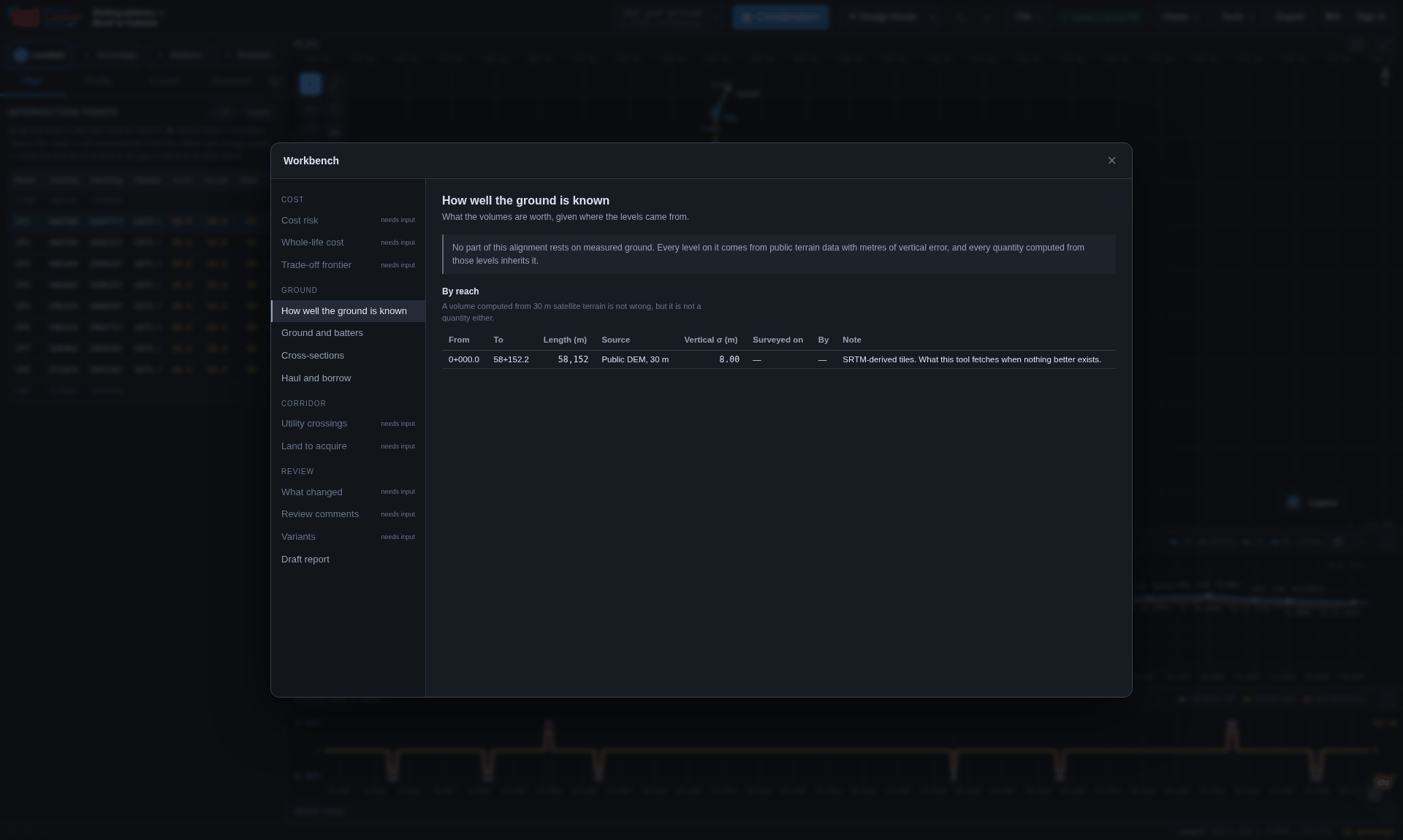 1
2
3
4
5
1
2
3
4
5
| Panel | What it answers |
|---|---|
| Cost risk | What range the total is really in, and which assumption is worth an afternoon. |
| Whole-life cost | What the alignment costs over sixty years, and at what discount rate two options change places. |
| Trade-off frontier | Which speed options are dominated, and what each step costs per minute saved. |
How well the ground is knownprovenance.js |
A band along the chainage axis saying what each length of ground is known from, with the vertical accuracy each source's own specification quotes. It produces a quantity, not a score: a six-metre clearance measured off a surface with eight metres of error in it is not a clearance, and the module says which reach to survey. Errors stay correlated over hundreds of metres, so a reach contributes w·σ·√(L·Lc) — which makes the band invariant under how the reaches happen to be subdivided, and shows that one surveyed kilometre inside forty barely moves it. |
Ground and battersgeology.js |
Chainage ranges each naming a material and how well it is known — logged from a hole, inferred between two, mapped, or assumed. Each material carries its batter, the depth it stands to, the rate it is dug at and how a bore through it is supported, so a cutting in rock is narrower than the same cutting in clay and takes less land with it. Boreholes become reaches by interpolation, and nothing is extrapolated past the last log. |
Cross-sectionssection.js |
Sections cut on the normal, with benching, berms, side-hill sections and drains; volumes by Simpson's rule over a section cut at the midpoint. Where no terrain grid is available the old trapezoid behaviour returns exactly — and every section says it is assumed. |
Cross-sections, on papersectiondxf.js |
The same run as a CAD drawing: a grid of sections a sheet, each over its own datum on a figured graticule, with the surface, the works and their setting-out points, the cut and fill hatched with the ordinates the areas were integrated over, the track, the channels, the bore and the deck — each on its own layer. The plotting scale is chosen off a standard ladder by the widest and tallest section in the set and stated on every sheet; horizontal and vertical are equal, because an exaggerated vertical makes every batter a lie. |
What only shows from the sidefindings.js |
The section engine already knows, per section, whether each batter found the ground, how far the toes ran, whether the ground was sidelong and whether any of it was assumed — and then reduces all of it to two volumes. This reads those flags back out as findings over a length of railway: neither batter meets the ground; one daylights and the other does not; cut one side and fill the other; the boundary runs well past the median for this line; deep works cut against ground nobody measured. None of them breaks a rule — these are the lengths where the quantities are standing on an assumption the ground does not support. Every one carries a Show me that opens the ride on the worst section in the run, off the line and from the shot that shows it. |
How far the driver can seesightline.js |
Where the straight line from a driver's eye to a target ahead first passes through something, and what it passes through. A hillside is the country; the inside of this railway's own cutting is a batter slope, a bench width or twenty metres of shift, and every one of those is a decision that can be unmade. On ground nobody measured the distinction cannot be made at all, and it says so instead of guessing. It is not a stopping distance: no braking curve, no reaction time, no adequacy judgement, and findings only for the shortest quarter of this line's own sights. |
What the land islandcover.js |
The land-take corridor split into built up, vegetation, water and bare, classified from the imagery already on the ground in the ride. Three bands and no near infrared: it tells a green field from a metalled roof and it cannot tell an orchard from a plantation. Two numbers say how far to trust it — coverage is how much of what was asked for arrived, confidence is how much of what arrived fell into any class. |
Haul and borrowmasshaul.js |
Where the material goes: the mass-haul curve, the free-haul and overhaul, and what has to be borrowed or wasted. |
Utility crossingsutilities.js |
Transmission lines and pipelines, with the clearance measured over the contact wire rather than over the rail. |
Land to acquireparcels.js |
Given the cadastral layer, the acquisition schedule plot by plot: how much is taken, what is left, which holdings are severed by the line, and which are bought whole because the residual cannot be worked. The number of owners, rather than the area, is what sets the acquisition programme. |
What changeddiff.js |
Two saved states compared at three altitudes at once: what a person changed, what it did to the line, and what it did to the quantities and the cost. Two lines of different lengths are compared at equal proportion along, not at equal chainage. A rule that has been turned off is the first thing in the list. |
Review commentsreview.js |
Comments anchored to a place in a design — and the design moves. An anchor is stored as the chainage, the fraction along, and the revision it was written against, so when the two readings stop agreeing the comment is flagged rather than silently re-pointed. A comment on a control point follows its name, because a name survives an insertion and an index does not. |
Alternativesalternatives.js |
Other ways of running the same line inside one project. Each is a whole plan, profile and
set of stations; the standard, speeds, limits and rates are shared. The option on the plan is
the project's own points, so every edit changes that option and no other, and switching is an
ordinary undoable edit. They are solved and priced side by side, and cost is only compared once
every option is priced. Projects saved with the older variants (variants.js) open
with each variant as an alternative. Free includes one alternative beside the base route;
creating further alternatives requires Pro. Existing saved alternatives are preserved. |
Draft reportreport.js |
The document that goes in the envelope, with every figure read from the model at the moment of writing so the prose cannot drift from the schedules annexed to it. It refuses to write what the model does not know and lists those gaps. Its best page is the register of assumptions, gathered from every module. |
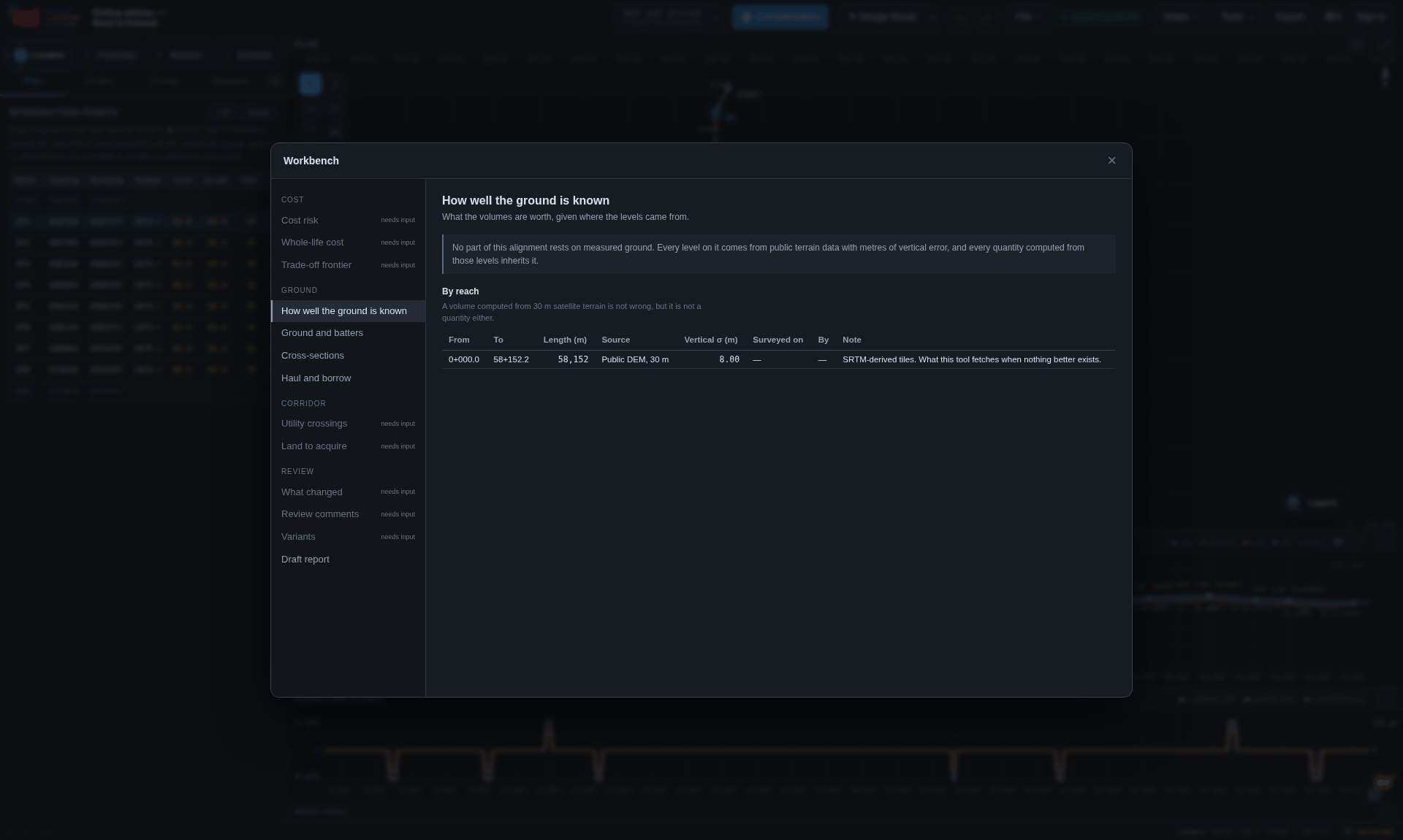
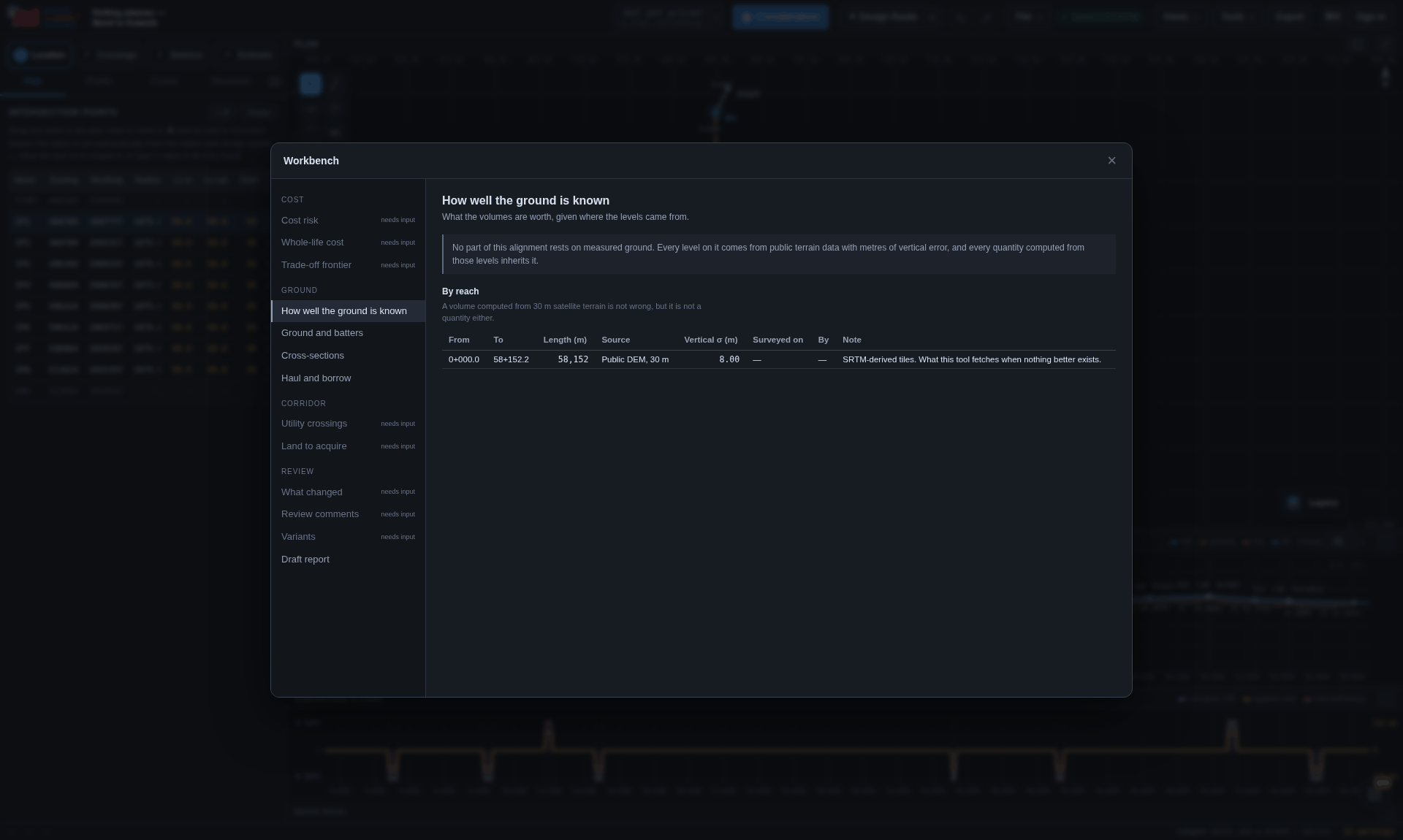
Points, a schedule of cross-sections, LandXML from a total station, or an ASCII grid — the format is worked out from the file. What the panel reports is not 4,812 points loaded but the coverage: which reaches of the line the survey actually covers, and what the volumes over the rest are still worth.
Outside the surveyed area the module returns nothing rather than the nearest value, and the section engine falls back to the project's own ground profile. A survey covering two kilometres of an eight-kilometre line gives you two kilometres of quantity and six of estimate, and the report says so.
optimise.js asks whether the design could be better, which nothing else in the
chain does. Five objectives — cost, earthwork, balance, running time, traction energy — minimised
by a hill climb that never accepts a candidate introducing a compliance error. Never a penalty:
there is no exchange rate between breaking the standard and saving four crore. It produces a trace
that names every move and can be rewound to any step on it, because a design that improved for
reasons nobody can name is not a design anybody will sign.
Tools → Ask handles supported requests locally first, using the current project, application guidance and engineering engines. Local answers make no AI calls and need no AI key. Ask identifies its sources and reports missing inputs.
Inspect an alignment, explain a finding, review cost or quantity results, or prepare a supported change. Review the proposal's target and parameters, then choose Apply change. Accepted edits use normal undo. Invalid inputs, read-only projects and stale proposals are refused. Unsupported edits open the relevant workspace for you to finish; opening it is not a completed design change.
Automatic Gemini fallback is on by default. For requests the local resolver cannot
handle, the question, relevant conversation and project/tool context pass through this site's
/api/assistant to Gemini. Ask settings can disable fallback, set the Gemini
model or hold an optional personal Gemini key. An empty key field uses the site's configured
key. Both paths require sign-in and use the same server route.
Conversations and personal keys stay in this browser, separately from project files, and can be cleared in Ask. They do not follow a file to another device. Map/source lookups and cloud saves retain their own network requirements when Gemini fallback is off.
Ask does not support every edit, replace a survey or certify compliance. Engine limits and missing data still apply, and Gemini explanations need review. Use current source results and formal engineering reports before relying on an answer.
A plan and a profile are two orthogonal projections of one object, and an engineer reads them fluently. Neither shows what the line looks like.
With Pro, open Review → 3D & cab rides → Cab ride 2 (3D) after an alignment is present. This is the newer 3D renderer, with modelled station scenery, trees and buildings. The original Cab ride remains a free, separate view and is documented below; its three-camera controls and rendering limitations do not describe Cab ride 2.
Platforms follow the station schedule, their declared ends and the grade of the line. Pitched shelters use visible steel rafters, purlins, roof sheets, gutters and downpipes. Footbridges include trusses, cross girders, bracing, foundations, covered stairs and landings. Stair access is kept clear of shelters and furniture. Short or narrow platforms omit facilities that do not fit, rather than forcing a full-size layout into the space.
Yellow station boards sit near platform ends and face the tracks; supplied local-language and Hindi names can appear alongside the main name. Benches, bins, drinking-water points, tactile strips and lighting provide context. The station building has windows, verandah and circulation spaces. These are procedural visual details, not a survey of an existing station or a complete building, accessibility or fire-safety design. An explicitly empty footbridge schedule draws none; illustrative fallback placement is reserved for older stations without a schedule.
Cutting benches and berms follow the section geometry. Cutting cess and bench U-drains are drawn only on terrain-trimmed treads that exist; they stop at missing benches and structural transitions. They are not automatically added to fill berms or the embankment toe. Section drainage dimensions override the defaults, and narrow channels can reduce the depicted size. Inspect the section and drainage design before treating any visible channel as an engineered drainage solution.
Return walls are seated against approach slopes, tunnel portal cover joins the hillside, and bridges use the shared resolved family and floor geometry, with the scheduled openings and pier positions. Square support lines retain the actual obstacle direction. Road traffic follows the road grade. Rivers use a water surface over a recessed channel; an aqueduct's water is within its supported trough. Water levels without recorded evidence remain illustrative.
Station pads and channel shaping adjust the terrain used to draw the scene. They do not rewrite the project's ground profile or survey surface, calculate earthwork quantities, or add amenities and drainage to the estimate. Check the source schedules, sections and active estimate when reviewing scope. Neither ride certifies sight distance or the structural adequacy of what is visible.
Cab ride puts the eye on the track, two and a half metres above rail, and runs it along the alignment. It is a picture of the design, not of the ground: the formation and batters the earthwork model assumes, the structures the profile implies, the platforms the station plan placed, and the crossings the schedule resolved, draped on terrain sampled at thirty metres. This original renderer does not add the trees, buildings or detailed station scenery of Cab ride 2. Its engineering objects follow the design modules.
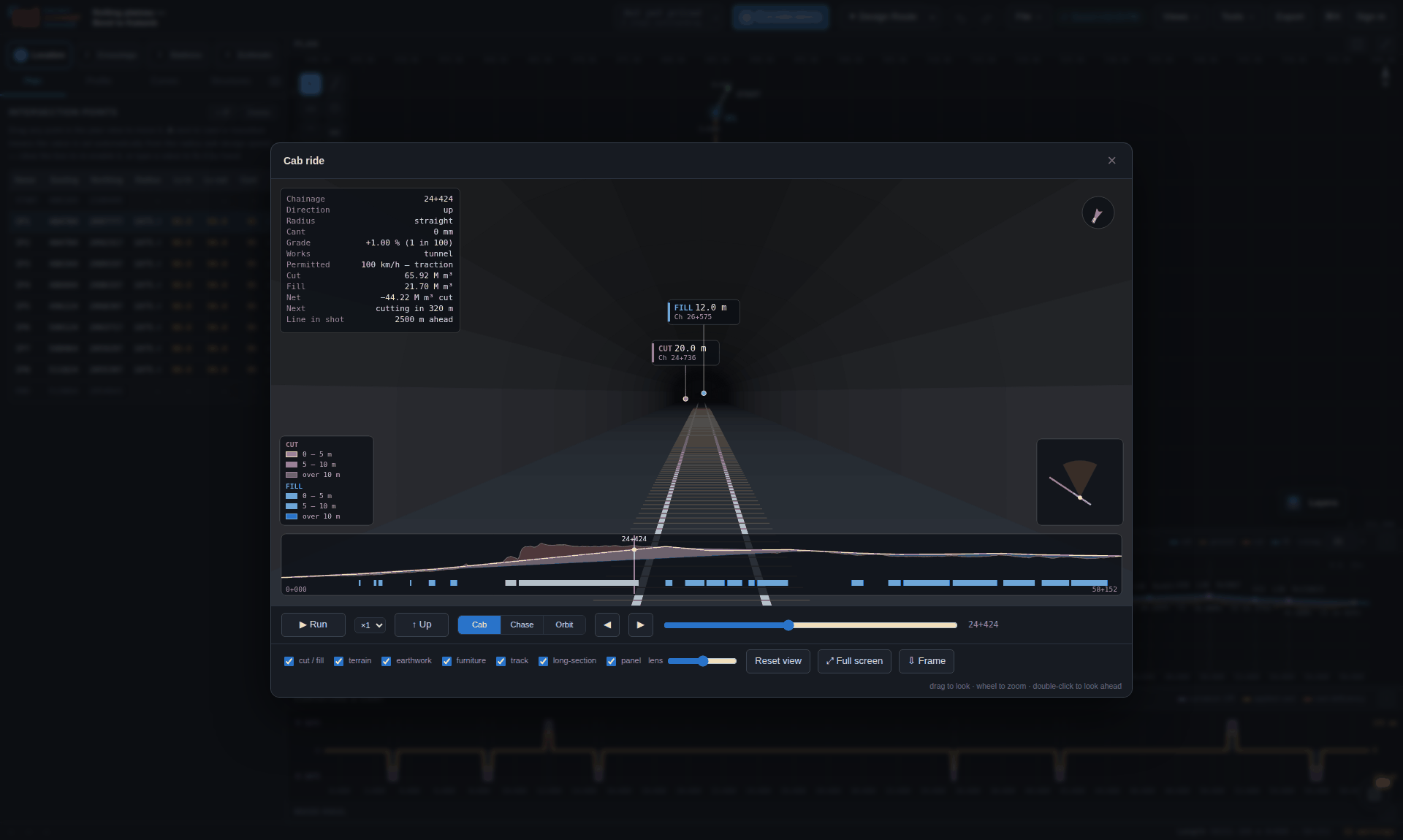 1
2
3
4
5
6
7
8
9
10
1
2
3
4
5
6
7
8
9
10
| Control | What it is for |
|---|---|
| Cab | What the driver sees. |
| Chase | Sixty metres astern and seventeen up, aimed past the train at the line ahead — the shot that shows whether a curve is comfortable. |
| Orbit | Off the line altogether, looking back at it, but still anchored to a chainage and to the track's own heading, so the shot holds its composition as the line turns underneath it. Drag to swing round, wheel to close in, double-click to reset. It is the shot that answers what a plan and a long section between them cannot, because both of those look along the line and this one can be swung square across it. The panel gains two rows the other two do not have — how far out the eye is and what angles it is at — because without them the same cutting looks the same from 80 m and from 800. |
| Scene · ground | What the terrain takes its colour from: shaded relief, or any of the rasters the plan view draws. It opens on satellite wherever the project is georeferenced — a ride opening on shaded relief over a corridor with no terrain loaded is a flat green plane, and almost nobody changed it. Where the plan is already showing a raster that drapes well the ride follows that instead, so the two views agree about the ground; where the plan is showing a drawing (marked †) it is not followed, because following it into a bad picture is a worse kind of agreement than none. With no georeference there is nothing to place a tile against and the ground stays shaded, silently. |
| Scene · detail | Coarse, normal, fine or ultra — the section spacing, the number of ground columns, and how far down the line is built. Coarse is for a laptop on battery and ultra for a still going into a report; neither is the one to ride at. |
| Tangent points | TS, SC, CS and ST on the plan curves, BVC, EVC and the turning point on the vertical ones, pegged either side of the formation at the chainages the solvers produced. |
| Scene · sun | A date and an hour. Empty is the fixed studio light, which shows landform best; a real date puts the sun where it actually was at this corridor's latitude, which turns the picture into a check on which cutting faces stay wet. See The light, and what it is for below. |
| Save · sample land cover | Classifies the land in the land-take corridor from the basemap now on the ground, and puts the split in the workbench under What the land is. |
| Scene · beside | Opens a variant of this project in a second frame, locked to the same chainage and the same camera. Only offered where the project has a variant. |
| Save · every structure | Every structure, station and finding, shot from the same angle at ultra detail into one ZIP with a manifest. The This frame entry above it is for the picture in front of you. |
| Run | Plays the line at the speed the running profile permits — braking into every restriction and accelerating out of it — not at the design speed. The readout says which of the two is being used. ×1 to ×8 runs it faster than real time; the elapsed clock still counts the minutes the train takes. |
| Up / Down | Rides the other way. The grades change sign, the curves arrive in the other order, and the hand of each curve swaps with them. |
| ◀ ▶ | Jumps to the previous or next thing on the line: a station, the start or end of a structure, a resolved crossing. A 90 km alignment is three quarters of an hour at line speed. |
| Look | Drag the picture to look out of the side window, wheel to change the lens from 24° to 85°, double-click to reset. The batter closing in on the driver's side and the far end of a curve are only visible off-axis. |
Keys: space run/stop · 1 2 3 cab, chase and orbit · ← → nudge 25 m (Shift 250 m) · , . previous and next feature · Home End · R reverse · L reset the view · F full screen · S save the frame · Esc close the open panel, then the window.
The horizon is derived from the camera frame rather than drawn level, so it tilts with the applied cant and drops down the frame on a climb — which is what makes a canted curve look canted.
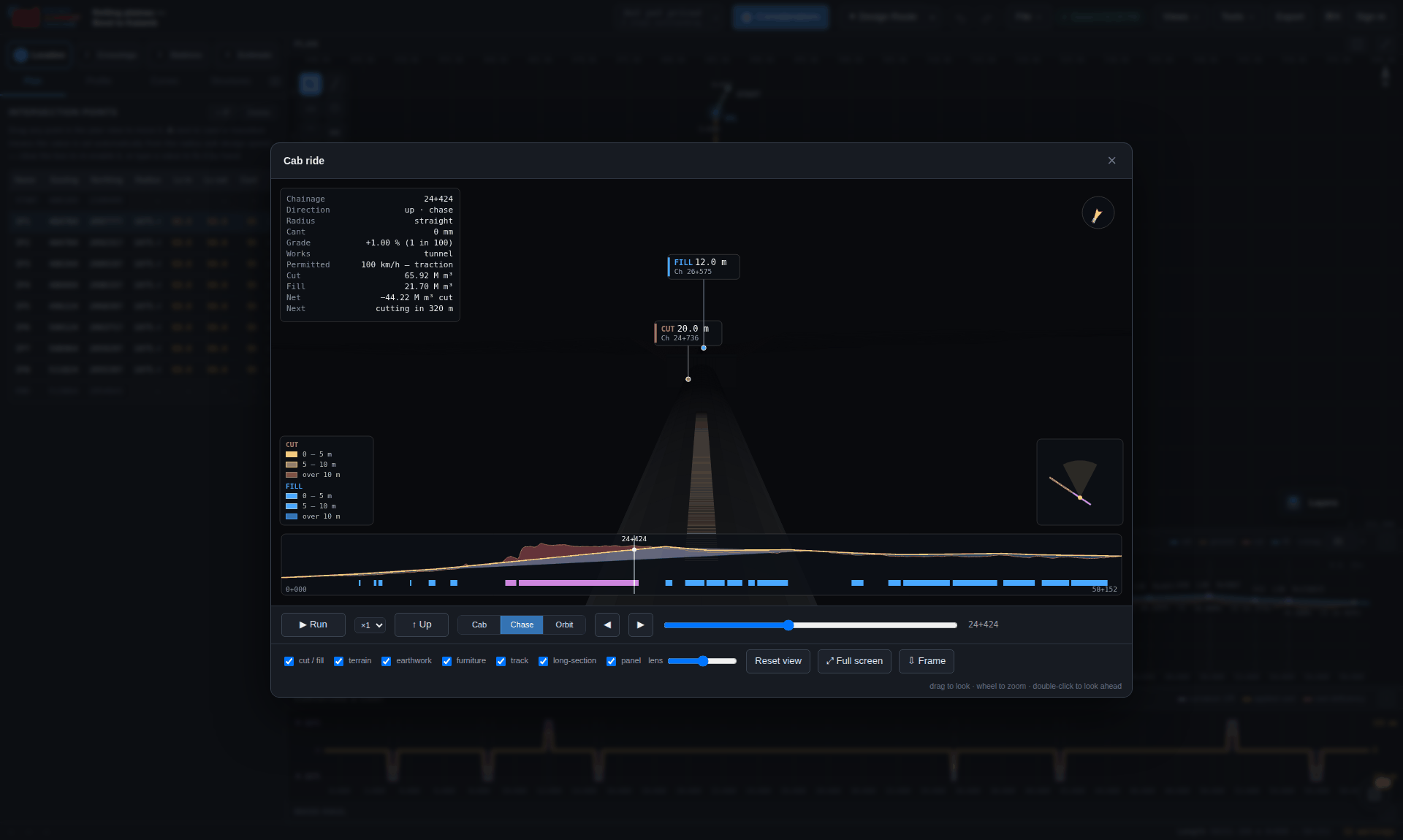
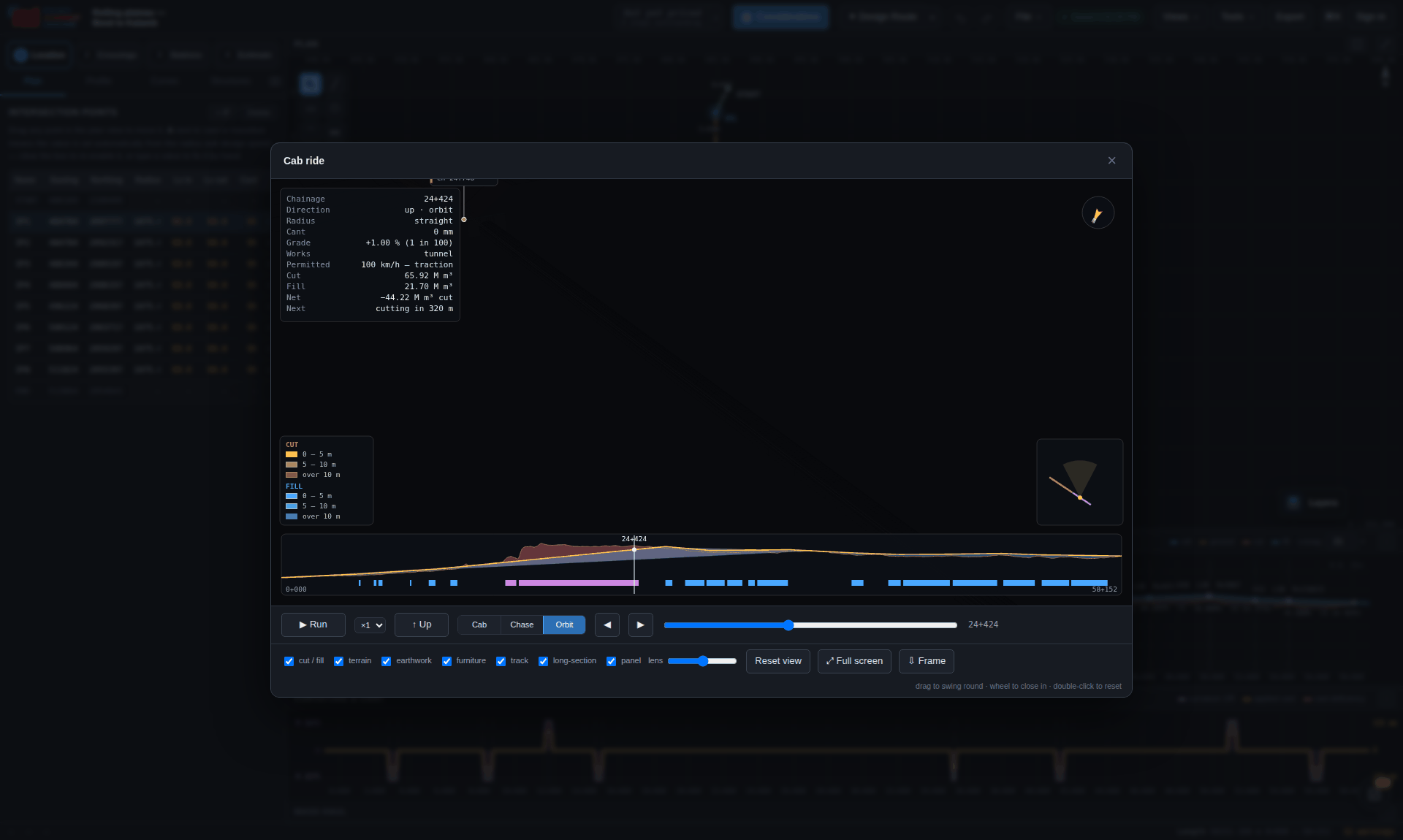
It does not report a sight distance. Measured against uniform batters on 30 m terrain, a stopping-distance figure would carry an authority it has not earned and would be believed. It says instead how far ahead the centre line stays in shot, which is a fact about the picture rather than a claim about the railway.
Where a DEM has been kept, the terrain mesh stops at the top of the batter rather than running across the corridor, and the batter is drawn out to where its design slope actually meets that surface. This is a drawing, not a quantity: the structures engine still prices earthwork against level ground across the section, and the difference between the two is the error that assumption carries.
The ground sampling, lighting, variant comparison and frame export instructions below refer to the original Cab ride. Cab ride 2 has its own 3D renderer and controls.
The terrain fan takes its colour from whichever basemap is chosen in the ground selector — the same rasters the plan view draws. A corridor that runs through orchard, dry scrub and a village reads as one green wedge under slope shading and as three obviously different things under satellite, and the difference is the difference between land that costs money to take and land that does not.
It is one colour per facet — box-filtered over the ground that facet covers — and still lit: an image flattened onto a mesh with the lighting taken off it reads as a bedsheet rather than as a hill. It is not a projective texture, so a facet lying diagonally to the tile grid averages a little ground outside itself, and a very large one is averaged from a sample of its pixels rather than all of them. The footer says colour sampled from and carries the source's attribution, every time. Without a georeference there is nothing to place the tiles against and the ground falls back to slope shading; if a source serves its tiles but will not allow their pixels to be read, the whole layer stands down and the footer says so rather than the picture quietly staying green.
The first version of this sampled the middle of each facet. The terrain fan spaces its columns by a power of the distance from the toe, so an outer facet on an orbit shot is tens of metres across while a tile pixel is about three — one pixel speaking for a patch of ground hundreds of times its own area, and whichever roof or road casing it happened to land on won the lot. The ground came out as a quilt of arbitrary rectangles. Averaging the footprint instead cut the hard edges across the terrain by about two fifths on photographic imagery, and the columns are eased towards linear whenever a basemap is on the ground, which roughly halves the widest facet.
Under the plan this makes no difference: a map under a map is a map. Draped over a mesh it matters. A cartographic raster is flat-filled polygons with hard edges and lettering, and a facet averaging a patch of one is averaging somebody's diagram rather than the ground it stands for; the terrain relief is worse still, because it is already shaded and the ride lights every facet itself, so the two multiply. Those three are marked † in the ground picker with the reason in the tooltip, and the footer repeats it so a frame saved into a report carries the caveat with it. Satellite is the one that drapes like ground.
TS, SC, CS and ST on the plan curves; BVC, EVC and the summit or low point on the vertical ones — a peg either side of the formation with a bar across it, at the chainages the solvers produced. They are already on the curve schedule and in the setting-out table. They are here because the question a ride answers that a table cannot is what a transition looks like, and that is unanswerable if you cannot see where it starts. A curve with no spiral in it is marked TC and CT, not TS and ST, because calling it otherwise would be a lie about a geometry that has no transition.
It paints a few thousand quadrilaterals with the painter's algorithm on a 2D canvas — no WebGL, no 3D library in this original renderer. Ordering is by depth within a layer, which is exact for a strip and could in principle be wrong for two long faces that each partly overlap the other. There is no shadow and no occlusion query, and the basemap on the ground is a sampled colour rather than a texture.
The ground is lit from a fixed bearing chosen so the light comes across the line: an aspect that shades every north-facing slope the same as every south-facing one shows no landform at all. That is the right choice for a picture and the wrong one for a question, and there is a question. A cutting whose face is turned away from the winter sun stays wet; the identical cutting fifty metres on, whose face happens to point the other way, does not. Give the sun control a date and an hour and the light goes where it actually was — NOAA's solar position at this corridor's own latitude, on the clock its own longitude keeps — and the panel gains the bearing, the elevation and the day's length. Below the horizon the ground goes to ambient, because lighting a hillside from a sun that has set is the kind of thing that makes a drawing quietly untrue.
Knowing where the sun is says which way a slope faces relative to it. It does not say whether the hill opposite is in the way: that needs a horizon read in every direction, and this application has a corridor rather than a horizon and no occlusion query to ask with.
Where the project has variants, beside opens one in a second frame. The two share the chainage, the direction, the camera and every layer switch, so that anything different on the screen is a difference in the railway. Letting them drift apart is what makes a side-by-side of two pictures worthless — the eye cannot tell a changed alignment from a changed camera, and it believes whichever it saw first. The comparison panel already puts two options side by side as numbers, and numbers are how a decision is justified rather than how it is made: somebody looking at a variant that saves eleven crore wants to see what eleven crore bought.
The running profile is computed for the alignment that is loaded. The second frame's panel therefore omits the permitted speed rather than printing the base alignment's figure beside the variant's geometry, which would be a quietly wrong number in the one place the two are being compared.
Frames shoots every structure, every station and every finding from the same angle at ultra detail — off-screen at 1600 × 900, so a picture going into a document at that width was drawn at that width and not enlarged from nine hundred — into one ZIP with a CSV manifest naming the chainage and subject of each. A folder of thirty PNGs with no index is thirty pictures nobody can caption. The ride is put back exactly as it was found when the capture ends.
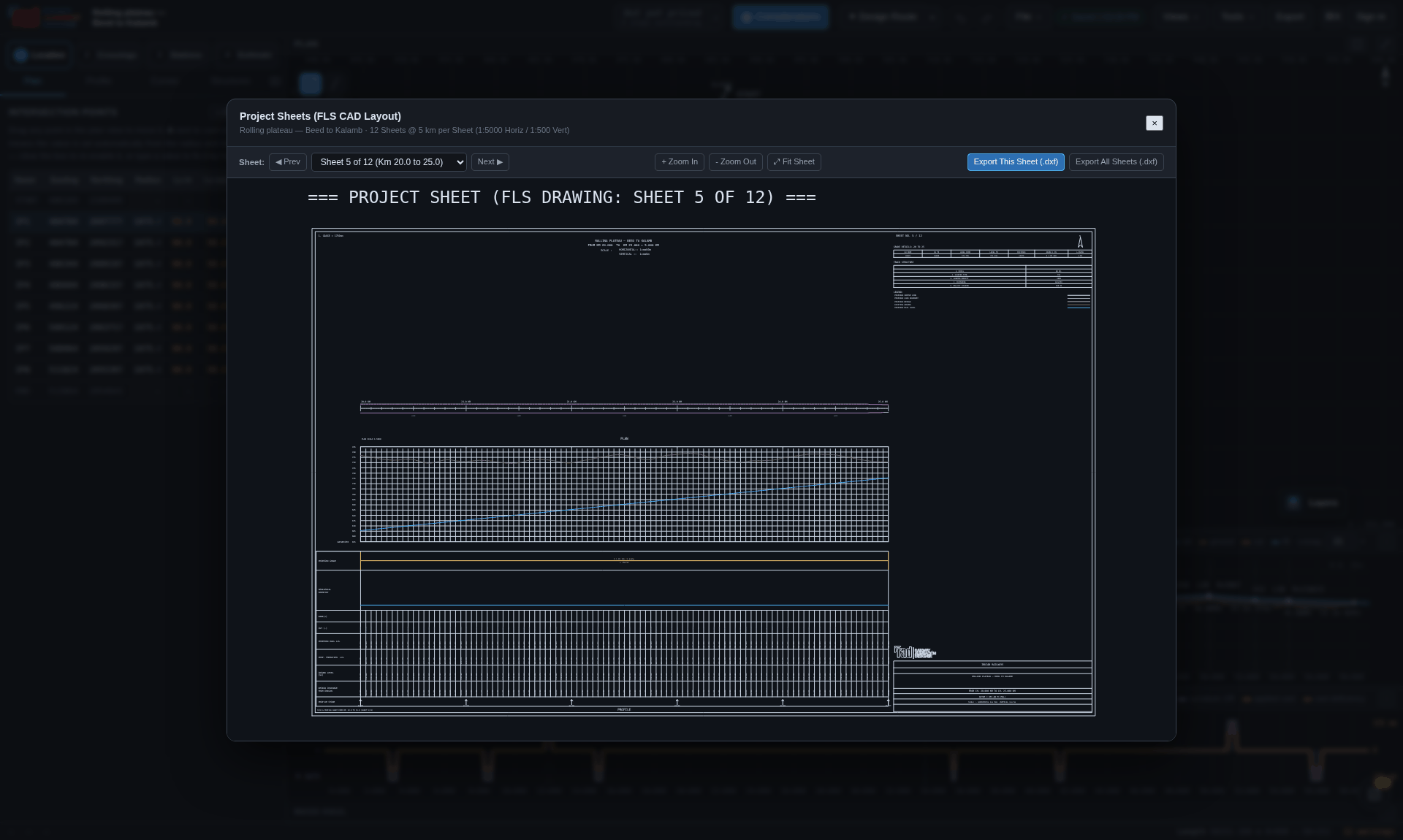 1
2
3
4
5
6
7
1
2
3
4
5
6
7
| Layer | Source | Good for |
|---|---|---|
| street map | OpenStreetMap | roads, settlements, existing railways |
| satellite | Esri World Imagery | what is actually on the ground now |
| topographic | OpenTopoMap | contours, watercourses, relief |
| terrain relief | Esri World Hillshade | reading the shape of the country |
Each tile is drawn through an affine transform built from the plan coordinates of its own three corners, rather than the whole image being stretched to fit, so registration against the alignment holds to a small fraction of a pixel at any zoom. Each source is credited in the corner of the view.
Tile imagery carries its own positional error, and the plane is placed on the earth from a single tied point on a north-up unit-scale grid. Good enough to see that a curve clips a village; not a substitute for a survey or a real coordinate transformation.
What comes out, and what is inside it.
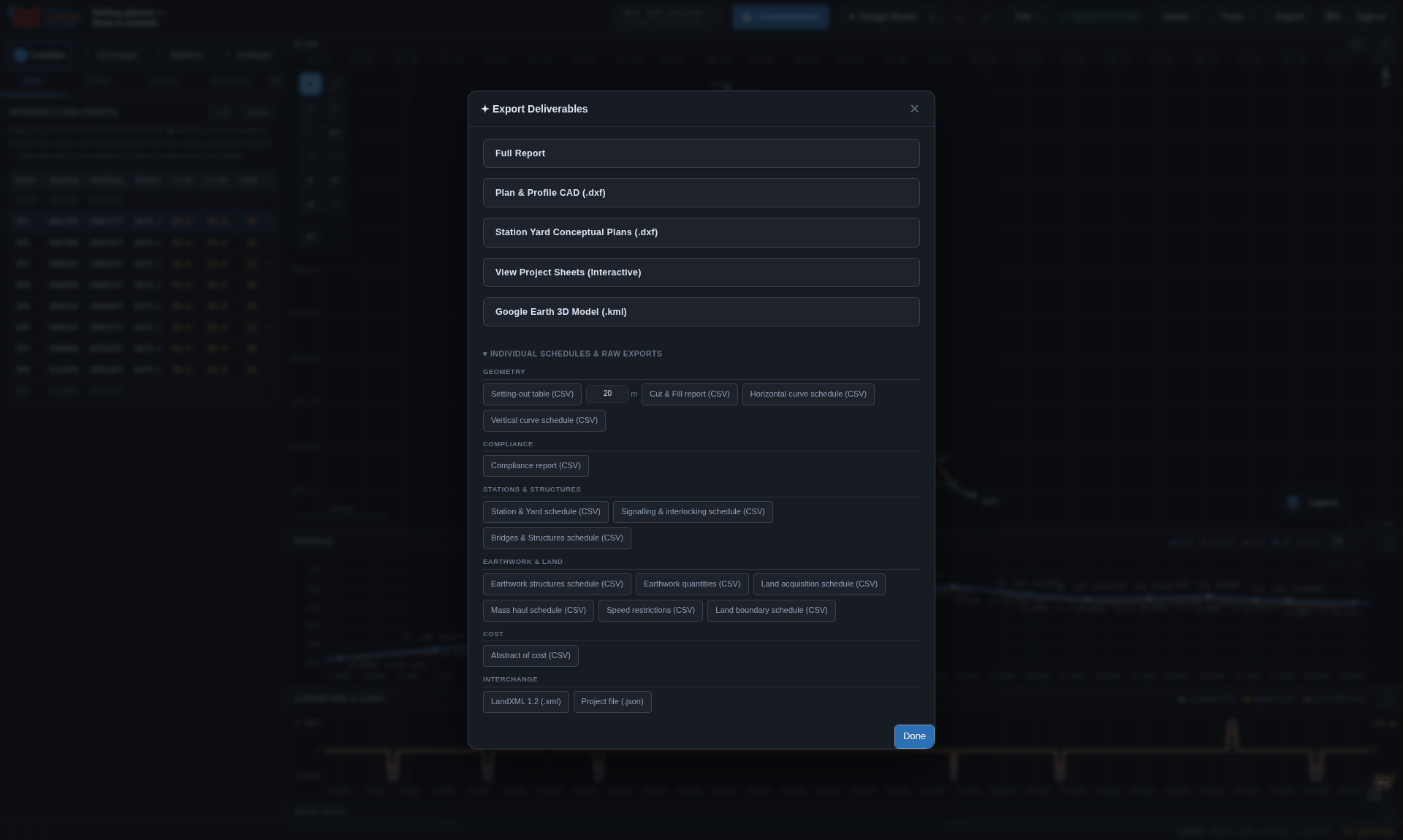
On the main and corporate websites, a PDF export first opens a preview. Check the page, use Search PDF or Text to inspect its existing text, and add highlights, text, comments or freehand marks. Choose Download to save an annotated copy, or Edit PDF to carry the document and your annotations into a dedicated editor page.
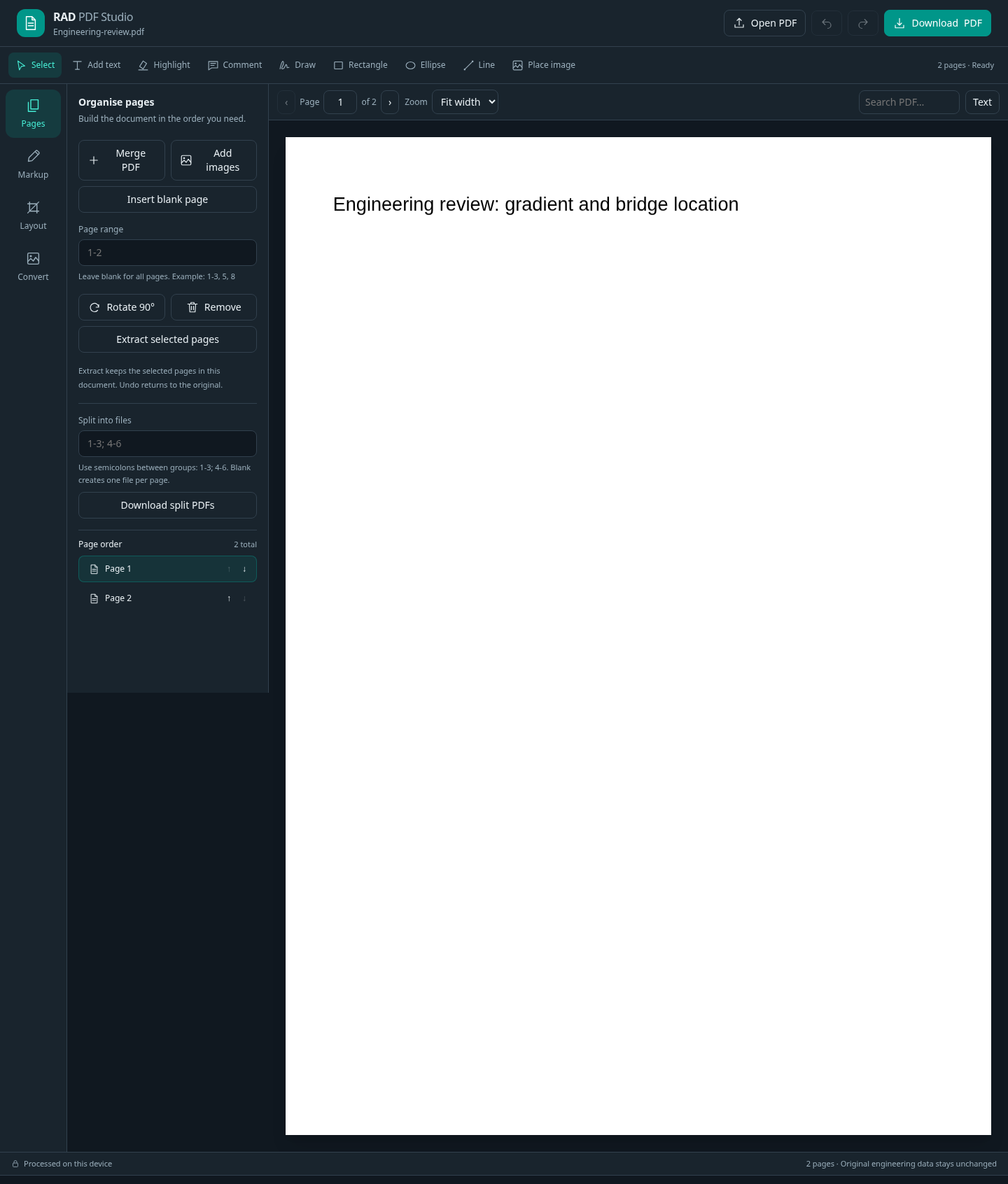 1
2
3
4
5
1
2
3
4
5
Open Export → PDF Tools to start with your own PDF or images. Pages combines files and inserts, removes, extracts, reorders or rotates pages; split ranges produce separate files. Markup edits the objects you add. Layout crops page edges and adds page numbers or text/image watermarks. Use Download PDF when the result is ready. Original PDF text and drawing geometry are preserved; they are not converted into editable Word paragraphs or CAD entities.
Convert exports PDF pages as JPG images, adds JPG/PNG pages, and extracts existing text to basic HTML or Markdown. Camera/document photos can become PDF pages. Image-only scans do not gain searchable text: OCR, Office conversion, compression, repair and PDF/A conversion are not included. These tools process documents on your device; they do not send the PDF to a conversion service.
The editor keeps a local draft for up to 24 hours in the same signed-in browser session, subject to available browser storage. Download important work before clearing storage or signing out. Existing Pro, company and project-allocation checks still apply to engineering exports and restored project documents. Editing a PDF does not update the alignment, estimate, design approval or original project file.
In company chat, PDF attachments open in the compact viewer with search, page controls and annotation tools. Download saves your annotated copy; it does not replace the shared attachment. The document page is rendered as needed so that opening a long file does not wait for every page to be drawn.
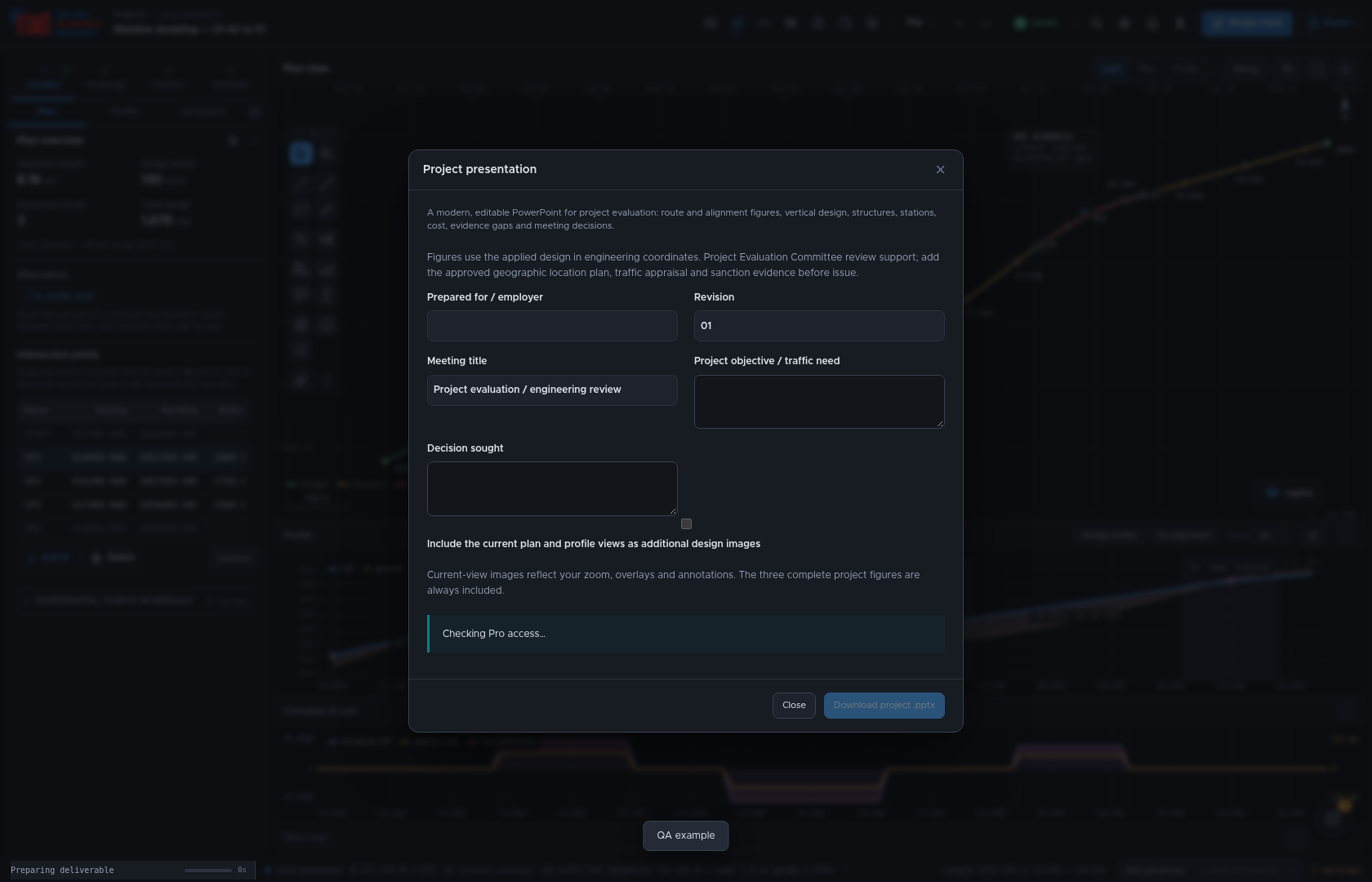 1
2
3
1
2
3
Save the adopted design, then open Export and choose the project presentation
(.pptx) named Project presentation. Enter the employer, revision, meeting title,
objective and decision sought, then choose Download project .pptx. This export requires Pro.
It assembles the route, alignment and profile imagery, design basis,
structures, quantities, costs and review findings from the current project. Check the named
alternative and cost snapshot before presenting it. The alignment and profile use engineering
coordinates; the editable line diagram follows station chainages. Include the current plan and profile views adds images of the present zoom,
overlays and annotations; a saved CAD drawing can also be included. Add an approved geographic
location plan when the meeting requires one.
Use the deck as a starting point for a PEC or other project review: explain the objective, compared options, evidence for the recommendation, remaining risks and decisions requested. Complete traffic evidence, economic/financial appraisal, funding, stakeholder approvals and other scheme-specific inputs that the alignment does not contain. No universal mandatory PEC slide template or sanction is implied by exporting a presentation.
The Estimate justification and evidence fields and Review BOQ / EPC allocation are shared with the estimate justification report and tender exports. Complete them once, choose Apply export settings, then Save project to retain the notes and allocation decisions in the project. The presentation uses that same estimate and package split, so its cost explanation can be reconciled with the Word report and Excel schedules. A download alone does not save changes to the project.
Open PEC meeting evidence and observation replies to describe the Existing scenario and Proposed scenario, traffic-study and financial/economic appraisal evidence, land and clearances, and consultation with other agencies. Use Add observation / reply for each committee comment, its response/action, evidence reference and stated closure status. These entries give the presentation a traceable review record; a typed closure status is not an independent verification of closure. Save them with the same shared export settings.
In PEC / DPR studies and slide sequence, choose Detailed DPR / PEC review or NPG / network planning review. Additional proposal particulars accepts reviewed total track length, completion cost in INR, FIRR/EIRR percentage points and the appraisal reference for the opening proposal table. Use Study table template and Add study table to include project particulars, alternative comparisons, station facilities, bridges and tunnels, GIS constraints, land, commodity traffic, capacity, cash flows, sensitivity, implementation or consultation records. The templates provide headings with no example client figures. Paste an Excel range including its header row, or CSV, then choose Preview study table. The preview shows eight rows; the presentation includes every row with repeated headers and continuation slides. Add the study source, interpretation and its order within the chapter.
Mark numeric columns and select an optional editable column or line chart. Choose the category column and the series with consistent units. Declare units under Column types when needed. Missing observations remain gaps; explicit zeros remain zero. A series with no numeric observations or incompatible units is retained as a table; the preview explains why its chart is omitted. RAD does not calculate or infer traffic forecasts, FIRR or EIRR. Study tables and their references are retained by Apply export settings and Save project. Empty studies do not create placeholder slides; outstanding evidence is grouped at the end.
Expand Maps, station plans, drawings and project photographs to add local PNG/JPEG figures in batches, up to 10 MB each and 80 MB in total. Include the approved location and network maps, alternative plans, station drawings, GADs, tunnel sections, traffic maps and site photographs relevant to the project. Assign each figure to a section, enter its title, drawing/source reference, caption and order within that section. Every figure gets a slide with its full aspect ratio preserved. Related study beside figure pairs a compact table with the map or drawing when it fits legibly; larger tables continue separately. Remove individual figures when needed. Images are embedded in that presentation download; select them again after reopening the dialog.
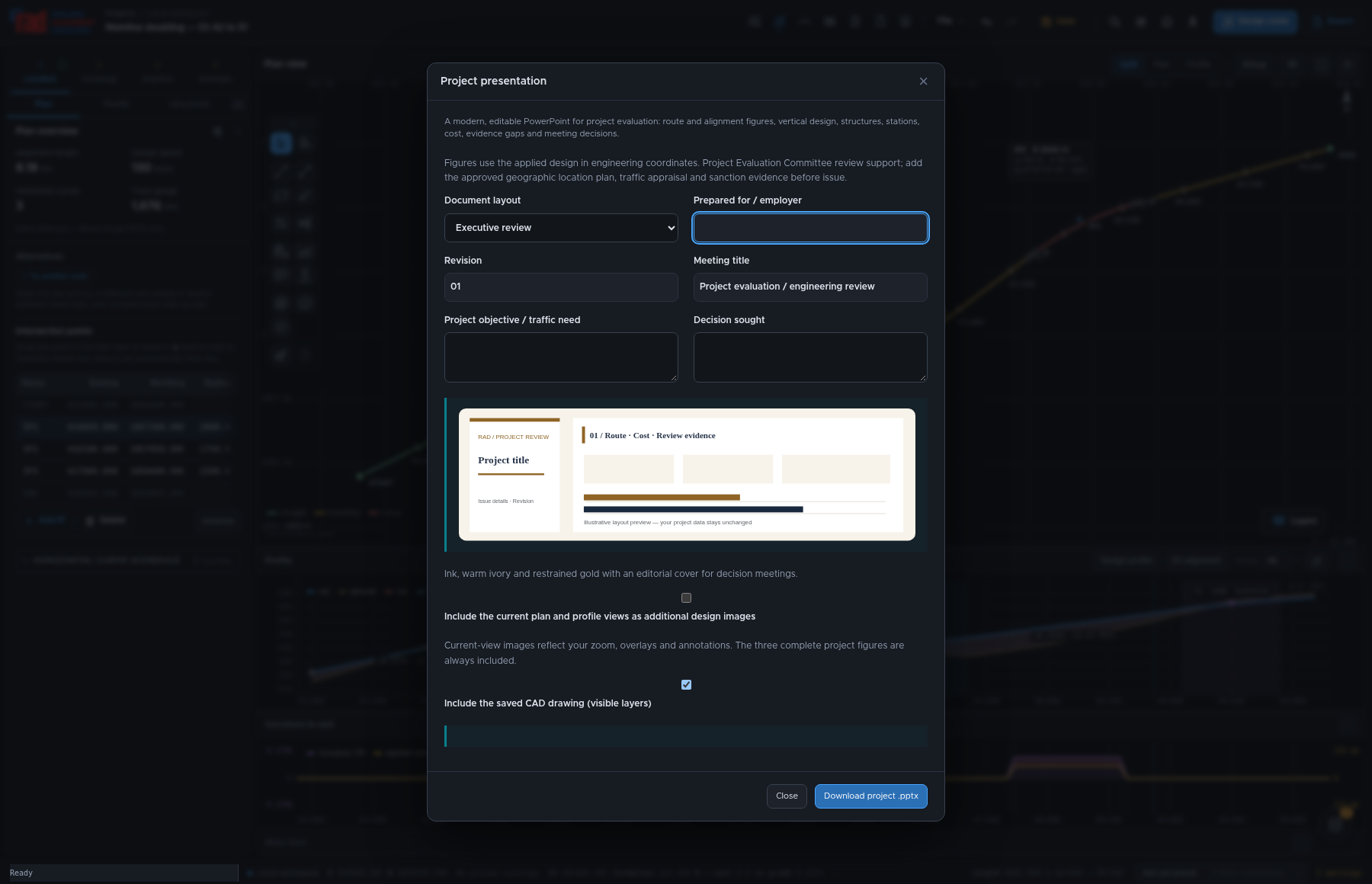 1
2
3
1
2
3
The Document layout selector shows six visual templates with a live Document layout preview. Choose the layout before downloading; its colour palette, typography, cover and section treatment apply to the supported document. The project data, quantities, rates, scope gaps and review findings remain the same across layouts.
| Layout | Character | Cover / sections |
|---|---|---|
| Railway corporate | Navy and teal with a clear engineering hierarchy and a vertical cover accent. | Vertical accent / Rule and heading |
| Executive review | Ink, warm ivory and restrained gold with an editorial cover for decision meetings. | Editorial / Numbered sections |
| Infrastructure delivery | Graphite and burnt orange, strong section bands and compact technical schedules. | Horizontal band / Section bands |
| Landscape and sustainability | Forest and sage with generous spacing for land, environment and corridor discussions. | Editorial / Rule and heading |
| Technical submission | Cobalt and slate, numbered sections and compact evidence tables for detailed review. | Vertical accent / Numbered sections |
| Print and tender | A restrained grayscale layout with economical bands for printed review copies. | Horizontal band / Rule and heading |
| Output | What the layout changes |
|---|---|
| Project presentation (.pptx) | Cover and section layouts, typography, tables and engineering infographic presentation. |
| Feasibility / DPR (.docx, .pdf) | Report covers, headings, tables and infographic appearance. Choose Word or PDF in the publication dialog. |
| EPC draft (.docx) | Document cover, headings, table and infographic styling; contractual content still requires completion. |
| Estimate justification report (.docx) | Report cover, section hierarchy, evidence tables and cost/route infographic styling. |
| Tender schedules (.xlsx) | Coordinated font, header and row-band palette. The workbook sheets, formulas and payment inputs stay equivalent. |
Project presentation, estimate justification and tender dialogs can retain the layout with their shared export settings: choose Apply export settings, then Save project. A project without saved settings starts with Railway corporate. The separate feasibility and DPR publication dialogs retain their own export controls. Templates are RAD presentation choices and do not imply a prescribed Railway Board submission format. Other CSV, interchange and drawing exports retain their own established formats.
Choose Output → Export deliverables → Estimate justification report to prepare an editable narrative in Word. This Pro export explains why the work and estimate provisions are needed, alongside the current applied route, quantities, head-wise costs and their source evidence. It complements the detailed estimate and tender schedules.
Missing quantities, rates or explanatory evidence remain identified in the report. Generated indicative rates are distinguished from saved detailed estimate rate sources. Entering a preparer, checker or approval authority name records a name only; it does not certify an estimate, record a sanction or establish that review has taken place.
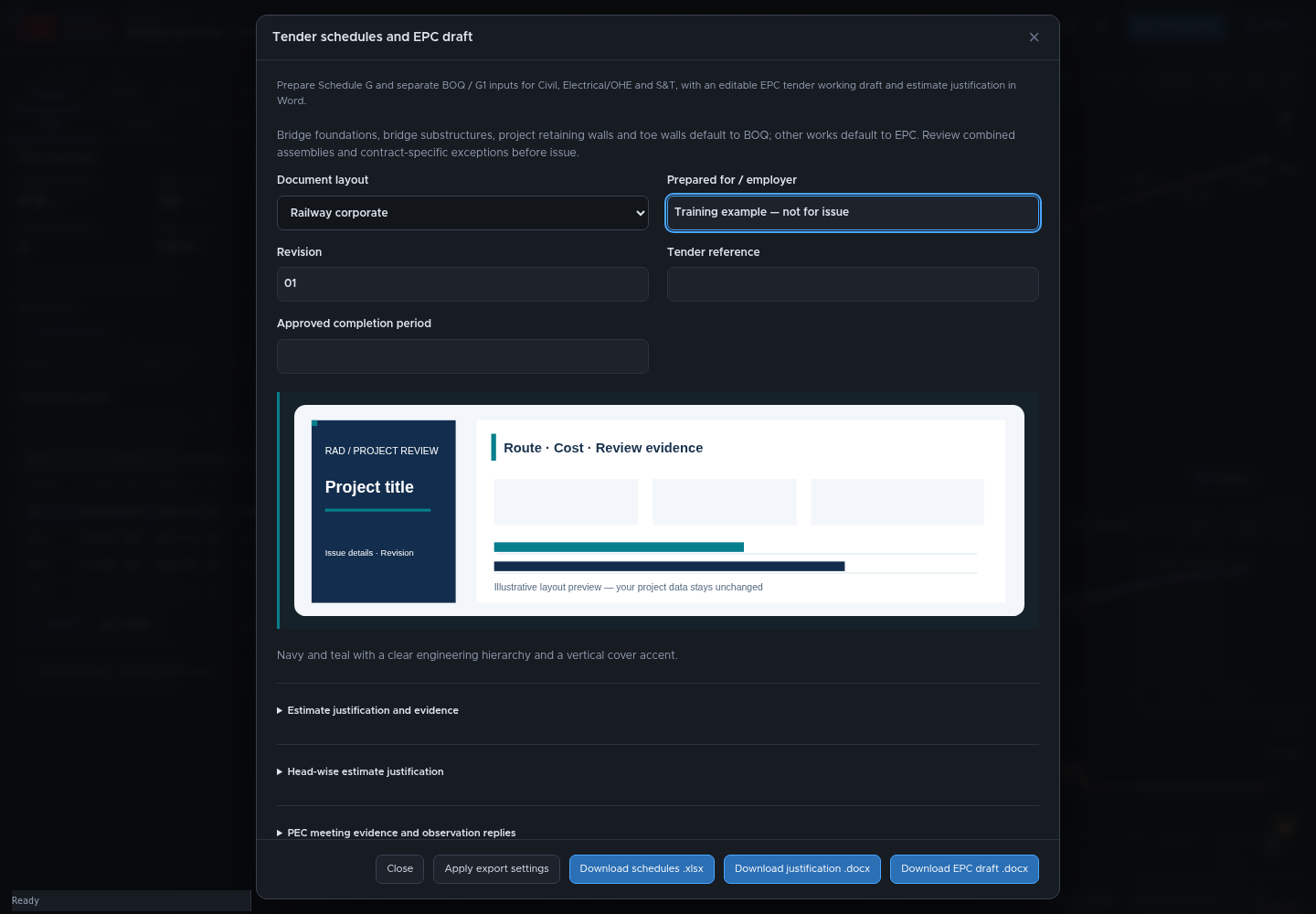 1
2
3
1
2
3
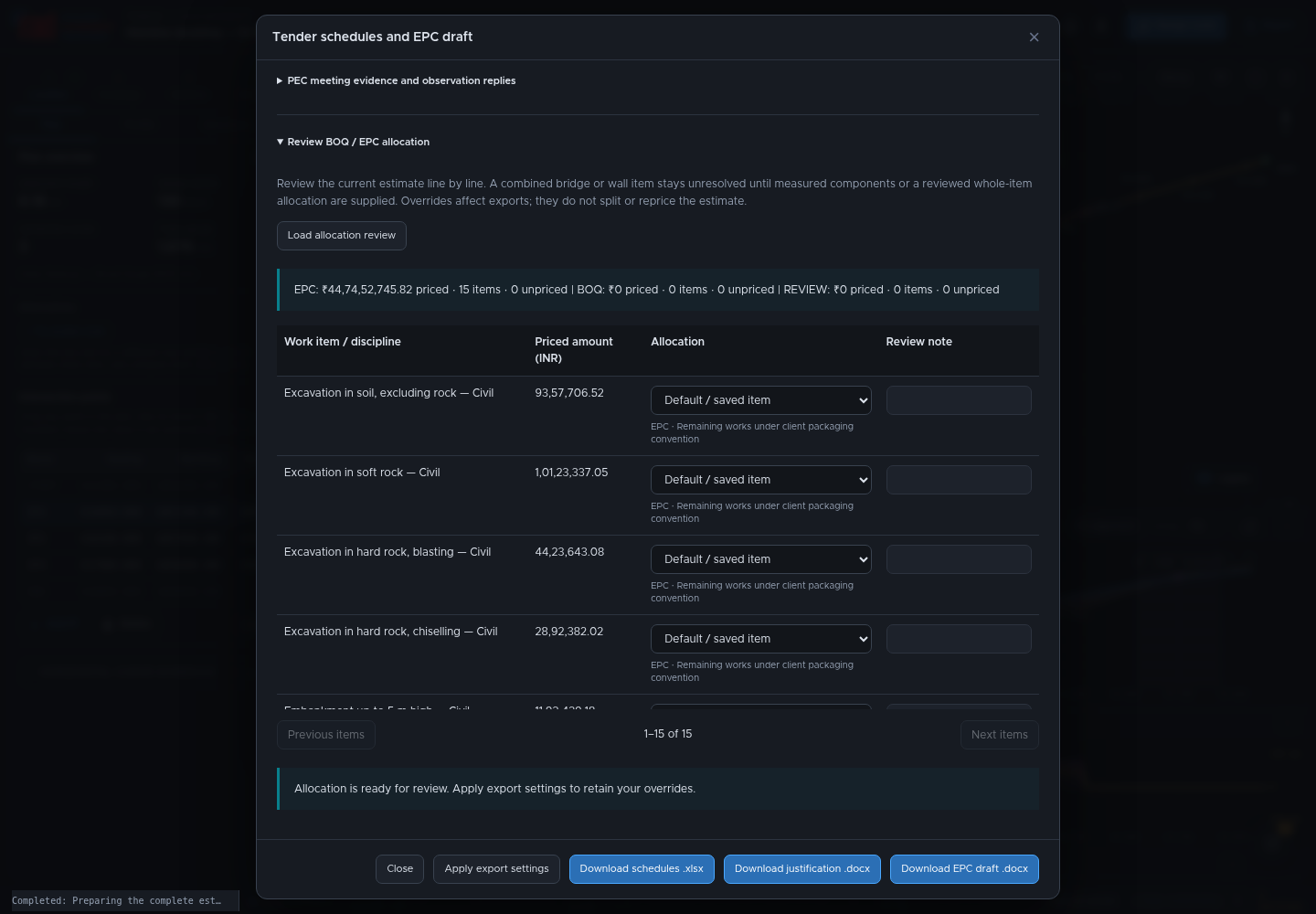 1
2
3
1
2
3
| Scope | Suggested allocation | Review required |
|---|---|---|
| Bridge foundations and substructures; ordinary project retaining walls and toe walls | Separate BOQ / G1 | Confirm the measured component and the applicable contract. |
| Other identified works, including bridge superstructure and building/OHE foundations | EPC | Review project-specific inclusions and exceptions. |
| Combined bridges, culverts, mixed wall assemblies or ambiguous descriptions | Review | Supply measured component items or an explicit reviewed whole-item allocation. No percentage split is guessed. |
| Land, preliminary expenses and separate project charges | Reconciliation outside automatic works allocation | Confirm whether and how the contract treats each provision. |
This starting convention follows the user's recent project packaging; the issued contract can require a different allocation. An override moves the whole estimate item and does not split or reprice it. Prepare separate measured component items when one aggregate contains both BOQ and EPC work. Unresolved allocation and unpriced work remain visible; neither is silently added to both packages. Valid zero values and signed credits retain their meaning.
A changed work description, component or unit invalidates an earlier inferred classification or fingerprinted override and returns that item to review. Recheck the scope and choose its allocation, or use Confirm for current item for a previously saved choice. Quantity and rate changes preserve the allocation; their current values are used at export time.
Use Apply export settings and Save project to retain the reviewed allocation. The Word justification, EPC draft and project presentation use the same scope result. Recheck the allocation when the source estimate changes. Schedule G's adopted contract price and milestone weights still need explicit employer-approved inputs; the estimate split alone does not approve a contract price or payment percentage.
These exports are editable working documents, not an issued or legally complete EPC agreement. Missing quantities, rates, scope, payment weights and commercial particulars must remain visible for review. The latest applicable Railway Board model, amendments and the employer's prescribed schedules govern the final document; schedule numbering alone does not establish compliance.
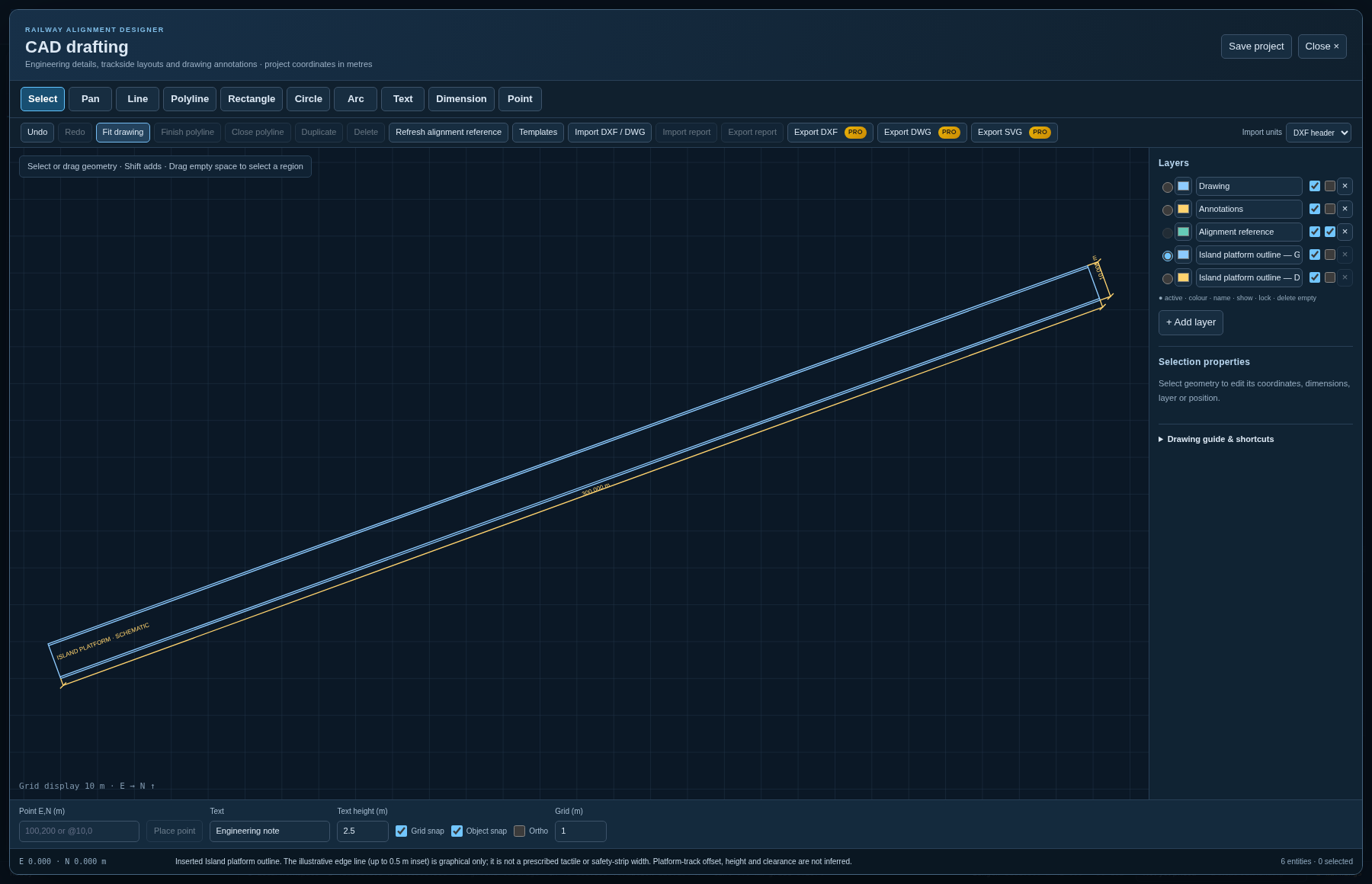 1
2
3
4
1
2
3
4
Choose Alignment → CAD drafting to prepare railway layout details and annotations in project
metres. Use the alignment as a reference, organise geometry on layers, and draw lines, polylines,
rectangles, circles, arcs, text and dimensions. Snaps and numeric properties help place and check
details. Enter exact coordinates as E,N or relative coordinates as @dE,dN;
F8 toggles Ortho. Use endpoint, midpoint, centre, quadrant or grid snaps as appropriate.
Save the project to retain the CAD drawing in its .rads file.
Use the CAD workspace to develop station or platform outlines, access arrangements and review markup. Imported geometry must use compatible units and coordinates. Export DXF or DWG for CAD exchange, and SVG for a vector drawing; these exports require Pro. Import DXF / DWG preserves supported planar geometry, including ellipses, splines and hatch loops. Block inserts and arrays expand into editable geometry; multiline text and dimension graphics are flattened. The import report identifies expanded content, approximations, conversion warnings and skipped entities. Check that report and the source drawing before adopting the result.
DWG conversion runs locally through the packaged WebAssembly adapter. Conversion is not a promise of complete AutoCAD fidelity: 3D solids, meshes, external references and proxy objects remain outside the supported editing model. Native block/dimension associations, font placement, layouts and advanced multiline-text formatting require review. Drawing or moving a CAD line does not itself change the computed alignment, bridge design or engineering quantities.
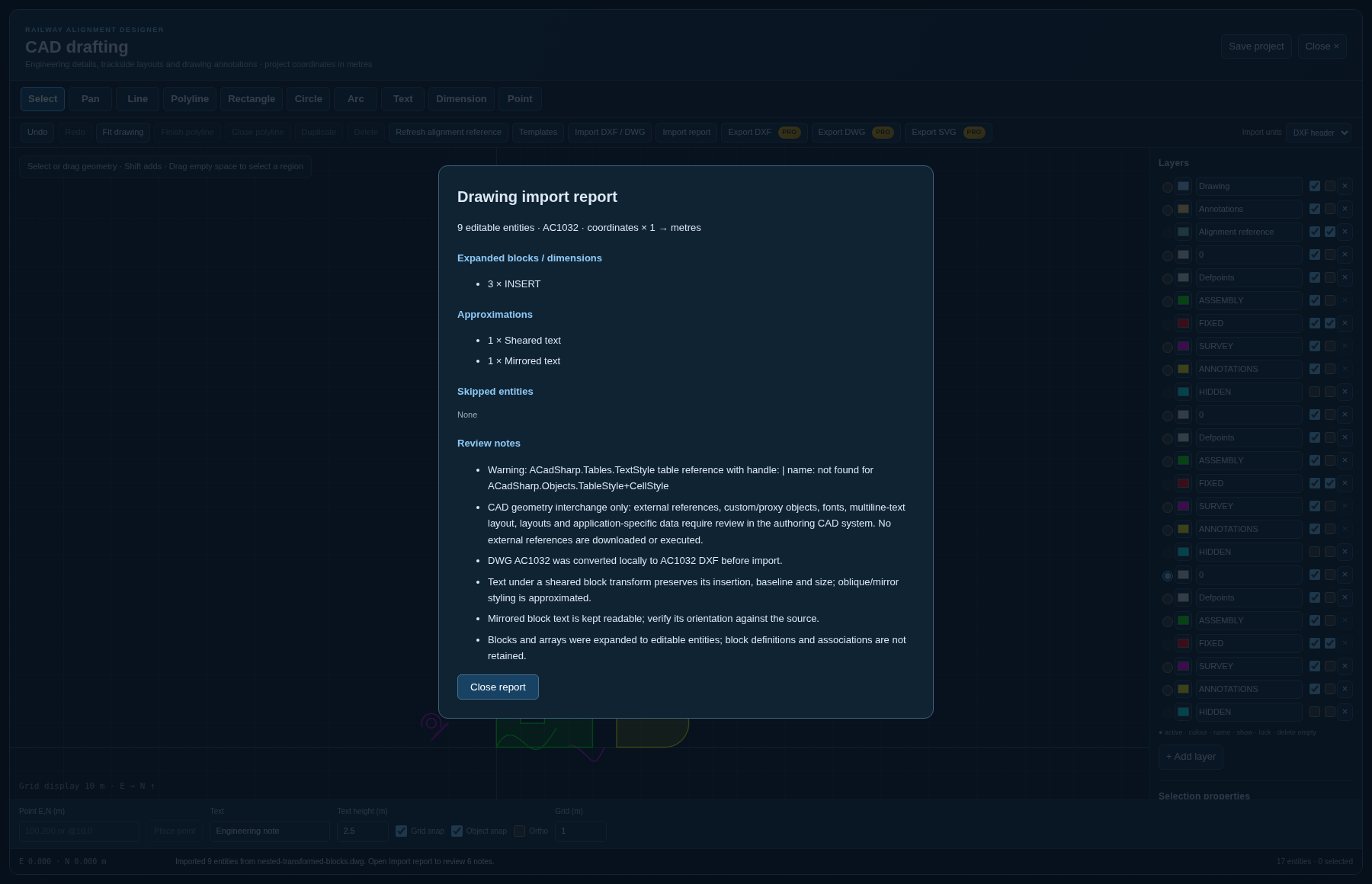 1
2
3
1
2
3
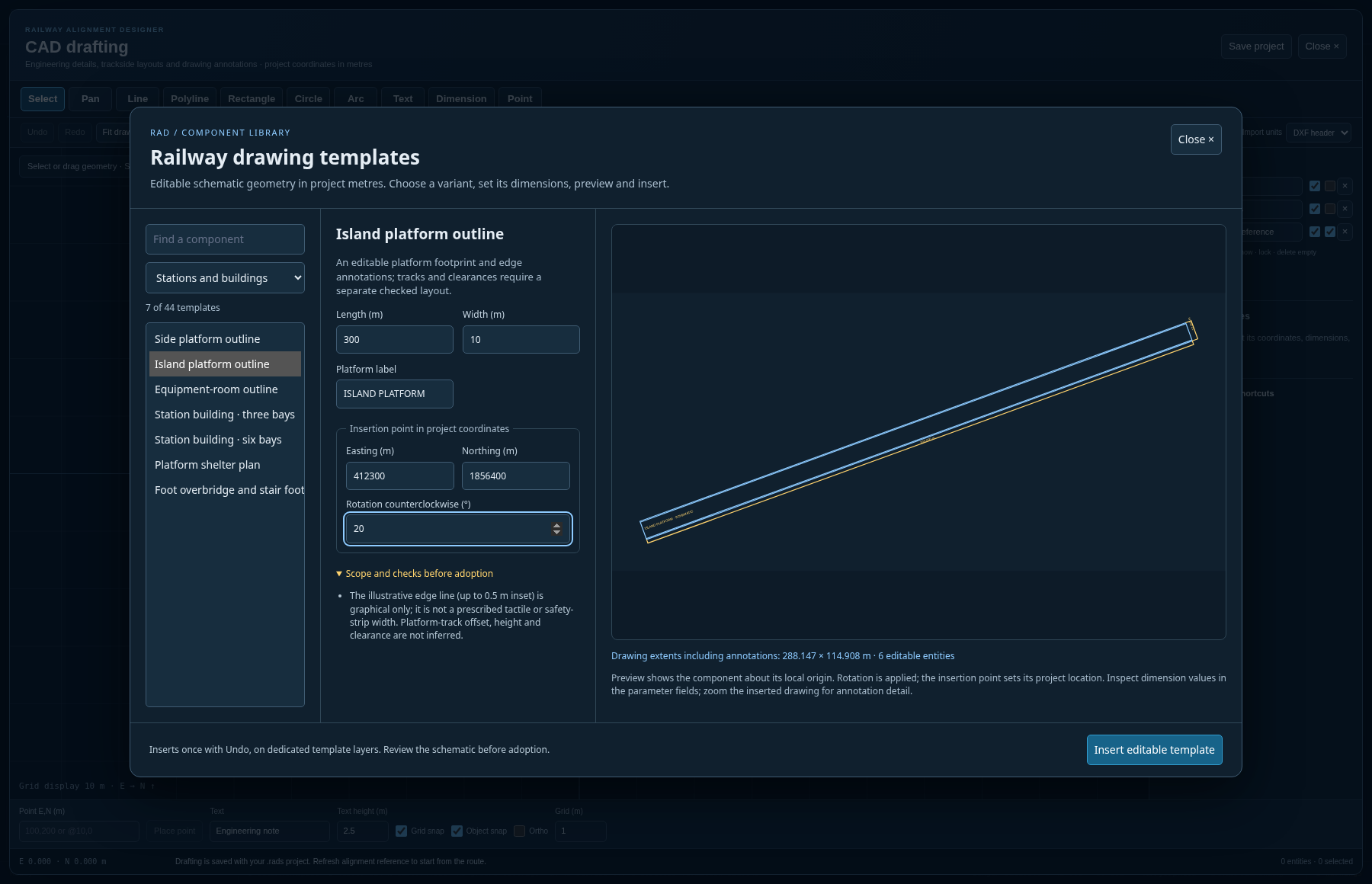 1
2
3
4
1
2
3
4
The library contains schematic starting points for layout coordination and drafting. A turnout symbol does not generate a switch design; a clearance-study outline does not encode an adopted SOD; a bridge or retaining-wall section does not establish structural capacity. Template-specific review notes identify the intended scope. Edit the drawing to match the adopted design.
44 editable components across 8 categories, generated from the actual library catalogue.
| Category | Available variants |
|---|---|
| Track and junctions | Single-track straight · Double-track straight · Triple-track straight · Left-hand turnout schematic · Right-hand turnout schematic · Single crossover schematic · Scissors crossover schematic · Buffer-stop end-of-track symbol |
| Stations and buildings | Side platform outline · Island platform outline · Equipment-room outline · Station building · three bays · Station building · six bays · Platform shelter plan · Foot overbridge and stair footprint |
| Bridges and structures | Single-span bridge plan · Multi-span bridge plan · Single-cell box culvert section · Twin-cell box culvert section · Triple-cell box culvert section · Gravity retaining-wall section · Cantilever retaining-wall section |
| Electrical and OHE | OHE single-mast cantilever elevation · OHE portal elevation · OHE headspan elevation |
| Signals and equipment | 2-aspect signal elevation symbol · 3-aspect signal elevation symbol · 4-aspect signal elevation symbol · Ground/shunt signal symbol · Equipment cabinet elevation · Twin equipment cabinet elevation |
| Drainage and crossings | Trapezoidal drain section · U-drain section · Covered cable-trough section · Road crossing plan schematic |
| Clearance studies | Rectangular clearance-study envelope · Chamfered clearance-study envelope |
| Sheet and annotations | A1 landscape drawing frame · A3 landscape drawing frame · North arrow · Four-point north marker · Segmented metric scale bar · Chainage leader and marker · Drawing notes panel |
Title blocks are model-space frames converted from paper millimetres at the entered scale; they do not create a paper-space viewport or set printer scaling. Scale bars have actual model-space lengths. Chainage labels and drawing annotations are editable text rather than live links to the alignment model.
| Deliverable | What is inside it |
|---|---|
| Full Report (.xlsx) | One workbook carrying the cover, setting out, curves, vertical curves, structures, earthwork with the mass-haul balance, land acquisition pegs, the land boundary and its detail, the signalling and interlocking schedule and the compliance report — each sheet with a frozen header, a filter, banded rows and columns wide enough to read. Numbers go in as numbers, so a column will sum, chart and sort. There is no spreadsheet library: an .xlsx is a ZIP of XML parts and both halves are written by hand, which is what keeps the page independent of a spreadsheet application. |
| Feasibility Report (.docx, .pdf) | The package report the tender goes out with, as a Word document: the particulars page, the stations with the points and crossings each yard carries, the bridges by category with the span arrangement of every one, the tunnels, the buildings, the traction arrangement, the standard of interlocking, the land, the priced abstract and the register of assumptions. The schedules are real Word tables whose header row repeats across a page break; the headings are real heading styles, so the contents page builds itself on opening and your own office template can be dropped over the document without touching a paragraph. Sections no alignment can fill are marked in place rather than invented. As with the workbook there is no library behind it — a .docx is a ZIP of XML parts, written through the same ZIP writer. Choose Word or PDF in the publication dialog; the Word version remains editable. The report is also available as Markdown under the raw exports. |
| Detailed Project Report (.docx, .pdf) | The DPR publication dialog offers Word or PDF, issue particulars and the six document layouts. It assembles the saved engineering evidence, quantities and cost basis; missing scheme-specific investigations and approvals remain visible for completion. |
| Cost estimate (.xlsx) | The active project estimate. A detailed bill carries component and head abstracts, item measurements, pinned rate sources, analyses, stores and project charges. To export an unapplied draft or one component, use the detailed editor's Excel/CSV commands instead. See Chapter 13. |
| Bridge GAD sheets | A1 general arrangements for saved bridges and current proposals, including plan, elevation, actual sections, schedules, wall details and title blocks. Preview and select a bridge, or export all bridges as PDF. See Chapter 11 for units, print scale and design limitations. |
| Plan & Profile CAD (.dxf) | The 5 km Final Location Survey sheet packages of Figure 15.4 — an annotated plan sheet, not bare geometry. |
| Station Yard Conceptual Plans (.dxf) | Running lines, loops, sidings and necks; island and side platforms with clearance envelopes; 1 in 8.5 and 1 in 12 turnouts with fouling markers; crossovers; the station side; signals and station limits, drawn and chainaged. |
| Cross-sections (.dxf) | The line across rather than along: every section of the run, plotted in a grid a sheet over its own datum, with the natural surface, the works line and its setting-out points, the cut and the fill hatched, the blanket, ballast, sleeper and rails, the channels as the cast units they are, the bore where the line is driven and the deck where it is carried, a graticule figured in levels and offsets, and under each one the datum, the rail and formation levels, the areas and the land width. The plotting scale is not baked in — the widest and tallest section in the set choose the finest scale off a standard ladder at which the sheet still fills, and every sheet says which scale that was. Horizontal and vertical are equal, because an exaggerated vertical makes every batter a lie. Drawn from the same run as the section schedule and generated estimate. An imported detailed bill remains a fixed snapshot and must be reviewed after the section design changes. |
| Project Sheets (interactive) | The same sheets on screen, with zoom, pan and paging, before anything is exported. |
| Google Earth 3D Model (.kml / .kmz) | Terrain-clamped centreline, a 3D rail elevation ribbon, boxed kilometre posts and station yard footprints, for walkthroughs and stakeholder presentations. |
When a detailed estimate is active, the feasibility/DPR cost summaries use its named components, head totals, charges and GST, with missing/unpriced items and provisional status carried into the report. They do not infer a bridge sub-breakdown from a custom component name. Confirm the active bill and its date before publishing a report.
| CSV | Contents |
|---|---|
| Setting-out table | Chainage, easting, northing, rail level, radius, cant, bearing, grade, cut/fill — at the interval you name. Tangent points, summits and low points are always included whatever the interval. |
| Horizontal curve schedule | Full geometry per curve: deflection, tangent lengths, shift, arc length, all four tangent-point chainages, cant and the governing criterion. |
| Vertical curve schedule | Grades, curve lengths and radii, BVC/EVC, mid-ordinate, turning points. |
| Cut & fill report | Earthwork by reach, with the mass-haul balance. |
| Compliance report | Every finding with its measured value, limit, units, rule title, category, clause reference and remedies — plus a footer naming the strictness mode and any rule the project has overruled. |
| Station & yard schedule | Every station, its yard, loops, platforms and standing lengths. |
| Signalling & interlocking schedule | Every point with its number and how it is worked, every signal with what it reads over, berthing lengths, and the equipment the standard of interlocking asks for. |
| Bridges & structures schedule | Every structure with its type, span arrangement, skew and chainage. |
| Earthwork structures / quantities | What is built where, and how much of it. |
| Land acquisition schedule Land boundary schedule | The banded boundary offsets and the areas they buy — both what the toe line plus margin covers and what the banded schedule acquires. |
| Mass haul schedule | Haul, borrow and waste. |
| Speed restrictions | Where the geometry permits less than line speed, and why. |
| Abstract of cost | The general abstract on plan heads, cash and stores. |
| Hydrology & crossings | Catchment in km² from D8 accumulation, Dickens and Lacey figures, span arrangements, and the consolidated road over/under schedules after minor roads have been rationalised into grade-separated crossings. |
| Format | Contents and destination |
|---|---|
| LandXML 1.2 | CoordGeom with Line, Spiral and Curve elements and a ProfAlign profile. Reads into Autodesk Civil 3D, Bentley OpenRail and 12d Model. |
| DXF (R12) | Centre-line 3D polyline, land boundary offset either side, IP legs, the four curve points marked T1/J1/J2/T2, CH:nnnnnn chainage ticks, gradient markers, structure callouts carrying the skew, and a curve data box per curve. Named layers, real-world metres, R12 so that nothing refuses it. |
| Project file (.rads) | Complete round-trip save file with JSON content. See Chapter 21. |
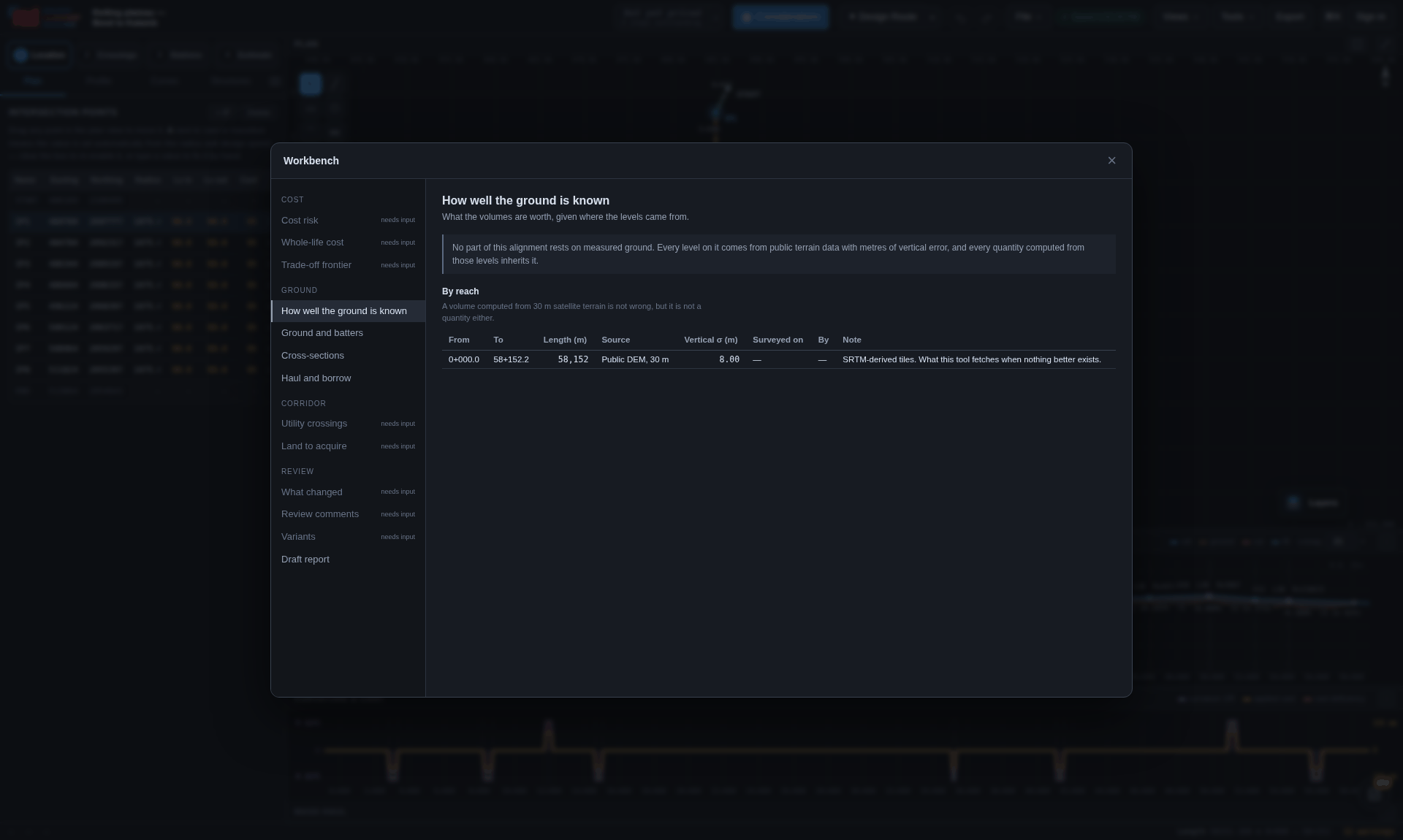
Separately from the schedules, report.js writes the document that goes in the
envelope, with every figure read from the model at the moment of writing so the prose cannot drift
from the schedules annexed to it. It refuses to write what the model does not know, and lists those
gaps rather than leaving them to be noticed. Its best page is the register of assumptions, gathered
from every module — the page a hand-written DPR always omits, because whoever writes it does not
have them all in front of them.
Your account keeps cloud projects, sharing permissions and plan access together. Projects can also be saved as local files. Free includes the design workspace; Pro adds the features identified by a PRO tag.
| Way in | Behaviour |
|---|---|
| Password | At least eight characters, checked in the browser before anything is sent. The password never leaves the request that carries it: it is not written to storage, not held on any object, and not logged. |
| A link by email | Nothing to choose or remember, and the one route in that cannot be phished out of somebody. |
| Recovery | Resolves identically whether or not the address has an account — the interface must not become a way of testing who is registered here. |
Signing out empties the workspace and puts the gate back: the alignment, the cloud id, the save target, the undo history and the autosave draft all go — that last one especially, because a draft left behind would have been offered back by name to whoever opened the application next.
Open Explore Pro from your account or profile to submit an access request. You can add a short message, see the request status and cancel a pending request. An administrator reviews it; submitting a request does not activate Pro. After approval, use Refresh access to read the current plan and expiry. Decision notes from the administrator are shown with the request. This workflow does not take payment or send an email.
Authorised administrators use /pro-admin with a separate sign-in. Approvals
default to 365 days, with 30 days, 90 days and no expiry also available. The database controls
who may approve or revoke access. See the approval setup guide
for the required migration and administrator configuration.
The header account menu’s Project hub opens My projects and Shared with me. Both are the same list from the database — row level security answers with your own projects and with anybody else's that has been handed to you, and the only thing telling them apart is who owns it. Each row carries what the project is (length, standard, where on the earth, the revision, when it was last touched) and who else is in it — shared with 2 people, or from Asha Rao · can edit. A box filters by name, because a hub that is useful is a hub with too many projects in it to read.
Pro is required to share a project or create a read-only review link. The project owner and each participating editor need active Pro access for shared-editor writes and live team editing. Owners can still edit and save their own projects on Free. Read-only viewing stays free. Existing review links stay available until their normal expiry or revocation. Cloud comments, replies and review updates also require Pro for the owner and participant; reading existing comments and local notes stays free. Removing access, revoking a link and leaving a project stay available after Pro expires.
| Level | What it allows |
|---|---|
| Can view | The project opens read-only. Saving does not write back; it asks where to put it and makes a project of their own. |
| Can edit | Saving writes back to the same project, into the same revision history, exactly as the owner's would. |
Only the owner can delete a project, change who has it, or share it onward. Being handed a project is not being handed the right to destroy it, and the database policies say so: an editor may write the document but never take it. An address with no account yet is not a refusal — it is held as an invitation and becomes a real share the moment somebody registers with that address. Nothing has to be accepted at the other end.
Sharing tells the owner whether the address they typed has an account, which is a way of testing whether an address is registered here. That is made deliberately: somebody who has just handed a colleague a design has to know whether the colleague can open it now or has to sign up first. It is available only to a signed-in account, and only for a project that account owns. Recovery, where there is no such need, stays deliberately silent.
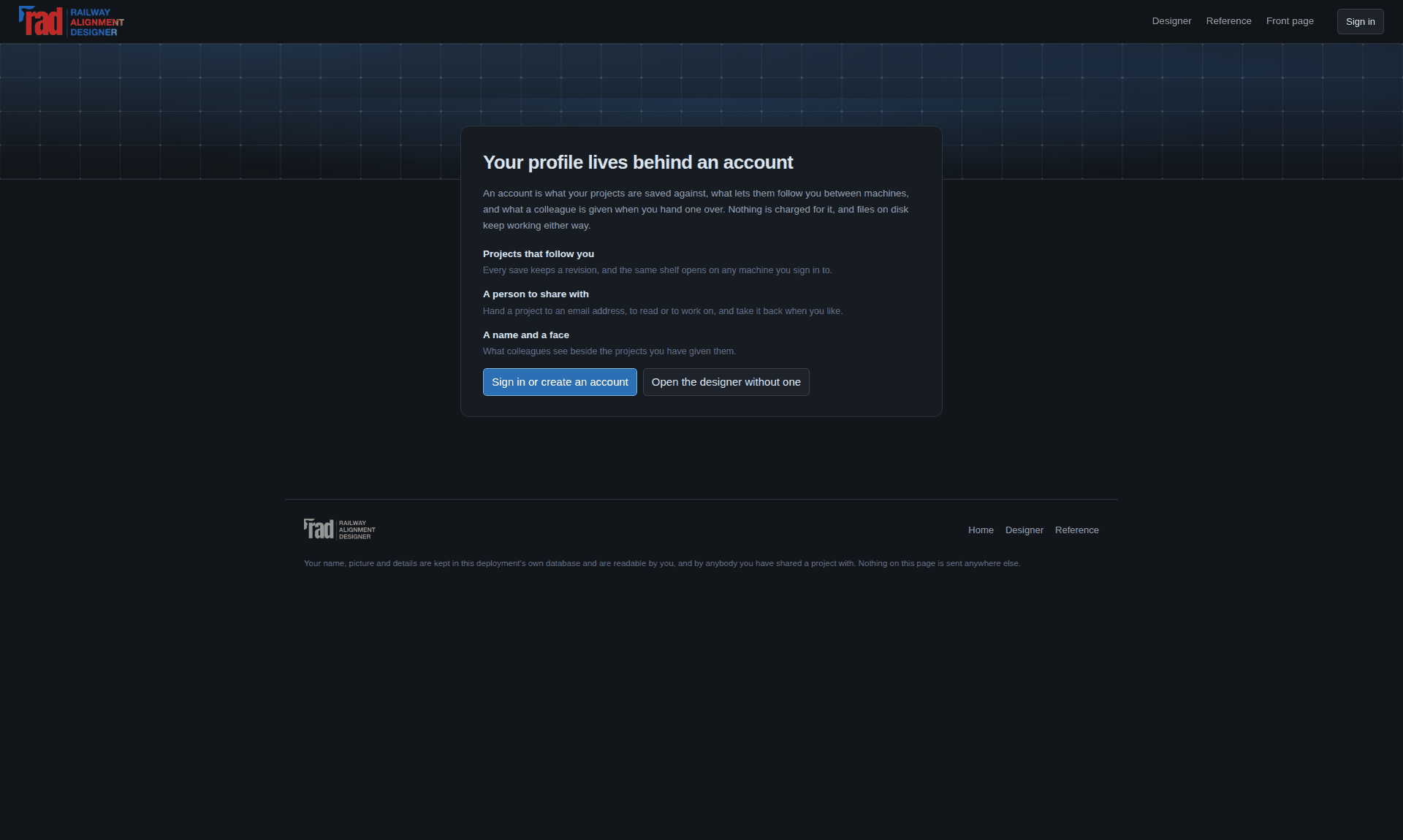
Every figure on it is read off the rows the hub already fetched, and none of them are flattering by construction: a project that has never been solved is counted as unmeasured rather than as zero kilometres. A field nobody filled in is left out of the page rather than filled with a placeholder that reads like somebody's own words.
Deleting the account outright is the one thing the page says it cannot do. The key the browser holds identifies the project and grants nothing beyond what row level security already allows, and removing an account is an administrator's operation on the auth schema — so the page says so, and says what it can do instead, rather than offering a button that fails.
Comments are anchored to a place in the design — a chainage, a fraction along, and the revision they were written against — so when the design moves and the two readings stop agreeing, the comment is flagged rather than silently re-pointed. What changed compares two saved states at three altitudes at once: what a person changed, what it did to the line, and what it did to the quantities and the cost, with a rule that has been turned off first in the list.
The part to keep open beside the work: every code, every key, every column, and the honest statement of what none of it is entitled to claim.
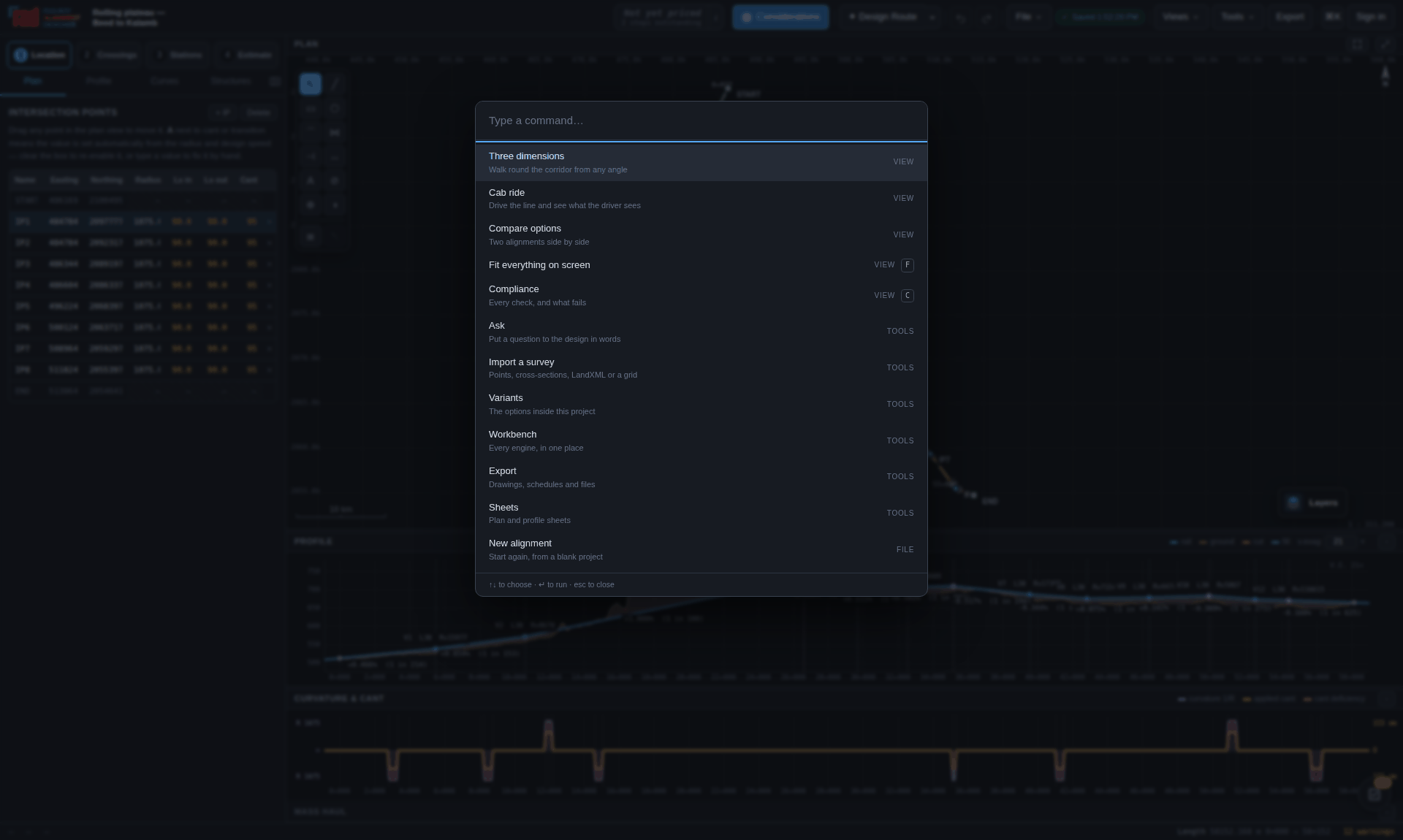
| F | Zoom to extents |
| Tab / Shift+Tab | Next / previous point |
| Delete | Delete the selected IP |
| ↑ ↓ | Step a numeric cell (Shift = ten steps) |
| [ | Fold the side panel to its icons |
| Ctrl+Z | Undo |
| Ctrl+Shift+Z | Redo |
| Ctrl+S | Save |
| Ctrl+O | Open |
| Ctrl+K | Find any command |
| wheel | Zoom · drag the background to pan |
| drag a point | Reshape in plan, or a VIP in profile |
| Shift+drag | In profile, level without chainage |
| Shift+wheel | In profile, vertical exaggeration |
| Shift+F | Plan full screen (Esc leaves) |
| double-click | Insert an IP in empty plan space, or a grade break in the profile |
| Delete | Remove the selected IP or grade break |
| C | Compliance |
| space | Run or stop |
| 1 2 3 | Cab, chase, orbit |
| ← → | Nudge 25 m (Shift 250 m) |
| , . | Previous / next feature |
| Home End | Either end |
| R · L | Reverse · look ahead again |
| H | Sound the horn |
| F · S · Esc | Full screen · save frame · close the open panel, then the window |
While a dialog is open, a bare letter typed into it reaches it rather than the plan behind. The cab ride's keys reach the ride, not the workspace.
Reference codes in the twelve categories the report groups them into, each with the reason the limit exists. These entries come from the catalogue the Why? button reads from, and the same code strings that appear in the exported CSV.
A code's severity is not fixed here: the standard preset decides whether a given breach is an error or a warning, strict mode promotes every warning to an error, and a per-rule override can re-grade or silence it for one project. Anything overridden is listed above the report and in the CSV footer.
| Code | Title | What it protects | Clause |
|---|---|---|---|
| TOO_FEW_POINTS | Not enough points | An alignment needs a start, an end and something in between before any geometry can be solved. | — |
| IP_NO_RADIUS | Intersection point without a radius | A deflection with no radius is a kink: the track would change direction instantly. | — |
| LS_TOO_LONG | Transitions longer than the curve allows | The two transitions plus the arc have to fit inside the deflection. Beyond Ls1 + Ls2 = 2·R·Δ there is no curve left for them to join. | — |
| IP_OVERLAP | Curves overlap | Two curves want the same length of track. The tangent lengths are longer than the leg between them. | — |
| START_TOO_CLOSE | First curve runs off the start | The first curve begins before the start of the alignment, so part of it has nowhere to sit. | — |
| GEOM | Horizontal geometry error | The horizontal solver could not close the chain. | — |
| TOO_FEW_VIPS | Not enough vertical points | A profile needs at least a start and an end level. | — |
| VIP_DUPLICATE | Two vertical points at one chainage | Two levels at the same chainage make the profile ambiguous. | — |
| VC_OVERLAP | Vertical curves overlap | Neighbouring vertical curves want the same length of track. | — |
| VC_PAST_END | Vertical curve runs past the end | A vertical curve extends beyond the end of the profile. | — |
| VC_BEFORE_START | Vertical curve starts before the profile | A vertical curve begins ahead of the first vertical point. | — |
| PROFILE | Profile error | The vertical solver could not build the profile. | — |
| Code | Title | What it protects | Clause |
|---|---|---|---|
| MOUNTAIN_CLEARANCE | Mountain return clearance | Non-adjacent parts of the alignment enter the same track envelope without the required vertical separation. | Design requirement |
| R_MIN | Radius below the minimum for the design speed | Radius, cant and cant deficiency are one equation. Below this radius no applied cant keeps the deficiency inside the comfort limit at the design speed. | IRPWM 405 / EN 13803 §6 |
| R_MIXED | Radius cannot serve both speeds | One cant has to satisfy the fast train’s deficiency limit and the slow train’s excess limit at once. Below this radius the two windows do not overlap, so no cant works. | IRPWM 406 (cant for mixed traffic) |
| R_ABS | Radius below the structural minimum | This is a vehicle and structure-gauge limit, not a comfort one — below it rolling stock will not negotiate the curve at all. | Schedule of Dimensions |
| ARC_SHORT | Circular arc too short | A very short arc between two transitions gives the vehicle no time to settle, and is hard to maintain to alignment. | IRPWM 407 / EN 13803 §7 |
| OVERLAP | Curves overlap | Two curves cannot occupy the same track. | IRPWM 407 |
| NO_STRAIGHT | No straight and no transition pair between curves | Where two curves meet, the cant has to get from one value to the other. With neither an intervening straight nor a transition each side, it would have to step. | IRPWM 407 / EN 13803 §7 |
| STRAIGHT_SHORT | Straight between curves too short | A short straight between curves — especially a reverse — is felt as a lurch, because the lateral acceleration reverses before the vehicle has stopped rolling. | IRPWM 407 / EN 13803 §7 |
| REVERSE_OK | Reverse curve, transitions meeting | Two transitions meeting end to end at zero cant is an accepted way to build a reverse curve. | IRPWM 407 |
| ARC_CONTINUES | One arc carried across two intersection points | A curve turning through more than a right angle — a loop in a hill section — is set out from more than one intersection point. Where two curves of the same hand, radius and cant meet with no straight and no transition between them, they are one circular arc, and the cant carries straight through the join. | — |
| R_RATIO | Compound curve radii too different | Where two same-hand curves join without a straight, the jump in curvature — and so in lateral acceleration — is proportional to the difference between 1/R₁ and 1/R₂. | IRPWM 407 (compound curves) |
| Code | Title | What it protects | Clause |
|---|---|---|---|
| CANT_MAX | Applied cant over the maximum | Cant is limited by what a train stopped on the curve can tolerate: too much and the load shifts onto the inner rail, and freight can shift or overturn in a high wind. | IRPWM 406 / EN 13803 §5 |
| CD_MAX | Cant deficiency over the maximum | Deficiency is the unbalanced lateral acceleration the passenger feels and the outer rail carries. It governs both ride comfort and the lateral force on the track. | IRPWM 406 / EN 13803 §5 |
| CE_MAX | Cant excess over the maximum | Slow traffic on a curve canted for fast traffic leans into the inner rail, wearing it and loading it beyond what it is designed for. | IRPWM 406 |
| VIRT_TRANS | Curvature step with no transition | A curve entered without a transition steps straight from no curvature to full curvature. The vehicle bridges that step over its bogie centres — the "virtual transition" — and the deficiency builds over that short length instead of over a designed one. | EN 13803 §8 (virtual transition) |
| Code | Title | What it protects | Clause |
|---|---|---|---|
| NO_TRANS | Cant with no transition to run it in | Cant has to be applied along a ramp. With no transition the ramp has no length, so the cant would be a step in the rail level. | IRPWM 407 |
| LS_SHORT | Transition shorter than required | The transition length is the longest of three requirements: running the cant in slowly enough, running the deficiency in slowly enough, and keeping the cant ramp flat enough. | IRPWM 407 / EN 13803 §8 |
| DCANT_DT | Cant changes too fast | How fast the vehicle is rolled about its axis. Above the limit the roll is felt as a sway, and the wheel unloading on the twisting bogie rises. | IRPWM 407 / EN 13803 §8 |
| DCD_DT | Cant deficiency changes too fast | The rate at which unbalanced lateral acceleration builds — the lateral jerk. It is what makes an otherwise compliant curve feel abrupt. | EN 13803 §8 |
| CANT_GRAD | Cant ramp too steep | The cant ramp twists the track. Too steep and a long, stiff vehicle lifts a wheel — the twist criterion behind most derailments on good track. | IRPWM 407 |
| Code | Title | What it protects | Clause |
|---|---|---|---|
| NO_VCURVE | Grade change with no vertical curve | A change of gradient without a curve is an angle in the rail: a vertical impact at every wheel, and on a crest a loss of wheel load. | IRPWM 419 |
| RV_MIN | Vertical radius below the minimum | The vertical radius sets the vertical acceleration at the design speed — upward through a sag, and unloading the wheels over a crest. | IRPWM 419 / EN 13803 §9 |
| AV_MAX | Vertical acceleration over the limit | V²/Rv is what the passenger feels in the seat and what changes the wheel load. It is the quantity the minimum vertical radius is derived from, stated directly. | EN 13803 §9 |
| VC_SHORT | Vertical curve shorter than the minimum length | Independently of radius, a vertical curve too short to span a vehicle is not a curve the track can be built or surveyed to. | IRPWM 419 |
| V_OVERLAP | Vertical curves overlap | Two vertical curves cannot occupy the same length of track. | IRPWM 419 |
| V_COVER | Profile does not cover the plan | Levels outside the surveyed profile are extrapolated from the end gradient, which is a guess, not a design. | — |
| Code | Title | What it protects | Clause |
|---|---|---|---|
| MOUNTAIN_TIE_LEVEL | Mountain endpoint level moved | Mountain development holds its endpoint rail levels fixed. | Design requirement |
| MOUNTAIN_GRADE | Mountain compensated grade exceeded | The solved profile, including vertical curves, exceeds the gradient remaining after curvature compensation. | Design requirement |
| GRADE_MAX | Gradient over the ruling gradient | The ruling gradient fixes what a locomotive can haul over the section. Exceeding it derates every train on the route, not just the ones on this length. | IRPWM 402 |
| GRADE_COMP | Gradient not compensated for curvature | A curve adds resistance. On a gradient inside a curve the two add, so the gradient has to be eased by roughly 0.04% per degree of curve to keep the total within the ruling value. | IRPWM 403 |
| GRADE_SHORT | Gradient section too short | A run of very short gradients makes a train surge and snatch as the couplers load and unload, and gives the profile no useful shape. | IRPWM 402 |
| GRADE_LONG | Gradient runs too far without a break | A gradient held for tens of kilometres asks a locomotive to work at its continuous rating for the whole of it, and no ground is straight for that far — so where the ground departs from the grade line, structure is what carries the difference. Breaking the gradient lets the profile come back down to the ground it can reach, which is how a line is developed through hill country rather than carried across it. Only a gradient pulling a real share of the ruling gradient is counted — ten kilometres at 0.03% across a plain is flat country, not a long climb. | Project limit |
| Code | Title | What it protects | Clause |
|---|---|---|---|
| V_ON_TRANS | Vertical curve over a transition | A vertical curve on a transition twists the track while the cant is already running in. The two twists add, and the total is what lifts a wheel. | IRPWM 419 (desirable practice) |
| Code | Title | What it protects | Clause |
|---|---|---|---|
| CUT_DEEP | Tunnel far deeper than the crossover depth | Reaching the depth at which a bore beats a cutting is the analysis doing its job. Reaching a multiple of it means the profile is being driven through a hill rather than round it, and the cost and the construction risk both climb with cover. | Judgement |
| FILL_HIGH | Viaduct far higher than the crossover height | A structure this far above the ground is a major piece of civil engineering in its own right — deep foundations, long spans, and a construction programme of its own. | Judgement |
| STRUCT_BEYOND_LIMIT | Structure past the limit this project set | A structure past the height or the cover the project set is not a big version of an ordinary one: it is its own design problem, wanting its own ground investigation, its own erection scheme and its own programme. Nothing in a corridor study can stand behind a number for it, so the line as drawn is not one this can price or build. | Judgement |
| GRADE_BOUND | Structure the grade line cannot come out of | The line runs into this structure at the ruling gradient, so it is already coming down to the ground (or up to it) as fast as it is allowed to. The ground is going faster, and what makes up the difference is height of viaduct or depth of tunnel. Moving VIPs cannot help: lowering the rail here needs more line between the top and the bottom of the climb, about the excess height divided by the gradient. | Judgement |
| STRUCT_ON_TRANS | Structure spans a transition | Cant varies along a transition, so a deck under one has to be built with a twisting surface, and bearings have to take the rotation. It is buildable, and expensive. | Constructability |
| SECTION_NO_TOE | Batter never meets the ground | A bank tipped onto a hillside that falls away as fast as the batter does never finds a toe: the two surfaces are parallel and the fill runs on for ever. The same happens to a cutting driven into a rising hillside steeper than its own face. Neither is a bank or a cutting — it is a retaining wall, a viaduct, or a line somewhere else — and the volume reported for it is whatever the corridor width happened to cut it off at, which is not a quantity. | Constructability |
| CUT_SLOPE_DESIGN | Cutting deeper than the material stands at | Every material has a depth beyond which a standard batter stops being a detail off a drawing and becomes a slope somebody has to design — benched, drained and analysed. Stiff clay left at 1 in 1.5 is fine at 8 m and a landslip at 20 m. The depth is not the problem; the depth WITHOUT an analysis is. | Geotechnical judgement |
| GEOLOGY_ASSUMED | Deep works in ground nobody has looked at | A deep cutting or a bore is where the ground actually decides the cost, and it is the ground least worth guessing about. A corridor-wide assumed material is the single rock percentage in a better coat: adequate over a plain, and not adequate under the one ridge that carries most of the excavation. | Judgement |
| TUNNEL_DRAIN | Gradient inside a tunnel too flat to drain | Water gets into every tunnel. Below roughly 0.2% it does not run out, and standing water in the invert attacks the track and the lining. | Judgement |
| TUNNEL_XPASS_SPACING | Cross passages further apart than the requirement allows | Cross passages are the way out of a running bore, and the requirement is a maximum of 500 m between them. Half that interval is how far a passenger walks along a smoke-filled tunnel from wherever the train stopped, so spacing them further apart saves money on the one thing that is there to save lives. | Safety |
| TUNNEL_WATER_COVER | Tunnel passes under water body with insufficient rock cover | Tunnels beneath rivers, canals, or water bodies require adequate rock cover (typically at least 30 m) to prevent water ingress, hydraulic blowout, and crown collapse during construction and operation. | Judgement & Safety |
| EARTH_BALANCE | Cut and fill badly out of balance | Material that has to be imported or carted away is one of the largest single costs on an earthwork-heavy route, and it is set by the profile. | Judgement |
| EXG_LEVEL | The new formation is not at the level of the one it runs beside | Doubling is a parallelogram of earthwork laid against the bank that is already there, widening it: one formation, one set of side slopes, one drainage system. A new line at a different level from the one beside it is not that. It is two railways with a retaining wall or a ditch between them, and it costs the wall, the land the wall stands on, and a maintenance problem for as long as both lines run. The existing level this is measured against is ESTIMATED from terrain unless a survey has been imported, so it is a screening figure: good enough to catch a grade line that has wandered several metres, not good enough to set a rail level by. | Judgement |
| Code | Title | What it protects | Clause |
|---|---|---|---|
| UTIL_CLEARANCE | Power line or pipeline does not clear | Everything else the corridor meets is crossed by building something. A transmission line is crossed by leaving a gap, and the gap is set by statute. On a 25 kV line the clearance is measured over an overhead contact wire that is already 5.5 m up, so a line that comfortably cleared the road it was strung over may be nowhere near clearing a railway. Raising it means new towers, a longer span, an outage to string it, and a utility whose programme is not the railway's — which is a line in the estimate if it is found now, and the thing that holds up energisation if it is not. | Statutory clearance |
| UTIL_ASSUMED | Utility crossing on an assumed rating or height | OpenStreetMap rarely records the voltage of a line and almost never records how high the conductor hangs at mid-span, which is the number the whole clearance turns on. An assumed voltage is taken high deliberately: assuming a crossing is low-tension and finding a 220 kV line is the failure that costs money, and assuming the reverse only costs a survey. | Judgement |
| XING_CONFLICT | Crossing the profile cannot clear | The formation is too close to the ground here for the road to pass either over or under. A level crossing is not permitted on a new line, so one of the two has to move. | IRSOD / IRBM |
| XING_OVERRIDE_UNFIT | Chosen crossing type does not fit | This crossing was set by hand to a type the levels do not support. The choice is kept — it may well be right, and the profile the thing that has to change — but the shortfall is real and has to be closed before it can be built. | IRSOD |
| XING_PARALLEL | Feature clips the alignment | A road or watercourse meeting the line at a very acute angle is not crossing it, it is running alongside and touching. No structure resolves that; the two alignments conflict and one of them has to give way. | Judgement |
| XING_MARGINAL | Crossing decided on a marginal clearance | The clearance here is within a metre of the limit, and the ground level it rests on is a terrain sample accurate to a few metres at best. That is the wrong precision for the decision, so it should be settled on survey rather than taken from this. | Judgement |
| XING_EXISTING | Passes under an existing road bridge | The road is already on a bridge where the line meets it, so nothing new is built for it — the line goes underneath. Whether it fits depends on the height of that bridge, which the map does not give: the soffit is taken at the height a flyover over a railway is built to, and the span is not known at all. Both have to be measured before the crossing is relied on, and the opening has to have room for the new track beside whatever it already spans. | Judgement |
| XING_SKEW | Oblique crossing needs a longer square opening | The crossing angle describes the mapped obstacle, independently of the proposed square bearing lines. A square bridge over an oblique corridor must cover the obstacle at both deck edges, with supports outside the required opening. Changing the structural skew field does not straighten a river or road. | Project square-bridge policy |
| XING_SQUARE_UNRESOLVED | Square bridge arrangement unresolved | The automatic arrangement has not established a suitable square opening, approach, barrel or pier layout. No skew bridge or unconstructed road realignment is substituted for that missing design. Where only a survey is missing — flow-aligned piers or an oblique barrel — the preliminary square structure stands and this is a warning; where the levels, span or angle do not admit it, an error. | Project square-bridge policy |
| EXG_CROSS | The new line crosses the existing main line | The whole point of a second, third or fourth line is that it runs BESIDE the one that is already there. A new line that crosses the main line has bought a flyover or a burrow — two abutments, a pier line, an approach either side and a possession to build it in — and, far worse, it has put a conflicting movement into a block section that did not have one. Where a crossing genuinely cannot be avoided, a rail over rail flyover is what is built, and it should be a deliberate decision with a reason written beside it. Most of the time it can be avoided: the line leaves the station on the wrong side, and changing which side it leaves on costs a change of trajectory and nothing else. | Judgement |
| EXG_SPACING | Not at a track centre anybody builds to | The Schedule of Dimensions puts the obligatory minimum between the centres of adjacent straight running lines at 4.265 m, and new construction is never laid to the obligatory minimum. 5.30 m is the figure for a new line beside an existing one; 6.10 m where the existing line has to be kept open to traffic while the new one is built, which is almost always. Anything much wider is not one formation widened but two railways with a gap between them: more land, more earthwork, a longer crossover at each end, and every overline structure spanning further for no benefit. | IRSOD |
| XING_REPEAT | The same feature crossed several times | A road or a watercourse running roughly where the railway wants to run gets woven across — over, back, over again — because the route was chosen on ground cost and nothing was counting structures. Each crossing on its own is reasonable; the set of them is not. Every one after the first is a bridge, an approach, a set of foundations and a maintenance liability bought for nothing, and the cure is almost always a change of trajectory well before the first crossing rather than anything at the crossings themselves. Where the feature genuinely has to be crossed twice — a highway that loops round the town the line is going to — twice is the right answer, and this is a question rather than a verdict. | Judgement |
| XING_NO_GROUND | Crossing with no ground level | There is no terrain at this chainage, so nothing can be said about whether the railway passes over or under. It is left undecided rather than guessed. | Engine |
| XING_WATERWAY_DOUBT | Waterway size cannot be trusted | The catchment behind this crossing was counted over the strip of terrain fetched for the corridor, and it does not fit inside it. Every figure that follows — discharge, waterway, span, class — is understated by an unknown amount. A large river is the worst case: its basin may be four orders of magnitude larger than the window, so the arithmetic will confidently return a culvert. | IRBM |
| Code | Title | What it protects | Clause |
|---|---|---|---|
| STN_YARD_GRADE | Station yard gradient exceeds 1 in 400 SOD limit | Station yards must not exceed 1 in 400 (0.25%) gradient to prevent uncoupled wagons and trains from rolling away downhill under gravity. | IR SOD & IRPWM |
| STN_YARD_GRADE_REC | Station yard gradient exceeds recommended 1 in 1200 | Recommended station yard gradient is 1 in 1200 (0.083%) or level for ease of shunting and starting heavy freight trains. | IR SOD 2(b) |
| STN_WATERWAY | Station yard placed across a waterway or major bridge | Station yards, turnouts, and platforms cannot be placed across major river bridge spans or open water. | IRS & IRPWM |
| STN_VIADUCT | Station yard placed on a viaduct structure | Station loop lines and island platforms cannot be constructed along elevated viaduct runs. | IRS & IRPWM |
| SIG_BERTHING | Running loop too short to berth the train it has to cross | A loop exists to hold a train clear of the main line while another passes. Its clear standing length is measured between its fouling marks, and a train longer than that stands foul of the running line however the signals are set. The loop is then unusable for the traffic the line is being built for. | IRSEM & SOD |
| SIG_PLATFORM_PAST_STARTER | Platform runs beyond the starter signal on the line it serves | A train berthed at the platform would be standing past its own starting signal, which is not a position a train may be brought to. Either the platform or the signal is in the wrong place, and the signal follows the fouling mark. | IRSEM |
| SIG_LIMITS_STRUCTURE | Station limits fall across a viaduct or major bridge | The home and advanced starter signals define the station limits, and a signal has to be founded on the ground and read from a distance. A signal on a viaduct or over a river span is a special structure and a sighting problem, not a standard post. | IRSEM & IRS |
| SIG_SIGHTING | Signal stands on a curve too sharp to be sighted from adequate distance | A driver must read a stop signal from far enough back to stop at it. On a sharp curve the signal is out of sight until the train is too close, and the answer is a repeater, a co-acting signal or a realignment — each of which costs money that belongs in the estimate. | IRSEM |
| Code | Title | What it protects | Clause |
|---|---|---|---|
| RESTRICTION_INTERSECTION | Alignment intersects a restriction zone | Official boundaries and OSM candidates retain their own source meaning. A mapped contact needs review. | Source-attributed planning review |
| RESTRICTIONS_STATUS | Restriction screening status | Not checked, pending, incomplete and historical results cannot establish a clear route. | Coverage and freshness |
| ZONE_PROHIBITED | Alignment enters a prohibited area | This ground was outlined and marked prohibited, which says construction is not permitted in it at all rather than that it is expensive. The statutory case is the AMASR Act 1958 §20A, where the 100 m around a protected monument admits no construction, public or private; a defence or safety exclusion behaves the same way. No weight in the cost surface resolves this, because it is not a price. | Project constraint (see the zone note) |
| ZONE_REGULATED | Alignment enters a regulated area | Building here is permitted, but only with a consent from the authority named on the zone — the AMASR regulated belt of 200 m beyond the prohibited area is the pattern, where the National Monuments Authority decides. The design is not wrong; it carries an approval it will not get by default, and the programme has to allow for it. | Project constraint (see the zone note) |
| ZONE_AVOID | Alignment crosses an area drawn to be avoided | An area outlined with the avoidance tool was crossed anyway. The weight is a price, not a wall, so on a pinched corridor the search will pay it — which is the right behaviour and the wrong thing to discover by reading the drawing. | Project constraint |
| ZONE_INCLUDE_MISSED | Alignment misses an area drawn to be picked up | An inclusion area is a discount in the cost surface, never an obligation: it biases the route towards the ground and cannot compel it there. Where the detour costs more than the discount is worth, the line goes straight past, and nothing said so. | Project constraint |
| LAND_PROTECTED | Corridor takes protected or reserved land | Land inside a national park, sanctuary, eco-sensitive zone or notified reserve cannot be acquired at all until it has been cleared centrally. That approval is not a step in the acquisition — it comes before it, and it is the item most likely to set the date the line opens. | Wildlife (Protection) Act 1972 / Forest (Conservation) Act 1980 |
| LAND_FOREST | Corridor takes forest land | Forest land is not bought. It is diverted by the Union government, in a Stage-I and Stage-II process with compensatory afforestation attached, and the quantity matters because the sanctioning level rises with it. | Forest (Conservation) Act 1980 |
| ZONE_NO_GEOREF | Areas are drawn but cannot be placed on Earth | Zones are drawn in the project plane. Without a georeference they can still be checked against the alignment, which is in the same plane, but nothing can be said about the mapped land use underneath them. | Engine |
| Code | Title | What it protects | Clause |
|---|---|---|---|
| MOUNTAIN_REQUIREMENTS | Mountain requirements changed | The current speed or ruling gradient differs from the accepted search. | Design requirement |
| RULE_ERROR | A compliance rule failed to run | One group of checks threw an error, so the design has not been fully tested. The rest of the report is still valid. | — |
Six presets, every value of which is editable on the Design Limits tab of the considerations console. Editing a limit re-runs every check immediately.
The presets are taken from the usual sources and are not a substitute for the governing code of practice on any particular project. Check every number against your own specification before relying on it, and against the policy circulars governing your zonal railway or division.
Generated from the shipped standard presets. Project overrides are not included.
| Preset | Basis |
|---|---|
| IR-BG | Indian Railways — Broad Gauge (1676 mm). IRPWM / SOD values for Group A–B routes. Cant equation C = G·V²/(127·R) with G = 1750 mm. |
| IR-MG | Indian Railways — Metre Gauge (1000 mm). Metre-gauge limits; G = 1058 mm. |
| EN13803 | EN 13803 / UIC — Standard Gauge (1435 mm). EN 13803:2017 normal limits for V ≤ 200 km/h. Cant equation C = G·V²/(127·R) with G = 1500 mm. |
| AREMA | AREMA — North American mainline (1435 mm). AREMA Chapter 5 practice, converted to millimetres (3 in ≈ 76 mm unbalance). |
| METRO | Metro / Urban rail (1435 mm). Typical urban-metro design limits — tight radii, generous cant deficiency, steep gradients. |
| HSR | High Speed — 250–350 km/h (1435 mm). High-speed practice: large radii, restrained cant and cant deficiency for ride comfort. |
| Limit | IR-BG | IR-MG | EN13803 | AREMA | METRO | HSR |
|---|---|---|---|---|---|---|
| Track gauge (mm) | 1676 | 1000 | 1435 | 1435 | 1435 | 1435 |
| Dynamic gauge G (mm) | 1750 | 1058 | 1500 | 1500 | 1500 | 1500 |
| Cant, normal (mm) | 165 | 90 | 160 | 152 | 110 | 150 |
| Cant, exceptional (mm) | 185 | 100 | 180 | 178 | 125 | 170 |
| Cant deficiency, normal (mm) | 100 | 50 | 130 | 76 | 85 | 80 |
| Cant deficiency, exceptional (mm) | 100 | 50 | 153 | 102 | 100 | 100 |
| Cant excess (mm) | 75 | 65 | 110 | 76 | 60 | 90 |
| Rate of cant, normal (mm/s) | 35 | 35 | 50 | 35 | 50 | 40 |
| Rate of cant, exceptional (mm/s) | 55 | 55 | 70 | 50 | 70 | 60 |
| Rate of deficiency, normal (mm/s) | 35 | 35 | 50 | 35 | 50 | 40 |
| Rate of deficiency, exceptional (mm/s) | 55 | 55 | 90 | 50 | 80 | 60 |
| Cant ramp, normal (1 in N) | 720 | 720 | 400 | 500 | 400 | 1000 |
| Cant ramp, exceptional (1 in N) | 360 | 360 | 250 | 320 | 250 | 600 |
| Ruling gradient (%) | 1 | 1 | 1.25 | 1 | 3.5 | 2.5 |
| Minimum gradient length (m) | 200 | 150 | 200 | 150 | 100 | 300 |
| Maximum gradient length (m) | 5000 | 5000 | 5000 | 5000 | 5000 | 5000 |
| Absolute minimum radius (m) | 175 | 100 | 190 | 175 | 120 | 2000 |
| Vertical radius, sag (m) | 4000 | 2500 | 2000 | 2900 | 1500 | 16000 |
| Vertical radius, crest (m) | 4000 | 2500 | 2000 | 1800 | 1500 | 16000 |
| Vertical acceleration (m/s²) | 0.3 | 0.3 | 0.35 | 0.3 | 0.45 | 0.22 |
| Minimum vertical curve length (m) | 30 | 20 | 20 | 30 | 20 | 40 |
| Grade change requiring a curve (%) | 0.4 | — | — | — | — | — |
| Compound radius ratio, max | 1.5 | 1.5 | 1.5 | 1.5 | 1.5 | 1.5 |
| Virtual transition length (m) | 14.8 | 11.6 | 12.2 | 17.4 | 12.2 | 17.5 |
| Tunnel drainage grade (%) | 0.2 | 0.2 | 0.2 | 0.2 | 0.2 | 0.2 |
| Structure depth review factor | 2 | 2 | 2 | 2 | 2 | 2 |
| Transition rounding step (m) | 10 | 10 | 5 | 5 | 5 | 10 |
Minimum straight and circular-arc lengths also depend on speed; review the computed findings for the project design speed.
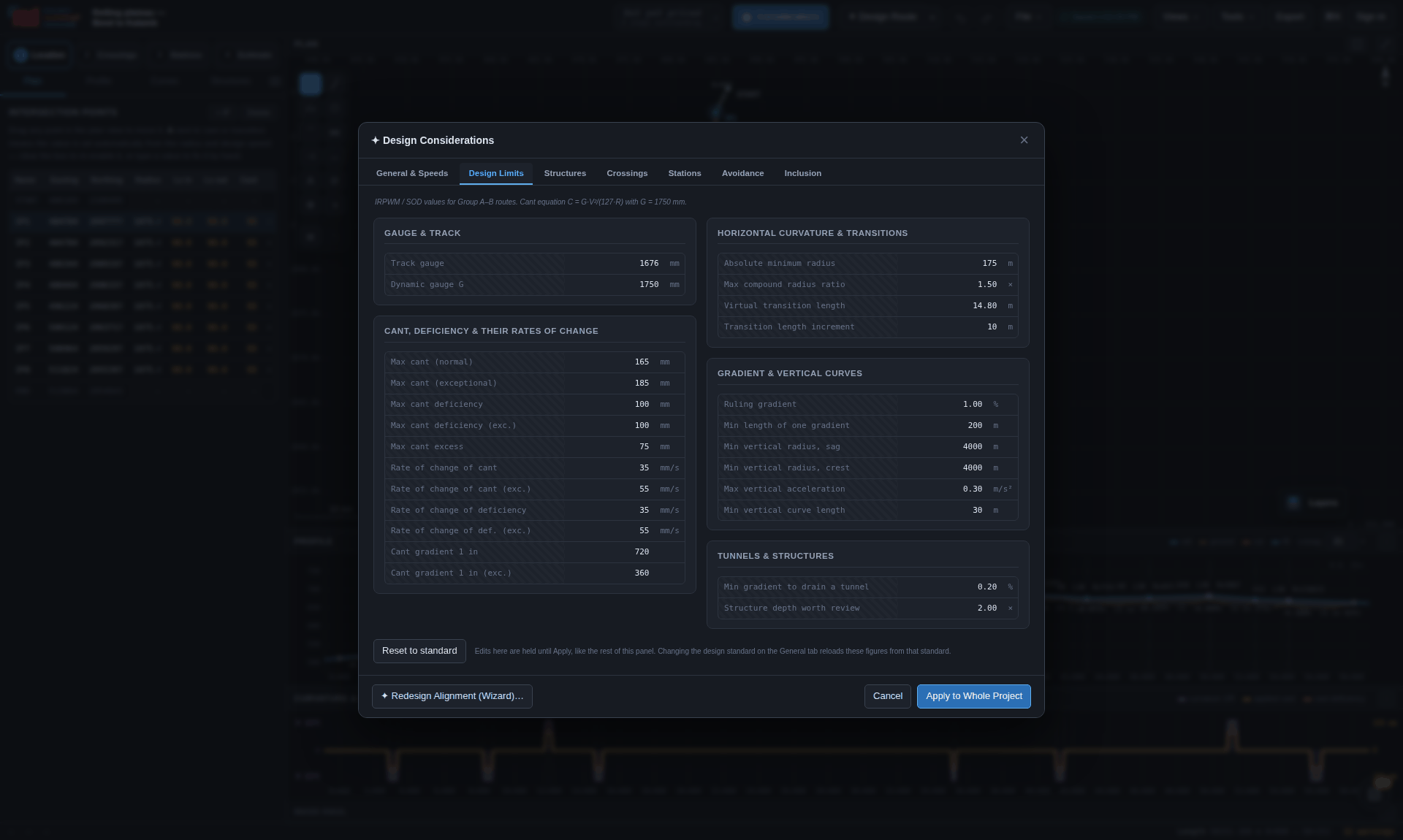
The minimum radius for a speed is not a table lookup: it is derived from the cant relation and the two ceilings above it. At speed V, the equilibrium cant for a radius must be reachable within the maximum applied cant plus the maximum deficiency —
R_min = G · V² / [ 127 · (C_max + Cd_max) ]— and the answer is checked again for the slowest traffic, because the same curve has to be ridden by a goods train at 60 km/h without exceeding cant excess. Where no single cant satisfies both, the engine says so in exactly those terms and offers the radius that would (R_MIXED).
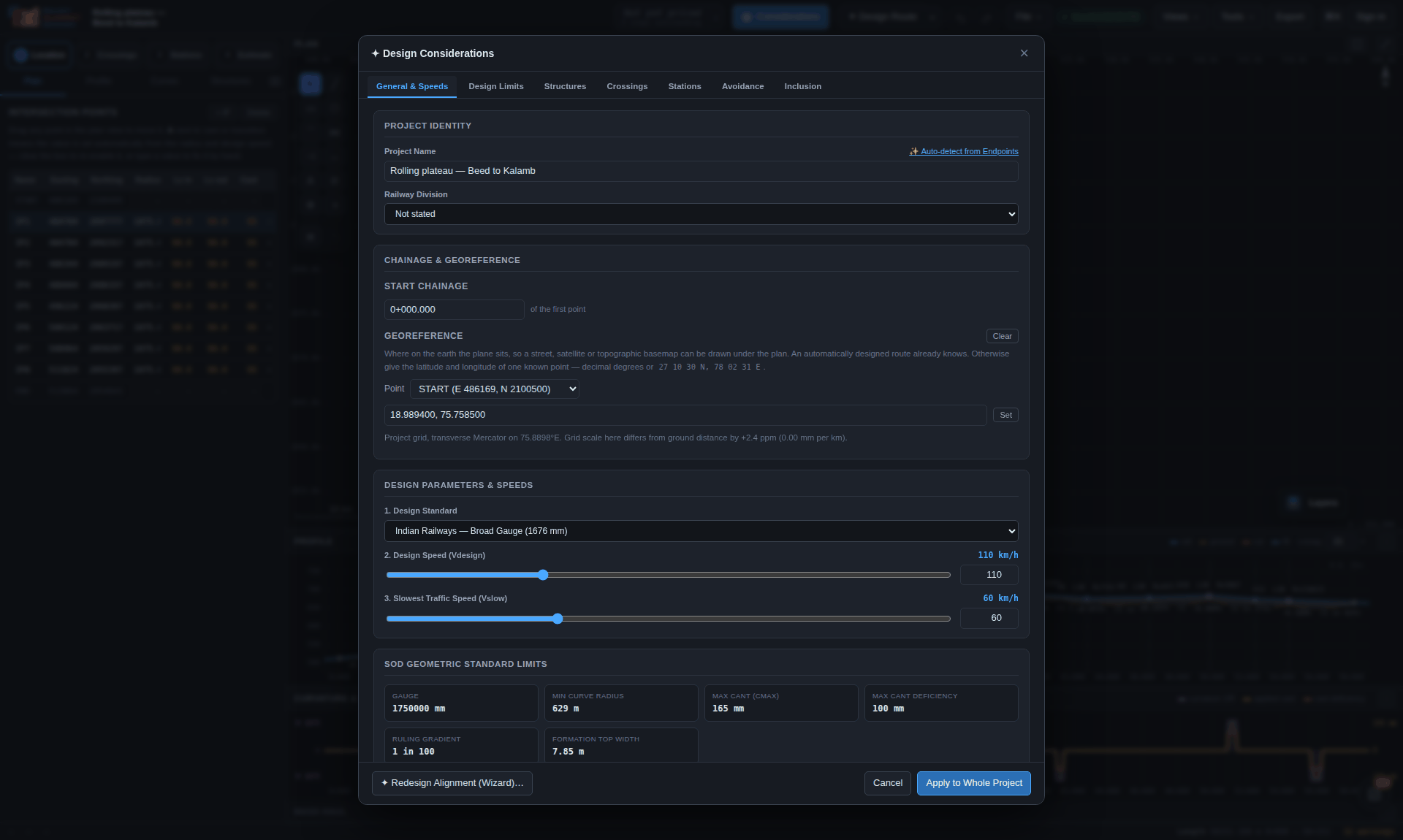
What is in the save file, what the columns mean, and what a receiving package will find in the interchange formats.
Saved to this computer, a project is one Name.rads file: the JSON object below,
including the available terrain grid and the OpenStreetMap extract used for its crossings.
The project hub also keeps the OpenStreetMap extract; terrain tiles are downloaded again
when a cloud project is opened. Imported survey surfaces and the design's ground levels
are retained in both kinds of save.
Older .rads/.radsupport pairs still open together. If the support
file is missing, the app can download the missing data again. The next save includes the
available data in one .rads, without a separate support file. Older
.json projects also open and are saved as .rads the next time.
Output → Export deliverables → Project file (.rads) writes the same complete .rads
for sending to somebody as a single attachment.
One JSON object, round-trippable; this abbreviated example shows the main design inputs:
{
  "format": "railway-alignment",   "version": 1,
  "name": "Rolling plateau — Beed to Kalamb",   "division": "",
  "created": "…", "saved": "…",
  "standard": "IR-BG",
  "design":   { "V": 110, "Vslow": 60, "startStation": 0 },
  "limits":   { "gauge": 1676, "G": 1750, "cantMax": 165, … },
  "considerations": { "structures":…, "crossings":…, "stations":…,
                      "recon":…, "avoidance":…, "takeoff":…, "multitrack":… },
  "routeDesign":    { "from":…, "to":…, "via":[…], "demRes": 60, "V": 110 },
  "ips":    [ { "E": 487384.997, "N": 2099077.668, "name": "IP1",
                "R": 1075, "cant": 95, "Ls1": 90, "Ls2": 90,
                "autoCant": true, "autoLs": true }, … ],
  "vips":   [ { "station": 5050, "z": 553.128, "name": "V1", "L": 50 }, … ],
  "ground": [ { "station": 0, "z": 512.62 }, … ],
  "geo":    { "lon0": 75.88985, "lat0": 18.78225,
              "E0": 500000, "N0": 2077565.203,
              "from": {"lat":…, "lon":…, "name":"Beed"},
              "to":   {"lat":…, "lon":…, "name":"Kalamb"},
              "zoom": 11, "demRes": 60 },
  "crossings": { "overrides": { … } },
  "stations":  [ … ],
  "bridges": { "bridge-id": { … } },
  "estimate": { "planHead": 11, "detailed": { … } },
  "terrainSurface": { … }, "surveySurface": { … },
  "survey": { … }, "support": { "terrain": true, "osm": true },
  "compliance": { "strict": false, "overrides": { … } },
  "land": …, "existingYards": …, "multitrack": …,
  "overlay": { "layers": […], "shapes": […], "nextId": 1 }
}| Key | What it holds, and why it is stored rather than derived |
|---|---|
ips, vips | The alignment itself. The alignment geometry is solved from these two lists; bridge documents and station layouts hold their own component geometry. autoCant and autoLs record that a value is being derived rather than fixed by hand. |
estimate.detailed | The active/disabled detailed bill, basis, project charges, components, items, measurements, rate analyses, pinned source records and review notes. These are authored inputs; opening or rerouting does not rebuild them. |
bridges | Saved bridge documents keyed by stable identity: spans and floor choices, girder spacing and clearance envelopes, supports, member overrides, ancillary walls, levels, quantities settings and adopted drawing/design references. Structural support skew and actual crossing obliquity are separate. Older member models retain a review marker until explicitly applied. These survive both local and cloud saves. |
surveySurface | The imported survey surface. It remains in local and cloud saves; it is not a downloadable DEM grid. |
ground | The existing ground as chainage/level pairs — sampled from the terrain grid by the router, or imported. |
limits | A full copy of the standard's numbers, not a reference to the preset, so that reopening the project years later cannot silently re-check it against a preset that has since changed. |
compliance.overrides | Every rule this project has silenced or re-graded. Kept with the design because a check that has quietly stopped running is worse than one that fails. |
crossings.overrides | Crossing types set by hand. The engine keeps its own opinion beside them. |
multitrack | Evidence, not derivation: what was found on the ground, which side the new line runs, how much is parallel, and why each realignment left the formation. These design decisions are kept alongside the map extract they came from. |
geo | The tie to the earth, and the terrain resolution the design was built against. |
overlay | Everything drawn by hand, on its layers — including the avoidance and inclusion zones the router priced from. |
terrainSurface, survey | The downloaded terrain grid and compact OpenStreetMap extract. A local .rads includes both when available; the cloud keeps the map extract and restores terrain on opening. |
support | Which downloaded data belongs to the project (terrain, osm). Only data missing from this copy is restored on opening. Older two-file saves may also name a .radsupport and its id; new saves do not depend on a separate file. |
Chainage · Station (m) · Easting · Northing · Rail level · Radius (m) · Hand · Cant (mm) · Bearing · Grade (%) · Ground level · Cut(−)/Fill(+) · Notes
The ground columns appear only when the project has a ground profile. Tangent points, summits and low points are always present as rows whatever the interval, and the Notes column is what says which is which.
Curve · IP Easting · IP Northing · Deflection · Hand · Radius (m) · Degree (30.5 m) · Ls entry (m) · Ls exit (m) · Tangent T1 (m) · Tangent T2 (m) · Shift p (m) · Arc length (m) · Total curve (m) · External (m) · TS · SC · CS · ST · Cant (mm) · Eq cant (mm) · Cant def (mm) · Cant excess (mm) · Lat accel (m/s²) · Ls required (m) · Governed by · Vmax (km/h)
TS · SC · CS · ST are the four tangent-point chainages — tangent-to-spiral, spiral-to-curve, curve-to-spiral, spiral-to-tangent — the same four points the DXF marks T1/J1/J2/T2 in Figure 9.1. Governed by names which of the three transition criteria set the length.
Curve · VIP chainage · VIP level · Grade in (%) · Grade out (%) · Change (%) · Type · Length (m) · Radius Rv (m) · BVC · BVC level · EVC · EVC level · Mid-ordinate (m) · Turning point · Turning level
Level · Reported as · Category · Code · Rule · Location · Chainage · Description · Value · Limit · Unit · Reference · Options
Level is the rule's natural severity and Reported as is what it was reported as after strictness and overrides — so a re-graded finding shows both. The footer names the strictness mode and every overruled rule.
Chainage · Difference · GL · FL · Level diff · Track centre · Curve · Formation top width
Station · Chainage · Item · No. · Type · Reads / Connects · Turnout · Operation · Locking · Aspects · Remarks
| Element | Carries |
|---|---|
<Alignment> | Name, length, starting station. |
<CoordGeom> | The chain, in order. |
<Line> | Each straight, with start and end points. |
<Spiral> | Each clothoid: length, radius at each end, the spiral constant, rotation and type. |
<Curve> | Each arc: radius, rotation, and the three points. |
<ProfAlign> | The grade line: PVI stations and elevations with vertical curve lengths. |
Reads into Autodesk Civil 3D, Bentley OpenRail and 12d Model.
R12 is deliberate: it is the dialect nothing refuses. Everything is in real-world metres on named layers, so a receiving office can freeze what it does not want.
| Layer | Contents |
|---|---|
ALIGNMENT / CL | The centre line as a 3D polyline. |
IP_LEGS | The intersection-point polyline. |
CURVE_PTS | T1, J1, J2 and T2 marked and labelled. |
CURVE_DATA | A curve data box per curve. |
CHAINAGE | CH:nnnnnn ticks and kilometre posts. |
LAND_BOUNDARY | The banded boundary offset either side. |
STRUCTURES | Structure callouts, carrying the skew. |
PROFILE / PLAN | The two halves of a sheet, with their grids and datum. |
STATION_* | Yard geometry by kind: LOOPS, SIDING, TURNOUTS, PLATFORMS, SIGNALS, LIMITS, BUILDINGS, SITE, FOB, CSB, TUNNEL, FUTURE, DATA. |
TEXT | Annotation that belongs to no other layer. |
| overlay layers | Named after the drawing layer they came from, sanitised for DXF and truncated to 26 characters. |
| Import | Accepted |
|---|---|
| Ground profile | chainage, level rows — pasted into the Profile tab or loaded as CSV/TXT. |
| Intersection points | A CSV of easting/northing, with optional radius and transition lengths. |
| Survey | Points, a schedule of cross-sections, LandXML from a total station, or an ASCII grid. The format is worked out from the file. |
The calculation engine is separate from the interface. React supplies panels and Three.js supplies the newer 3D views; Vite builds the application. Core calculations also run under Node so they can be checked without opening the interface.
js/core: nothing in it touches the DOM, so the whole engine loads under Node — which
supports independent engine regressions alongside browser and interface tests.| Thing | How it is done, and why |
|---|---|
The .xlsx writer | An .xlsx is a ZIP of XML parts, and both halves are written by hand in xlsx.js. The export itself needs no installed spreadsheet application. Serve the application through the development or production build. |
| The 3D renderer | ribbon.js and ribbonview.js paint quadrilaterals with the painter's algorithm onto a 2D canvas. One renderer, three cameras. No WebGL, no library. |
| The PNG decoder | tools/png.js exists so that the tests can read real terrain tiles under Node. |
| The search worker | search-worker.js keeps a long A* off the interface thread. |
| The terrain cache | tilecache.js in IndexedDB — which is what makes running the router four times at four design speeds reasonable. |
| The service worker | Keeps a complete, versioned application for offline use. A new version waits for older tabs to close; API responses are outside this application cache. |
| The panel registry | panels.js holds every workbench panel as data — which engine, what it needs, what comes back — so a panel can be opened and checked in Node rather than only by clicking. |
| The logo | Generated from a real Euler spiral by tools/make-logo.js; the RAD mark's D is a real half turn. |
What is checked, how, and to what residual — because a tool that cannot say how it was tested is asking to be taken on trust.
Automated checks cover geometry, compliance rules, terrain, persistence, estimates and exports. The repository also has interface tests, TypeScript checks and a production build check. The geometry is verified three ways:
The compliance engine is verified on its own terms: that every rule carries a title, a real category and a rationale; that issue ids are stable across a re-solve; that strict mode and per-rule overrides resolve as documented and survive a save and reload; that each new rule fires on a case built to trip it and stays silent otherwise; that terrain rules stay quiet without ground data; and that a rule made to throw reports itself as RULE_ERROR without taking the rest of the report with it.
Multiple tracking is verified end to end rather than in pieces: a corridor with a known railway in it — twelve kilometres straight, a 700 m radius curve through 60°, sixteen kilometres straight — is analysed, planned and then actually designed through the router, and the finished centre line is measured against the existing one. It comes back one track spacing off it, to within 50 mm, over four hundred samples; the 700 m existing curve reappears as a 705 m curve on the new line, which is the radius offset to the outside; and the same corridor at 160 km/h leaves the formation for the curve, comes back, and is shorter for it. Both designs finish with no compliance errors.
| Position continuity at element joints | ~10⁻¹³ m |
| Azimuth continuity | ~10⁻¹⁶ rad |
| Tangent lengths against the closed form | 10⁻¹³ m |
| UTM round-trip across four zones | < 20 mm |
| Project grid over 66 km, against Vincenty | < 50 ppm |
test.html provides browser geometry checks; the full repository suites also exercise
project saving/reopening, bridge geometry, estimate measurements and paise rounding, workbook
formulas and application integration. A passing software test does not validate a project’s
field data or rate applicability.
supabase/check/run.sh applies every migration to a throwaway local Postgres and then
asks the policies what they actually allow: that Bob can read the project he was given and not write
it, that an editor can write it and not take it, that Carol can see none of it, that an invitation
survives until the account exists. It needs a local Postgres and an account that can create roles,
and it never touches the real project.
The SQL editor is otherwise the first thing that ever runs a migration, and production is a poor
place to find out that a function does not compile. One did not: the output columns of
share_project() are also plpgsql variables, so on conflict (project_id, email)
could not tell which email was meant. Nothing else in the build could have caught
it.
The screenshots are captures of the running application. Earlier corridor figures use the Beed–Kalamb worked example; this edition adds current task navigation, saving, detailed estimates and bridge workspace figures using explicitly illustrative project data. Older retained figures may show earlier toolbar layouts. Follow the command paths in the text.
The newer captures are reproducible with tools/shoot-workspaces.js. The earlier
docs/manual/shoot.js covers the original route walkthrough and needs adaptation to
current navigation and sign-in before a full recapture. Neither script turns demonstration
quantities into an approved engineering design.
The compliance catalogue in Chapter 19 and the standards table in
Chapter 20 come from the engine's rule and standard definitions.
npm run manual:sync regenerates their values; npm run manual:check
detects stale tables and missing links or images. The weekly documentation workflow runs Mondays
at 03:17 UTC and opens a review pull request only when generated content changes. It also rebuilds
the training page and PowerPoint from their reviewed course source. It does not invent
instructions, refresh screenshots, update the editorial date or claim a review happened.
The workflow must reach the default branch and Actions must be permitted to create pull requests.
Check links, captions and printed pagination after editing this book.
Some earlier captures could not reach basemap or corridor services; their blank basemaps and lookup notices are part of the captured state. The new estimate and bridge illustrations use controlled local demonstration data and do not claim that a live corridor query was completed.
Cloud project storage and the server feature cache are separate services. A locally configured deployment can use files; the configured public website requires sign-in. Saved OSM can be reused even without the shared feature cache.
| Route | What it does, and why it is a server route |
|---|---|
/api/dem |
Terrain tiles. Public SRTM-derived terrarium tiles carry no CORS headers, so the page cannot
fetch them directly. The route validates z/x/y, proxies the tile, and marks it
immutable so the browser and the tile cache never ask twice. |
/api/features |
Corridor features from OpenStreetMap by way of Overpass. Overpass is slow, rate-limited and periodically down; a corridor query can take half a minute and then fail. Extracts are cached in Postgres keyed by a normalised bounding box, so the second person to route through a district gets an instant answer. The cache is written with the service role key, which must never reach a browser. |
/api/places |
Place and station search. Nominatim handles names and ranks by importance; Overpass handles
station codes, which are a map tag (railway:ref) that no geocoder indexes.
Both are queried in parallel and merged, so one directory being down degrades the answer
rather than breaking it. Nominatim also requires a descriptive User-Agent, which a browser
cannot set. |
Every reply is read through js/core/api.js, which turns a gateway page, a stopped
function or a missing /api into a sentence saying what happened and what to try next —
rather than the JSON parser's complaint, which names no status and suggests nothing.
| Secret | Where it belongs |
|---|---|
| Supabase project URL and publishable key | js/config.js, committed on purpose. That key names the project and grants
nothing: every row the app can reach is decided by row level security against the signed-in
user. |
SUPABASE_URL, SUPABASE_SERVICE_ROLE_KEY |
The hosting environment only, read by /api/features to write the feature cache.
The service role bypasses row level security and must never reach a browser or the repository.
.gitignore already excludes .env*. |
GEMINI_API_KEY, optional GEMINI_MODEL and GEMINI_ALLOWED_MODELS |
Server settings for Ask's optional Gemini fallback. Local Ask needs no AI key. The site key never reaches the browser; model and allow-list settings affect shared access. |
SUPABASE_URL, SUPABASE_ANON_KEY |
Server account checks for Gemini requests, including personal-key requests. Shared usage also requires the assistant-usage database migration. |
| Optional personal Gemini key for Ask | Held in this browser, removable in Ask settings and never included in project files.
On a Gemini request it passes through this site's /api/assistant to Google;
the application does not persist it on the server. It does not bypass sign-in. |
Without the two environment variables /api/features still answers; it just says
overpass (uncached) and pays the full round trip every time.
vercel.json carries the whole of the hosting contract: a 60-second
maxDuration for the functions, clean URLs, a cache policy per path, and a strict
content security policy that names every host the page may reach — the Supabase project, the tile
servers, the terrain bucket and Nominatim, and nothing else. The service worker is served
no-store so a deploy is picked up.
| Header | Value |
|---|---|
| X-Content-Type-Options | nosniff |
| Referrer-Policy | strict-origin-when-cross-origin |
| X-Frame-Options | SAMEORIGIN |
| Strict-Transport-Security | max-age=63072000; includeSubDomains; preload |
| Permissions-Policy | camera=(), microphone=(), geolocation=(self), payment=() |
| Content-Security-Policy | Self, plus the named tile, terrain, geocoder and Supabase hosts. Workers from blob:; images from data: and blob:; audio from blob:. |
A confirmation or sign-in link is opened from a mail client, and often on a different device from
the one that signed up. http://localhost:8731 on a phone means that phone's own
machine, which is running nothing — so the link cannot be the address bar of whoever asked for it.
Config.siteUrl states the public address once and every auth email uses it, whichever
host the request came from. Blank it and links fall back to the current origin, which is what a
purely local install wants.
Supabase validates every redirect target against an allow-list and does not report a failure: an
unlisted address is quietly replaced with the project's Site URL. Under
Authentication → URL Configuration, set Site URL to the public site, and put the public
site (a /** entry covers every page) plus http://localhost:8731/** in
Redirect URLs.
Apply the migrations in supabase/migrations in order. Every one is idempotent and safe
to re-run — from the SQL editor in the dashboard, or with supabase db push.
| Migration | What it adds | Skipping it |
|---|---|---|
0001_init.sql | Projects, revision history, share links and the feature cache. | Not optional. |
0002_profiles_and_avatars.sql | The display name and picture, the trigger that gives every new account a profile row, and the avatar bucket with its policies. Backfills accounts created before it ran. | Survivable. PostgREST answers could not find the table 'public.profiles', which reads like a fault in the account — so the account panel says which it is and carries on offering the parts that work. |
0003_sample_projects.sql | The worked examples, as rows anybody may read. | Survivable: the application falls back to the files in samples/. |
0004_project_hub_and_sharing.sql | Person-to-person sharing: project_shares, project_invites, the policies that widen projects to a named reader, and the functions that grant and claim. | Survivable: the hub draws your own projects and never finds anybody to have shared them with. |
0005_profile_details.sql | The rest of a profile — what you do, where you are, one link and a paragraph — capped in the database as well as the browser. | Survivable and visible: the profile is read once for everything and, if a column is missing, read again for the columns 0002 guarantees. The page says which migration is outstanding. |
0006_review.sql | Review comments anchored to a place in a design. | Survivable: the review panel reports itself as needing input. |
After 0003, paste supabase/seed_samples.sql into the SQL editor. For a
script, or a rebuild that should not involve a browser:
SUPABASE_URL=https://xxx.supabase.co \
SUPABASE_SERVICE_ROLE_KEY=eyJ... \
node tools/seed-samples.js
That path needs the service role, because the table has row level security on and no write policy,
so a browser key is refused by design. node tools/seed-samples.js --sql regenerates the
SQL after changing an example. Either way it upserts on the slug, so running it again corrects
rather than duplicates. tools/seed-samples.js is JavaScript and will not run in the SQL
editor; the file to paste there is supabase/seed_samples.sql.
| Question | Answer, and where it is enforced |
|---|---|
| Who can read a project? | Its owner, and anybody it has been shared with. Enforced by row level security on projects. |
| Who can write it? | The owner, and an editor. Ownership is pinned in the same trigger that owns rev and updated_at, so an editor may write the document but never take it — a with check could not express that on its own, since the row it inspects is the one that would be lying. |
| Who can delete or re-share it? | Only the owner. select and update widen to a named reader; insert and delete do not. |
| How is recursion avoided? | A policy on projects that reads project_shares, and a policy on project_shares that reads projects, is an infinite loop Postgres reports at query time. Every cross-table test is therefore a security definer function — owns_project, shared_with_me, can_edit_shared, shares_person — which runs with row level security off inside it and so cannot re-enter the policy that called it. |
| Why is there no insert policy on the share tables? | A row in project_shares grants access, so it is written only by share_project(), which checks ownership first. Left to a plain insert, any account could grant itself the run of any project whose id it could guess. |
| How wide is the profile read? | One account wide of your own, and no wider: the people you have given a project to, and the people who have given you one. |
| Where do avatars go? | A public avatars bucket, squared and shrunk to 256 px in the browser first. Writes are confined by policy to a folder named for the user's own id, which is what stops one account overwriting another's picture. Each upload takes a fresh name, so a changed picture is never served stale. |
Most of these are the software telling you something true about the world. The table says which.
| What you see | What it means, and what to do |
|---|---|
| Sign-in or the manual cannot finish loading | Check the connection to the configured authentication service and retry. On the public website, blocking the cloud host does not bypass the sign-in gate. A prepared offline project or already downloaded PDF can be used within the access already available. |
| could not find the table 'public.profiles' | Migration 0002 has not been applied. The account panel says so and carries on
offering the address, the password, signing out and the whole project hub. |
| column profiles.headline does not exist | Migration 0005 has not been applied. The profile is re-read for the columns
0002 guarantees, and the page says which migration is outstanding. |
| A confirmation link goes to the wrong place | Either Config.siteUrl or the Supabase dashboard's redirect allow-list. An
unlisted address is quietly replaced with the project's Site URL — see Chapter 24. |
| A corridor layer shows as did not load | An empty Overpass answer that no second mirror could confirm. It is not being reported as zero watercourses. Press Look up again, which bypasses the cache. |
504 from /api/features |
The 45-second budget ran out before a mirror answered. Try again — a busy mirror is the normal cause — or reduce the corridor. |
| No terrain data covers that area | Every DEM tile fetch failed. Check the network, and check that /api/dem is
reachable from the page. |
| Only 43% of the corridor has terrain data | Some tiles came back empty. The result will be unreliable; re-run once the tiles are available. |
| STATION TIE-IN on a routed alignment | No existing track data reached the router, so neither end of the line ties into a station. Check the corridor lookup answered, then design the route again. |
| The corridor is reported as not viable | The height to be climbed exceeds what the ruling gradient can deliver over the distance available. The message says how much development would be needed. Add obligatory points to lengthen the climb, or raise the ruling gradient if the project allows it. |
| Stage 2 will not open | One of the four hard prerequisites is missing — an alignment, a grade line, a ground profile or a georeference. The gate names which, and what would satisfy it. |
| The generated estimate shows no total | The corridor lookup or station decisions are outstanding. Follow the named stage requirements. Output → Detailed estimate can start independently; its own missing quantities, rates and review states determine whether its total is ready. |
| A detailed bill shows an unpriced item or provisional subtotal | Enter the missing quantity and rate, check units and source warnings, and review provisional assemblies. A blank is not a priced zero. Incomplete numeric edits must be corrected before Apply, Save or export. |
| My estimate or bridge export differs from the saved project | Workspace exports can use the current draft. Apply updates the working project; Save project applies and saves it. Check the destination and save indicator. Detailed imported bills are fixed snapshots and need deliberate revision after design changes. |
| A cloud project requests OSM again | Older saves, missing extracts or a fresh corridor request can need a lookup. Let it finish and save the project explicitly to retain the compact OSM for future opens. Reopening a current save with its OSM present should reuse it. DEM redownload on cloud open is expected. |
| An older project asks for a .radsupport file | Choose its matching sidecar if available. Missing downloaded data can be fetched again;
after it loads, save once to produce a self-contained .rads. Never substitute
another project’s sidecar. |
| The plan will not draw a basemap | The project has no georeference, or the tile host is unreachable. Georeference a hand-drawn alignment from the Plan tab. |
| Every save produces another file in Downloads | The browser has no File System Access API, so the save target degraded to a download. Use a Chromium-based browser to save back to one file. |
| A report group is missing and shows RULE_ERROR | One group of checks threw on a degenerate geometry. The rest of the report still stands, and the finding names the group that failed. |
| A repair says it will not fix something | It is advisory: only a change of route, design speed or works would resolve it. The finding states the trade-off and the options. |
| The examples do not appear in the catalogue | Migration 0003 is applied but the seed has not been run — or the seed was run
without the service role key. Until it is seeded the application falls back to the files in
samples/. |
This chapter matters more than the feature list. Read it before quoting any figure this software produced.
| Input | What it is, and what it is not |
|---|---|
| Terrain | Public SRTM/ASTER-derived tiles: roughly 30 m horizontal and ±16 m vertical. Enough to compare corridors and to reconnoitre; nowhere near construction levels. The finest grid worth asking for is 30 m, because that is where the source data runs out — anything finer interpolates. |
| Corridor features | OpenStreetMap: contributed, uneven, and in rural areas missing minor roads and field drains entirely. A first pass, not a survey. Tags are free text and are rendered as text. |
| Basemaps | Tile imagery with its own positional error, placed from a single tied point on a north-up unit-scale grid. Context for judgement, not a survey to set out from. |
| Rates | The detailed library contains CR USSOR 2021 and CPWD DSR 2023 item variants with source warnings. Their price level and scope are not automatically current or local. Check the authority, location index, billing unit, correction slips and inclusions. Generated allowances remain provisional; custom bills can include specialist scope only when it is explicitly entered and priced. |
The parcels engine gets the areas right and prices them at a stated rate. The real award is a market value, a multiplier, solatium and whatever the reference court decides years later. Nor does it examine title: encumbrances, tenancies and unrecorded occupation are invisible here and all real.
The land boundary is a preliminary width drawn from the geometry the designer has fixed — the toe of the earthwork, plus a margin, rounded up and banded into lengths of at least 100 m because a boundary that steps in and out every twenty metres is a toe line with a margin added, and nobody pegs that. It is not a schedule of acquisition: that needs the revenue survey, the plot numbers, and everything the ground tells you that a terrain model does not.
Everything in this software is a proposal supported by stated arithmetic over stated data. The compliance report says which clauses were tested and against what limits; the provenance panel says what the ground is known from and to what accuracy; the estimate says which of its rates have a schedule item behind them; the register of assumptions in the report gathers the rest. None of that transfers responsibility. A design leaves this tool as a first pass that a competent engineer has to verify against the governing code, the approved schedule of dimensions, the revenue records and the ground itself.
An alignment was developed over public 30 m terrain, checked against the IR-BG limits as configured, with costs based on the stated schedule items, analyses and provisional allowances; the outstanding findings, rate basis, assumptions and ground provenance are annexed. That is defensible, and it is what the exports are shaped to support.
Alignment — the centre line of the track, in plan and profile together.
A* — the search that finds a least-cost path over the elevation grid; here the state is (cell, heading) so that turning can be priced.
BVC / EVC — beginning and end of a vertical curve.
Cant — the amount by which the outer rail of a curve is raised above the inner.
Cant deficiency — how much more cant the fast train would want than is applied.
Cant excess — how much more cant is applied than the slow train wants.
Chainage — distance along the line from its start, written 12+530.
Clothoid — the Euler spiral, whose curvature grows linearly with distance; the transition between a straight and an arc.
D8 — the flow-routing rule that sends every cell's water to its steepest of eight neighbours; the basis of the catchment calculation.
DEM — digital elevation model: the grid of ground levels the design is built on.
Dickens — the empirical formula giving peak discharge from a catchment area.
Formation — the finished earthwork surface the track is laid on.
Fouling mark — the point where converging tracks come close enough that a vehicle on one obstructs the other.
Gauge (dynamic, G) — the effective lever arm in the cant equation: 1750 mm for IR broad gauge, 1500 mm for standard gauge.
IP — intersection point: where two straights would meet if the curve between them were removed.
Lacey — the regime formula giving the waterway a river needs.
Ls — transition (spiral) length.
Mass haul — the cumulative earthwork balance along the line, from which haul, borrow and waste are read.
Plan head — the Indian Railways accounting classification an item of work is booked against.
ROB / RUB — road over bridge / road under bridge.
Ruling gradient — the steepest grade the line is designed to, which sets what a locomotive must haul.
Shift (p) — the distance by which introducing a transition pushes the arc away from the tangent.
Skew — the angle at which the line crosses something; a structure lengthens roughly as 1/sin of it.
SOD — Schedule of Dimensions: the governing clearance and spacing document.
Takeoff — the geometry by which a new line leaves or joins an existing formation.
Tangent point — where one element of the chain hands over to the next (TS, SC, CS, ST).
Throat — the fan of turnouts at the end of a yard.
Vertical acceleration — V²/Rv; what a vertical curve's radius limit was derived from.
VIP — vertical intersection point: where two grades would meet without the vertical curve between them.
Virtual transition — the length over which a vehicle bridges a step in curvature at its bogie centres, when no transition has been designed.
Published schedule items, project-specific analyses and provisional allowances carry separate rate bases so that an estimate can be checked.
Indian Railways Unified Standard Schedule of Rates 2021, Railway Board, Ministry of Railways. Issued 28 July 2022, effective 2 December 2022, superseding IRUSSOR-2019. Price level 2021. It covers the three chapters the civil side of a new line is built out of: formation works, bridge works and permanent way works.
| Document | What it is |
|---|---|
| IRUSSOR-2021 | The schedule of items: nomenclature and the item numbering. |
| Basic Rate Sheet 2021 | The input rates — labour by trade, material, machinery hire. |
| AOR-2021 | The analysis of rates that derives an item rate from those inputs. |
It carries the item numbering and the method; the zonal railways issue their own USSOR with the same item numbers and that zone's input rates. So the item number goes in from the apex document and the rate goes in from the zonal USSOR for the railway the line is on.
CPWD Delhi Schedule of Rates 2023, Volumes I and II, civil works — the schedule the station buildings, platform finishes and site works are priced from.
| Source | Use in the catalogue |
|---|---|
| Central Railway USSOR 2021 | 1,065 extracted variants. Rates belong to this zonal publication; select the correct lead, lift or other variant and read the complete description. |
| CPWD DSR 2023: Volume I; Volume II | 3,184 civil item variants. Most records identify a volume rather than a page. Carriage coverage is partial; source extraction and unit warnings need review. |
| Railway Board IRUSSOR 2021 | Reference for the item structure and nomenclature; not a substitute for the applicable zonal money rates. |
The catalogue preserves 4,249 extracted variants, including source ambiguities instead of silently inventing units. Examples needing original-source review include DSR 5.13's unclear unit, unnamed thousand-unit carriage rows, and CR 172058's kilometre versus tonne-kilometre basis. Check correction slips, taxes and included work separately. Availability of a link or matching code does not certify the adopted rate.
In Basis & charges, record the railway zone, location, rate authority and adjustment basis. USSOR and DSR indices apply to their respective published rates: 100 leaves them unchanged, 110 adds 10%. An entered index is your project assumption, not an automatically fetched official local cost index. Project/quoted and analysed rates are adopted directly.
The catalogue preserves 4,249 extracted item variants. It is not a claim of complete coverage of every schedule and correction slip; source and unit warnings remain visible.
Load these with Explore worked examples from the opening question, or from the palette.
| File | What it is |
|---|---|
auto-plateau.json | The original corridor walkthrough. Beed to Kalamb: 53.6 km direct across the Maharashtra plateau, designed by the router as 58.15 km of IR broad gauge at 110 km/h with 60 m ground detail — 8 curves, 2,210 ground points, 15 VIPs, no compliance errors. |
auto-plains.json | The same treatment on flat country, where the grade line rather than the corridor is the interesting half. |
mainline-ir-bg.json | 8.2 km of mainline doubling on IR broad gauge at 130 km/h, with a ground profile and rolling terrain. |
high-speed-320.json | 26 km of high-speed line at 320 km/h — 7.5–10 km radii and kilometre-long vertical curves. |
metro-tight.json | 2.6 km of urban metro between two platforms at 60 km/h, with 250–400 m radii. |
mixed-terrain-10km.json | A 10 km study route with 1,001 ground points — the one to open when you want the terrain rules to have something to say. |
non-compliant-demo.json | Deliberately broken, to see what the checker reports: 22 errors and 5 warnings on 2.5 km. Figure 10.1. Do not build it. |
ground-10km-mixed-terrain.csv | A ground profile on its own, for importing into a hand-drawn alignment. |
A longer case study — a real corridor between Nashik and Dahanu, with its own ground, curve and
station data and the scripts that produced them — lives in study/nashik-dahanu/.
One page to keep beside the screen.
1 Location — geometry, grade line, cant, earthwork.
2 Crossings — roads, railways, water, power. Geometry locks.
3 Stations — yards, platforms, throat, signals, plateaus.
4 Estimate — plan heads and the abstract.
An alignment · a grade line · a ground profile · a position on Earth — all four hard. No compliance errors — soft, and waivable.
200 · 120 · 60 · 30 m. What you press is what the design is built on. Finer costs tiles, memory and time; coarser aliases small watercourses and the bridge openings follow.
C = G·V²/(127·R) mm.
G = 1750 (IR BG) · 1500 (standard gauge).
Transition length = the longest of the three criteria: rate of change of cant, rate of change of
deficiency, cant ramp gradient.
d = rail − ground.
under when d ≥ headroom + deck;
over when −d ≥ clearance + deck;
otherwise both are quoted. New supports are square; retain the actual crossing angle and
cover the obstacle at both deck edges. Missing arrangements remain unresolved.
Ctrl+K any command · F fit · C compliance · Tab next point · Ctrl+Z undo · Ctrl+S save · Shift+F plan full screen · [ fold the panel.
space run · 123 cameras · ,. next feature · R reverse · S save frame.
Review → 3D & cab rides · 1 Cab · 2 Chase · 3 Orbit · 4 Lineside. Scenery does not add estimate items.
Output → Detailed estimate · add components and measured bills · check the rate basis · Apply updates the working project · Save project writes it. Imported designs are fixed snapshots.
A total with no bridges, an empty map layer nothing confirmed, a bridge class the catchment cannot support, a volume over ground nobody measured. The tool names the missing decision instead.
Terrain ±16 m · features contributed · verify rate basis · presets not certified · basemaps not survey · compensation not valuation.
Railway Alignment Designer · The Manual · Edition 3 · Revised 15 October 2026
www.radrailway.com