Open a built-in sample in the designer, follow the lessons, and complete the review-package exercise. The PowerPoint includes speaker notes and answer guidance. It opens in PowerPoint, Keynote or LibreOffice; narration can be recorded using your presentation application's recording controls.
The illustrated projects are demonstrations. Confirm governing standards, survey data, contract formats and authorisations before using outputs on a real project.
Demonstration data. Earlier captures can have different toolbar positions.
A practical 50–60 minute module for engineers and reviewers.
Build one traceable project: alignment, structures, estimate and deliverables.
Use a sample project; all illustrated values are demonstrations.
Outcome: save a .rads project and explain one design decision.
Trainer notes and exercise guidance
Trainer: allow 2 minutes. Open the designer and a built-in sample before the session. Ask learners what evidence they need to recommend a route. This module is software training, not railway design certification. Screenshots show actual application workflows; older images can have different toolbar layouts. Use the current command labels in the written steps.
01 / START · 02
A defensible sequence
Demonstration data. Earlier captures can have different toolbar positions.
Define the project basis, georeference and governing limits.
Compare geometry, terrain, assets and missing information.
Check, apply, save, then export a dated review snapshot.
Discuss: a green check is evidence of which rule, at which limit?
Trainer notes and exercise guidance
Allow 2 minutes. Walk through the stage prerequisites. A compliant calculation is not an approved railway scheme. A missing input cannot be treated as a zero. Distinguish completed software stages from independently approved surveys, clearances and financial decisions.
02 / WORKSPACE · 03
Navigate without losing your place
Demonstration data. Earlier captures can have different toolbar positions.
Use the grouped toolbar to open the relevant design workspace.
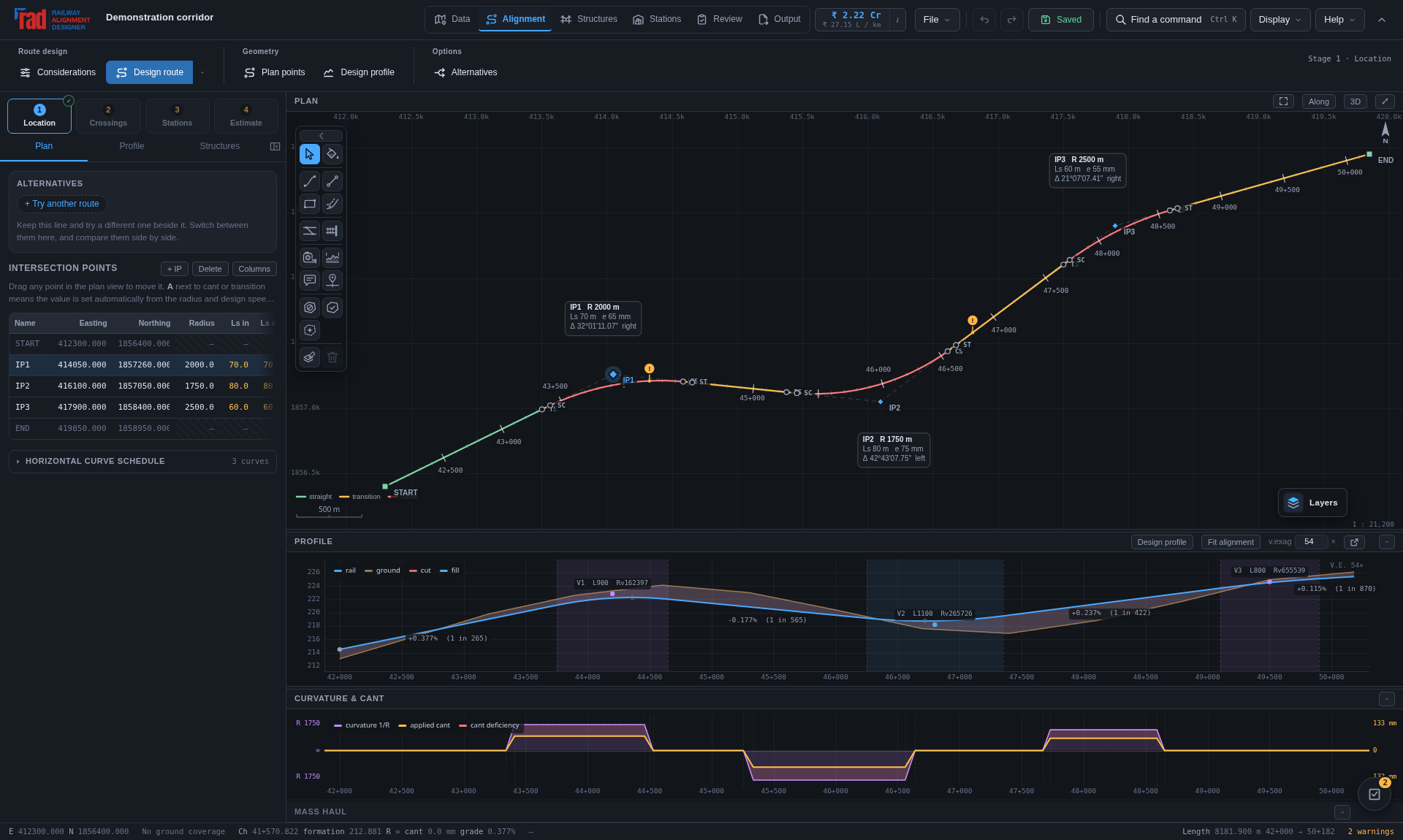
Plan locates the route; Profile explains levels and gradients.
The bottom-left activity indicator reports ongoing operations.
Locate Plan, Profile, Output and Save in the current workspace.
Trainer notes and exercise guidance
Allow 2 minutes. Point out the grouped commands in the screenshot, then demonstrate their current positions in the running app. Activity may be indeterminate when an upstream service cannot report a percentage. Do not start the same long operation repeatedly while a request is progressing.
03 / GEOMETRY · 04
Establish the design basis
Demonstration data. Earlier captures can have different toolbar positions.
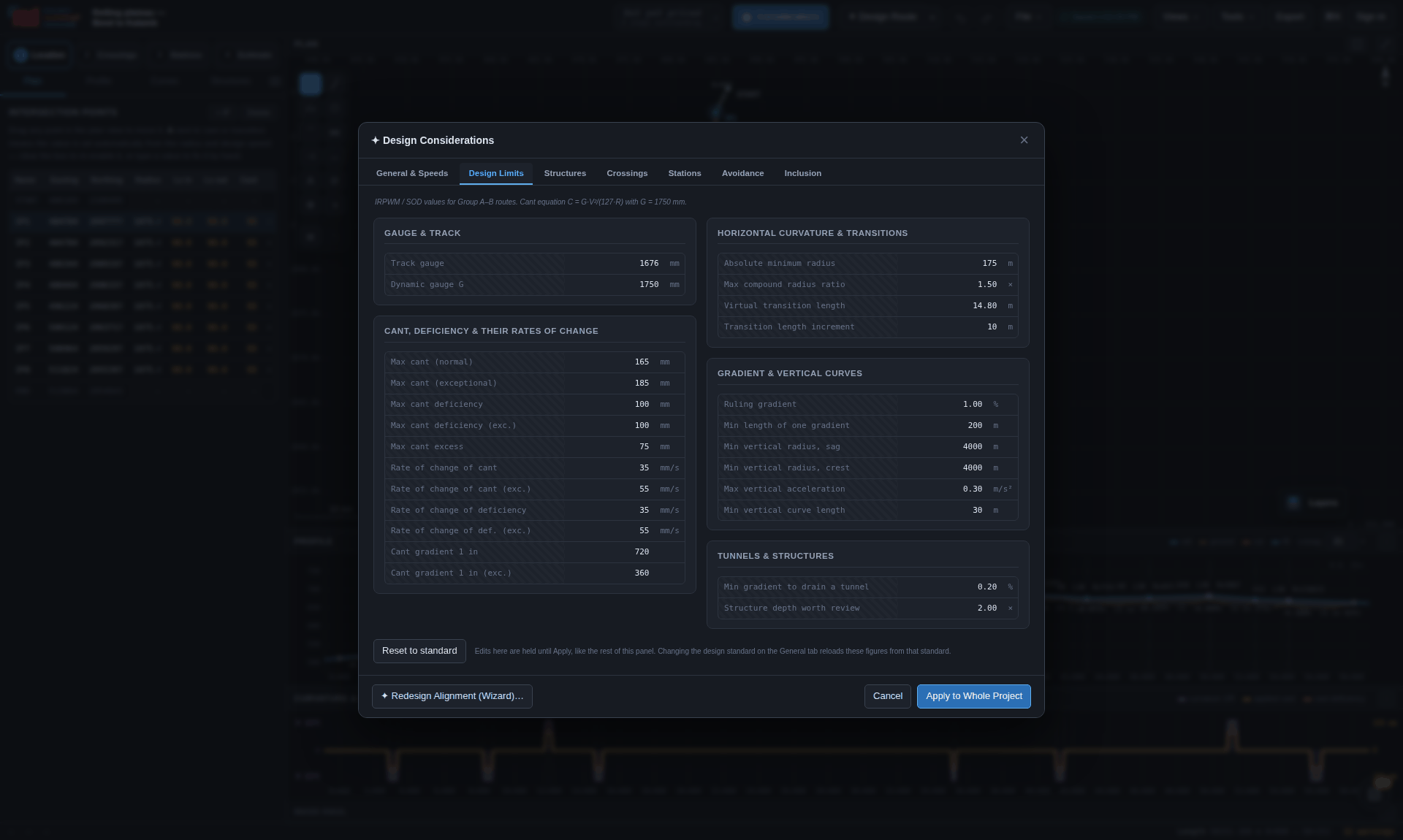
Choose the standard, gauge, speed and ruling gradient deliberately.
Verify the project coordinate system and elevation datum.
Record overrides and the governing circular or specification.
Write down your chosen speed, gauge and ruling gradient.
Trainer notes and exercise guidance
Allow 2 minutes. Open the design limits and show a normal and exceptional limit. Presets are editable starting points. Note that changing a preset may affect derived checks. Confirm units: radius and chainage in metres, speed in km/h, cant in mm, gradient in percent.
03 / GEOMETRY · 05
Route the corridor and preserve alternatives
Demonstration data. Earlier captures can have different toolbar positions.
Supply endpoints, obligatory points and known exclusions.
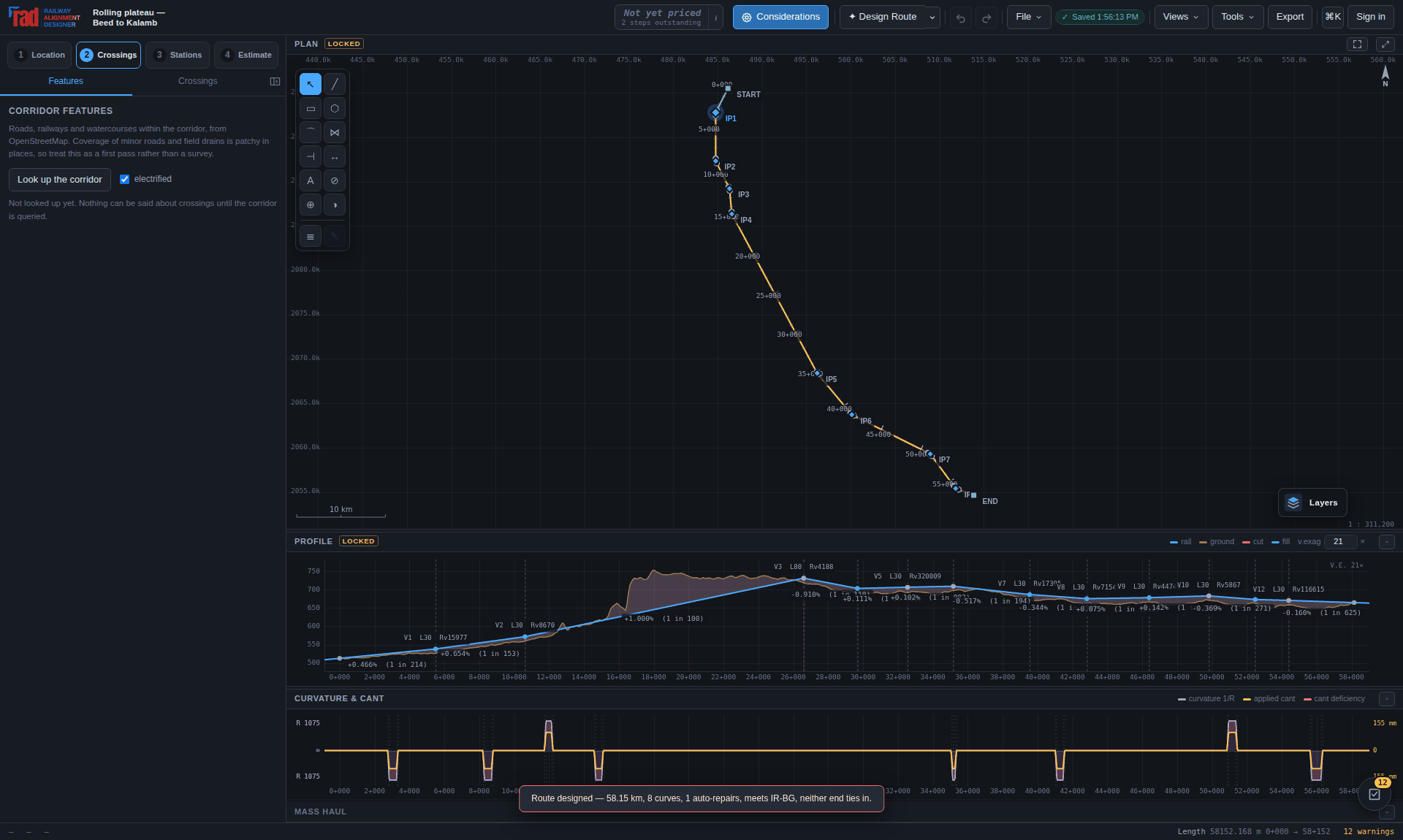
Inspect terrain coverage and station tie-ins before accepting a route.
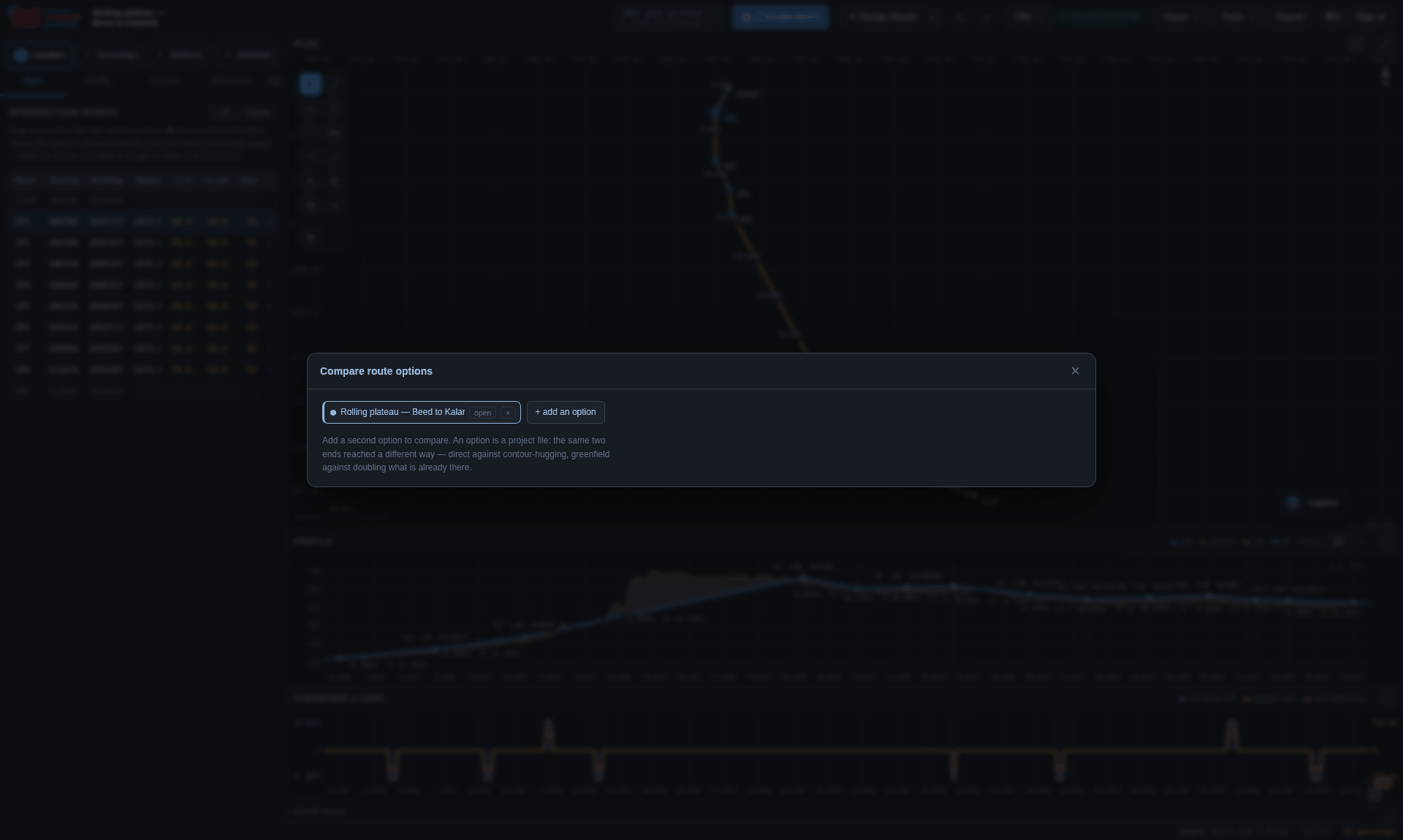
Retain alternative routes to compare geometry, structures and cost.
Identify one constraint that could change the preferred route.
Trainer notes and exercise guidance
Allow 3 minutes. Demonstrate the route workflow with an existing sample so the lesson does not depend on live terrain queries. The older screenshot illustrates a route result and is not evidence that a live service is currently available. Explain why a route can need more development length to achieve the ruling gradient.
03 / GEOMETRY · 06
Read a plan as engineering evidence
Demonstration data. Earlier captures can have different toolbar positions.
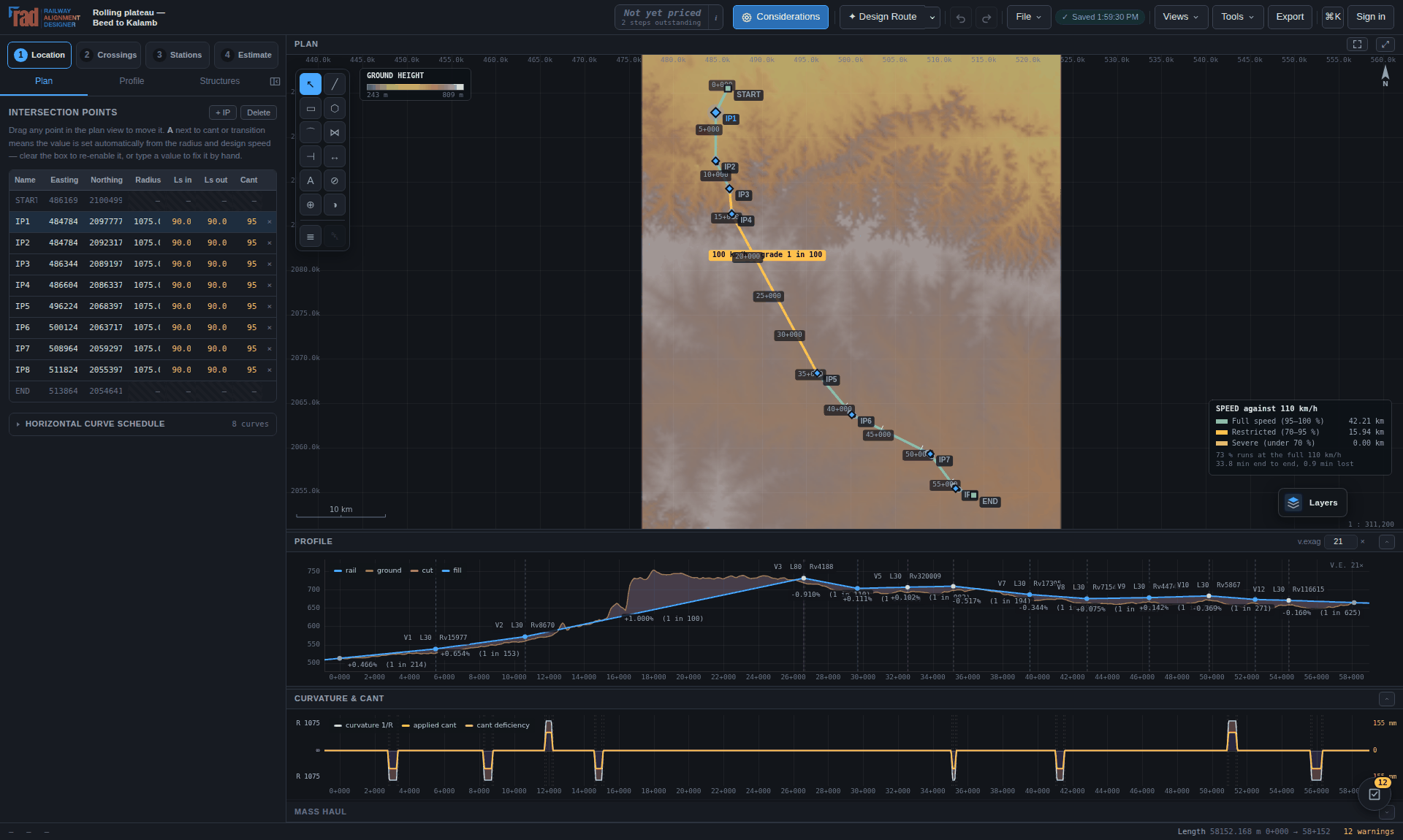
Chainage locates an event along the computed centreline.
Radius, transitions and cant jointly determine speed checks.
Inspect difficult reaches, interfaces and station approaches.
Explain why a curve can pass radius yet fail another check.
Trainer notes and exercise guidance
Allow 2 minutes. Ask learners to identify a curve and its transition points. Do not equate the design speed with a permitted operating speed. Cant excess on slower traffic and transition comfort criteria can govern even when the radius seems adequate.
03 / GEOMETRY · 07
Read the profile with the ground
Demonstration data. Earlier captures can have different toolbar positions.
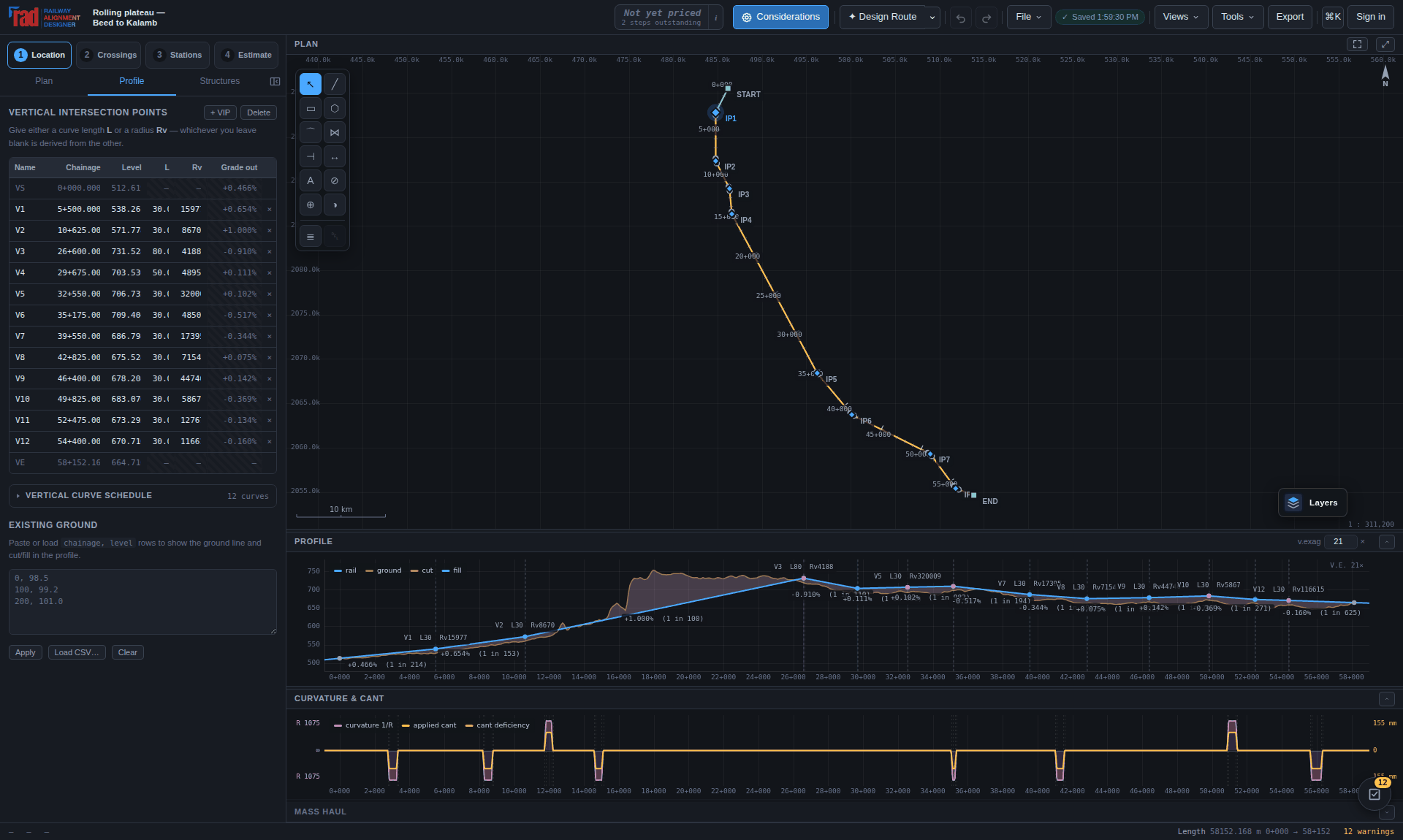
Compare rail and ground levels using the correct datum.
Review grades, vertical curves and cut/fill at critical chainages.
Terrain gaps remain unknown; verify them before quantities are relied on.
Find one reach where a profile adjustment changes the works.
Trainer notes and exercise guidance
Allow 3 minutes. Read a summit or sag, explain VIP and BVC/EVC terminology, and identify the ground profile. A straight line over a missing terrain interval does not create surveyed ground. Check station grades and structure clearances after vertical changes.
03 / GEOMETRY · 08
Notations that prevent a costly mistake
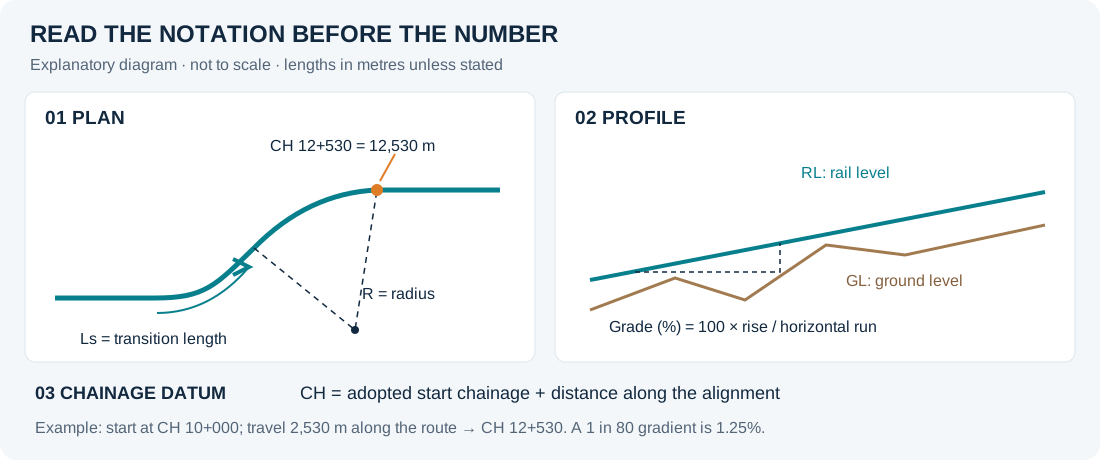
Explanatory notation diagram. Schematic, not to scale.
CH 12+530 = chainage 12,530 m from the adopted chainage datum.
R = horizontal radius; Ls = transition length; C = applied cant.
Grade 1.00% = 1 in 100; 1 in 200 = 0.50%.
Check: what is 7+250 in metres, and what is 1 in 80 as a percent?
Trainer notes and exercise guidance
Allow 2 minutes. Answers: 7,250 m and 1.25%. Distinguish track gauge from dynamic gauge G in the equilibrium cant equation. A diagram is schematic unless it states a scale. In railway documents always give the unit with a quantity. The project may begin at a nonzero chainage; chainage is not automatically distance from its first point.
04 / ASSURANCE · 09
Turn a finding into a reviewed decision
Demonstration data. Earlier captures can have different toolbar positions.
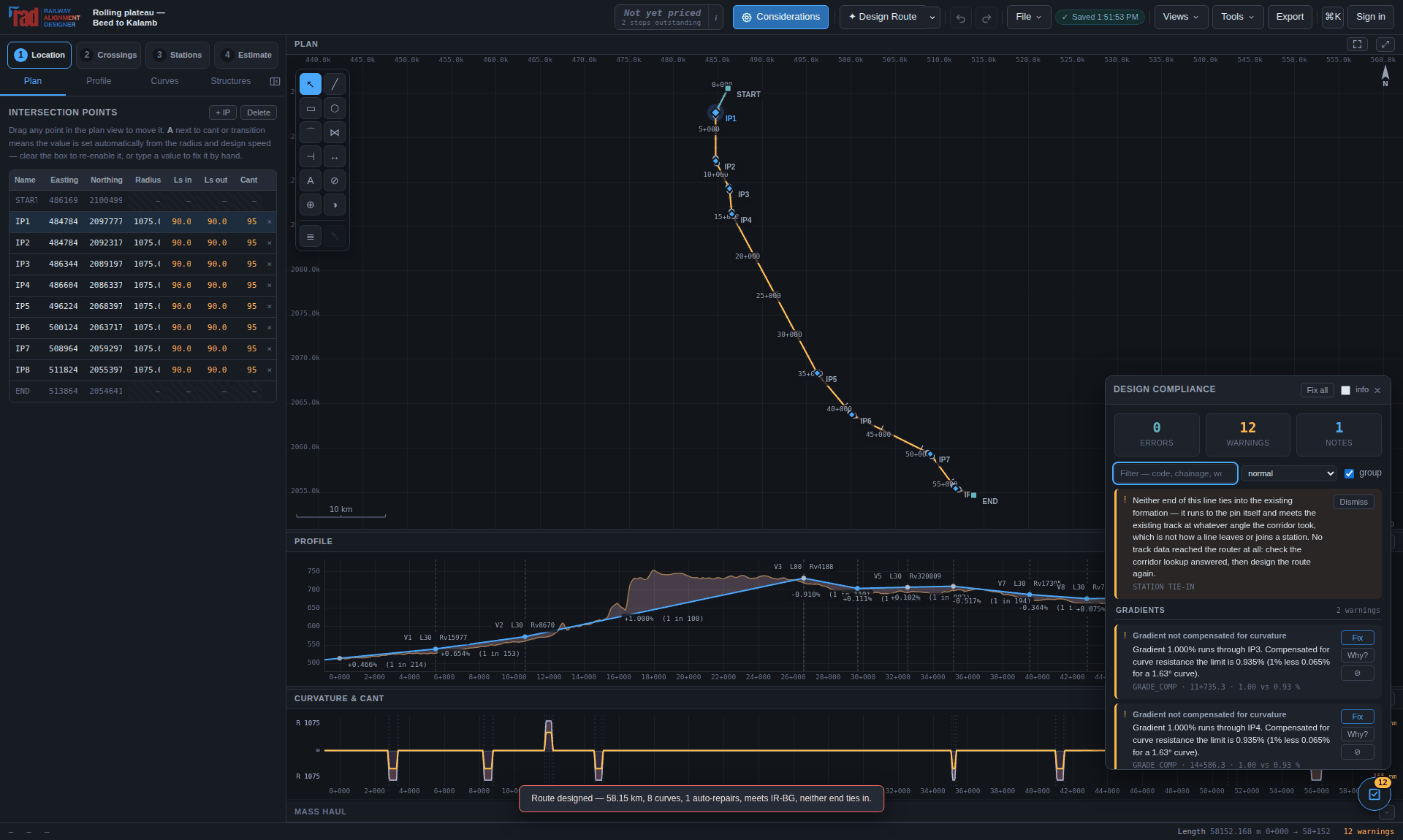
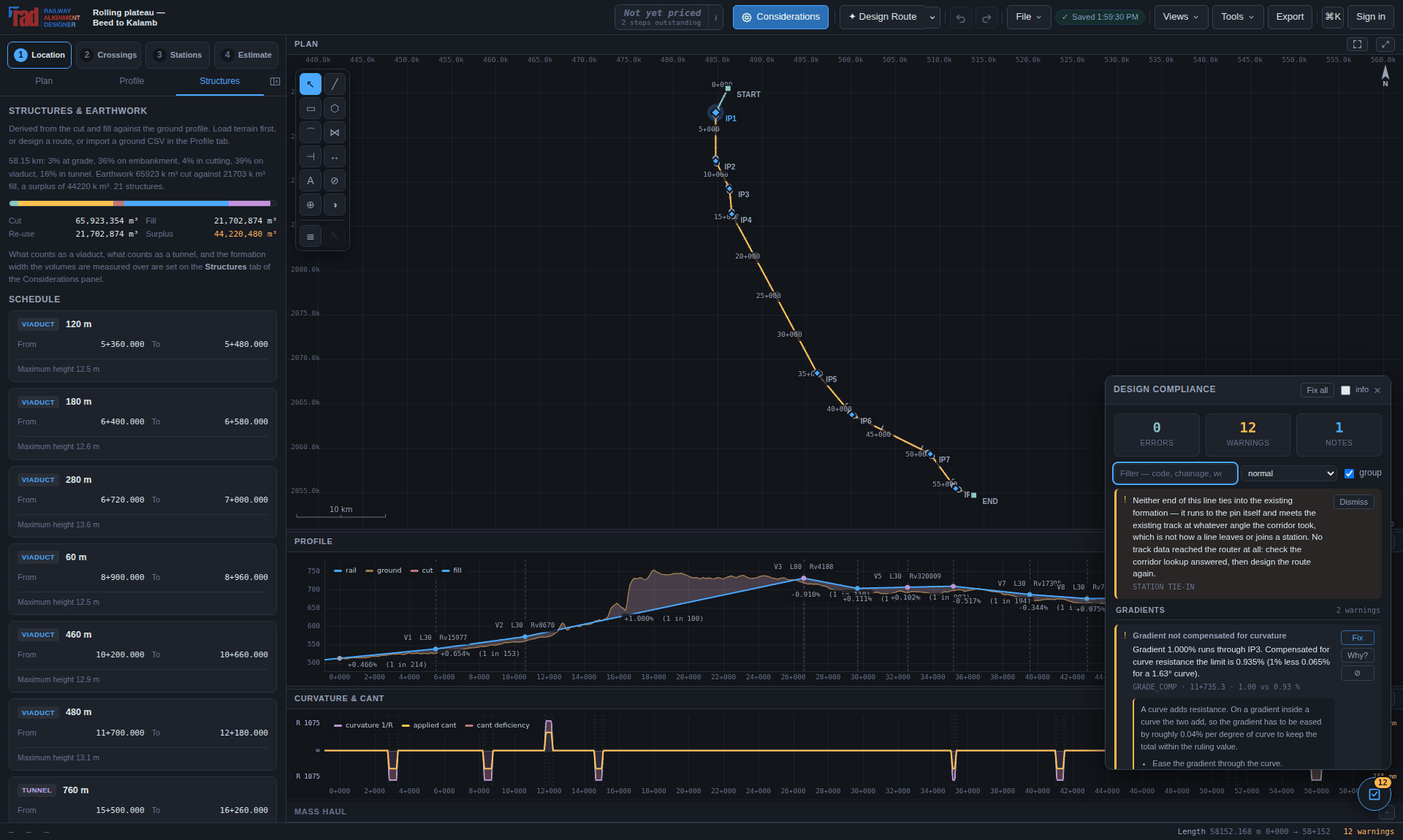
Read the measured value, limit, severity and rule reference.
Use Why? to understand the cause and possible remedies.
Recalculate after a repair and record intentional overrides.
Choose one finding and describe a repair plus its side effects.
Trainer notes and exercise guidance
Allow 3 minutes. A repair that resolves one rule can worsen another, so rerun the complete checks. Strict mode and project overrides can change the presentation of severity. Review the override register before using a clean report as evidence.
04 / ASSURANCE · 10
Crossings and bridges: retain the unknowns
Demonstration data. Earlier captures can have different toolbar positions.
Review crossing identity, chainage, skew and source confidence.
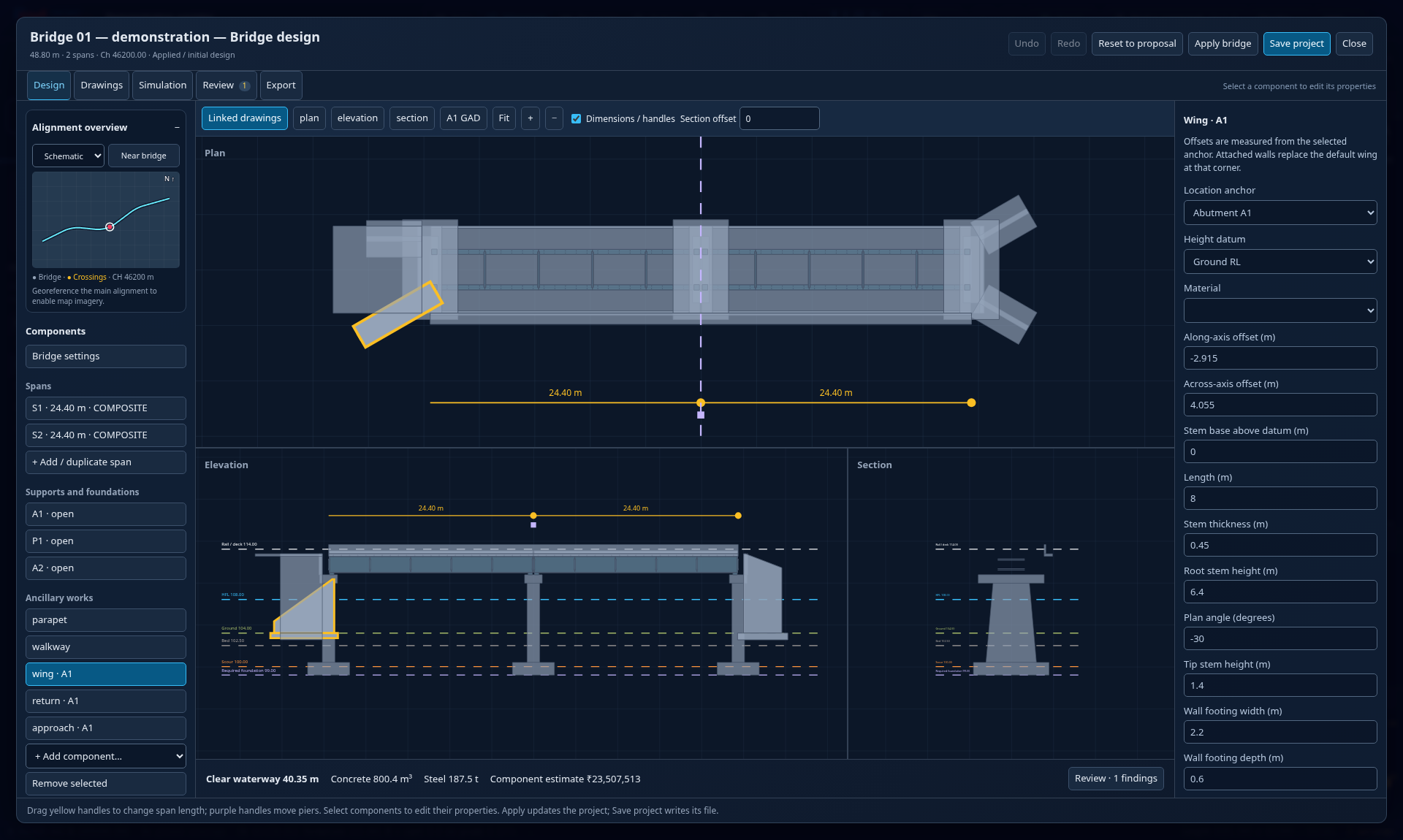
Edit spans, supports, foundations and approach walls in Workspace.
Check clearance and unresolved arrangement findings explicitly.
Name one dimension that requires survey or structural design.
Trainer notes and exercise guidance
Allow 3 minutes. A generated bridge arrangement is preliminary geometry. Demonstrate how a changed wall or span appears in linked views. Do not describe mapped obstacle levels or proposed support sizes as approved design inputs.
04 / ASSURANCE · 11
Read the GAD at the stated scale
Demonstration data. Earlier captures can have different toolbar positions.
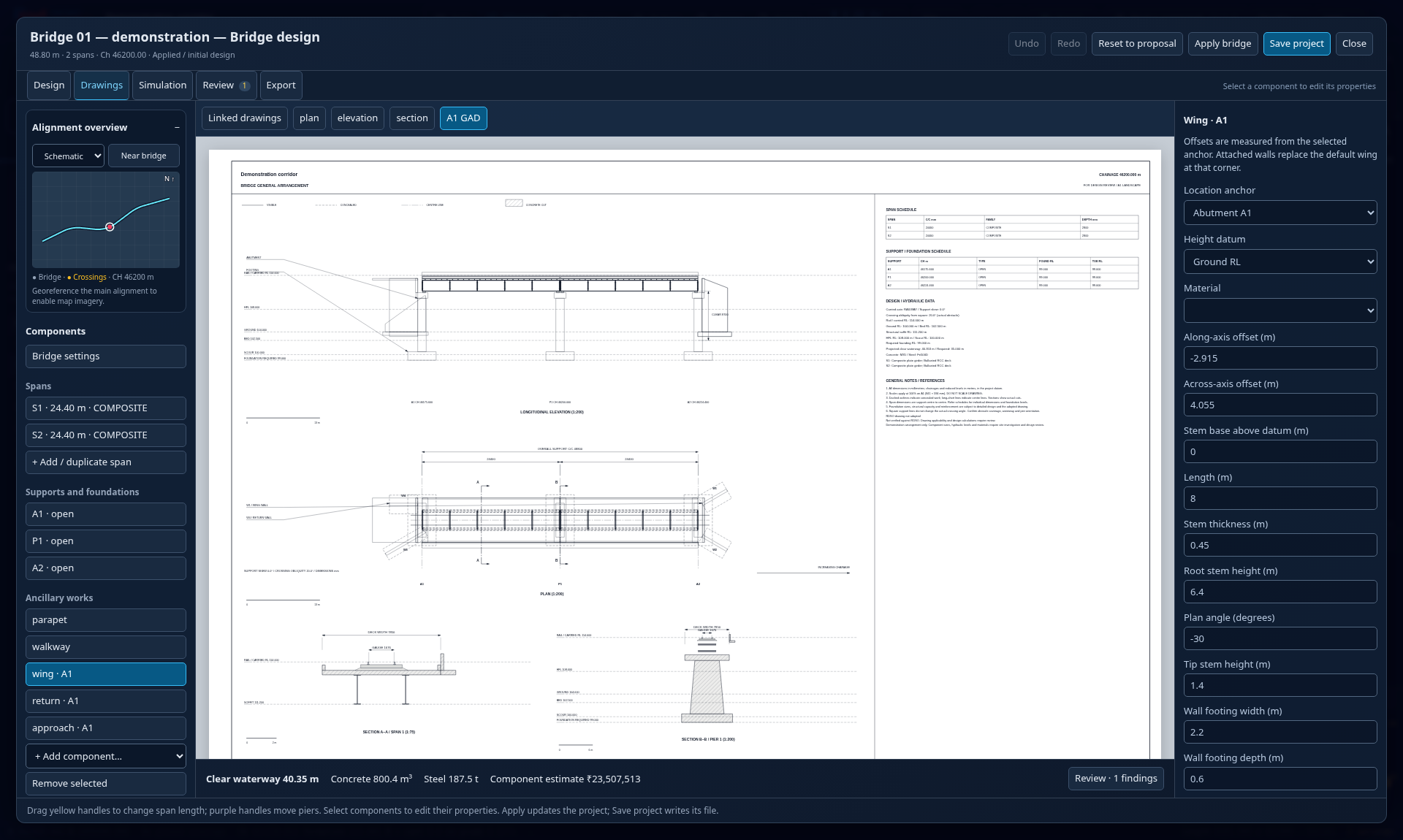
Review plan, elevation, sections, schedules and title information together.
Check the level and dimension references before sharing sheets.
Print A1 drawings at actual size when a scale is required.
Explain why fitting a drawing to A4 changes its plotted scale.
Trainer notes and exercise guidance
Allow 2 minutes. The screenshot shows the visible portion of an A1 preview, not a complete structural calculation. Drawing dimensions remain numerical facts; a scaled measurement is only valid at the specified print size. Export a reviewed sheet for the class to inspect.
05 / COST · 12
Build a traceable detailed estimate
Demonstration data. Earlier captures can have different toolbar positions.
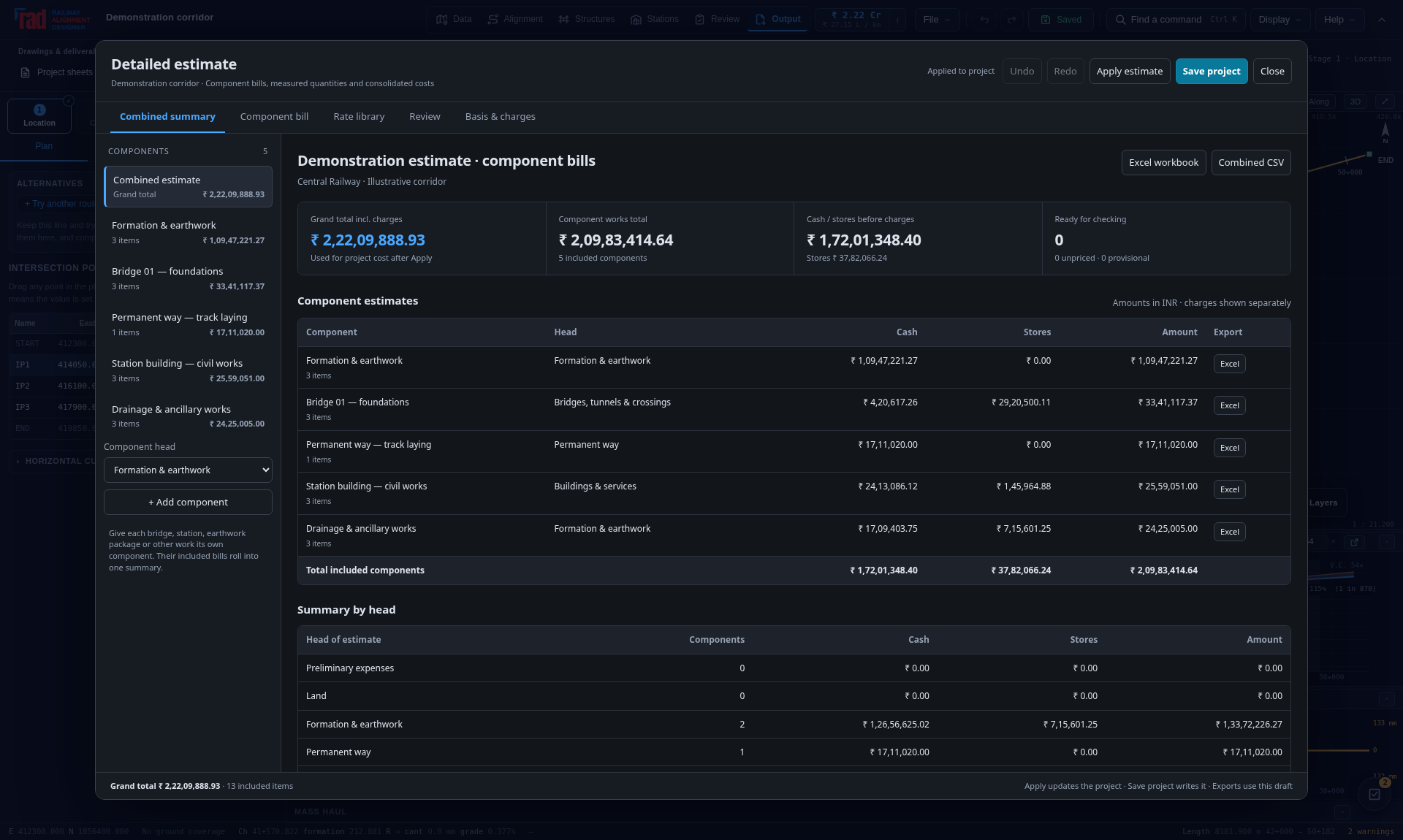
Use named components and measurable bill items.
Retain the source schedule, item code, billing unit and adopted rate.
Keep unpriced and provisional items visible in the abstract.
Find one cost item and trace its quantity back to a measurement.
Trainer notes and exercise guidance
Allow 3 minutes. Explain a component, a plan head and a bill item using the visible editor. The imported or detailed bill is a saved snapshot; changing the alignment does not automatically certify or reconcile every measured quantity. Review charges and GST separately.
05 / COST · 13
Measurement, rate and saved snapshot
Demonstration data. Earlier captures can have different toolbar positions.
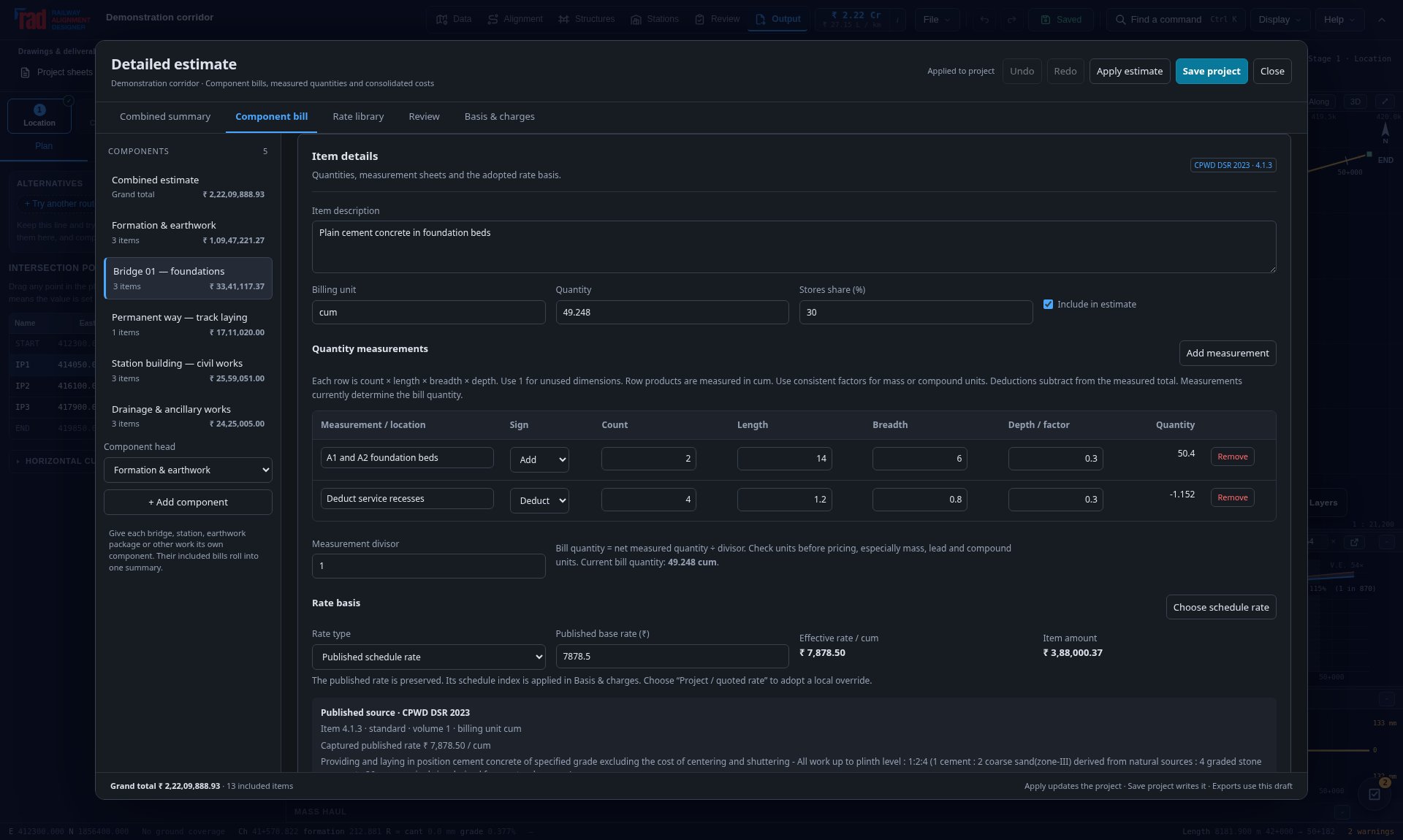
Confirm dimensions, multipliers, deductions and billing-unit conversion.
Review missing rates and ambiguous schedule units before applying.
Apply updates the project; Save project persists the adopted changes.
Demonstrate the difference between an editor draft and the saved project.
Trainer notes and exercise guidance
Allow 2 minutes. Ask learners to calculate one simple row independently. A rate source is not a locally approved price. Explain that exporting the editor draft can differ from a report built from the applied project snapshot. Check the save destination and date.
06 / DELIVERABLES · 14
CAD drafting for railway details
Demonstration data. Earlier captures can have different toolbar positions.
Choose Alignment → CAD drafting to sketch details in project metres.
Use layers, snaps, dimensions and editable drawing properties.
Insert reusable components, check exchange reports and save in .rads.
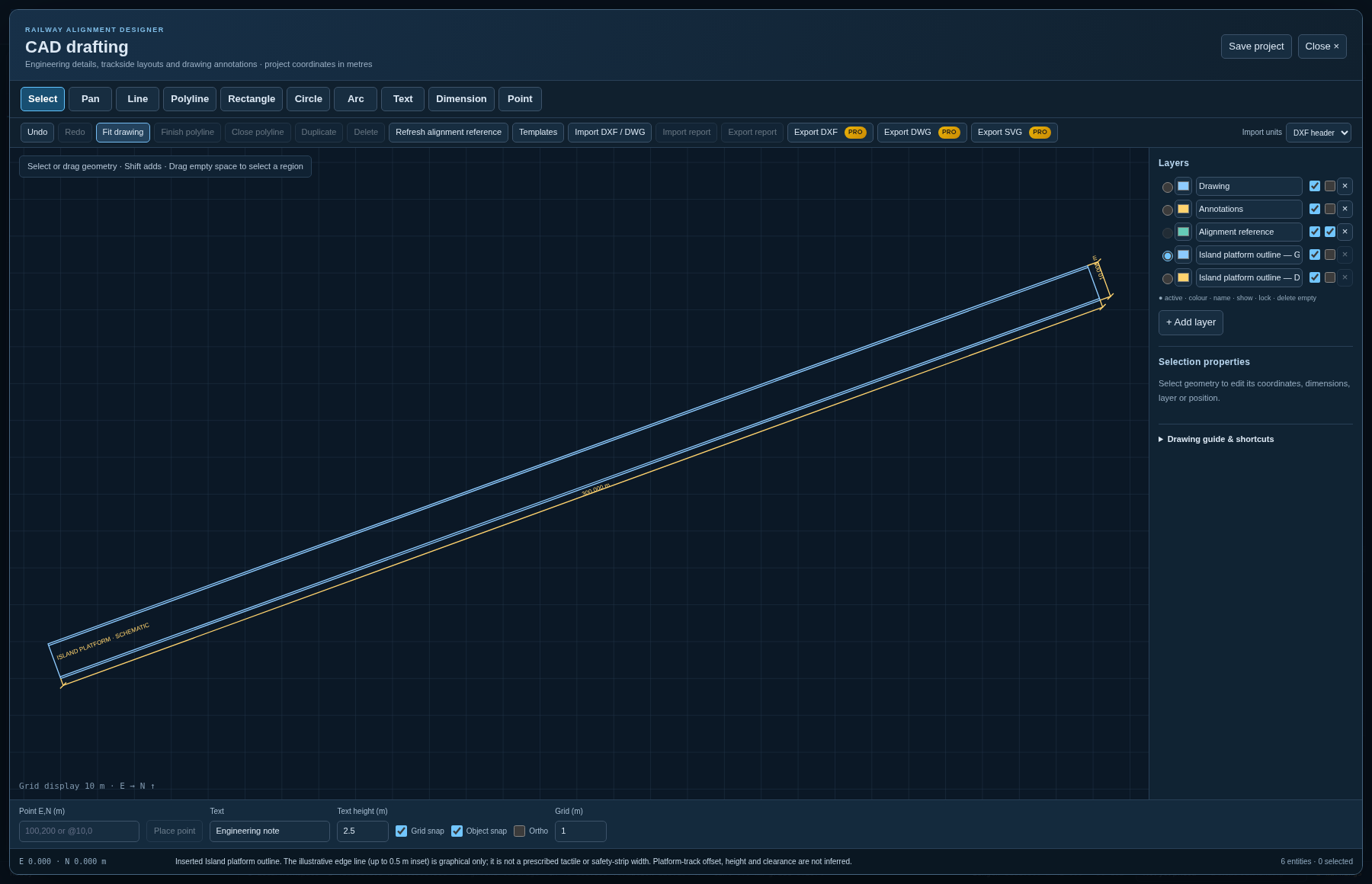
Inspect the inserted platform, its layers and the two checked dimensions.
Trainer notes and exercise guidance
Allow 3 minutes. The actual editor shows a 300 m by 10 m island-platform schematic at 20° rotation. Its dedicated geometry and annotation layers remain editable. CAD supports annotations, layout development and exchange; drawing entities do not change the solved railway alignment or its quantities. Save project retains the drawing. Import DXF / DWG is explained in the next lessons.
06 / DELIVERABLES · 15
Insert a reusable railway component
Demonstration data. Earlier captures can have different toolbar positions.
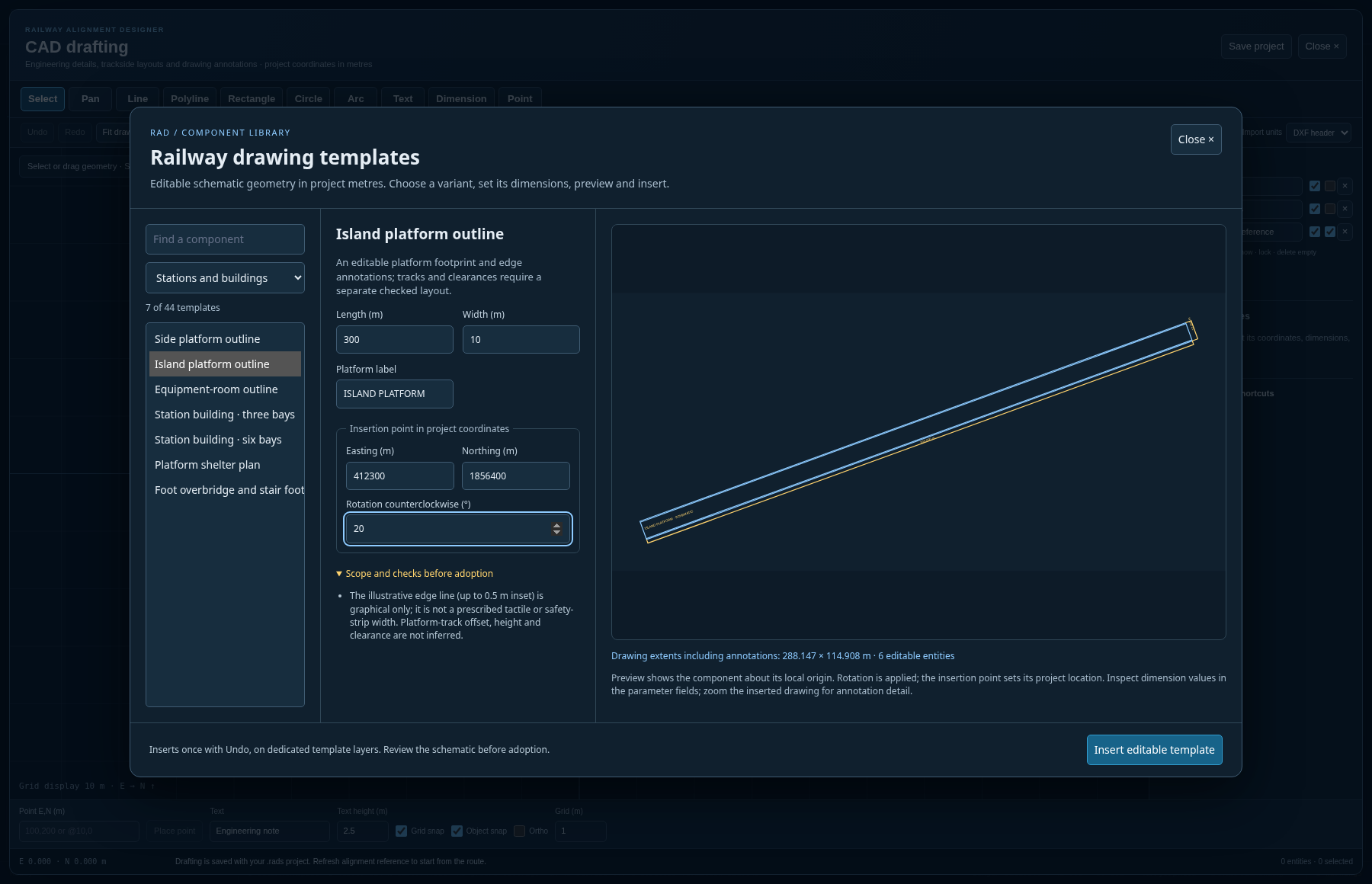
Open Templates and choose among 44 components in eight families.
Edit dimensions, labels, insertion coordinates and rotation.
Preview, insert on dedicated layers, then check one Undo and Redo.
Insert a 300 × 10 m island platform at 20°, then verify its dimensions.
Trainer notes and exercise guidance
Allow 3 minutes. Search by component or filter a family. The preview is regenerated from parameter values and extents include annotations. Geometry is in metres; gauge fields use labelled millimetres and paper frames use an explicit 1:N scale. Each insertion is independent editable geometry, not a linked block or live engineered model. Turnouts are schematic rays, clearance envelopes are user studies, and structural outlines are not capacity calculations. Complete the applicable design before adopting a drawing.
06 / DELIVERABLES · 16
Read the drawing import report
Demonstration data. Earlier captures can have different toolbar positions.
Import DXF / DWG with the correct units and coordinate basis.
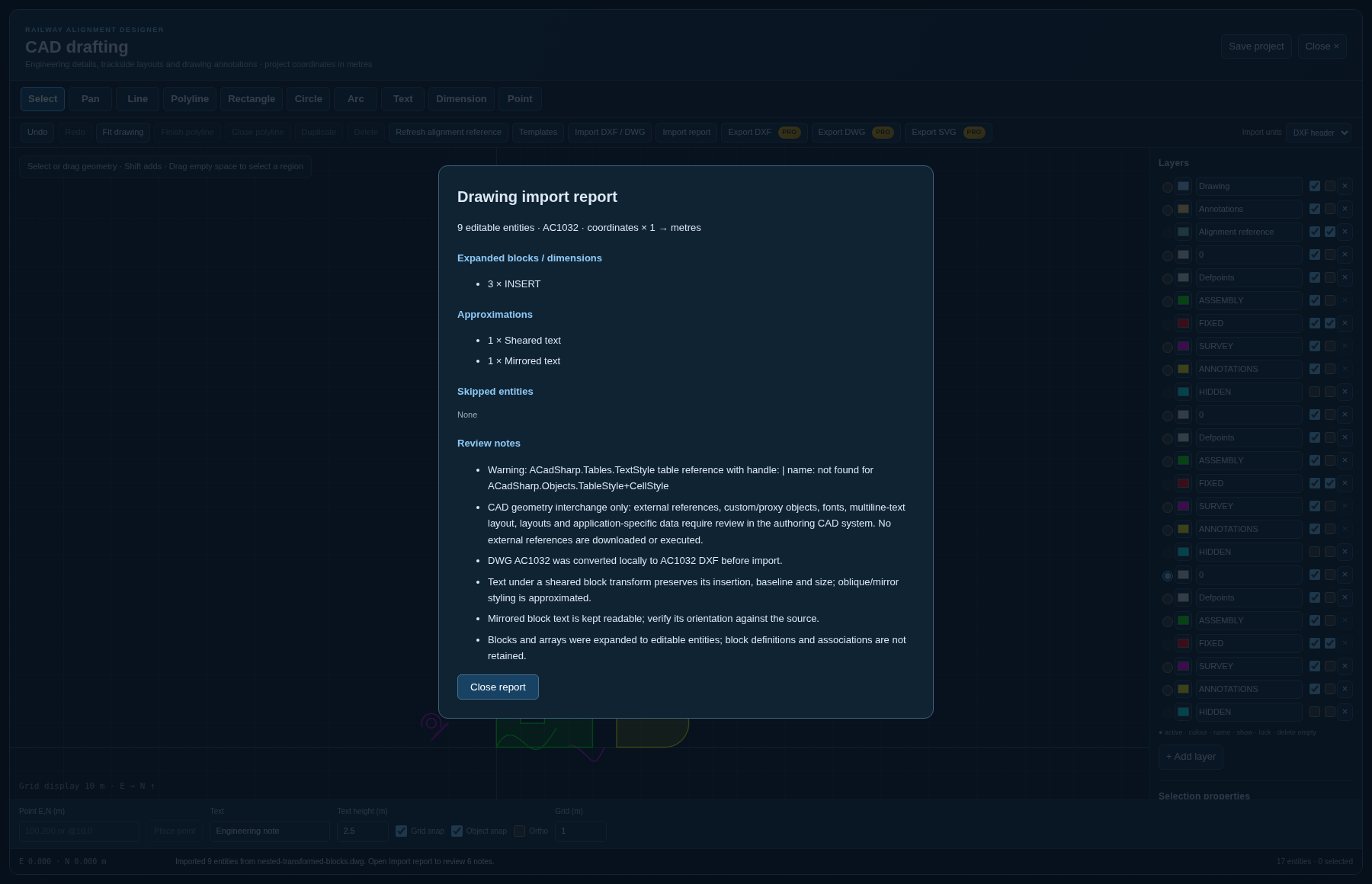
Separate expanded blocks, approximations and skipped entities.
Compare the imported geometry and text with the source drawing.
Explain why “no skipped entities” is not a guarantee of identical drawings.
Trainer notes and exercise guidance
Allow 2 minutes. This actual local DWG import expanded three INSERT references and reported sheared and mirrored text approximations. Conversion occurs in the packaged WebAssembly adapter. Supported planar ellipses, splines and hatch loops can remain editable; nested blocks, arrays, dimension graphics and multiline text are flattened. Block and dimension associations are not retained. Three-dimensional solids, meshes, external references and proxy objects are outside the editing model. Conversion warnings and font/layout differences still require review when no entities are skipped.
06 / DELIVERABLES · 17
Tell the project story in PowerPoint
Demonstration data. Earlier captures can have different toolbar positions.
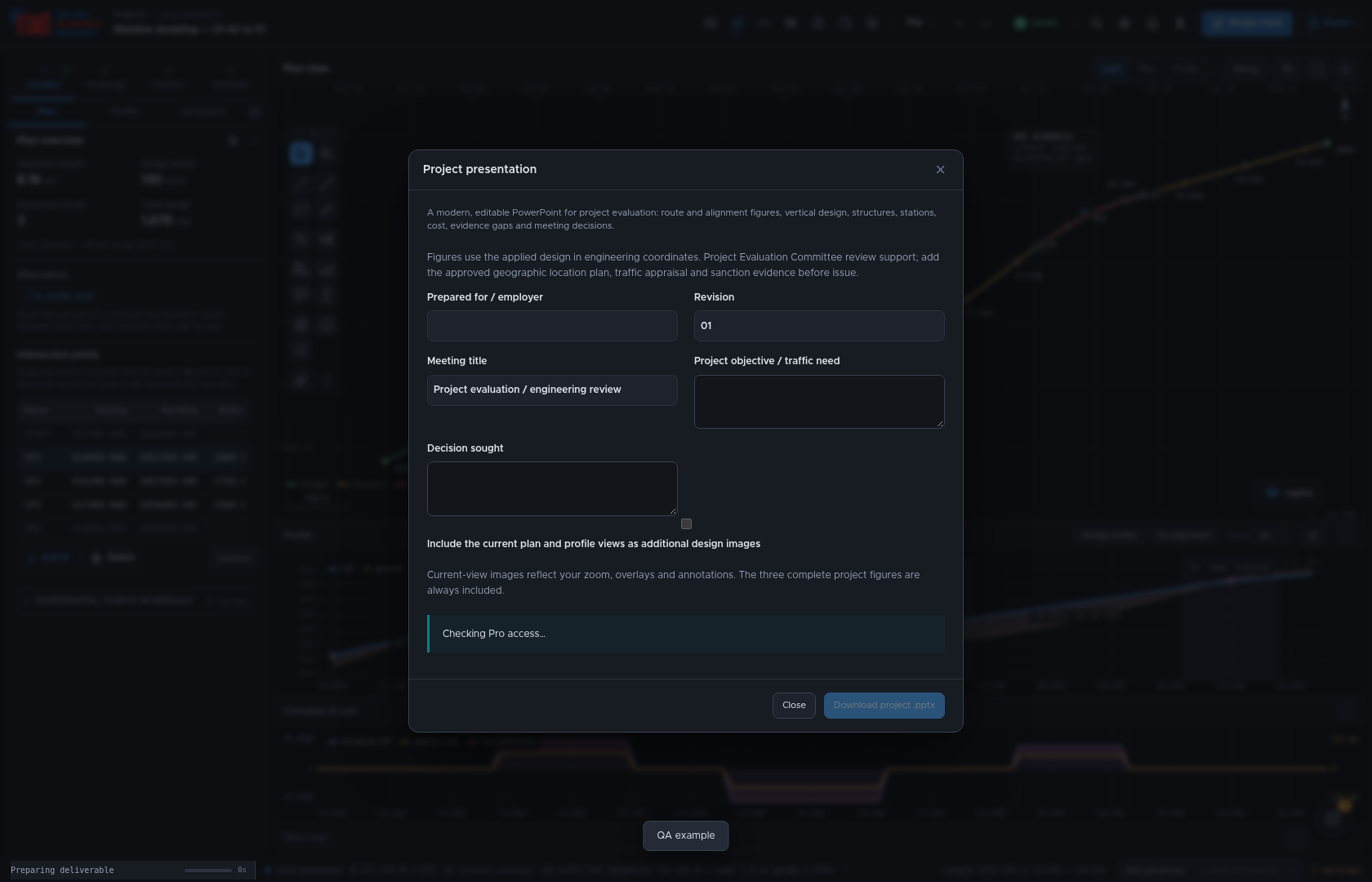
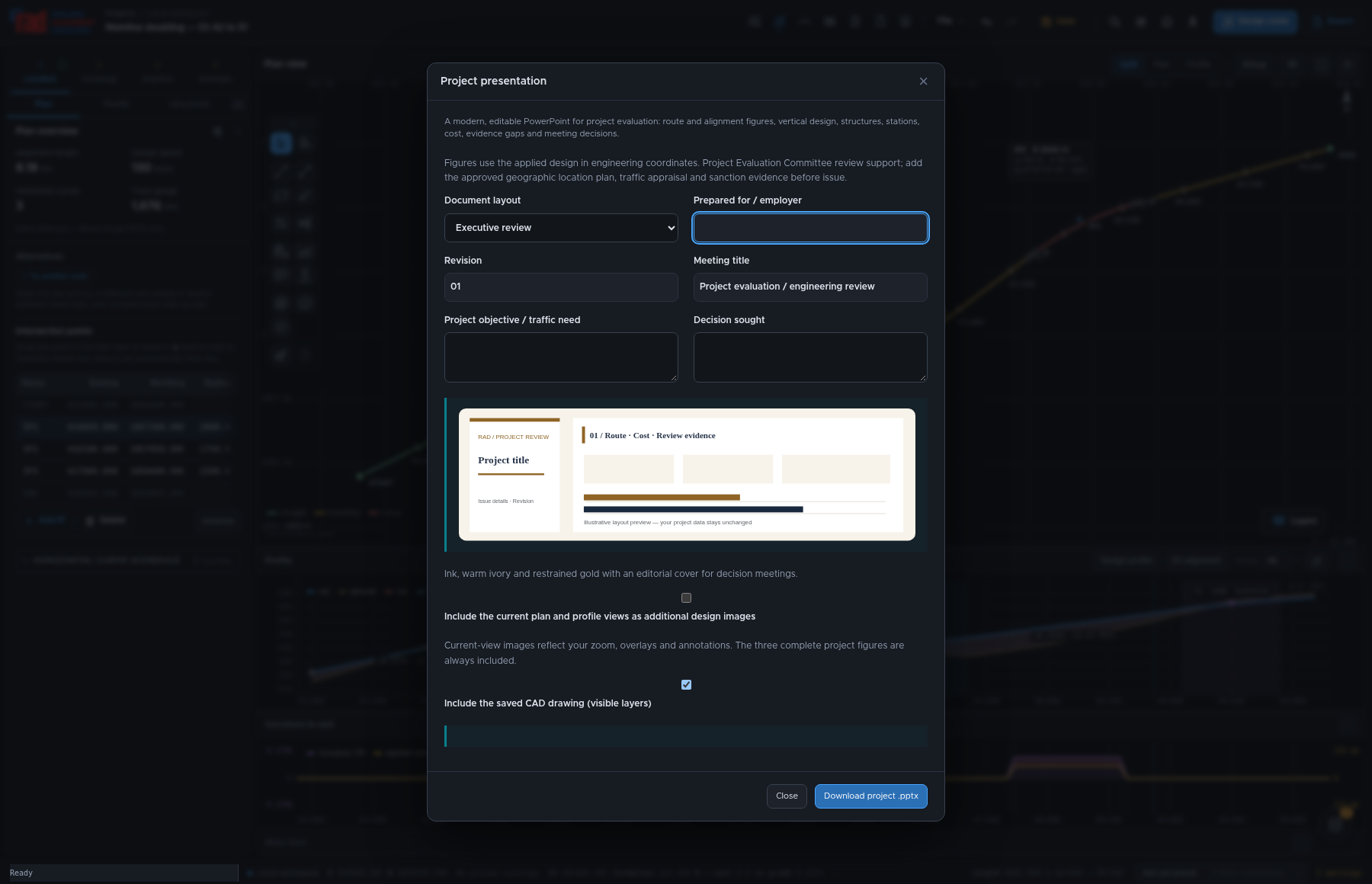
Choose Export → Project presentation; enter the meeting and decision sought.
Review alignment images, profile, design basis, assets and costs.
Close with risks, missing inputs, decisions and actions required.
Prepare a two-minute recommendation and one explicit decision request.
Trainer notes and exercise guidance
Allow 3 minutes. The project deck is a technical review starting point, not a claim of a prescribed Indian Railways PEC template or sanction. Confirm every exported figure matches the adopted alternative and cost basis. Add scheme-specific approvals, financing and economics where they are not in the model.
06 / DELIVERABLES · 18
Choose a coordinated document layout
Demonstration data. Earlier captures can have different toolbar positions.
Choose Document layout and inspect the six named visual treatments.
Use the same family for PPTX, feasibility/DPR, EPC and tender schedules.
Check the exported evidence; layout choices do not change the project data.
Export two layouts and compare one route quantity and one cost figure.
Trainer notes and exercise guidance
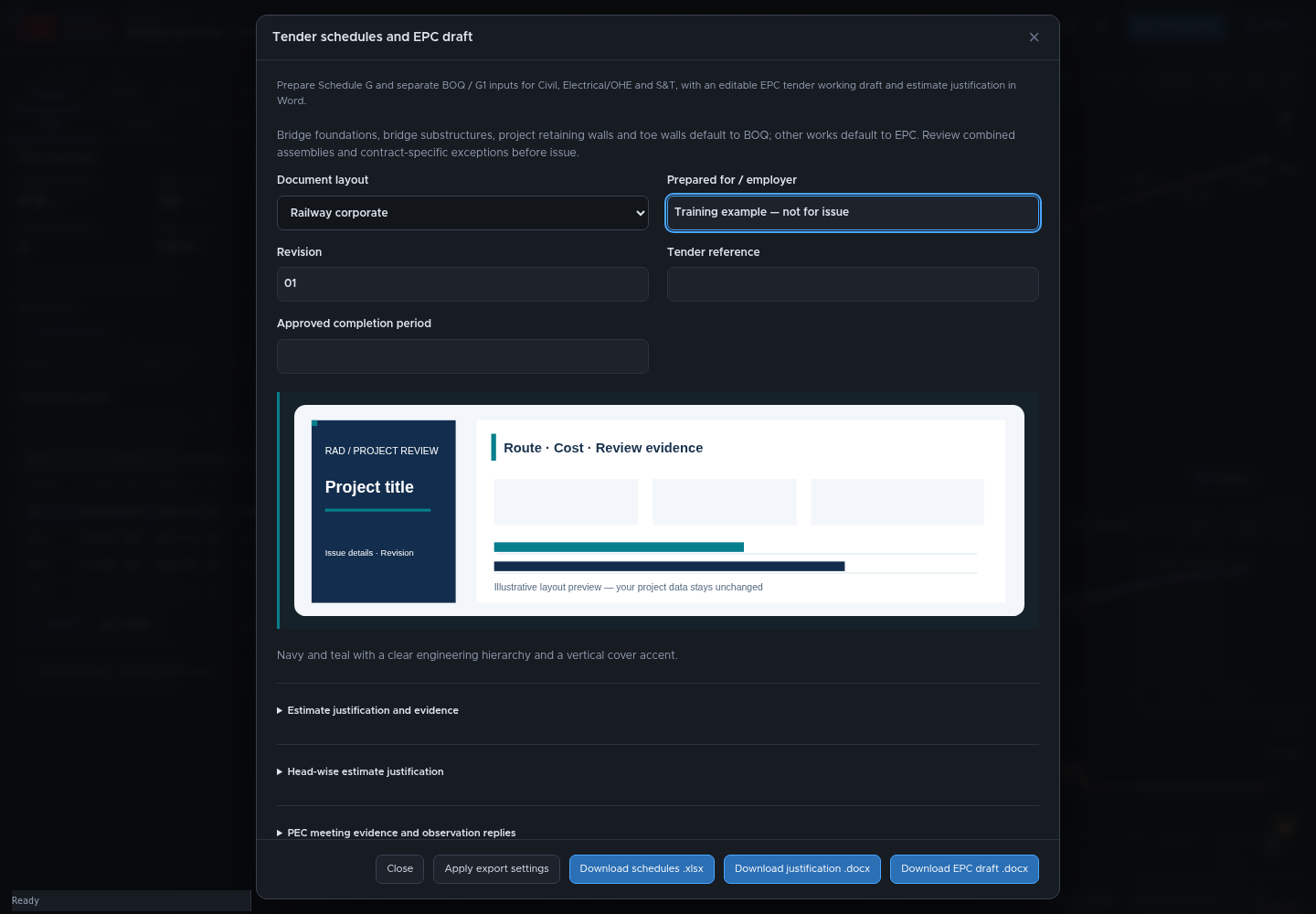
Allow 2 minutes. Railway corporate, Executive review, Infrastructure delivery, Landscape and sustainability, Technical submission, and Print and tender change the applicable covers, headings, tables and infographic treatment. Feasibility and DPR offer Word or PDF in the publication dialog. EPC is Word; tender schedules are Excel with coordinated typography and palette. The selector retains its choice while that dialog remains open, then defaults to Railway corporate next time. It is not a saved project preference. The miniature preview is illustrative and does not contain the project’s quantities. The exports remain review documents requiring the same evidence and completion regardless of layout.
06 / DELIVERABLES · 19
Tender schedules and the EPC draft
Demonstration data. Earlier captures can have different toolbar positions.
Review Schedule G stage allocations and G1 itemised work across all three disciplines.
Download the EPC Word draft and complete the commercial and legal particulars.
List three tender particulars that cannot be inferred from an alignment.
Trainer notes and exercise guidance
Allow 3 minutes. Examples include employer identity, completion period, securities, eligibility, payment terms and adopted contract conditions. An automatically prepared workbook or Word document is an editable draft. The chosen zonal tender and contract documents govern; verify schedule lettering and prescribed formats for the actual invitation.
07 / PRACTICE · 20
Save, reopen and exchange
Demonstration data. Earlier captures can have different toolbar positions.
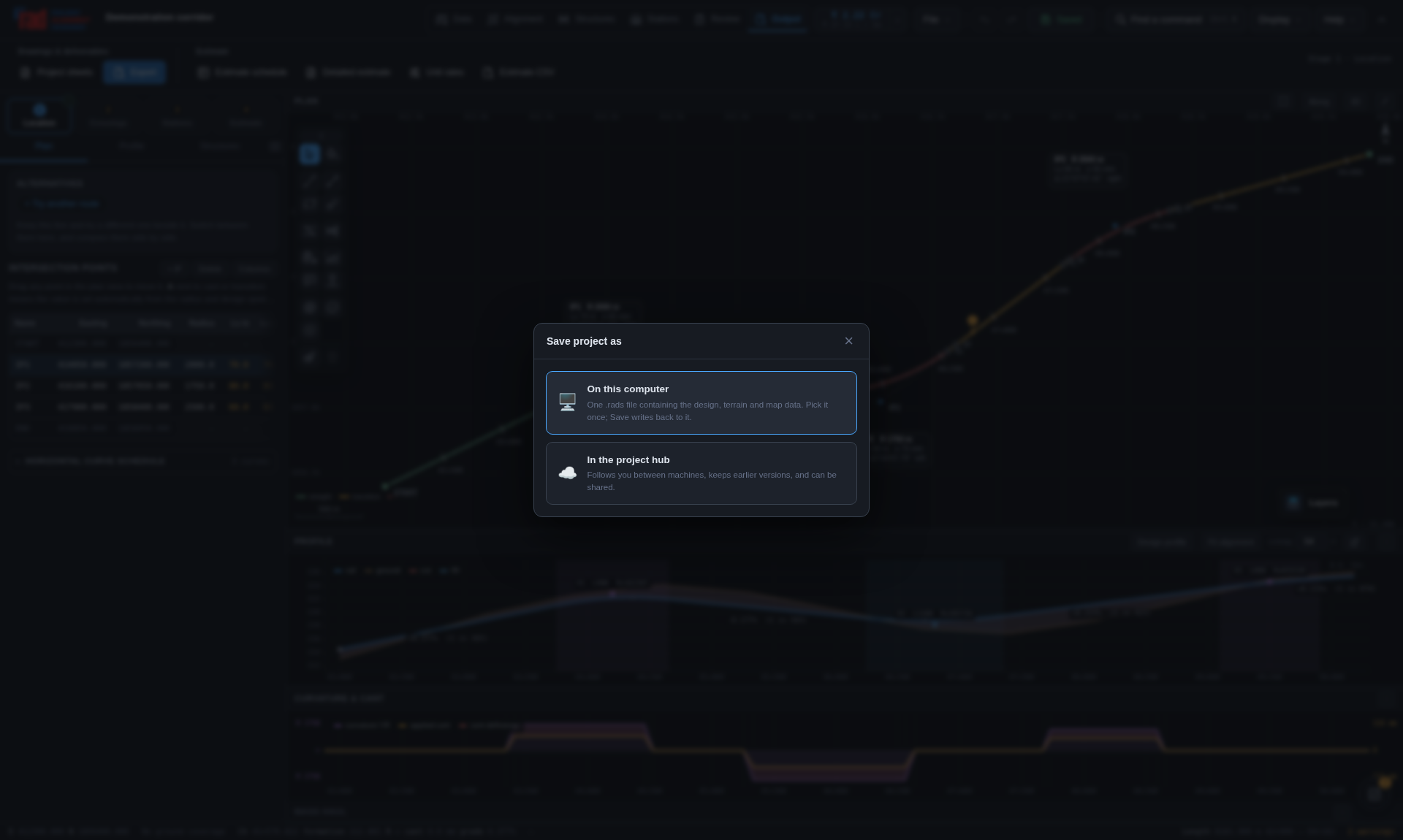
Save a named .rads file or choose the intended cloud destination.
Reopen it and inspect the adopted alternative, drawing and cost snapshot.
Windows installer and Mac app associate .rads with RAD; the portable app does not.
Reopen your saved project before handing it to a reviewer.
Trainer notes and exercise guidance
Allow 2 minutes. Desktop file icons come from the installed operating-system association; a project file cannot force a custom icon on an unconfigured machine. Mac and Windows keyboard shortcuts differ. A file export is distinct from a cloud save. Keep a dated backup before material revisions.
07 / PRACTICE · 21
Guided exercise: a review package
Demonstration data. Earlier captures can have different toolbar positions.
Choose a sample, retain two alternatives and describe the preferred route.
Resolve or explain a finding; review one bridge and one cost component.
Save the project, export the presentation and tender drafts, then reopen.
Allow 5 to 10 minutes as a separate exercise after the teaching module if required. Use demonstration data and label all outputs training. Assessment: can another engineer trace the route, quantities, assumptions and missing approvals? Review shared outputs before describing them as ready for an employer.
08 / CHECK · 22
Knowledge check
Does a clear compliance report certify an approved scheme?
Will a saved detailed bill always change after alignment edits?
Can an EPC draft determine the employer’s missing contract conditions?
Answer all three, and explain what review remains necessary.
Trainer notes and exercise guidance
Allow 2 minutes. Answers: no, no, no. A compliance report applies the configured rules and cannot replace scheme approval. A saved bill may be a fixed snapshot and needs deliberate revision. Employer and tender-specific conditions require authorised completion and review. Discuss a useful next check for each case.
08 / CHECK · 23
A practical handover checklist
Demonstration data. Earlier captures can have different toolbar positions.
Project basis and coordinates confirmed; adopted route clearly named.
Findings, missing inputs, quantity sources and approval owners visible.
Saved file reopens; exported figures, costs and scope match the review.
Continue: the live manual has figures, notations and Print / save as PDF.
Trainer notes and exercise guidance
Allow 1 minute. The manual page is the maintained source. PDF is generated from that page at print time; retain the edition and date with a review package. Use the trainer notes and exercise as a repeatable onboarding session. Ask each learner to name one issue they will verify on their next project.